Add page numbers to a PDF in C# (Page X of Y)
Turn on the converter's footer, add a PdfTextSection, and put {page_number} and {total_pages} in its text. The same placeholders work in headers and in templates added to a PDF you already have.
Compiled and run: Linux ARM64 · Linux x64 · macOS ARM64 · Windows x64
Build it step by step.
-
1Install the NuGet packages
SelectPdf.Universalis the library. The native package carries the Chromium engine for one platform: add the one for the platform you run on.dotnet add package SelectPdf.Universal dotnet add package SelectPdf.Universal.Native.win-x64
dotnet add package SelectPdf.Universal
dotnet add package SelectPdf.Universal.Native.linux-x64
dotnet add package SelectPdf.Universal
dotnet add package SelectPdf.Universal.Native.linux-arm64
dotnet add package SelectPdf.Universal
dotnet add package SelectPdf.Universal.Native.osx-arm64
-
2Create a console app
Any .NET 8 or .NET 10 project works. To follow along, create a console app, run the install commands above inside its folder, then replace
Program.cswith the code below.dotnet new console -n PdfSample cd PdfSample
-
3Turn on the footer
HtmlToPdf converter = new HtmlToPdf();

// footer with "Page X of Y", right-aligned
converter.Options.DisplayFooter = true;
converter.Footer.Height = 40;
Options.DisplayFooterenables the footer on every page, andFooter.Heightreserves 40 points at the bottom of each page for it. -
4Add the page-number text
PdfTextSection pageNumbers = new PdfTextSection(0, 10, "Page {page_number} of {total_pages} ", PdfFont.CreateFromSystemFont("Liberation Sans", 9f)); pageNumbers.HorizontalAlign = PdfTextHorizontalAlign.Right; converter.Footer.Add(pageNumbers);PdfTextSectionplaces text inside the footer at x = 0, y = 10.{page_number}and{total_pages}are replaced on each page.PdfFont.CreateFromSystemFont("Liberation Sans", 9f)uses a font bundled with the library, so the footer renders identically on every platform.HorizontalAlign = Rightpushes it to the right edge;Footer.Addattaches it. -
5Convert content long enough to span pages
// enough content for three pages
string rows = string.Concat(Enumerable.Range(1, 120).Select(i => $"<p>Line item {i}</p>"));
PdfDocument doc = converter.ConvertHtmlString($"<h1>Report</h1>{rows}");
doc.Save("report.pdf");
doc.Close();
120 line items fill several pages, so you can see the numbering change.
ConvertHtmlStringrenders it, and the footer is applied to every page ofreport.pdf. -
6Run it
dotnet run
The program writes
report.pdfto the working folder. Without a license key, every page carries a trial watermark; setGlobalProperties.LicenseKeybefore the first conversion to remove it.
The complete Program.cs.
This is the exact file our samples pipeline compiled and ran on Linux ARM64 and Linux x64 and macOS ARM64 and Windows x64 to produce the output on this page.
using SelectPdf.Universal;

HtmlToPdf converter = new HtmlToPdf();

// footer with "Page X of Y", right-aligned
converter.Options.DisplayFooter = true;
converter.Footer.Height = 40;

PdfTextSection pageNumbers = new PdfTextSection(0, 10,
    "Page {page_number} of {total_pages}  ",
    PdfFont.CreateFromSystemFont("Liberation Sans", 9f));
pageNumbers.HorizontalAlign = PdfTextHorizontalAlign.Right;
converter.Footer.Add(pageNumbers);

// enough content for three pages
string rows = string.Concat(Enumerable.Range(1, 120).Select(i => $"<p>Line item {i}</p>"));
PdfDocument doc = converter.ConvertHtmlString($"<h1>Report</h1>{rows}");
doc.Save("report.pdf");
doc.Close();
Open the project on GitHub → this program and the variations below, ready to dotnet run
The PDF it produces.
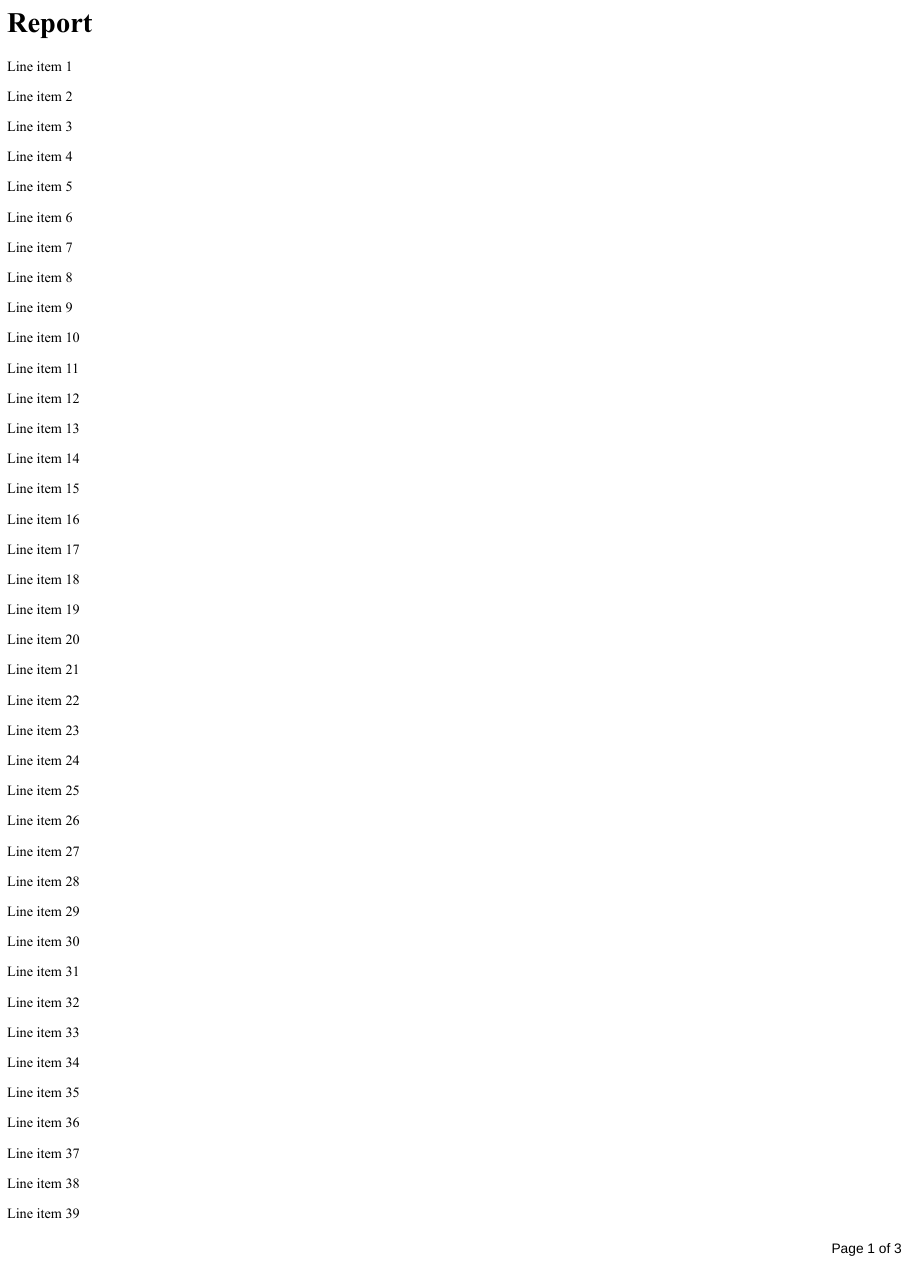
Download report.pdf ↓ the file this sample produced, unedited
Variations you will need next.
Each variation is a separate file in the same project, compiled and run with the program above.
Skip the header and footer on a cover page
DisplayOnFirstPage = false hides the header or footer on page 1. The cover still counts, so the second page reads "Page 2 of N". The header here is a PdfHtmlSection: any HTML and CSS, rendered by the same Chromium engine as the page. DisplayOnOddPages and DisplayOnEvenPages work the same way for book-style layouts.
using SelectPdf.Universal;

static class SkipCoverPage
{
    public static void Run()
    {
        HtmlToPdf converter = new HtmlToPdf();

        // HTML header on every page except the cover
        converter.Options.DisplayHeader = true;
        converter.Header.Height = 30;
        converter.Header.DisplayOnFirstPage = false;
        converter.Header.Add(new PdfHtmlSection(
            "<div style='font: 10px sans-serif; color: #555; padding-top: 10px'>Quarterly report</div>", ""));

        // footer: page number on every page except the cover, which still counts as page 1
        converter.Options.DisplayFooter = true;
        converter.Footer.Height = 40;
        converter.Footer.DisplayOnFirstPage = false;
        PdfTextSection pageNumbers = new PdfTextSection(0, 10,
            "Page {page_number} of {total_pages}  ",
            PdfFont.CreateFromSystemFont("Liberation Sans", 9f));
        pageNumbers.HorizontalAlign = PdfTextHorizontalAlign.Right;
        converter.Footer.Add(pageNumbers);

        string rows = string.Concat(Enumerable.Range(1, 120).Select(i => $"<p>Line item {i}</p>"));
        string html = $"<h1 style='page-break-after: always'>Quarterly report</h1>{rows}";

        PdfDocument doc = converter.ConvertHtmlString(html);
        doc.Save("report-with-cover.pdf");
        doc.Close();
    }
}
Add page numbers to an existing PDF
For a PDF you did not generate, PdfResizeManager shrinks the content to free 40 points at the bottom of every page, and a template placed in that strip repeats on each page. {page_number} and {total_pages} work in a PdfTextElement inside a template too.
using SelectPdf.Universal;
using SelectPdf.Universal.Drawing;

static class NumberExistingPdf
{
    public static void Run()
    {
        // an existing PDF without page numbers (made here so the sample runs on its own)
        HtmlToPdf converter = new HtmlToPdf();
        string rows = string.Concat(Enumerable.Range(1, 120).Select(i => $"<p>Line item {i}</p>"));
        PdfDocument source = converter.ConvertHtmlString($"<h1>Report</h1>{rows}");
        source.Save("unnumbered.pdf");
        source.Close();

        // shrink the content to free 40 points at the bottom of every page
        PdfResizeManager resizer = new PdfResizeManager();
        resizer.Load("unnumbered.pdf");
        resizer.PageMargins = new PdfMargins(0, 0, 0, 40);
        PdfDocument doc = resizer.GetDocument();

        // a template docked in that space repeats on every page
        float width = doc.Pages[0].ClientRectangle.Width;
        float height = doc.Pages[0].ClientRectangle.Height;
        PdfTemplate footer = doc.Templates.Add(new RectangleF(0, height - 40, width, 40));

        PdfFont font = doc.Fonts.Add(PdfStandardFont.Helvetica);
        font.Size = 9;
        footer.Add(new PdfTextElement(width - 90, 14, "Page {page_number} of {total_pages}", font));

        doc.Save("numbered.pdf");
        resizer.Close();
    }
}
Common problems and fixes.
The page number overlaps the content
Footer.Height is the space reserved at the bottom of every page. Make it taller than the text you place in it, and keep the section's y offset plus its font size inside that height.
The numbering should continue from another document
Footer.FirstPageNumber sets the number of the first page, and Footer.TotalPagesOffset adds to {total_pages}. Use them when the PDF will be merged after other pages.
The footer does not appear
Adding sections to converter.Footer is not enough: converter.Options.DisplayFooter must be true too. Headers work the same way with Options.DisplayHeader.
Good to know.
- The {page_number} placeholder shows the page number and {total_pages} the total number of pages. Source
- Headers and footers can also hold HTML (PdfHtmlSection) and images (PdfImageSection). Source
- To add a footer to an existing PDF, PdfResizeManager first makes room on each page, then a template holds the footer. Source
Questions, answered.
Short answers about this guide. The SelectPdf.Universal documentation covers every class and option.