Sanitize a PDF from an untrusted source in C#
PdfSanitizeManager scans a PDF that comes from an untrusted source, such as an upload or an e-mail attachment, and reports its scripts, actions, embedded files and other active content. Sanitize removes them and writes the file again, while the pages look the same.
Compiled and run: Linux x64 · Windows x64
Build it step by step.
-
1Install the NuGet packages
SelectPdf.Universalis the library. The native package carries the Chromium engine for one platform: add the one for the platform you run on.dotnet add package SelectPdf.Universal dotnet add package SelectPdf.Universal.Native.win-x64
dotnet add package SelectPdf.Universal
dotnet add package SelectPdf.Universal.Native.linux-x64
dotnet add package SelectPdf.Universal
dotnet add package SelectPdf.Universal.Native.linux-arm64
dotnet add package SelectPdf.Universal
dotnet add package SelectPdf.Universal.Native.osx-arm64
-
2Create a console app
Any .NET 8 or .NET 10 project works. To follow along, create a console app, run the install commands above inside its folder, then replace
Program.cswith the code below.dotnet new console -n PdfSample cd PdfSample
-
3Load the untrusted document
PdfSanitizeManager sanitizer = new PdfSanitizeManager(); sanitizer.Load("untrusted.pdf");PdfSanitizeManagerworks on an existing PDF.Loadtakes a file, a stream, a byte array or aPdfDocument, with a password overload for each.untrusted.pdfis an invoice with a script that runs when it opens, an attached file and a web link. -
4Scan it and print what it holds
// scan: report what the document holds, change nothing PdfSanitizeReport found = sanitizer.Scan(); Console.WriteLine($"Active content: {found.HasActiveContent}"); foreach (PdfSanitizeFinding finding in found.Findings) Console.WriteLine(finding);Scanreports what the document holds and changes nothing.HasActiveContentsays whether anything runs, launches, submits, embeds or plays. EachPdfSanitizeFindingprints its kind, its page and what it is, such asJavaScript: /OpenAction JavaScript. -
5Remove the active content
// remove scripts, actions, embedded files, multimedia, XFA, hidden layers and private data sanitizer.Options = PdfSanitizeOptions.Default; PdfSanitizeReport removed = sanitizer.Sanitize(); Console.WriteLine($"Removed {removed.Findings.Count} items");Optionssays what is removed.PdfSanitizeOptions.Default, which is also its default value, removes JavaScript, actions that leave or change the document, embedded files, multimedia, the XFA form, hidden layers and private data. Links within the document are kept, and so are web links and metadata unless you add them.Sanitizereturns a report of what was removed: here, the two JavaScript entries and the attached file. -
6Save and close
sanitizer.Save("sanitized.pdf"); sanitizer.Close();Savewritessanitized.pdf. The document is written whole, so earlier revisions kept in the file are gone too, while the text stays searchable and the pages look the same.Closereleases the document. -
7Run it
dotnet run
The program writes
sanitized.pdfto the working folder. Without a license key, every page carries a trial watermark; setGlobalProperties.LicenseKeybefore the first conversion to remove it.
The complete Program.cs.
This is the exact file our samples pipeline compiled and ran on Linux x64 and Windows x64 to produce the output on this page.
using SelectPdf.Universal;

PdfSanitizeManager sanitizer = new PdfSanitizeManager();
sanitizer.Load("untrusted.pdf");

// scan: report what the document holds, change nothing
PdfSanitizeReport found = sanitizer.Scan();
Console.WriteLine($"Active content: {found.HasActiveContent}");
foreach (PdfSanitizeFinding finding in found.Findings)
    Console.WriteLine(finding);

// remove scripts, actions, embedded files, multimedia, XFA, hidden layers and private data
sanitizer.Options = PdfSanitizeOptions.Default;
PdfSanitizeReport removed = sanitizer.Sanitize();
Console.WriteLine($"Removed {removed.Findings.Count} items");

sanitizer.Save("sanitized.pdf");
sanitizer.Close();
Open the project on GitHub → this program and the variations below, ready to dotnet run
The PDF it produces.
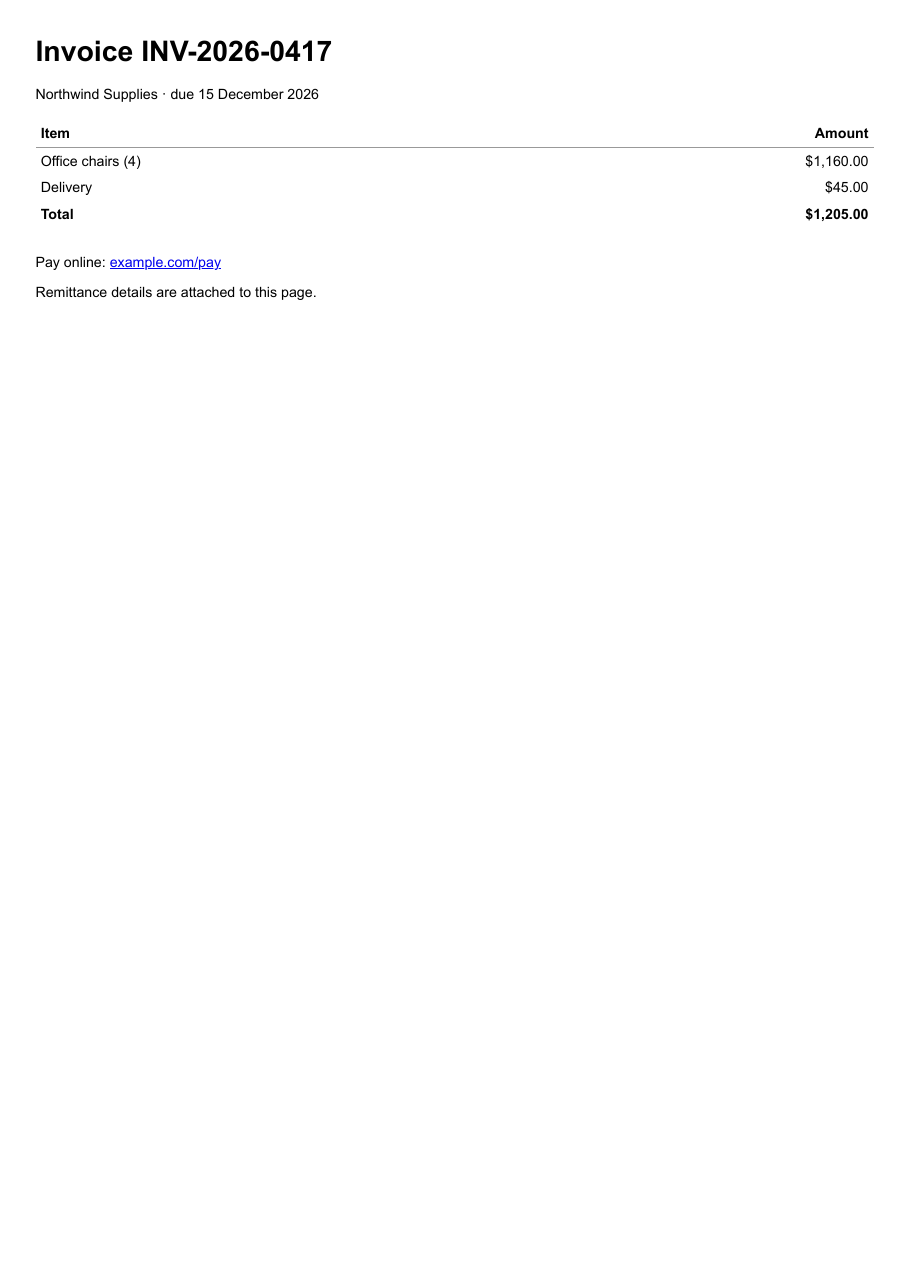
Download sanitized.pdf ↓ the file this sample produced, unedited
Variations you will need next.
Each variation is a separate file in the same project, compiled and run with the program above.
Refuse an upload instead of cleaning it
A server can refuse a file instead of cleaning it. Load takes the upload as a byte array, Scan changes nothing, and HasActiveContent is true when the document has JavaScript, actions, embedded files, multimedia or XFA. Count with one or more PdfSanitizeOptions members counts the findings of those kinds, for the message you send back. Web links and metadata are not active content, so price-list.pdf is accepted.
using SelectPdf.Universal;

static class RefuseActiveContent
{
    public static void Run()
    {
        foreach (string upload in new[] { "untrusted.pdf", "price-list.pdf" })
        {
            // an upload arrives as bytes; Scan only reads it
            using PdfSanitizeManager sanitizer = new PdfSanitizeManager();
            sanitizer.Load(File.ReadAllBytes(upload));
            PdfSanitizeReport found = sanitizer.Scan();

            if (found.HasActiveContent)
            {
                int scripts = found.Count(PdfSanitizeOptions.JavaScript);
                int files = found.Count(PdfSanitizeOptions.EmbeddedFiles);
                Console.WriteLine($"{upload}: refused (JavaScript: {scripts}, embedded files: {files})");
                continue;
            }

            Console.WriteLine($"{upload}: accepted");
            File.Copy(upload, "accepted-" + upload, overwrite: true);
        }
    }
}
Rasterize: keep only the look of the pages
Rasterize = true renders each page as an image and builds a new document from the images, so nothing of the original is kept, its text included. Resolution sets the dpi (36 to 600, 150 by default), and Options does not apply in this mode. Rendering the pages needs the same native package as PdfRasterizer.
using SelectPdf.Universal;

static class RasterizePages
{
    public static void Run()
    {
        using PdfSanitizeManager sanitizer = new PdfSanitizeManager();
        sanitizer.Load("untrusted.pdf");

        // every page becomes an image of itself: nothing of the original is kept, its text included
        sanitizer.Rasterize = true;
        sanitizer.Resolution = 200;

        PdfSanitizeReport removed = sanitizer.Sanitize();
        Console.WriteLine($"Removed {removed.Findings.Count} items");
        sanitizer.Save("rasterized.pdf");
    }
}
Also remove web links and metadata
PdfSanitizeOptions.Default keeps web links, invisible text, metadata and form fields. Adding ExternalLinks and Metadata removes the web links and the document information and XMP metadata too (a PDF/A or PDF/UA identification is kept); InvisibleText and FlattenFormFields are added the same way, and PdfSanitizeOptions.All removes everything. Save() without a file name returns the sanitized document as bytes.
using SelectPdf.Universal;

static class StrictOptions
{
    public static void Run()
    {
        using PdfSanitizeManager sanitizer = new PdfSanitizeManager();
        sanitizer.Load("untrusted.pdf");

        // the default set, plus web links and the document information and XMP metadata
        sanitizer.Options = PdfSanitizeOptions.Default
            | PdfSanitizeOptions.ExternalLinks
            | PdfSanitizeOptions.Metadata;

        PdfSanitizeReport removed = sanitizer.Sanitize();
        foreach (PdfSanitizeFinding finding in removed.Findings)
            Console.WriteLine($"Removed {finding}");

        // the sanitized document as bytes, ready to store or return
        byte[] pdf = sanitizer.Save();
        File.WriteAllBytes("sanitized-strict.pdf", pdf);
    }
}
Common problems and fixes.
A signature is gone after sanitizing
No signature survives a rewrite, so sanitizing always removes the document's signatures, in both modes. PdfSanitizeReport.Signatures names the signed fields: check it after Scan if signed documents need different handling, and verify a signature before you sanitize the file.
Web links or metadata are still in the output
PdfSanitizeOptions.Default keeps web links, invisible text, metadata and form fields. Add ExternalLinks, InvisibleText, Metadata or FlattenFormFields to Options, or use PdfSanitizeOptions.All to remove everything.
The upload is password protected
Use a Load overload that takes the password, such as Load(fileName, password). Cleaned, an encrypted document stays encrypted with the same passwords and permissions; rasterized, it is not encrypted.
Rasterize fails or the text is gone
Rasterize renders each page as an image, like PdfRasterizer, so it needs the same native package, SelectPdf.Universal.Native.<platform>. The result has no text, links or tags by design; use the default Clean mode when the text must stay searchable.
Good to know.
- PdfSanitizeManager can sanitize a PDF document from an untrusted source, such as an upload or an e-mail attachment, or only scan it and report what it holds, so a server can refuse a file instead of cleaning it. Source
- PdfSanitizeOptions.Default removes JavaScript, actions that leave or change the document, embedded files, multimedia, the XFA form, hidden layers and private data; links within the document are kept. Source
- Web links, invisible text, metadata and form fields are kept by default and removed when added to the options; PdfSanitizeOptions.All removes everything. Source
- Clean mode keeps searchable text, vector graphics, fonts, internal links, bookmarks and the tags of an accessible document; Rasterize keeps only the look of the pages, rendered at 150 dpi by default. Source
- In both modes the document is written whole, so earlier revisions kept in the file are gone, and its signatures are removed and reported. Source
- PdfSanitizeManager is new in version 26.6. Source
Questions, answered.
Short answers about this guide. The SelectPdf.Universal documentation covers every class and option.