Generate and download a PDF from Blazor in C#
The PDF is made on the server: a minimal API endpoint converts the HTML with ConvertHtmlStringAsync and returns it with Results.File, and the Blazor page links to it. The link follows what the user types, and each request gets its own converter.
Compiled and run: Linux ARM64 · Linux x64 · macOS ARM64 · Windows x64
Build it step by step.
-
1Install the NuGet packages
SelectPdf.Universalis the library. The native package carries the Chromium engine for one platform: add the one for the platform you run on.dotnet add package SelectPdf.Universal dotnet add package SelectPdf.Universal.Native.win-x64
dotnet add package SelectPdf.Universal
dotnet add package SelectPdf.Universal.Native.linux-x64
dotnet add package SelectPdf.Universal
dotnet add package SelectPdf.Universal.Native.linux-arm64
dotnet add package SelectPdf.Universal
dotnet add package SelectPdf.Universal.Native.osx-arm64
-
2Create a web app
Any .NET 8 or .NET 10 project works. To follow along, create an empty ASP.NET Core app, run the install commands above inside its folder, then replace
Program.cswith the code below.dotnet new web -n PdfSample cd PdfSample
-
3Add Blazor with interactive server rendering
using System.Net;
using PdfSample;   // App.razor
using SelectPdf.Universal;

var builder = WebApplication.CreateBuilder(args);
builder.Services.AddRazorComponents().AddInteractiveServerComponents();
var app = builder.Build();

app.UseAntiforgery();
app.MapStaticAssets();
app.MapRazorComponents<App>().AddInteractiveServerRenderMode();
An empty ASP.NET Core app becomes a Blazor Web App with
AddRazorComponents().AddInteractiveServerComponents()andMapRazorComponents<App>().App.razorandHome.razor(below) go next toProgram.cs;@namespace PdfSamplein them matches the project name. -
4Map the PDF endpoint
// GET /report.pdf?customer=... : the Download PDF link on the Blazor page points here
app.MapGet("/report.pdf", async (string? customer, CancellationToken cancel) =>
{
    string name = WebUtility.HtmlEncode(customer ?? "Guest");
    string html = $$"""
        <style>body { font-family: sans-serif; margin: 40px; }</style>
        <h1>Monthly report</h1>
        <p>Prepared for <b>{{name}}</b> on {{DateTime.UtcNow:yyyy-MM-dd}}.</p>
        <table border="1" cellpadding="6" style="border-collapse:collapse">
          <tr><th>Month</th><th>Orders</th></tr>
          <tr><td>August</td><td>128</td></tr>
          <tr><td>September</td><td>143</td></tr>
        </table>
        """;
GET /report.pdftakes the customer name from the query string. The name comes from the user, soWebUtility.HtmlEncodekeeps it text instead of markup. The raw string is the report: replace it with your own HTML. -
5Create a converter for the request
    HtmlToPdf converter = new HtmlToPdf();          // one converter per request
    converter.Options.PdfPageSize = PdfPageSize.A4;
    converter.Options.DenyLocalFileAccess = true;   // no file:// access from the HTML
One
HtmlToPdfper request: a converter runs one conversion at a time.DenyLocalFileAccessstops the HTML from loading files from the server's disk. -
6Convert without blocking a thread
PdfDocument doc = await converter.ConvertHtmlStringAsync(html, cancel); byte[] pdf = doc.Save(); doc.Close();ConvertHtmlStringAsyncrenders the HTML and returns aPdfDocument; the request'sCancellationTokenstops the conversion when the browser goes away.Save()returns the PDF as bytes. -
7Send it as a download
    return Results.File(pdf, "application/pdf", "report.pdf");
});

app.Run();
Results.Filewith a file name sendsreport.pdfas an attachment. On the page,Home.razorbuilds the link from the input as the user types, and itsdownloadattribute tells the browser to save the file. -
8Run it
dotnet run
The request returns
report.pdf. Without a license key, every page carries a trial watermark; setGlobalProperties.LicenseKeybefore the first conversion to remove it.
The complete Program.cs.
This is the exact file our samples pipeline compiled and ran on Linux ARM64 and Linux x64 and macOS ARM64 and Windows x64 to produce the output on this page.
using System.Net;
using PdfSample;   // App.razor
using SelectPdf.Universal;

var builder = WebApplication.CreateBuilder(args);
builder.Services.AddRazorComponents().AddInteractiveServerComponents();
var app = builder.Build();

app.UseAntiforgery();
app.MapStaticAssets();
app.MapRazorComponents<App>().AddInteractiveServerRenderMode();

// GET /report.pdf?customer=... : the Download PDF link on the Blazor page points here
app.MapGet("/report.pdf", async (string? customer, CancellationToken cancel) =>
{
    string name = WebUtility.HtmlEncode(customer ?? "Guest");
    string html = $$"""
        <style>body { font-family: sans-serif; margin: 40px; }</style>
        <h1>Monthly report</h1>
        <p>Prepared for <b>{{name}}</b> on {{DateTime.UtcNow:yyyy-MM-dd}}.</p>
        <table border="1" cellpadding="6" style="border-collapse:collapse">
          <tr><th>Month</th><th>Orders</th></tr>
          <tr><td>August</td><td>128</td></tr>
          <tr><td>September</td><td>143</td></tr>
        </table>
        """;

    HtmlToPdf converter = new HtmlToPdf();          // one converter per request
    converter.Options.PdfPageSize = PdfPageSize.A4;
    converter.Options.DenyLocalFileAccess = true;   // no file:// access from the HTML

    PdfDocument doc = await converter.ConvertHtmlStringAsync(html, cancel);
    byte[] pdf = doc.Save();
    doc.Close();

    return Results.File(pdf, "application/pdf", "report.pdf");
});

app.Run();
Open the project on GitHub → this program and the variations below, ready to dotnet run
Supporting files.
Home.razor
The page, with interactive server rendering: the link to /report.pdf changes with the customer name.
@page "/"
@namespace PdfSample
@using Microsoft.AspNetCore.Components.Web
@rendermode RenderMode.InteractiveServer

<h1>Monthly report</h1>

<label>
    Customer
    <input @bind="customer" @bind:event="oninput" />
</label>

<a href="@PdfUrl" download>Download PDF</a>

@code {
    string customer = "Contoso Ltd";

    // the link follows the input as the user types; the endpoint in Program.cs makes the PDF
    string PdfUrl => $"report.pdf?customer={Uri.EscapeDataString(customer)}";
}
App.razor
The root component: the HTML shell, the router and the Blazor script.
@namespace PdfSample
@using Microsoft.AspNetCore.Components.Routing
@using Microsoft.AspNetCore.Components.Web

<!DOCTYPE html>
<html lang="en">
<head>
    <meta charset="utf-8" />
    <base href="/" />
    <title>Blazor PDF download</title>
    <HeadOutlet />
</head>
<body>
    <Router AppAssembly="typeof(App).Assembly">
        <Found Context="route">
            <RouteView RouteData="route" />
        </Found>
    </Router>
    <script src="@Assets["_framework/blazor.web.js"]"></script>
</body>
</html>
Report.razor
The report template the first variation renders: HTML and CSS with Razor parameters.
@namespace PdfSample
<html>
<head>
    <style>
        body { font-family: sans-serif; margin: 40px; }
        table { width: 100%; border-collapse: collapse; }
        td, th { border-bottom: 1px solid #ddd; padding: 8px; text-align: left; }
    </style>
</head>
<body>
    <h1>Monthly report</h1>
    <p>Prepared for @Customer</p>
    <table>
        <tr><th>Month</th><th>Orders</th></tr>
        @foreach (var row in Rows)
        {
            <tr><td>@row.Month</td><td>@row.Orders</td></tr>
        }
    </table>
</body>
</html>

@code {
    [Parameter] public string Customer { get; set; } = "";
    [Parameter] public List<ReportRow> Rows { get; set; } = [];

    public record ReportRow(string Month, int Orders);
}
DownloadButton.razor
The button of the second variation. Place it on an interactive page, for example <DownloadButton Customer="@customer" /> in Home.razor.
@namespace PdfSample
@using Microsoft.AspNetCore.Components.Web
@using Microsoft.JSInterop
@inject IJSRuntime JS

<button @onclick="DownloadAsync" disabled="@busy">
    @(busy ? "Generating..." : "Download PDF")
</button>

@code {
    [Parameter] public string Customer { get; set; } = "Contoso Ltd";
    bool busy;

    async Task DownloadAsync()
    {
        busy = true;   // the button re-renders disabled at the first await
        try
        {
            await using Stream pdf = await StreamDownload.CreatePdfAsync(Customer);
            using var streamRef = new DotNetStreamReference(pdf);
            await using IJSObjectReference module =
                await JS.InvokeAsync<IJSObjectReference>("import", "./DownloadButton.razor.js");
            await module.InvokeVoidAsync("downloadFileFromStream", "report.pdf", streamRef);
        }
        finally
        {
            busy = false;
        }
    }
}
DownloadButton.razor.js
The JavaScript module next to the component, which the button imports. It saves the streamed bytes as a file and frees the object URL.
// collocated with DownloadButton.razor; from the Blazor file downloads documentation
export async function downloadFileFromStream(fileName, contentStreamReference) {
  const arrayBuffer = await contentStreamReference.arrayBuffer();
  const blob = new Blob([arrayBuffer], { type: "application/pdf" });
  const url = URL.createObjectURL(blob);
  const anchorElement = document.createElement("a");
  anchorElement.href = url;
  anchorElement.download = fileName ?? "";
  anchorElement.click();
  anchorElement.remove();
  URL.revokeObjectURL(url);
}
The PDF it produces.
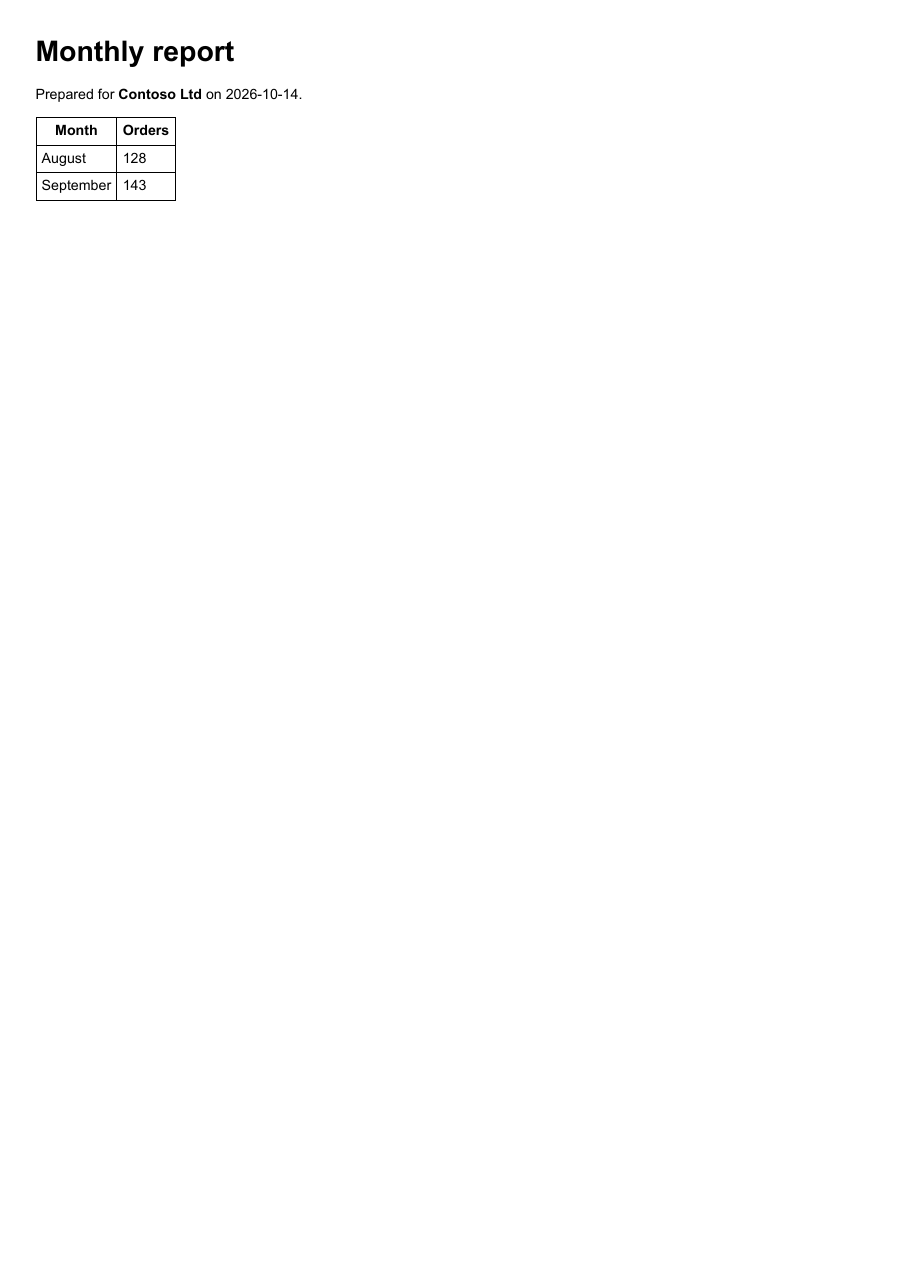
Download report.pdf ↓ the file this sample produced, unedited
Variations you will need next.
Each variation is a separate file in the same project, compiled and run with the program above.
Use a Razor component as the PDF template
Write the report as a Razor component (Report.razor, below) and render it to an HTML string with HtmlRenderer, then convert the string as before. CreatePdfAsync takes the app's services and logger factory, so the endpoint passes its own; Run builds a small service provider to call it outside a web request.
using Microsoft.AspNetCore.Components;
using Microsoft.AspNetCore.Components.Web;
using Microsoft.AspNetCore.Components.Web.HtmlRendering;
using PdfSample;   // Report.razor
using SelectPdf.Universal;

static class ComponentReport
{
    // in Program.cs:
    // app.MapGet("/report.pdf", async (IServiceProvider services, ILoggerFactory logs, string customer) =>
    //     Results.File(await ComponentReport.CreatePdfAsync(services, logs, customer), "application/pdf", "report.pdf"));
    public static async Task<byte[]> CreatePdfAsync(IServiceProvider services, ILoggerFactory logs, string customer)
    {
        // render the Report.razor component to an HTML string
        await using var renderer = new HtmlRenderer(services, logs);
        string html = await renderer.Dispatcher.InvokeAsync(async () =>
        {
            var parameters = ParameterView.FromDictionary(new Dictionary<string, object?>
            {
                ["Customer"] = customer,
                ["Rows"] = new List<Report.ReportRow> { new("August", 128), new("September", 143) },
            });
            HtmlRootComponent output = await renderer.RenderComponentAsync<Report>(parameters);
            return output.ToHtmlString();
        });

        // then convert it like any other HTML string
        HtmlToPdf converter = new HtmlToPdf();
        PdfDocument doc = await converter.ConvertHtmlStringAsync(html);
        byte[] pdf = doc.Save();
        doc.Close();
        return pdf;
    }

    public static async Task Run()
    {
        var services = new ServiceCollection().AddLogging().BuildServiceProvider();
        byte[] pdf = await CreatePdfAsync(services, services.GetRequiredService<ILoggerFactory>(), "Contoso Ltd");
        File.WriteAllBytes("report-component.pdf", pdf);
    }
}
Stream the PDF through JS interop, with the button disabled while it converts
Instead of a link, a button can create the PDF in its click handler and stream it to the browser with DotNetStreamReference, the approach the Blazor file downloads documentation recommends for files under about 250 MB. Save(Stream) writes the PDF into a MemoryStream. DownloadButton.razor (below) sets busy before the first await, so the button shows "Generating..." and stays disabled until the file is sent; DownloadButton.razor.js turns the stream into a file download.
using SelectPdf.Universal;

static class StreamDownload
{
    // DownloadButton.razor calls this and streams the result to the browser
    public static async Task<Stream> CreatePdfAsync(string customer, CancellationToken cancel = default)
    {
        string html = $"<h1>Monthly report</h1><p>Prepared for {System.Net.WebUtility.HtmlEncode(customer)}</p>";

        HtmlToPdf converter = new HtmlToPdf();
        PdfDocument doc = await converter.ConvertHtmlStringAsync(html, cancel);
        var stream = new MemoryStream();
        doc.Save(stream);
        doc.Close();
        stream.Position = 0;
        return stream;
    }

    public static async Task Run()
    {
        await using Stream pdf = await CreatePdfAsync("Contoso Ltd");
        await using FileStream file = File.Create("report-stream.pdf");
        await pdf.CopyToAsync(file);
    }
}
Common problems and fixes.
The page shows but does not react to typing
Interactive rendering needs blazor.web.js, which MapStaticAssets() serves. Run the app with dotnet run while developing and from dotnet publish output in production: the build output started outside the Development environment does not serve it.
The browser opens the PDF instead of saving it
Keep the file name in Results.File: it sends Content-Disposition: attachment. The download attribute on the link asks for the same.
A name with < or & breaks the report
Pass anything a user types through WebUtility.HtmlEncode before placing it in the HTML. When whole pages come from users, also follow the security recommendations in the documentation.
Large files through JS interop
The streamed download reads the whole file into browser memory. For large PDFs, use the link to the endpoint, which the browser downloads like any other file.
Good to know.
- An HtmlToPdf object runs one conversion at a time: create a converter for each conversion, as the endpoint does per request. Source
- While a page loads and renders, an asynchronous conversion holds no thread, so a web application can have many conversions in flight. Source
- PdfDocument.Save() returns the PDF as a byte array; Save(Stream) writes it to a stream. Source
- Blazor's documentation recommends streaming through JS interop for files under about 250 MB, and a download URL for larger files or statically rendered components. Source
Questions, answered.
Short answers about this guide. The SelectPdf.Universal documentation covers every class and option.