HTML to PDF in C#: convert a URL or an HTML string
Create an HtmlToPdf converter, set the page size and margins, then call ConvertUrl for a web page or ConvertHtmlString for HTML you build yourself. The same code runs on Windows, Linux and macOS.
Compiled and run: Linux ARM64 · Linux x64 · macOS ARM64 · Windows x64
Build it step by step.
-
1Install the NuGet packages
SelectPdf.Universalis the library. The native package carries the Chromium engine for one platform: add the one for the platform you run on.dotnet add package SelectPdf.Universal dotnet add package SelectPdf.Universal.Native.win-x64
dotnet add package SelectPdf.Universal
dotnet add package SelectPdf.Universal.Native.linux-x64
dotnet add package SelectPdf.Universal
dotnet add package SelectPdf.Universal.Native.linux-arm64
dotnet add package SelectPdf.Universal
dotnet add package SelectPdf.Universal.Native.osx-arm64
-
2Create a console app
Any .NET 8 or .NET 10 project works. To follow along, create a console app, run the install commands above inside its folder, then replace
Program.cswith the code below.dotnet new console -n PdfSample cd PdfSample
-
3Create the converter
using SelectPdf.Universal;

HtmlToPdf converter = new HtmlToPdf();
HtmlToPdfis the converter. One object can convert several pages, one after another. -
4Set A4 and 20 mm margins
// A4 portrait with 20 mm margins (margins are in points: 20 mm = 57 pt)
converter.Options.PdfPageSize = PdfPageSize.A4;
converter.Options.PdfPageOrientation = PdfPageOrientation.Portrait;
converter.Options.MarginTop = 57;
converter.Options.MarginBottom = 57;
converter.Options.MarginLeft = 57;
converter.Options.MarginRight = 57;
PdfPageSizeandPdfPageOrientationset the paper. Margins are in points (1/72 inch): 20 mm is 57 points. The defaults are A4 portrait with no margins, so set what your document needs. -
5Convert a web page by URL
// 1. a web page, by URL PdfDocument page = converter.ConvertUrl("https://selectpdf.com"); page.Save("webpage.pdf"); page.Close();ConvertUrlloads the page in the Chromium engine, runs its scripts and styles, and returns aPdfDocument.Savewrites it andClosereleases it. -
6Convert an HTML string
// 2. an HTML string; the base URL resolves relative images, styles and links string html = """ <img src="img/selectpdf-logo-h128.png" alt="SelectPdf" height="40"> <h1>Invoice #1042</h1> <p>Issued to Contoso Ltd on 12 October 2026.</p> """; PdfDocument invoice = converter.ConvertHtmlString(html, "https://selectpdf.com/"); invoice.Save("invoice.pdf"); invoice.Close();ConvertHtmlStringtakes HTML you build yourself, such as a template filled with your data. The second argument is the base URL: the relative image pathimg/selectpdf-logo-h128.pngis loaded fromhttps://selectpdf.com/. Without external references, the one-argument overload is enough. -
7Run it
dotnet run
The program writes
webpage.pdfto the working folder. Without a license key, every page carries a trial watermark; setGlobalProperties.LicenseKeybefore the first conversion to remove it.
The complete Program.cs.
This is the exact file our samples pipeline compiled and ran on Linux ARM64 and Linux x64 and macOS ARM64 and Windows x64 to produce the output on this page.
using SelectPdf.Universal;

HtmlToPdf converter = new HtmlToPdf();

// A4 portrait with 20 mm margins (margins are in points: 20 mm = 57 pt)
converter.Options.PdfPageSize = PdfPageSize.A4;
converter.Options.PdfPageOrientation = PdfPageOrientation.Portrait;
converter.Options.MarginTop = 57;
converter.Options.MarginBottom = 57;
converter.Options.MarginLeft = 57;
converter.Options.MarginRight = 57;

// 1. a web page, by URL
PdfDocument page = converter.ConvertUrl("https://selectpdf.com");
page.Save("webpage.pdf");
page.Close();

// 2. an HTML string; the base URL resolves relative images, styles and links
string html = """
    <img src="img/selectpdf-logo-h128.png" alt="SelectPdf" height="40">
    <h1>Invoice #1042</h1>
    <p>Issued to Contoso Ltd on 12 October 2026.</p>
    """;
PdfDocument invoice = converter.ConvertHtmlString(html, "https://selectpdf.com/");
invoice.Save("invoice.pdf");
invoice.Close();
Open the project on GitHub → this program and the variations below, ready to dotnet run
The PDF it produces.
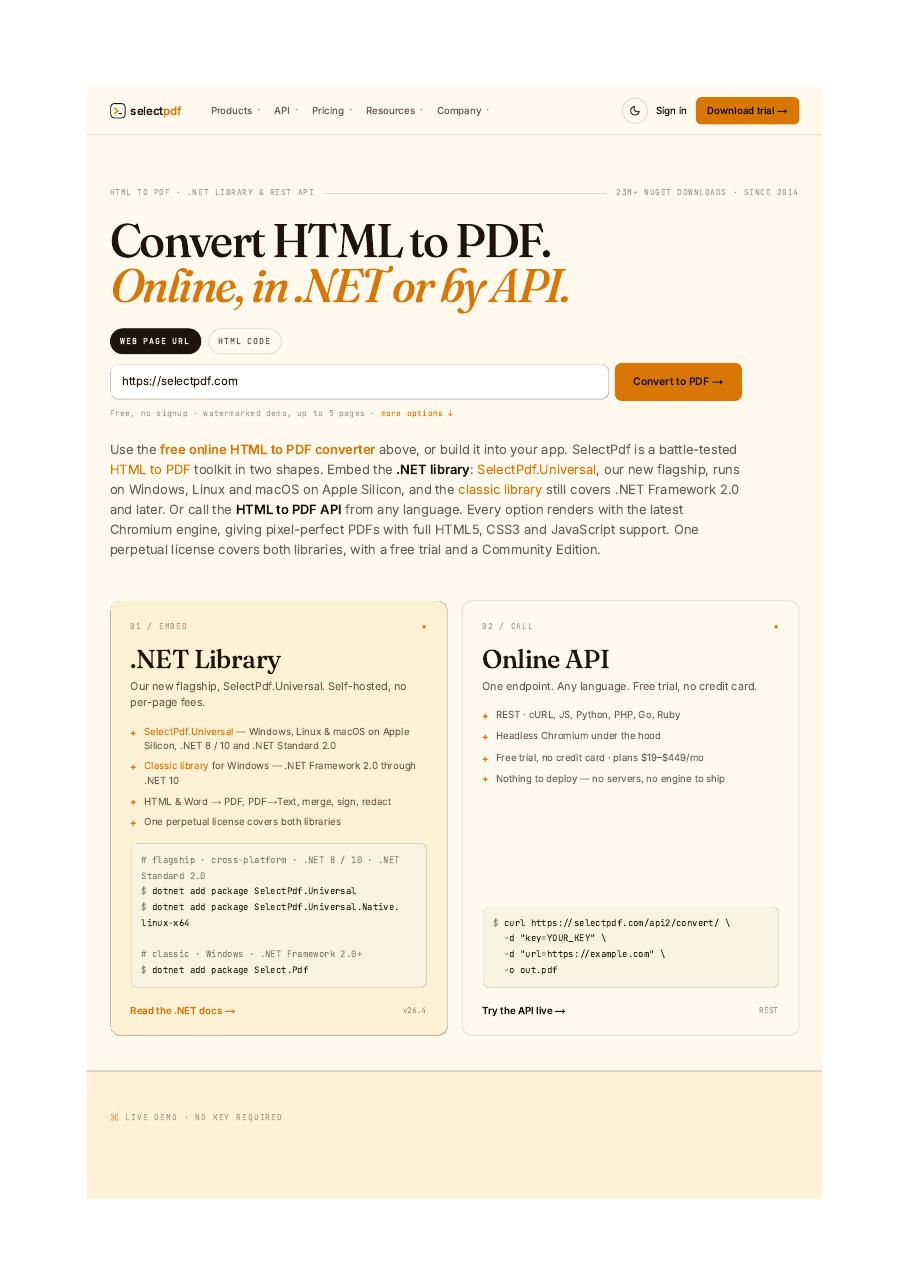
Download webpage.pdf ↓ the file this sample produced, unedited
Variations you will need next.
Each variation is a separate file in the same project, compiled and run with the program above.
Use the page's print stylesheet
Many sites hide navigation and ads in @media print rules. CssMediaType = HtmlToPdfCssMediaType.Print applies them, as the browser's Print command does.
using SelectPdf.Universal;

static class PrintStylesheet
{
    public static void Run()
    {
        HtmlToPdf converter = new HtmlToPdf();
        converter.Options.PdfPageSize = PdfPageSize.A4;

        // use the page's @media print rules, as the browser's Print command does
        converter.Options.CssMediaType = HtmlToPdfCssMediaType.Print;

        PdfDocument doc = converter.ConvertUrl("https://selectpdf.com");
        doc.Save("webpage-print.pdf");
        doc.Close();
    }
}
Wait for content that JavaScript adds
Charts and data grids often appear after the page has loaded. ConversionDelay waits a number of seconds before rendering, and NavigationTimeout fails a page that never finishes loading instead of waiting forever.
using SelectPdf.Universal;

static class WaitForJavaScript
{
    public static void Run()
    {
        // content that a script adds half a second after the page loads, like a chart or a data grid
        string html = """
            <h1>Sales report</h1>
            <div id="chart">loading...</div>
            <script>
              setTimeout(() => document.getElementById("chart").textContent = "Q3 revenue: 1.2M", 500);
            </script>
            """;

        HtmlToPdf converter = new HtmlToPdf();
        converter.Options.ConversionDelay = 2;      // seconds to wait after the page loads
        converter.Options.NavigationTimeout = 30;   // seconds before a page that never loads fails

        PdfDocument doc = converter.ConvertHtmlString(html);
        doc.Save("report.pdf");
        doc.Close();
    }
}
Convert asynchronously, with a timeout
In a web app or a service, ConvertUrlAsync and ConvertHtmlStringAsync hold no thread while the page loads. A CancellationToken stops a conversion that takes too long. Save() without a file name returns the PDF as bytes.
using SelectPdf.Universal;

static class ConvertAsync
{
    public static async Task Run()
    {
        // in a web app or service: await the conversion, and give up after 30 seconds
        using var timeout = new CancellationTokenSource(TimeSpan.FromSeconds(30));

        HtmlToPdf converter = new HtmlToPdf();
        PdfDocument doc = await converter.ConvertUrlAsync("https://selectpdf.com", timeout.Token);

        byte[] pdf = doc.Save();   // the PDF as bytes, for a response or a database
        doc.Close();

        await File.WriteAllBytesAsync("webpage-async.pdf", pdf);
    }
}
Common problems and fixes.
Images or styles are missing from an HTML string
Relative paths need a base URL: pass it as the second argument of ConvertHtmlString, or use absolute URLs in the HTML.
The page looks smaller than in the browser
The converter lays the page out as a 1024 pixel wide browser window and scales it to the PDF page. Set Options.WebPageWidth to change that width: a smaller width makes the content larger.
Part of the page is missing
Content that scripts add after the page loads needs Options.ConversionDelay. Content behind a login needs the cookies or headers of a signed-in user: see the authentication topics in the documentation.
Good to know.
- Margins are set in points: 1 point is 1/72 inch, so 20 mm is 57 points. Source
- With a base URL, ConvertHtmlString resolves relative images, style sheets and links against it. Source
- ConversionDelay waits after the page loads, for content that scripts add; NavigationTimeout limits the wait for a slow page. Source
- The converter renders with the screen CSS media type by default; Print applies the page's print styles. Source
Questions, answered.
Short answers about this guide. The SelectPdf.Universal documentation covers every class and option.