HTML to PDF on Google Cloud Run in C#
Cloud Run runs container images and scales them with the traffic. An ASP.NET Core app with SelectPdf.Universal runs there in an image built from the standard .NET aspnet image, as its non-root user, with nothing to install: the native package carries the engine and the fonts package covers every script.
Compiled and run: Cloud Run image (aspnet:10.0, non-root user), run locally, x64 · Linux ARM64 · Linux x64 · macOS ARM64 · Windows x64
Build it step by step.
-
1Create the project
A web project with three packages and a two-stage Dockerfile. The engine package matches the machine that builds the app, so
dotnet runworks on Windows, anddotnet publish -r linux-x64in the Dockerfile packs the Linux engine. The fonts package covers Chinese, Japanese, Korean, Arabic and other scripts the Linux image has no fonts for.<Project Sdk="Microsoft.NET.Sdk.Web"> <PropertyGroup> <TargetFramework>net10.0</TargetFramework> <Nullable>enable</Nullable> <ImplicitUsings>enable</ImplicitUsings> </PropertyGroup> <!-- the engine for the machine that builds the app; publishing with -r linux-x64 picks Linux, which is what the Cloud Run image needs. Fonts: the Linux image has none for CJK and other scripts. --> <PropertyGroup> <_SelectPdfArch>$([System.Runtime.InteropServices.RuntimeInformation]::OSArchitecture.ToString().ToLowerInvariant())</_SelectPdfArch> <SelectPdfRid Condition="$([MSBuild]::IsOSPlatform('Windows'))">win-$(_SelectPdfArch)</SelectPdfRid> <SelectPdfRid Condition="$([MSBuild]::IsOSPlatform('Linux'))">linux-$(_SelectPdfArch)</SelectPdfRid> <SelectPdfRid Condition="$([MSBuild]::IsOSPlatform('OSX'))">osx-$(_SelectPdfArch)</SelectPdfRid> <SelectPdfRid Condition="'$(RuntimeIdentifier)' != ''">$(RuntimeIdentifier)</SelectPdfRid> </PropertyGroup> <ItemGroup> <PackageReference Include="SelectPdf.Universal" Version="26.5.0" /> <PackageReference Include="SelectPdf.Universal.Native.$(SelectPdfRid)" Version="26.5.0" /> <PackageReference Include="SelectPdf.Universal.Fonts" Version="26.5.0" /> </ItemGroup> </Project>FROM mcr.microsoft.com/dotnet/sdk:10.0 AS build WORKDIR /src COPY . . RUN dotnet publish PdfApp.csproj -c Release -r linux-x64 --self-contained false -o /app FROM mcr.microsoft.com/dotnet/aspnet:10.0 WORKDIR /app COPY --from=build /app ./ # the image's non-root user; the engine needs no extra packages USER $APP_UID ENTRYPOINT ["dotnet", "PdfApp.dll"]
-
2A minimal web app on Cloud Run's port
using SelectPdf.Universal;

var builder = WebApplication.CreateBuilder(args);

// on Cloud Run, listen on the port it passes in PORT (8080 by default)
string? port = Environment.GetEnvironmentVariable("PORT");
if (port != null) builder.WebHost.UseUrls($"http://0.0.0.0:{port}");
var app = builder.Build();
Cloud Run tells the container which port to listen on in the
PORTenvironment variable, 8080 by default; when it is set,UseUrlsbinds to it on all interfaces. Run locally, the app keeps the usual ASP.NET Core address. -
3HTML in several scripts
// GET /report.pdf: a PDF made on the server, with text in several scripts
app.MapGet("/report.pdf", async (CancellationToken cancel) =>
{
    string html = """
        <h1>Monthly report</h1>
        <p>English · Deutsch · Ελληνικά · Русский</p>
        <p>日本語 · 中文 · 한국어 · العربية</p>
        """;
One endpoint,
GET /report.pdf. The Japanese, Chinese, Korean and Arabic text needsSelectPdf.Universal.Fonts: the Linux image has no fonts for those scripts, and without the package they print as empty boxes. -
4Convert and return the PDF
HtmlToPdf converter = new HtmlToPdf(); PdfDocument doc = await converter.ConvertHtmlStringAsync(html, cancel); byte[] pdf = doc.Save(); doc.Close(); return Results.File(pdf, "application/pdf"); }); app.Run();ConvertHtmlStringAsyncrenders the HTML with the request'sCancellationToken, andSave()returns the bytes.Results.Filesends them asapplication/pdf. -
5Run it
dotnet run

# then open the address dotnet run prints, followed by /report.pdf
The request returns
report.pdf. Without a license key, every page carries a trial watermark; setGlobalProperties.LicenseKeybefore the first conversion to remove it.
The complete Program.cs.
This is the exact file our samples pipeline compiled and ran on Cloud Run image (aspnet:10.0, non-root user), run locally, x64 and Linux ARM64 and Linux x64 and macOS ARM64 and Windows x64 to produce the output on this page.
using SelectPdf.Universal;

var builder = WebApplication.CreateBuilder(args);

// on Cloud Run, listen on the port it passes in PORT (8080 by default)
string? port = Environment.GetEnvironmentVariable("PORT");
if (port != null) builder.WebHost.UseUrls($"http://0.0.0.0:{port}");
var app = builder.Build();

// GET /report.pdf: a PDF made on the server, with text in several scripts
app.MapGet("/report.pdf", async (CancellationToken cancel) =>
{
    string html = """
        <h1>Monthly report</h1>
        <p>English · Deutsch · Ελληνικά · Русский</p>
        <p>日本語 · 中文 · 한국어 · العربية</p>
        """;

    HtmlToPdf converter = new HtmlToPdf();
    PdfDocument doc = await converter.ConvertHtmlStringAsync(html, cancel);
    byte[] pdf = doc.Save();
    doc.Close();

    return Results.File(pdf, "application/pdf");
});

app.Run();
Open the project on GitHub → this program and the variations below, ready to dotnet run
Deploy it.
Set up the project once, build and push the image to Artifact Registry, then deploy. Replace YOUR_PROJECT_ID with your project and pick your region; --no-allow-unauthenticated means callers need an identity token, so use --allow-unauthenticated only for a public service.
gcloud auth login
gcloud config set project YOUR_PROJECT_ID
gcloud config set run/region europe-north1
gcloud services enable run.googleapis.com artifactregistry.googleapis.com
gcloud artifacts repositories create selectpdf --repository-format=docker --location=europe-north1
gcloud auth configure-docker europe-north1-docker.pkg.dev

docker build --platform linux/amd64 -t europe-north1-docker.pkg.dev/YOUR_PROJECT_ID/selectpdf/myapp .
docker push europe-north1-docker.pkg.dev/YOUR_PROJECT_ID/selectpdf/myapp

gcloud run deploy myapp \
  --image europe-north1-docker.pkg.dev/YOUR_PROJECT_ID/selectpdf/myapp \
  --cpu 2 --memory 4Gi --timeout 300 --concurrency 8 \
  --no-allow-unauthenticated
These steps, with the Windows variants, are in the documentation: selectpdf.com/pdf-library/html/Google-Cloud-Run.htm.
The PDF it produces.
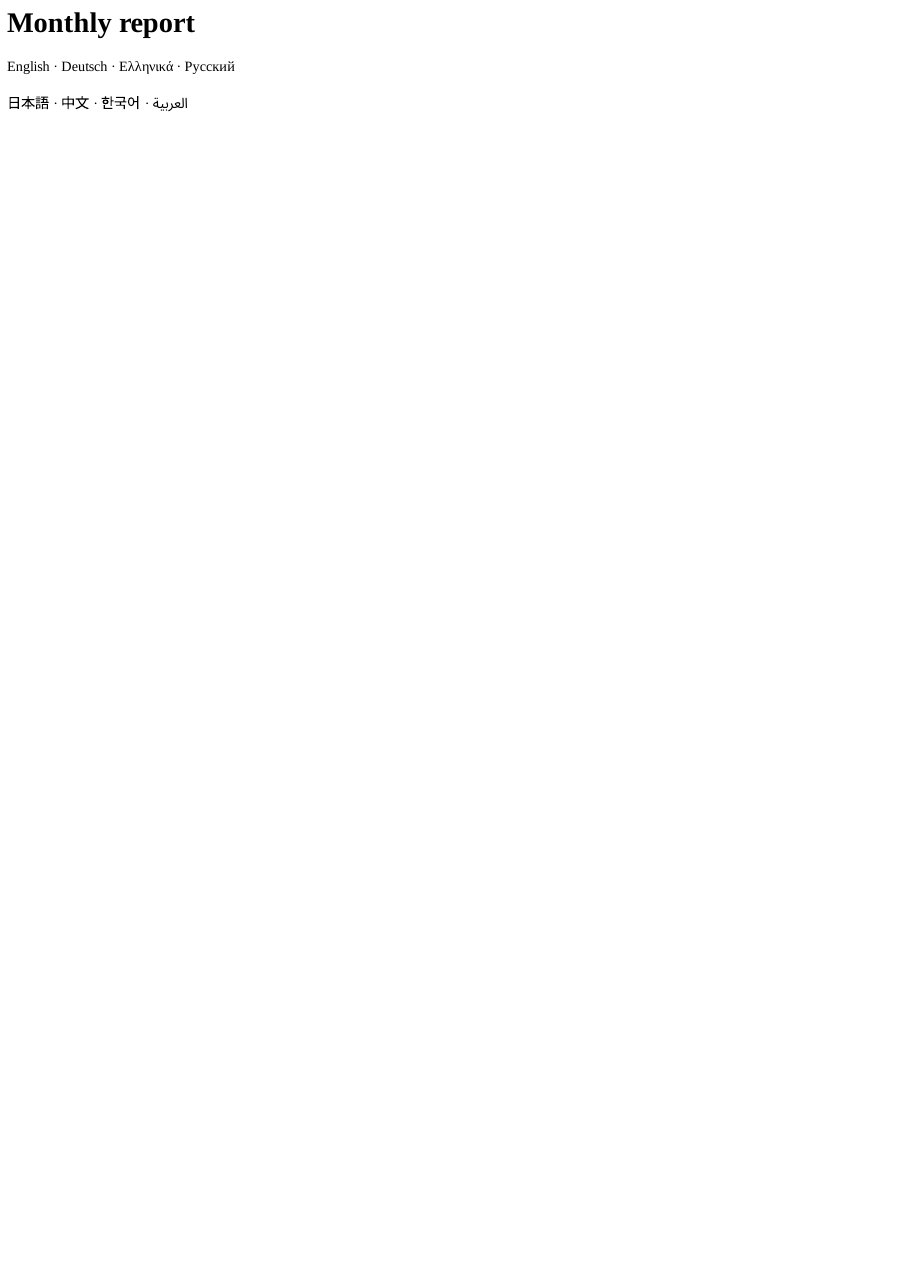
Download report.pdf ↓ the file this sample produced, unedited
Common problems and fixes.
HTTP 503 and a restarted instance
The instance ran out of memory on a heavy page. Deploy with --memory 4Gi and --cpu 2.
The first request is slow
The first conversion of a new instance takes 5 to 10 seconds; a warm one converts a page like selectpdf.com in about 1.4 seconds. Cloud Run keeps an idle instance for a while, and --min-instances 1 keeps one ready.
Characters print as boxes
Reference SelectPdf.Universal.Fonts: the Linux image has no fonts for CJK, Arabic and many other scripts. The package copies them next to the app, so the Dockerfile needs no apt-get.
The container does not answer on Cloud Run
Listen on the port in PORT, on all interfaces (0.0.0.0), as the sample does. Build the image for linux/amd64 when you build on an ARM machine.
Good to know.
- SelectPdf runs on Cloud Run in a Linux image built from the standard mcr.microsoft.com/dotnet/aspnet image, as its non-root user, in both execution environments, and also as a Cloud Run function. Source
- Cloud Run passes the port in the PORT environment variable, 8080 by default. Source
- Deploy with --cpu 2 --memory 4Gi: with 2 GiB a heavy page can run the instance out of memory, and Cloud Run then restarts it and the request fails with HTTP 503. Source
- --concurrency 8 matches the number of pages SelectPdf converts at once by default. Source
- Measured in October 2026 (europe-north1, 2 vCPU): a warm instance converts selectpdf.com in about 1.4 seconds; the first conversion of a new instance takes 5 to 10 seconds. Source
Questions, answered.
Short answers about this guide. The SelectPdf.Universal documentation covers every class and option.