Convert HTML to PNG or JPG in C#
HtmlToImage renders a web page or an HTML string with the Chromium engine and returns the image as a byte array, PNG by default. Set the browser window size, convert, and write the bytes to a file or a stream.
Compiled and run: Linux ARM64 · Linux x64 · macOS ARM64 · Windows x64
Build it step by step.
-
1Install the NuGet packages
SelectPdf.Universalis the library. The native package carries the Chromium engine for one platform: add the one for the platform you run on.dotnet add package SelectPdf.Universal dotnet add package SelectPdf.Universal.Native.win-x64
dotnet add package SelectPdf.Universal
dotnet add package SelectPdf.Universal.Native.linux-x64
dotnet add package SelectPdf.Universal
dotnet add package SelectPdf.Universal.Native.linux-arm64
dotnet add package SelectPdf.Universal
dotnet add package SelectPdf.Universal.Native.osx-arm64
-
2Create a console app
Any .NET 8 or .NET 10 project works. To follow along, create a console app, run the install commands above inside its folder, then replace
Program.cswith the code below.dotnet new console -n PdfSample cd PdfSample
-
3Size the browser window
// 1. a web page, by URL, in a 1280 x 800 px browser window
HtmlToImage converter = new HtmlToImage(1280, 800);
new HtmlToImage(1280, 800)sets the virtual browser width and height in pixels. The width is the width of the image; the height crops the capture to the first 800 pixels, the part of the page a 1280 x 800 window shows. Leave the height out to get the full content height. -
4Convert the URL and save the PNG
// the image is returned as a byte array, PNG by default byte[] page = converter.ConvertUrl("https://selectpdf.com"); File.WriteAllBytes("webpage.png", page);ConvertUrlloads the page, renders it and returns the image as abyte[], encoded as PNG by default.File.WriteAllByteswriteswebpage.png. -
5Write the HTML
// 2. an HTML string, rendered as a 1200 x 630 px social card;
// the base URL resolves the relative image path
string html = """
    <body style="margin:0; font-family:sans-serif; background:#fff7ed">
      <div style="padding:80px">
        <img src="img/selectpdf-logo-h128.png" alt="SelectPdf" height="64">
        <h1 style="font-size:64px">Release notes, October 2026</h1>
        <p style="font-size:32px">What changed in the reporting module.</p>
      </div>
    </body>
    """;
Any HTML string converts to an image. The logo is referenced with a relative path,
img/selectpdf-logo-h128.png, as it would be in a template of your application. -
6Convert the HTML string with a base URL
HtmlToImage cardConverter = new HtmlToImage(1200, 630);
byte[] card = cardConverter.ConvertHtmlString(html, "https://selectpdf.com/");
File.WriteAllBytes("card.png", card);
A second converter renders at 1200 x 630 pixels, the size of a social preview card.
ConvertHtmlString(html, baseUrl)resolves the relative image path againsthttps://selectpdf.com/, and the bytes are saved ascard.png. -
7Run it
dotnet run
The program writes
webpage.pngto the working folder. Without a license key, every page carries a trial watermark; setGlobalProperties.LicenseKeybefore the first conversion to remove it.
The complete Program.cs.
This is the exact file our samples pipeline compiled and ran on Linux ARM64 and Linux x64 and macOS ARM64 and Windows x64 to produce the output on this page.
using SelectPdf.Universal;

// 1. a web page, by URL, in a 1280 x 800 px browser window
HtmlToImage converter = new HtmlToImage(1280, 800);

// the image is returned as a byte array, PNG by default
byte[] page = converter.ConvertUrl("https://selectpdf.com");
File.WriteAllBytes("webpage.png", page);

// 2. an HTML string, rendered as a 1200 x 630 px social card;
// the base URL resolves the relative image path
string html = """
    <body style="margin:0; font-family:sans-serif; background:#fff7ed">
      <div style="padding:80px">
        <img src="img/selectpdf-logo-h128.png" alt="SelectPdf" height="64">
        <h1 style="font-size:64px">Release notes, October 2026</h1>
        <p style="font-size:32px">What changed in the reporting module.</p>
      </div>
    </body>
    """;
HtmlToImage cardConverter = new HtmlToImage(1200, 630);
byte[] card = cardConverter.ConvertHtmlString(html, "https://selectpdf.com/");
File.WriteAllBytes("card.png", card);
Open the project on GitHub → this program and the variations below, ready to dotnet run
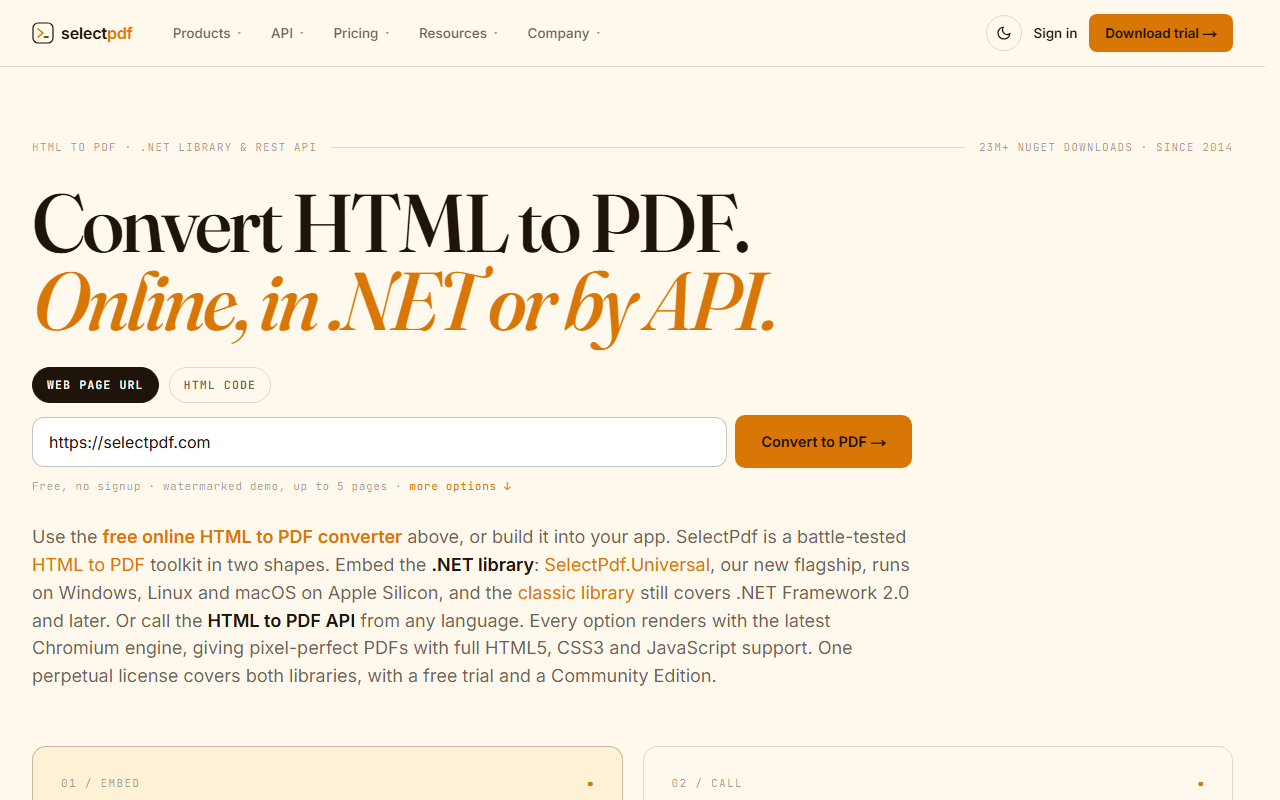
The image it produces.
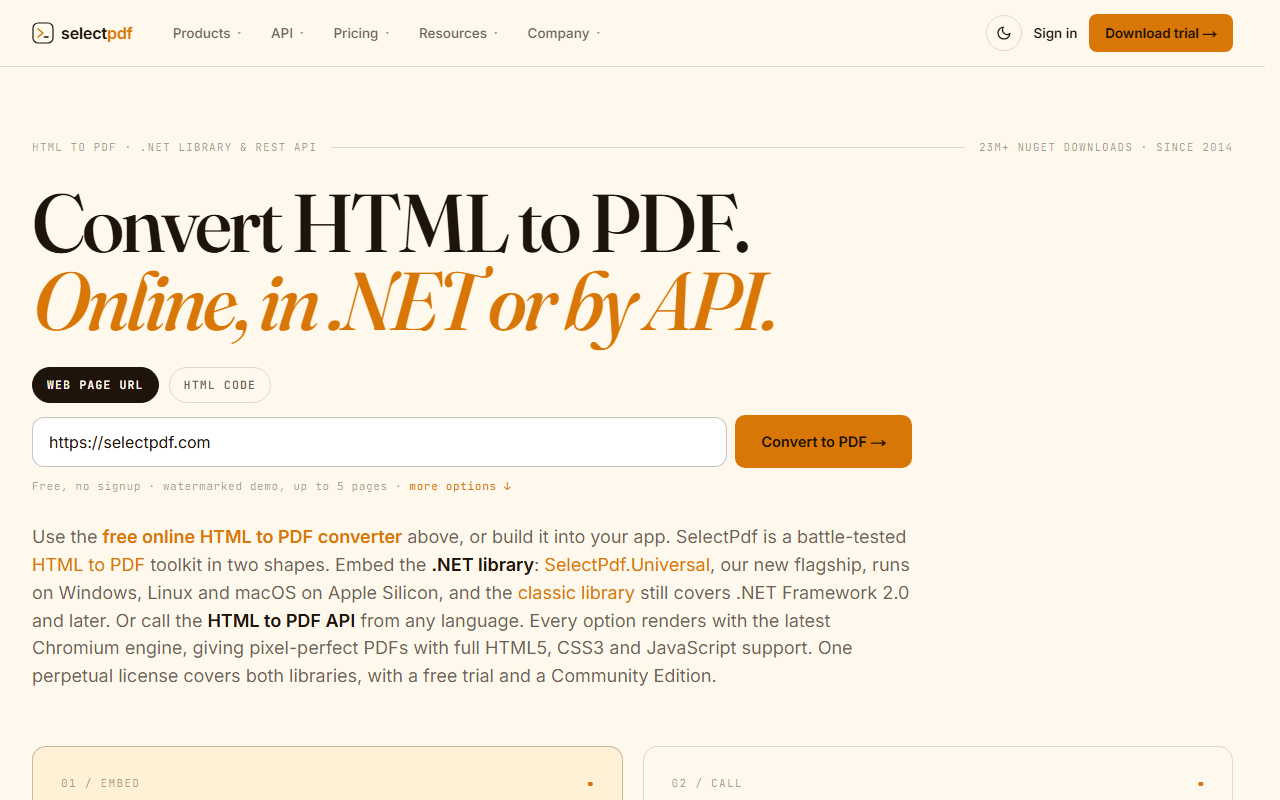
Download webpage.png ↓ the file this sample produced, unedited
Variations you will need next.
Each variation is a separate file in the same project, compiled and run with the program above.
Save the image as JPG
ImageFormat selects the encoding of the returned bytes: PdfImageFormat.Png is the default, and Jpeg, Bmp and Tiff return the image already encoded in that format, so the bytes can be written straight to a .jpg file.
using SelectPdf.Universal;

static class JpgImage
{
    public static void Run()
    {
        HtmlToImage converter = new HtmlToImage(1024, 768);

        // the bytes come back already encoded as JPEG
        converter.ImageFormat = PdfImageFormat.Jpeg;

        byte[] jpg = converter.ConvertUrl("https://selectpdf.com/pdf-library/");
        File.WriteAllBytes("library.jpg", jpg);
    }
}
Capture one element of the page
VisibleWebElementSelector takes any CSS selector the browser understands, such as #totals or table.report, and only the matched element is rendered into the image. A selector that matches nothing fails the conversion instead of returning the whole page.
using SelectPdf.Universal;

static class OneElement
{
    public static void Run()
    {
        string html = """
            <h1>Monthly report</h1>
            <p>Only the table below goes into the image.</p>
            <table id="totals" border="1" cellpadding="8" style="border-collapse:collapse">
              <tr><th>Region</th><th>Orders</th></tr>
              <tr><td>Europe</td><td>1,240</td></tr>
              <tr><td>Americas</td><td>980</td></tr>
            </table>
            """;

        HtmlToImage converter = new HtmlToImage(800);

        // capture only the element the CSS selector matches
        converter.VisibleWebElementSelector = "#totals";

        byte[] png = converter.ConvertHtmlString(html);
        File.WriteAllBytes("totals.png", png);
    }
}
Convert asynchronously and write to a stream
ConvertUrlAsync produces the same image as ConvertUrl without holding a thread while the page loads and renders, and a cancelled token stops the conversion. The result is still a byte array, so it can be written to any stream: a file, an HTTP response body or a storage upload.
using SelectPdf.Universal;

static class AsyncToStream
{
    public static async Task Run()
    {
        HtmlToImage converter = new HtmlToImage(1280, 800);

        // stop the conversion if it takes longer than 30 seconds
        using CancellationTokenSource timeout = new CancellationTokenSource(TimeSpan.FromSeconds(30));
        byte[] png = await converter.ConvertUrlAsync("https://selectpdf.com", timeout.Token);

        // write the bytes to any stream: a file, a response body, a blob upload
        await using FileStream file = File.Create("webpage-async.png");
        await file.WriteAsync(png, timeout.Token);
    }
}
Common problems and fixes.
Images, styles or fonts are missing from an HTML string
Relative paths in an HTML string have nothing to resolve against. Pass the base URL as the second argument of ConvertHtmlString, or use absolute URLs in the markup.
The image is cut off at the bottom
A height, set in the constructor or with WebPageHeight, crops the image to it. Leave the height at 0 to capture the full content height, or assign WebPageFixedSize = false after the height.
Content drawn by scripts is missing
Charts or content that appear after the page has loaded need more time: set ConversionDelay to the number of seconds to wait before the page is rendered.
A slow page fails to convert
NavigationTimeout is the time the converter waits for the page to load, 60 seconds by default, and MaxConversionTime bounds the whole conversion. Increase them for large or slow pages.
Good to know.
- Any web page can be converted to a PNG image; the page can be given by an external URL or be a local HTML file on the disk. Source
- For an HTML string with relative references to images, CSS or JavaScript, ConvertHtmlString takes a base URL: base URL plus relative URL gives the full absolute URL. Source
- ImageFormat is Png by default; set it to Jpeg, Bmp or Tiff to receive the bytes already encoded in that format. Source
- The virtual browser width is 1024 pixels by default. Source
- With WebPageHeight left at 0 the image takes the full content height; setting a height turns WebPageFixedSize on and the image is cropped to it. Source
Questions, answered.
Short answers about this guide. The SelectPdf.Universal documentation covers every class and option.