Convert PDF to an editable Word document in C#
PdfToWord converts a PDF to an editable Word document: the text of every page is grouped into paragraphs in reading order, with its headings, lists, tables, pictures, hyperlinks and bookmarks. Call ConvertFile and write the bytes it returns to a .docx file. PdfToExcel and PdfToPowerPoint work the same way.
Compiled and run: Linux x64 · Windows x64
Build it step by step.
-
1Install the NuGet packages
SelectPdf.Universalis the library. The native package carries the Chromium engine for one platform: add the one for the platform you run on.dotnet add package SelectPdf.Universal dotnet add package SelectPdf.Universal.Native.win-x64
dotnet add package SelectPdf.Universal
dotnet add package SelectPdf.Universal.Native.linux-x64
dotnet add package SelectPdf.Universal
dotnet add package SelectPdf.Universal.Native.linux-arm64
dotnet add package SelectPdf.Universal
dotnet add package SelectPdf.Universal.Native.osx-arm64
-
2Create a console app
Any .NET 8 or .NET 10 project works. To follow along, create a console app, run the install commands above inside its folder, then replace
Program.cswith the code below.dotnet new console -n PdfSample cd PdfSample
-
3Create the converter
PdfToWord converter = new PdfToWord();
PdfToWordconverts a PDF to an editable Word document. ItsOptionsset the layout, the output format, the pages converted and what is carried over: pictures, headers and footers, links, bookmarks and fonts. -
4Choose the layout and the format
// Flowing (the default): paragraphs that reflow as you edit, as in any Word document
converter.Options.Layout = PdfToWordLayout.Flowing;
converter.Options.Format = PdfToWordFormat.Docx;
PdfToWordLayout.Flowing, the default, gives a document to edit: its paragraphs flow as in any Word document.PdfToWordLayout.Exactreproduces every page as it is, each block of text in a frame at its place.PdfToWordFormat.Docxis the default format;Rtf,Odt,HtmlandMarkdownare the others. -
5Convert and save
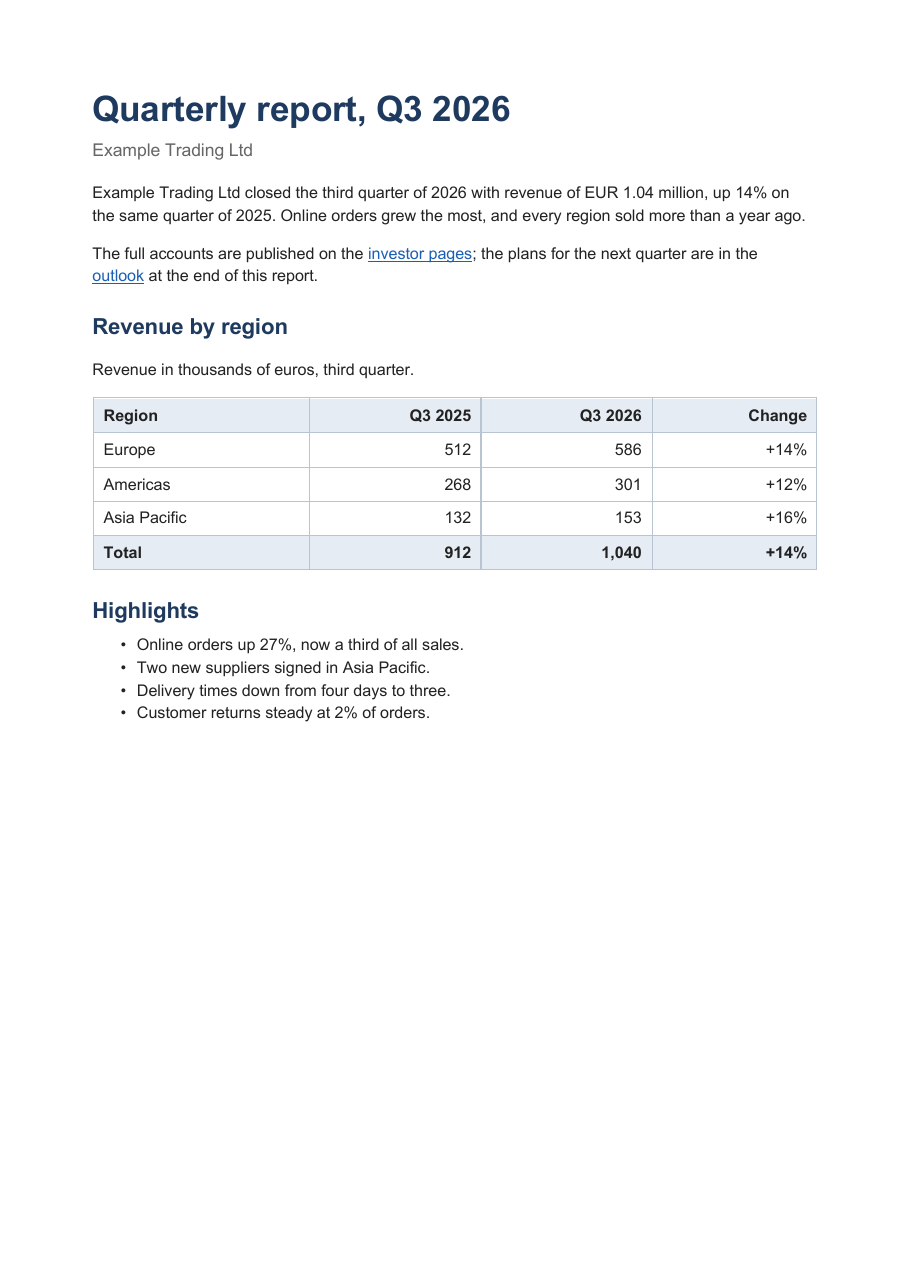
// convert the PDF and write the Word document byte[] docx = converter.ConvertFile("report.pdf"); File.WriteAllBytes("report.docx", docx);ConvertFilereturns the converted document as an array of bytes, andFile.WriteAllByteswrites it asreport.docx. The report's headings, table, bulleted lists and chart come through, with its link to a web page and its link to the Outlook section.ConvertStreamandConvertBytestake the PDF from a stream or from memory. -
6See what became of the fonts
// what became of each font: embedded, substituted or named only
foreach (PdfToWordFont font in converter.ConversionResult.Fonts)
    Console.WriteLine(font);
After a conversion,
ConversionResult.Fontslists every face of the document's text as aPdfToWordFont, and whether it was embedded, written in a family with the same metrics, or named only. Here Arial and Arial Bold are named only, because Arial is a common system font. -
7Run it
dotnet run
The program writes
report.docxto the working folder. Without a license key, every page carries a trial watermark; setGlobalProperties.LicenseKeybefore the first conversion to remove it.
The complete Program.cs.
This is the exact file our samples pipeline compiled and ran on Linux x64 and Windows x64 to produce the output on this page.
using SelectPdf.Universal;

PdfToWord converter = new PdfToWord();

// Flowing (the default): paragraphs that reflow as you edit, as in any Word document
converter.Options.Layout = PdfToWordLayout.Flowing;
converter.Options.Format = PdfToWordFormat.Docx;

// convert the PDF and write the Word document
byte[] docx = converter.ConvertFile("report.pdf");
File.WriteAllBytes("report.docx", docx);

// what became of each font: embedded, substituted or named only
foreach (PdfToWordFont font in converter.ConversionResult.Fonts)
    Console.WriteLine(font);
Open the project on GitHub → this program and the variations below, ready to dotnet run
The Word document it produces.
Download report.docx ↓ the file this sample produced, unedited
Variations you will need next.
Each variation is a separate file in the same project, compiled and run with the program above.
Exact layout: every page as it is
PdfToWordLayout.Exact reproduces every page as it is, each block of text at its place, for a Word document that must look like the PDF. Choose the default Flowing layout when the document is to be edited: its paragraphs reflow as the text changes.
using SelectPdf.Universal;

static class ExactLayout
{
    public static void Run()
    {
        PdfToWord converter = new PdfToWord();

        // Exact: every page reproduced as it is, each block of text at its place
        converter.Options.Layout = PdfToWordLayout.Exact;

        byte[] docx = converter.ConvertFile("report.pdf");
        File.WriteAllBytes("report-exact.docx", docx);
    }
}
PDF to Markdown
PdfToWordFormat.Markdown writes the document as Markdown: headings as # lines, bulleted lists as - items, links as Markdown links and tables as pipe tables, with the pictures inside the file. Rtf, Odt and Html are the other formats besides Docx.
using SelectPdf.Universal;

static class MarkdownOutput
{
    public static void Run()
    {
        PdfToWord converter = new PdfToWord();

        // Markdown: headings, lists and links as Markdown, tables as pipe tables
        converter.Options.Format = PdfToWordFormat.Markdown;

        byte[] md = converter.ConvertFile("report.pdf");
        File.WriteAllBytes("report.md", md);
    }
}
PDF to Excel: the tables as cells
PdfToExcel finds the tables of the PDF and writes them as cells: numbers, percentages, currency amounts and dates as typed values, text as text, header rows bold and frozen, merged cells merged. PdfToExcelSheets.PerTable, the default, puts each table on a worksheet of its own and the text outside the tables on a worksheet after them; PerPage gives a worksheet per page. Culture names the culture the values are read in; left empty, it takes the PDF's language, else the formats the values themselves show.
using SelectPdf.Universal;

static class PdfToExcelTables
{
    public static void Run()
    {
        PdfToExcel converter = new PdfToExcel();

        // a worksheet per table (the default), numbers read as US figures
        converter.Options.Sheets = PdfToExcelSheets.PerTable;
        converter.Options.Culture = "en-US";

        byte[] xlsx = converter.ConvertFile("sales-by-region.pdf");
        File.WriteAllBytes("sales-by-region.xlsx", xlsx);
    }
}
PDF to PowerPoint: a slide per page
PdfToPowerPoint makes a slide of every page: each block of text a text box at its place, the page color the slide's background, boxes and rules shapes, images and vector art pictures. The slides take the first page's size. With Tables = true, the default, the PDF's tables become PowerPoint tables; false keeps their text in text boxes and their lines as shapes. ConvertBytes converts a PDF that is already in memory.
using SelectPdf.Universal;

static class PdfToPowerPointSlides
{
    public static void Run()
    {
        PdfToPowerPoint converter = new PdfToPowerPoint();

        // the PDF's tables become PowerPoint tables (the default)
        converter.Options.Tables = true;

        // a PDF already in memory: a slide per page
        byte[] pdf = File.ReadAllBytes("quarterly-review.pdf");
        byte[] pptx = converter.ConvertBytes(pdf);
        File.WriteAllBytes("quarterly-review.pptx", pptx);
    }
}
Convert some of the pages, from a stream
PageRanges limits the conversion to the pages it names: "1", "2-4" or "1-3,5,7-"; empty, the default, converts every page. ConvertStream reads the PDF from a readable stream, from its current position. The options of PdfToExcel and PdfToPowerPoint have the same PageRanges property, and all three converters have ConvertFile, ConvertStream and ConvertBytes.
using SelectPdf.Universal;

static class PageRangeFromStream
{
    public static void Run()
    {
        PdfToWord converter = new PdfToWord();

        // only pages 2 and 3; "1", "2-4" and "1-3,5,7-" work too
        converter.Options.PageRanges = "2-3";

        // ConvertStream reads the PDF from the stream's current position
        using FileStream pdf = File.OpenRead("report.pdf");
        byte[] docx = converter.ConvertStream(pdf);
        File.WriteAllBytes("report-pages-2-3.docx", docx);
    }
}
Common problems and fixes.
PdfToWordException: the file cannot be found or read
ConvertFile throws PdfToWordException when the file does not exist, the PDF cannot be read or the conversion fails. A relative path is resolved against the current directory, so pass a full path, or read the file yourself and call ConvertStream or ConvertBytes.
The PDF is password protected
Set converter.Options.Password to the password of the encrypted PDF before converting it. A wrong password throws PdfToWordException; PdfToExcelOptions and PdfToPowerPointOptions have the same Password property.
A scanned page comes out as a picture
A scanned page without a text layer comes out as its picture, so there is no text to edit on it.
The converted file carries an evaluation mark
Without a license key, the converted file carries an evaluation mark. Set your license key before converting to get a clean document.
Good to know.
- PdfToWord groups the text of every page into paragraphs in reading order, with their headings, lists, tables, pictures, hyperlinks and bookmarks. Source
- PdfToWord writes Word (.docx), RTF, OpenDocument text, HTML or Markdown; the Flowing layout gives a document to edit, the Exact layout reproduces every page as it is. Source
- Text repeated at the top and bottom of the pages becomes the Word document's headers and footers, with page numbers as page fields. Source
- PdfToExcel writes the document's tables as cells: numbers, percentages, currency amounts and dates as typed values, header rows bold and frozen, merged cells merged. Source
- PdfToPowerPoint makes a slide of every page, and by default the PDF's tables become PowerPoint tables. Source
- PDF to Word, Excel and PowerPoint convert from a file, a stream or an array of bytes, and are available in the full library only. Source
Questions, answered.
Short answers about this guide. The SelectPdf.Universal documentation covers every class and option.