Converting HTML to PDF is a common requirement for modern websites and business applications. Invoices, reports, contracts, receipts, certificates, dashboards, and email templates often need to be saved or delivered as PDF files.
The challenge is that many PDF generation tools can be expensive, complex, or dependent on external services. The good news is that you do not always need costly desktop software or enterprise subscriptions to convert HTML to PDF.
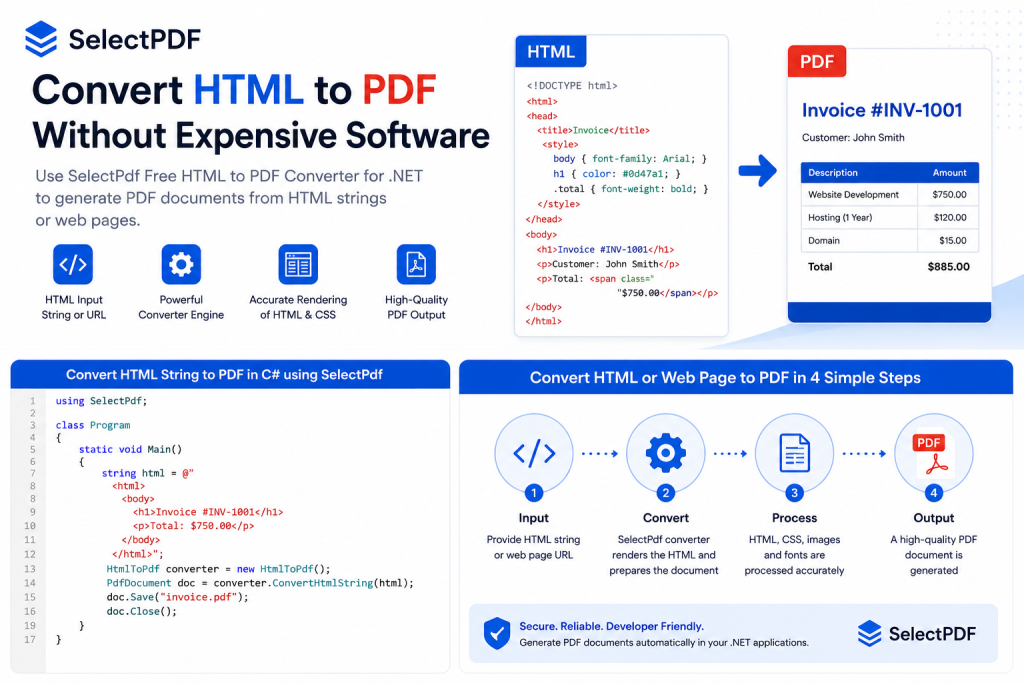
HTML to PDF conversion can be automated directly from your application.
In this article, we look at practical ways to convert HTML to PDF without expensive software, especially if you are building a .NET application or need an automated server-side solution.
Why Convert HTML to PDF?
HTML is easy to generate, style, and display in a browser. PDF, on the other hand, is ideal when you need a fixed document format that can be shared, printed, archived, or attached to an email.
Common use cases include:
- Invoices and billing documents
- Order confirmations and receipts
- Reports and dashboards
- Contracts and proposals
- Certificates
- Booking confirmations
- Exportable web pages
- Internal business documents
Instead of manually creating PDFs, many applications generate HTML first and then convert that HTML into a PDF document.
This approach is efficient because HTML is flexible, easy to template, and already used by most web applications.
Do You Need Expensive PDF Software?
Not always.
Traditional PDF software is often designed for manual document editing, not automated HTML to PDF conversion. If your goal is to generate PDFs from a website, HTML string, or template inside an application, you usually need a developer-friendly HTML to PDF converter rather than a full desktop PDF editor.
For example, you may not need expensive software if you want to:
- Convert an HTML invoice to PDF
- Save a web page as a PDF
- Generate PDF reports from templates
- Convert HTML emails to printable documents
- Export dynamic pages from a web application
In many cases, a free HTML to PDF library or a lightweight developer tool is enough.
Main Options for Converting HTML to PDF
There are several ways to convert HTML to PDF without expensive software.
1. Use the Browser’s Print to PDF Feature
Most modern browsers include a built-in “Print to PDF” option. You can open a web page, choose Print, and save the result as a PDF file.
This is simple and free.
However, it is not ideal for automation. It works well when a person manually saves one page, but it is not practical for generating hundreds or thousands of PDFs from a server-side application.
Best for:
- Occasional manual conversions
- Saving a web page for personal use
- Quick one-time exports
Limitations:
- Not automated
- Limited control over output
- Difficult to integrate into business workflows
- Not suitable for server-side PDF generation
2. Use an Online HTML to PDF Converter
Online converters allow you to paste a URL or HTML code and download a PDF.
This can be useful for quick tests or occasional conversions, but there are important limitations. You may not want to upload private documents, invoices, contracts, or customer data to an external website.
Best for:
- Quick experiments
- Non-sensitive public web pages
- Occasional conversions
Limitations:
- Privacy concerns
- File size limits
- Limited automation
- Possible branding or watermarks
- Dependency on a third-party website
3. Use a Free HTML to PDF Library
For developers, a free HTML to PDF library is often the best solution. It allows you to convert HTML to PDF directly from your application, without manual steps and without relying on expensive desktop software.
If you are building a .NET application, SelectPdf Free HTML to PDF Converter for .NET is a practical option. It allows developers to convert HTML strings or web pages to PDF from C# or VB.NET code.
This is especially useful when you need to generate documents automatically from your application.
Best for:
- .NET applications
- Server-side PDF generation
- Invoices, reports, receipts, and certificates
- Automated workflows
- Developers who want full control from code
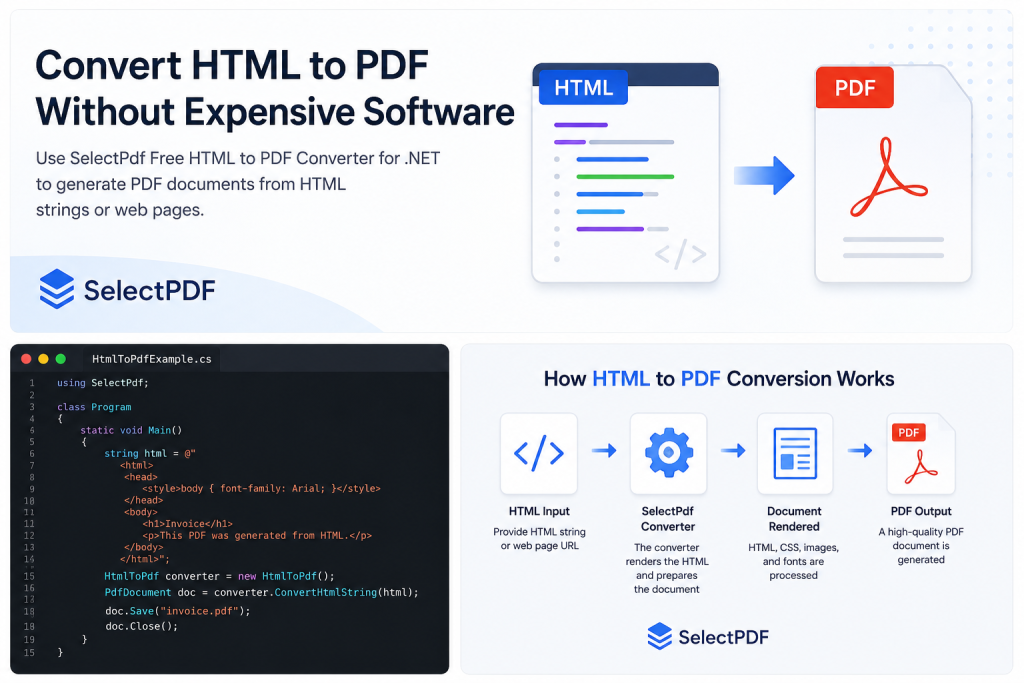
Choose the HTML to PDF conversion method that fits your workflow and budget.
Convert HTML to PDF in .NET Without Expensive Software
With SelectPdf, converting HTML to PDF can be done directly from C#.
Here is a simple example:
using SelectPdf;

class Program
{
    static void Main()
    {
        string html = @"
            <html>
                <head>
                    <style>
                        body { font-family: Arial; }
                        h1 { color: #333; }
                    </style>
                </head>
                <body>
                    <h1>Invoice</h1>
                    <p>This PDF was generated from HTML.</p>
                </body>
            </html>";

        HtmlToPdf converter = new HtmlToPdf();

        PdfDocument doc = converter.ConvertHtmlString(html);

        doc.Save("invoice.pdf");

        doc.Close();
    }
}
This example creates a PDF file from an HTML string. You can also convert a live web page by URL:
using SelectPdf;

class Program
{
    static void Main()
    {
        HtmlToPdf converter = new HtmlToPdf();

        PdfDocument doc = converter.ConvertUrl("https://selectpdf.com");

        doc.Save("webpage.pdf");

        doc.Close();
    }
}
This makes it easy to integrate HTML to PDF conversion into an existing .NET website, desktop application, or backend service.
Benefits of Using HTML Templates
One of the main advantages of HTML to PDF conversion is that you can use HTML templates.
For example, you can create an invoice template in HTML:
<h1>Invoice #12345</h1>
<p>Customer: John Smith</p>
<p>Total: $250.00</p>
Then your application can replace the values dynamically:
<h1>Invoice #{{InvoiceNumber}}</h1>
<p>Customer: {{CustomerName}}</p>
<p>Total: {{TotalAmount}}</p>
This approach is simple, flexible, and cost-effective. You can use your existing web development skills, CSS styling, and server-side data to generate professional PDF documents.
What Features Should You Look For?
When choosing an affordable HTML to PDF solution, look for features that matter in real-world applications.
Important features include:
- Converting HTML strings to PDF
- Converting URLs to PDF
- CSS support
- Page size and orientation settings
- Margins and headers/footers
- Page breaks
- Image support
- JavaScript support when needed
- Support for secure or internal pages
- Ability to run from .NET code
- No manual steps required
A good converter should allow you to generate consistent PDF files automatically, with control over layout and output settings.
Free vs Commercial HTML to PDF Tools
Free tools are a great starting point, especially for small projects, internal tools, prototypes, and low-volume applications.
However, commercial tools may be useful when you need:
- Advanced PDF features
- Priority support
- Higher usage limits
- More control over headers, footers, bookmarks, links, or security
- Long-term stability for production applications
- Redistribution rights for commercial software
A good strategy is to start with a free HTML to PDF converter and upgrade only when your project needs more advanced functionality.
SelectPdf offers both a Free HTML to PDF Converter for .NET and a full-featured commercial PDF library, so developers can start small and move to more advanced features later if needed.

SelectPdf lets developers generate PDFs from HTML strings or web pages directly from C# code.
Tips for Better HTML to PDF Output
To get better results when converting HTML to PDF, keep the following tips in mind:
Use Print-Friendly CSS
PDF output is closer to printed output than browser viewing. Use CSS that works well on fixed pages.
@media print {
    body {
        font-size: 12pt;
    }

    .no-print {
        display: none;
    }
}
Define Page Breaks
For reports, invoices, and long documents, page breaks are important.
.page-break {
    page-break-before: always;
}
Use Absolute URLs for Images and CSS
If your HTML references images, fonts, or stylesheets, make sure those resources are accessible during conversion.
Instead of:
<img src="/images/logo.png">
Use:
<img src="https://example.com/images/logo.png">
Or configure the converter so it can resolve local or relative paths correctly.
Keep Layouts Simple When Possible
Very complex responsive layouts may not always translate perfectly to PDF. For business documents, a clean print-oriented layout usually works best.
When Is a Free HTML to PDF Converter Enough?
A free converter is often enough when you need to generate standard PDF documents such as:
- Simple invoices
- Receipts
- Reports
- Confirmations
- Internal documents
- Basic exports from a web application
For many small and medium projects, this removes the need for expensive PDF software entirely.
The key is to choose a tool that integrates well with your application and gives you enough control over the generated PDF.
Conclusion
You do not need expensive software to convert HTML to PDF. Depending on your needs, you can use a browser’s built-in PDF feature, an online converter, or a free developer library.
For .NET developers, using a library such as SelectPdf Free HTML to PDF Converter for .NET is one of the most practical approaches. It allows you to generate PDF files directly from HTML strings or URLs, automate document creation, and keep full control inside your application.
Whether you are creating invoices, reports, receipts, or downloadable web pages, HTML to PDF conversion can be affordable, automated, and easy to integrate.
Try SelectPdf Free HTML to PDF Converter for .NET
Need to convert HTML to PDF in a .NET application? Try SelectPdf Free HTML to PDF Converter for .NET and generate PDF documents from HTML strings or web pages directly from your code.