Convert Excel workbooks to PDF in C#
Create an ExcelToPdf converter, choose how each sheet is scaled onto its pages and call ConvertFile with the workbook: every visible sheet is converted as Excel prints it, with one outline entry per sheet.
Compiled and run: Linux x64 · Windows x64
Validated by veraPDF: PDF/A-3a · PDF/UA-1
Build it step by step.
-
1Install the NuGet packages
SelectPdf.Universalis the library. The native package carries the Chromium engine for one platform: add the one for the platform you run on.dotnet add package SelectPdf.Universal dotnet add package SelectPdf.Universal.Native.win-x64
dotnet add package SelectPdf.Universal
dotnet add package SelectPdf.Universal.Native.linux-x64
dotnet add package SelectPdf.Universal
dotnet add package SelectPdf.Universal.Native.linux-arm64
dotnet add package SelectPdf.Universal
dotnet add package SelectPdf.Universal.Native.osx-arm64
-
2Create a console app
Any .NET 8 or .NET 10 project works. To follow along, create a console app, run the install commands above inside its folder, then replace
Program.cswith the code below.dotnet new console -n PdfSample cd PdfSample
-
3Create the converter
ExcelToPdf converter = new ExcelToPdf();
ExcelToPdfconverts Excel workbooks. ItsOptions,HeaderandFootermirror the HTML and Word converters', so a document setup written forHtmlToPdfapplies here unchanged. -
4Choose how each sheet is scaled
// every sheet keeps its own paper and margins; all its columns fit the width of a page
converter.Options.Layout = ExcelLayout.FitAllColumnsOnOnePage;
By default every sheet is printed on the paper, orientation and margins of its own page setup, with its own print scaling.
Layout = ExcelLayout.FitAllColumnsOnOnePagescales all the columns of each sheet to the width of one page;FitSheetOnOnePage,FitAllRowsOnOnePageandNoScalingare the other choices. -
5Set the document title
// the title recorded in the generated document
converter.Options.PdfDocumentInformation.Title = "Quarterly sales by region";
Options.PdfDocumentInformationsets the title, author, subject and keywords recorded in the generated document. -
6Convert the workbook
// the format is taken from the file extension; every visible sheet is converted PdfDocument doc = converter.ConvertFile("sales.xlsx"); Console.WriteLine($"{converter.ConversionResult.PdfPageCount} pages, {doc.Bookmarks.Count} sheets in the outline");ConvertFiletakes the format from the file extension and converts every visible sheet in workbook order.ConversionResultdescribes the document produced, and each sheet becomes an entry in the PDF outline, named after it. -
7Save and close
doc.Save("sales.pdf");
doc.Close();
The result is a
PdfDocument, as the HTML converter returns one: it can be changed further beforeSavewritessales.pdf, andClosereleases it. -
8Run it
dotnet run
The program writes
sales.pdfto the working folder. Without a license key, every page carries a trial watermark; setGlobalProperties.LicenseKeybefore the first conversion to remove it.
The complete Program.cs.
This is the exact file our samples pipeline compiled and ran on Linux x64 and Windows x64 to produce the output on this page.
using SelectPdf.Universal;

ExcelToPdf converter = new ExcelToPdf();

// every sheet keeps its own paper and margins; all its columns fit the width of a page
converter.Options.Layout = ExcelLayout.FitAllColumnsOnOnePage;

// the title recorded in the generated document
converter.Options.PdfDocumentInformation.Title = "Quarterly sales by region";

// the format is taken from the file extension; every visible sheet is converted
PdfDocument doc = converter.ConvertFile("sales.xlsx");
Console.WriteLine($"{converter.ConversionResult.PdfPageCount} pages, {doc.Bookmarks.Count} sheets in the outline");

doc.Save("sales.pdf");
doc.Close();
Open the project on GitHub → this program and the variations below, ready to dotnet run
The PDF it produces.
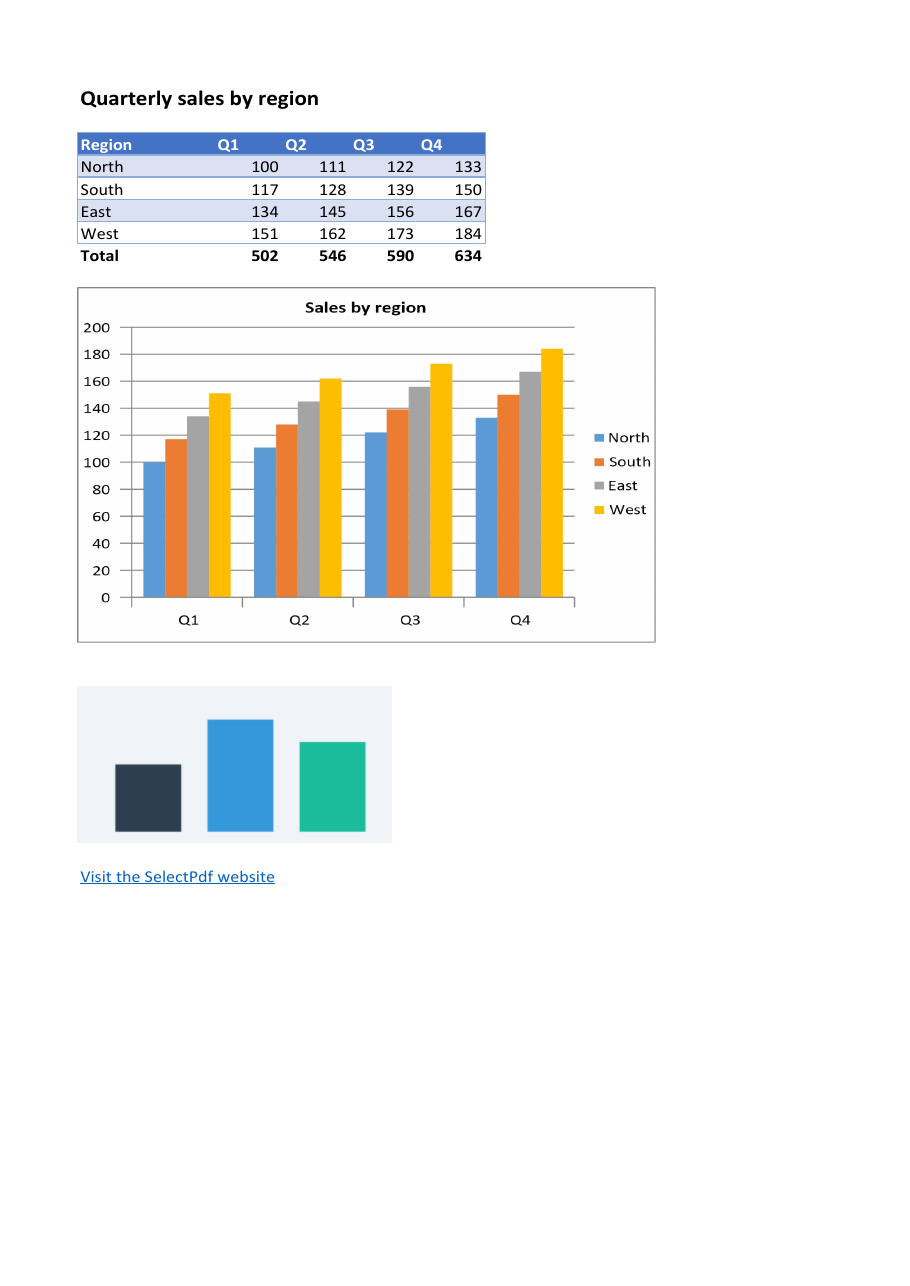
Download sales.pdf ↓ the file this sample produced, unedited
Variations you will need next.
Each variation is a separate file in the same project, compiled and run with the program above.
One sheet on an A4 page, with page numbers
PageSetup = ExcelPageSetup.Options lays the sheet out on the page size, orientation and margins set in the options, replacing the sheet's own paper and margins. Worksheets names the sheets to convert, comma separated, and Layout = ExcelLayout.FitSheetOnOnePage scales the whole sheet down to one page. The footer band takes the same text sections as the HTML converter's, with {page_number} and {total_pages}.
using SelectPdf.Universal;

static class OneSheetOnA4
{
    public static void Run()
    {
        ExcelToPdf converter = new ExcelToPdf();

        // lay the sheet out on the page set here, not on its own paper
        converter.Options.PageSetup = ExcelPageSetup.Options;
        converter.Options.PdfPageSize = PdfPageSize.A4;
        converter.Options.PdfPageOrientation = PdfPageOrientation.Landscape;
        converter.Options.MarginLeft = 30;
        converter.Options.MarginRight = 30;
        converter.Options.MarginTop = 30;
        converter.Options.MarginBottom = 30;

        // only the Sales sheet, scaled to fit on one page
        converter.Options.Worksheets = "Sales";
        converter.Options.Layout = ExcelLayout.FitSheetOnOnePage;

        // a page-number footer; a width of -1 spans the whole band
        converter.Options.DisplayFooter = true;
        converter.Footer.Height = 30;
        PdfTextSection pageNumbers = new PdfTextSection(0, 10, -1, "Page {page_number} of {total_pages}",
            PdfFont.CreateStandardFont(PdfStandardFont.Helvetica, 9), new PdfColor(80, 80, 80));
        pageNumbers.HorizontalAlign = PdfTextHorizontalAlign.Center;
        converter.Footer.Add(pageNumbers);

        PdfDocument doc = converter.ConvertFile("sales.xlsx");
        doc.Save("sales-sheet-a4.pdf");
        doc.Close();
    }
}
Archival and accessible: PDF/A-3a with PDF/UA-1
PdfStandard.PdfA3A turns tagging on by itself: the sheets' tables with their header cells, the chart and the picture with their alternative text, and the link become the logical structure of the PDF. AccessibilityStandard = PdfUAStandard.UA1 declares PDF/UA-1, which needs Title and Language. A chart without alternative text is described by its title, so give every picture and chart a description in Excel.
using SelectPdf.Universal;

static class AccessiblePdfA3a
{
    public static void Run()
    {
        ExcelToPdf converter = new ExcelToPdf();

        // PDF/A-3a is archival and accessible: it turns tagging on by itself
        converter.Options.PdfStandard = PdfStandard.PdfA3A;

        // declare PDF/UA-1, which needs a title and a language
        converter.Options.AccessibilityStandard = PdfUAStandard.UA1;
        converter.Options.Title = "Quarterly sales by region";
        converter.Options.Language = "en-US";

        PdfDocument doc = converter.ConvertFile("sales.xlsx");
        doc.Save("sales-pdfa3a-ua1.pdf");
        doc.Close();
    }
}
A sheet in a region of a PDF page
PdfExcelElement draws a workbook into a region of a page you build in code, here under a title. The region is the paper: the sheet is laid out on pages the size of the box, and with a fixed height that fits the page the first rendered page is drawn. Leave the height out (the default, -1) to let a long sheet flow onto the pages that follow. Each sheet becomes an entry in the outline of the document.
using SelectPdf.Universal;

static class ExcelInPageRegion
{
    public static void Run()
    {
        PdfDocument doc = new PdfDocument();
        PdfPage page = doc.AddPage();

        PdfFont titleFont = PdfFont.CreateStandardFont(PdfStandardFont.HelveticaBold, 20);
        page.Add(new PdfTextElement(0, 0, "Annex B - the sales figures", titleFont, new PdfColor(44, 62, 80)));

        // the Sales sheet in a 500 x 400 pt box, 60 pt down the page, fitted on one page
        PdfExcelElement sales = new PdfExcelElement(0, 60, 500, 400, "sales.xlsx");
        sales.Worksheets = "Sales";
        sales.Layout = ExcelLayout.FitSheetOnOnePage;
        page.Add(sales);

        doc.Save("sales-annex.pdf");
        doc.Close();
    }
}
Common problems and fixes.
ExcelToPdfException: the file cannot be found or read
ConvertFile throws ExcelToPdfException when the path is empty, the file does not exist, or the workbook cannot be read or rendered. A relative path is resolved against the current directory, so pass a full path, or read the file yourself and call ConvertStream or ConvertBytes.
The conversion fails after setting Worksheets
Worksheets takes sheet names, comma separated, such as "Summary, Sales". Naming a sheet the workbook does not have fails the conversion, so check the spelling against the sheet tabs in Excel.
The page size and orientation are ignored
With the default page setup, ExcelPageSetup.Document, every sheet keeps the paper and orientation of its own page setup and PdfPageSize and PdfPageOrientation are not used. Set Options.PageSetup = ExcelPageSetup.Options to lay the sheets out on the page set in the options.
The workbook is password protected
Set converter.Options.Password to the password of the encrypted workbook before converting it.
Good to know.
- The Excel to PDF converter reads xlsx, xlsm, xltx, xltm, xls and xlt workbooks, plus comma and tab separated values, the Excel 2003 XML spreadsheet (SpreadsheetML) and markdown, whose tables become worksheets. Source
- Every visible sheet is converted, in workbook order, as Excel prints it: its print area, its page breaks and its own printed header and footer. Hidden sheets are left out. Source
- Every font the workbook uses is embedded in the PDF as a subset; a font family the host does not have is served from the bundled Liberation faces, metric-compatible with Arial, Times New Roman and Courier New. Source
- Tagged output builds the logical structure from the sheets' tables with their header cells, charts and pictures as figures with their alternative text, and links; PdfStandard.PdfA3A turns tagging on by itself and combines with PDF/UA-1. Source
- Excel to PDF is new in version 26.6, is available in the full library only, and works on Windows, Linux and macOS. An .xlsb workbook is refused, and an empty workbook converts to one empty page. Source
Questions, answered.
Short answers about this guide. The SelectPdf.Universal documentation covers every class and option.