Take a full-page screenshot of a website in C#
HtmlToImage renders a web page in a virtual browser and returns the image as a byte array. Leave the height at 0, its default, and the image is as tall as the whole page, from the header to the footer, not just the first screen.
Compiled and run: Linux ARM64 · Linux x64 · macOS ARM64 · Windows x64
Build it step by step.
-
1Install the NuGet packages
SelectPdf.Universalis the library. The native package carries the Chromium engine for one platform: add the one for the platform you run on.dotnet add package SelectPdf.Universal dotnet add package SelectPdf.Universal.Native.win-x64
dotnet add package SelectPdf.Universal
dotnet add package SelectPdf.Universal.Native.linux-x64
dotnet add package SelectPdf.Universal
dotnet add package SelectPdf.Universal.Native.linux-arm64
dotnet add package SelectPdf.Universal
dotnet add package SelectPdf.Universal.Native.osx-arm64
-
2Create a console app
Any .NET 8 or .NET 10 project works. To follow along, create a console app, run the install commands above inside its folder, then replace
Program.cswith the code below.dotnet new console -n PdfSample cd PdfSample
-
3Import the namespaces
using System.Buffers.Binary;
using SelectPdf.Universal;
HtmlToImageis inSelectPdf.Universal.System.Buffers.Binaryis only used at the end, to read the size of the image. -
4Set the browser width and an auto height
// A browser window 1280 px wide. A height of 0 (the default) means auto:
// the image is as tall as the whole page, not just the first screen.
HtmlToImage converter = new HtmlToImage();
converter.WebPageWidth = 1280;
converter.WebPageHeight = 0;
WebPageWidth = 1280renders the page in a window 1280 px wide; the default is 1024.WebPageHeight = 0is the default, written out here because it is what makes the capture full-page: the image takes the height of the whole content. -
5Convert the URL and save the PNG
// The screenshot comes back as a byte array, PNG by default. byte[] png = converter.ConvertUrl("https://selectpdf.com"); File.WriteAllBytes("full-page.png", png);ConvertUrlloads the page and returns the image as abyte[], PNG unlessImageFormatsays otherwise.File.WriteAllByteswritesfull-page.png. There is no document to close. -
6Check the size of the image
// The PNG header holds the size: width at byte 16, height at byte 20.
int width = BinaryPrimitives.ReadInt32BigEndian(png.AsSpan(16));
int height = BinaryPrimitives.ReadInt32BigEndian(png.AsSpan(20));
Console.WriteLine($"full-page.png: {width} x {height} px");
A PNG file stores its width and height, as big-endian integers, at bytes 16 and 20. Printing them shows that the image is much taller than one screen: the whole page was captured.
-
7Run it
dotnet run
The program writes
full-page.pngto the working folder. Without a license key, every page carries a trial watermark; setGlobalProperties.LicenseKeybefore the first conversion to remove it.
The complete Program.cs.
This is the exact file our samples pipeline compiled and ran on Linux ARM64 and Linux x64 and macOS ARM64 and Windows x64 to produce the output on this page.
using System.Buffers.Binary;
using SelectPdf.Universal;

// A browser window 1280 px wide. A height of 0 (the default) means auto:
// the image is as tall as the whole page, not just the first screen.
HtmlToImage converter = new HtmlToImage();
converter.WebPageWidth = 1280;
converter.WebPageHeight = 0;

// The screenshot comes back as a byte array, PNG by default.
byte[] png = converter.ConvertUrl("https://selectpdf.com");
File.WriteAllBytes("full-page.png", png);

// The PNG header holds the size: width at byte 16, height at byte 20.
int width = BinaryPrimitives.ReadInt32BigEndian(png.AsSpan(16));
int height = BinaryPrimitives.ReadInt32BigEndian(png.AsSpan(20));
Console.WriteLine($"full-page.png: {width} x {height} px");
Open the project on GitHub → this program and the variations below, ready to dotnet run
The image it produces.
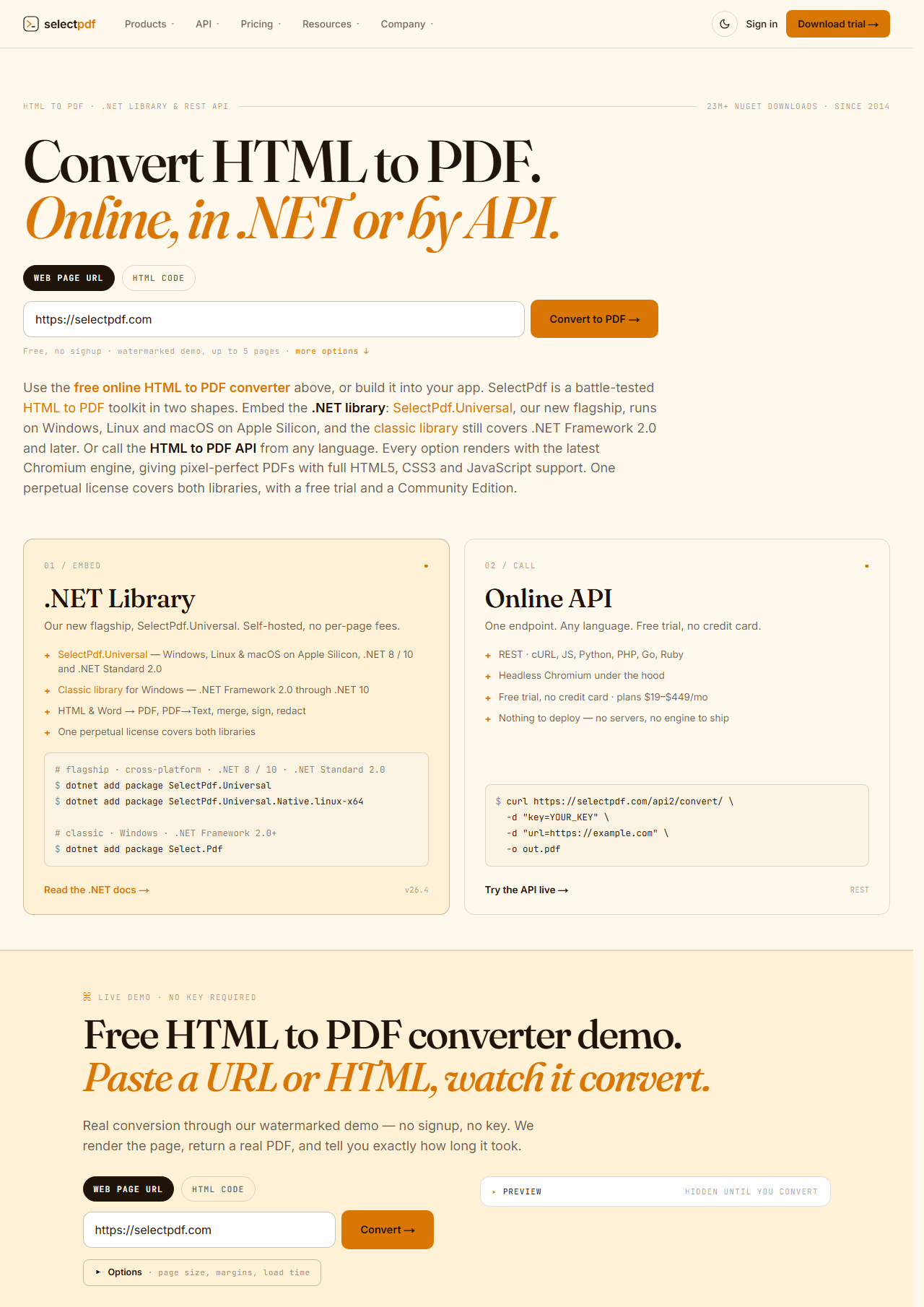
Download full-page.png ↓ the file this sample produced, unedited

Variations you will need next.
Each variation is a separate file in the same project, compiled and run with the program above.
Only the first screen, 1280 by 800
Setting WebPageHeight to 800 crops the image to 800 px: setting a height turns WebPageFixedSize on. The result is what a visitor sees before scrolling. Assign WebPageFixedSize after the height to opt back out.
using SelectPdf.Universal;

static class ViewportOnly
{
    public static void Run()
    {
        // Setting a height crops the image to that height: only the first
        // 1280 x 800 px of the page, what a visitor sees before scrolling.
        HtmlToImage converter = new HtmlToImage();
        converter.WebPageWidth = 1280;
        converter.WebPageHeight = 800;

        byte[] png = converter.ConvertUrl("https://selectpdf.com");
        File.WriteAllBytes("first-screen.png", png);
    }
}
A full-page capture at phone width
WebPageWidth = 390 renders the page in a window as narrow as a phone screen, so the page's responsive CSS applies. The height stays auto, so the image is the whole page in its narrow layout, and much taller.
using SelectPdf.Universal;

static class MobileWidth
{
    public static void Run()
    {
        // A 390 px wide window, the width of a phone screen. The page's
        // responsive CSS applies, and the height stays auto (full page).
        HtmlToImage converter = new HtmlToImage();
        converter.WebPageWidth = 390;

        byte[] png = converter.ConvertUrl("https://selectpdf.com");
        File.WriteAllBytes("full-page-mobile.png", png);
    }
}
Wait for content that scripts add
The report section of this page is filled by a script one second after the load event. ConversionDelay = 2 waits two more seconds before the page is rendered, so the screenshot includes it and the auto height covers it. Without the delay, the image shows only the heading and "Loading...".
using SelectPdf.Universal;

static class WaitForScripts
{
    public static void Run()
    {
        // This section is added by a script one second after the page loads.
        string html = """
            <h1>Sales dashboard</h1>
            <div id="report"><p>Loading...</p></div>
            <script>
              setTimeout(() => {
                document.getElementById("report").innerHTML =
                  "<h2>Totals</h2>" + "<p>Region data.</p>".repeat(40);
              }, 1000);
            </script>
            """;

        // Wait 2 seconds after the load event, so the screenshot includes it.
        HtmlToImage converter = new HtmlToImage();
        converter.WebPageWidth = 1024;
        converter.ConversionDelay = 2;

        byte[] png = converter.ConvertHtmlString(html);
        File.WriteAllBytes("dashboard.png", png);
    }
}
Common problems and fixes.
The image stops after the first screen
A height was set. Any value other than 0 for WebPageHeight turns WebPageFixedSize on and crops the image to that height. Leave it at 0 for the whole page.
Content drawn by scripts is missing
The page is rendered once it has loaded. Set ConversionDelay to the number of seconds the scripts need after the load event, as the third variation does.
Images further down the page are blank
LazyImagesLoadingEnabled forces lazy-loaded images to load before the capture, and it is on by default; check that it was not turned off. Images that a script adds later need ConversionDelay.
A slow page fails with a timeout
NavigationTimeout is how long the converter waits for the page to load, and MaxConversionTime bounds the whole conversion; both default to 60 seconds. Increase them for large or slow pages.
Good to know.
- WebPageHeight is the virtual browser height in pixels. Its default, 0, means auto: the full content height. Source
- Setting a height turns WebPageFixedSize on, and the image is cropped to that height. Source
- WebPageWidth is the virtual browser width in pixels. The default is 1024. Source
- ConvertUrl returns the image in the ImageFormat of the converter: PNG by default, or JPEG, BMP or TIFF. Source
- ConversionDelay is the time in seconds the converter waits after the page has loaded, before it is rendered. The default is 0. Source
Questions, answered.
Short answers about this guide. The SelectPdf.Universal documentation covers every class and option.