Convert PowerPoint presentations to PDF in C#
Create a PowerPointToPdf converter and call ConvertFile with the path of the .pptx file: every slide becomes a PDF page at the size the presentation defines, with the fonts it uses embedded. One option publishes notes pages or handouts instead, another scales the slides onto A4 or Letter pages.
Compiled and run: Linux x64 · Windows x64
Validated by veraPDF: PDF/A-3a · PDF/UA-1
Build it step by step.
-
1Install the NuGet packages
SelectPdf.Universalis the library. The native package carries the Chromium engine for one platform: add the one for the platform you run on.dotnet add package SelectPdf.Universal dotnet add package SelectPdf.Universal.Native.win-x64
dotnet add package SelectPdf.Universal
dotnet add package SelectPdf.Universal.Native.linux-x64
dotnet add package SelectPdf.Universal
dotnet add package SelectPdf.Universal.Native.linux-arm64
dotnet add package SelectPdf.Universal
dotnet add package SelectPdf.Universal.Native.osx-arm64
-
2Create a console app
Any .NET 8 or .NET 10 project works. To follow along, create a console app, run the install commands above inside its folder, then replace
Program.cswith the code below.dotnet new console -n PdfSample cd PdfSample
-
3Create the converter
PowerPointToPdf converter = new PowerPointToPdf();
PowerPointToPdfconverts PowerPoint presentations. ItsOptions,HeaderandFootermirror the HTML converter's, so a document setup written forHtmlToPdfapplies here unchanged. -
4Choose what is published
// one page per slide, each page the size of the slides (both are the defaults)
converter.Options.Publish = PowerPointPublish.Slides;
converter.Options.PageSetup = PowerPointPageSetup.Document;
Options.Publishdecides what the PDF holds.PowerPointPublish.Slides, the default, gives one page per slide; notes pages and handouts are shown in the variations below.PowerPointPageSetup.Document, also the default, gives every page the size the presentation defines for its slides. -
5Set the document properties
// document properties of the PDF
converter.Options.PdfDocumentInformation.Title = "Quarterly review";
converter.Options.PdfDocumentInformation.Author = "Sales team";
Options.PdfDocumentInformationsets the title and author recorded in the generated PDF. -
6Convert the presentation
PdfDocument doc = converter.ConvertFile("presentation.pptx"); Console.WriteLine($"{converter.ConversionResult.PdfPageCount} pages");ConvertFilereads the .pptx file and returns aPdfDocument.ConversionResultdescribes the document produced:PdfPageCountis 4 here, one page for each slide. Slides hidden in the presentation are left out unlessShowHiddenSlidesis set. -
7Save and close
doc.Save("presentation.pdf"); doc.Close();Savewritespresentation.pdf; it can also write to a stream or return a byte array.Closereleases the document. -
8Run it
dotnet run
The program writes
presentation.pdfto the working folder. Without a license key, every page carries a trial watermark; setGlobalProperties.LicenseKeybefore the first conversion to remove it.
The complete Program.cs.
This is the exact file our samples pipeline compiled and ran on Linux x64 and Windows x64 to produce the output on this page.
using SelectPdf.Universal;

PowerPointToPdf converter = new PowerPointToPdf();

// one page per slide, each page the size of the slides (both are the defaults)
converter.Options.Publish = PowerPointPublish.Slides;
converter.Options.PageSetup = PowerPointPageSetup.Document;

// document properties of the PDF
converter.Options.PdfDocumentInformation.Title = "Quarterly review";
converter.Options.PdfDocumentInformation.Author = "Sales team";

PdfDocument doc = converter.ConvertFile("presentation.pptx");
Console.WriteLine($"{converter.ConversionResult.PdfPageCount} pages");

doc.Save("presentation.pdf");
doc.Close();
Open the project on GitHub → this program and the variations below, ready to dotnet run
The PDF it produces.
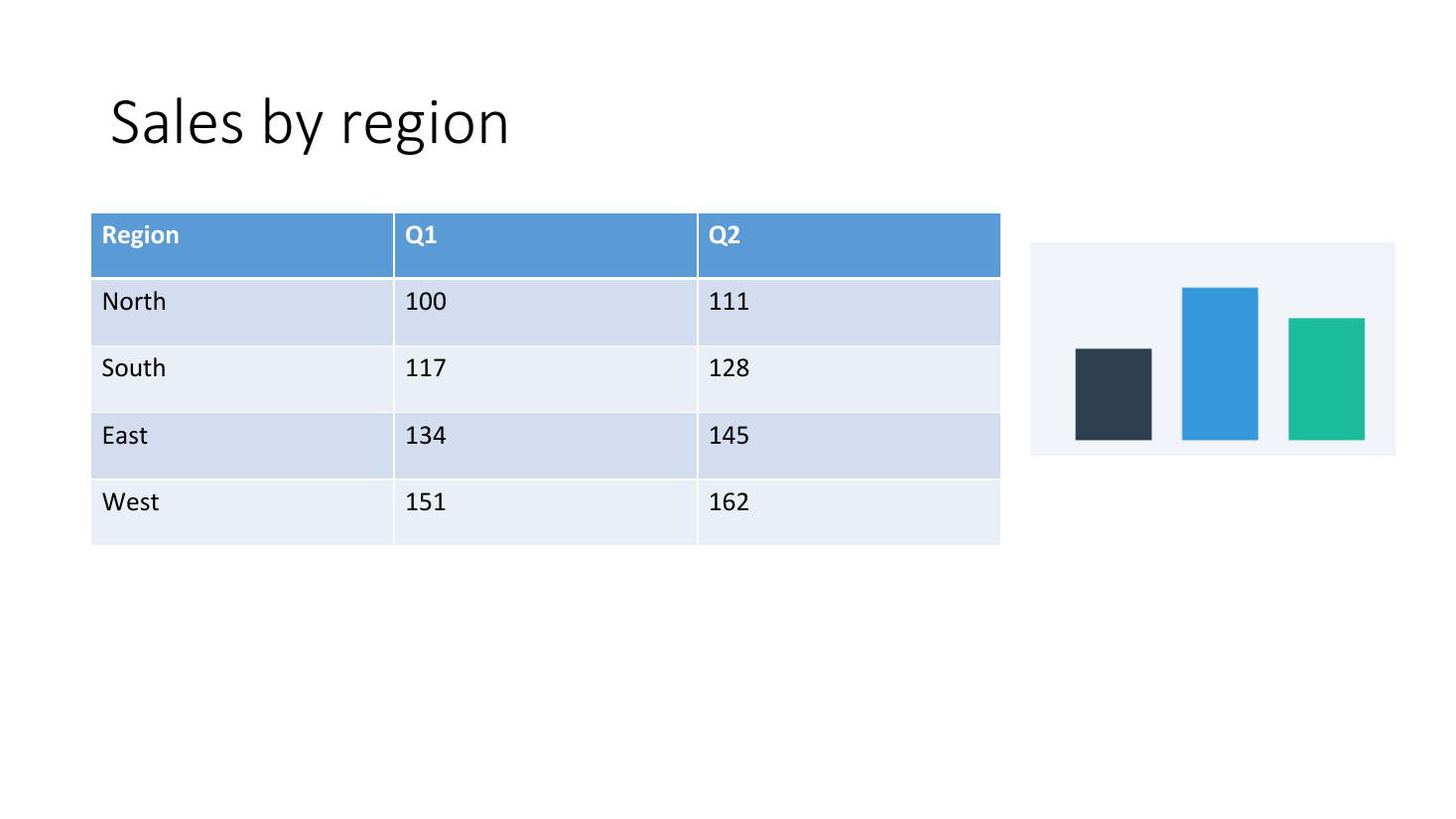
Download presentation.pdf ↓ the file this sample produced, unedited
Variations you will need next.
Each variation is a separate file in the same project, compiled and run with the program above.
Handouts: two slides on each A4 page, with page numbers
PowerPointPublish.Handouts puts SlidesPerHandout slides on each page: 1, 2, 3, 4, 6 or 9, and 6 by default. PowerPointPageSetup.Options scales every slide uniformly onto the page size and orientation set in the options, here A4 portrait; under the default Document setup those page options are ignored. The footer band writes {page_number} and {total_pages} on every page.
using SelectPdf.Universal;

static class HandoutsOnA4
{
    public static void Run()
    {
        PowerPointToPdf converter = new PowerPointToPdf();

        // two slides on each page, the slides scaled onto A4 portrait pages
        converter.Options.Publish = PowerPointPublish.Handouts;
        converter.Options.SlidesPerHandout = 2;
        converter.Options.PageSetup = PowerPointPageSetup.Options;
        converter.Options.PdfPageSize = PdfPageSize.A4;
        converter.Options.PdfPageOrientation = PdfPageOrientation.Portrait;

        // a centered page-number footer; a width of -1 spans the whole band
        converter.Options.DisplayFooter = true;
        converter.Footer.Height = 30;
        PdfTextSection pageNumbers = new PdfTextSection(0, 8, -1, "Page {page_number} of {total_pages}",
            PdfFont.CreateStandardFont(PdfStandardFont.Helvetica, 9), new PdfColor(80, 80, 80));
        pageNumbers.HorizontalAlign = PdfTextHorizontalAlign.Center;
        converter.Footer.Add(pageNumbers);

        PdfDocument doc = converter.ConvertFile("presentation.pptx");
        doc.Save("presentation-handouts.pdf");
        doc.Close();
    }
}
Notes pages: each slide with its speaker notes
PowerPointPublish.NotesPages gives one page per slide, with the slide's speaker notes below it. The four slides of the sample presentation give four notes pages.
using SelectPdf.Universal;

static class NotesPages
{
    public static void Run()
    {
        PowerPointToPdf converter = new PowerPointToPdf();

        // one page per slide, with the speaker notes below the slide
        converter.Options.Publish = PowerPointPublish.NotesPages;

        PdfDocument doc = converter.ConvertFile("presentation.pptx");
        doc.Save("presentation-notes.pdf");
        doc.Close();
    }
}
Accessible and archival: PDF/A-3a with PDF/UA-1
PdfStandard.PdfA3A turns tagging on by itself: the slides' titles, text, lists, tables, pictures with their descriptions and links become the logical structure of the PDF. AccessibilityStandard = PdfUAStandard.UA1 declares PDF/UA-1, which needs Title and Language. ConvertBytes takes the presentation from memory, and ConvertStream from a stream. A tagged document is published from the slides only: notes pages and handouts are not available for it.
using SelectPdf.Universal;

static class AccessiblePdfUa
{
    public static void Run()
    {
        PowerPointToPdf converter = new PowerPointToPdf();

        // PDF/A-3a is archival and accessible: it turns tagging on by itself
        converter.Options.PdfStandard = PdfStandard.PdfA3A;

        // declare PDF/UA-1, which needs a title and a language
        converter.Options.AccessibilityStandard = PdfUAStandard.UA1;
        converter.Options.Title = "Quarterly review";
        converter.Options.Language = "en-US";

        // the slides from memory, for example an upload
        byte[] pptx = File.ReadAllBytes("presentation.pptx");
        PdfDocument doc = converter.ConvertBytes(pptx);
        doc.Save("presentation-pdfa3a-ua1.pdf");
        doc.Close();
    }
}
Common problems and fixes.
PowerPointToPdfException: the file cannot be found or read
ConvertFile throws PowerPointToPdfException when the path is empty, the file does not exist, or the presentation cannot be read or rendered. A relative path is resolved against the current directory, so pass a full path, or read the file yourself and call ConvertStream or ConvertBytes.
The presentation is password protected
Set converter.Options.Password to the password of the encrypted presentation before converting it.
The page size and orientation have no effect
Under the default PowerPointPageSetup.Document, every page has the size of the presentation's slides, and PdfPageSize and PdfPageOrientation are ignored. Set Options.PageSetup = PowerPointPageSetup.Options to scale the slides onto the page you choose. The margins and the header and footer bands apply under both setups.
Hidden slides are missing from the PDF
The slides hidden in the presentation are left out by default. Set converter.Options.ShowHiddenSlides = true to convert them too.
Good to know.
- The PowerPoint to PDF converter reads pptx, pptm, potx, potm, ppsx and ppsm files, from a file, a stream or a byte array. Source
- A presentation is published as one page per slide, as notes pages with the speaker notes below each slide, or as handouts with 1, 2, 3, 4, 6 or 9 slides on a page. Source
- By default every page has the size of the presentation's slides; the Options page setup scales every slide uniformly onto the page size and orientation of the converter's options. Source
- Every font the presentation uses is embedded in the PDF; a font family the host does not have is served from the bundled Liberation faces, metric-compatible with Arial, Times New Roman and Courier New. Source
- On a host without Calibri or Cambria, PowerPoint presentations are drawn in Carlito and Caladea, which have the same widths. Source
- Every PDF/A level and PDF/X-1a are produced through PdfStandard; tagged output is declared as PDF/UA-1 or PDF/UA-2, and PdfStandard.PdfA3A turns tagging on by itself and combines with PDF/UA-1. Source
- Notes pages and handouts are not produced as a tagged (accessible) document: the slides are published for one. Source
- PowerPoint to PDF is new in SelectPdf 26.6, is available in the full library only, and works on Windows, Linux and macOS. Source
Questions, answered.
Short answers about this guide. The SelectPdf.Universal documentation covers every class and option.