PDF Structure: look inside a PDF file and edit its objects
Explore a PDF file's internals with PDF Structure - its objects, streams, page objects, cross-reference, revisions, signatures and annotations - and edit its objects at the lowest level.
A PDF file is made of objects: dictionaries, arrays, names, numbers, strings and streams, which point to each other. PDF Structure shows them as they are written in the file, the way a developer or a print specialist looks at a PDF: to find why a file shows wrongly, why a check fails, where a font or an image is used, what a signature covers. It also changes them, one value at a time.
To open PDF Structure, click its icon on the left side, under Layers, or click PDF Structure on the Tools tab, in the Analyze group. Click the icon again to close it. It opens in the left panel, which widens while it is open, with four tabs: Structure, Page Objects, Cross-Reference and Annotations. The editor does not open it by itself: if it was open when you closed the editor, the next time it starts with the panel you had open before it.
PDF Structure is free. It reads any PDF, also one whose cross-reference is broken (the objects are then found by reading the whole file) and one protected with a password (values are shown decrypted).
The objects of the file
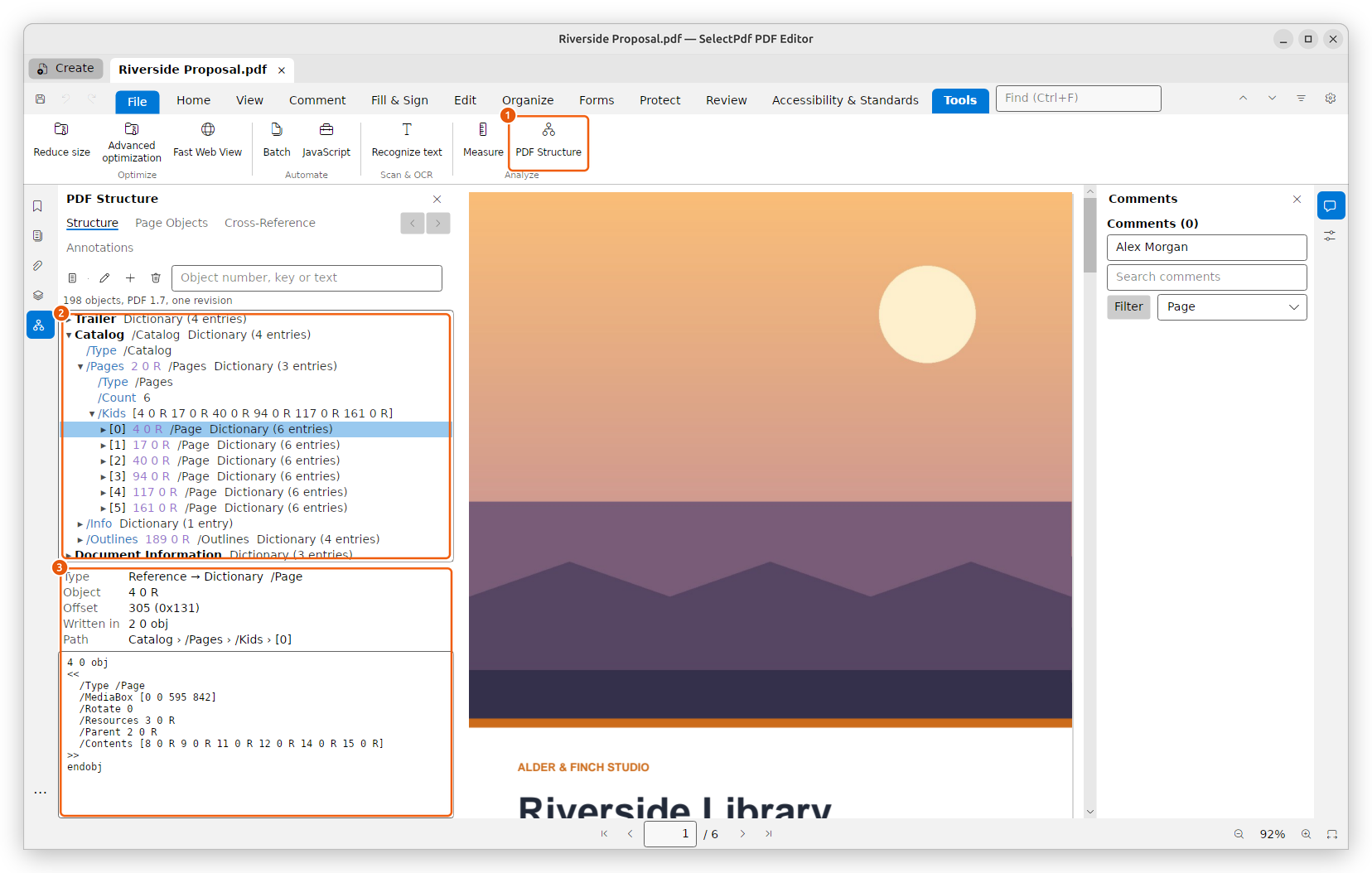
- PDF Structure on the Tools tab opens the panel.
- The objects of the file, as a tree.
- What the object picked is, where it is in the file, and its value.
The tree starts from four places:
- Trailer: the end of the file, which says where everything else is;
- Catalog: the root of the document, with its pages, bookmarks, form and the rest;
- Document Information: the title, author and dates, when the file has them;
- All Objects: every object of the file, by number (in groups of 1,000 when there are many).
Until you click a row, the box under the tree says to pick one.
Each row shows a key (such as /Type) or an item (such as [0]), then its value. A reference to another object, such as 12 0 R, opens to show that object; follow it with Go to Object (or double-click it, or press Enter) and come back with Back. A reference back to an object above it in the tree is marked and does not open again. A reference to an object the file does not have is marked in red.
Back and Forward, at the right of the tabs (or Alt+Left and Alt+Right), go back and forth through what you picked in every tab - a node of the tree, an object of a page, an entry of the cross-reference, an annotation - and bring its tab forward.
Below the tree are the object's facts: its kind, its number, where it starts in the file, the object stream that holds it, the object it is written in, and its value as PDF syntax, which you can select and copy.
- In the box above the tree, type an object number (12, or 12 0 R) to go to that object, or a word to find the keys, names and texts that contain it; press Enter again for the next one.
- The page button finds the page shown in the tree; a page picked in the tree is shown in the document.
- Right-click a row for Copy Value, Copy as PDF Syntax and Copy Path.
Streams
A stream holds data: a page's content, an image, a font, metadata, a script. Pick one to see its data below the tree.
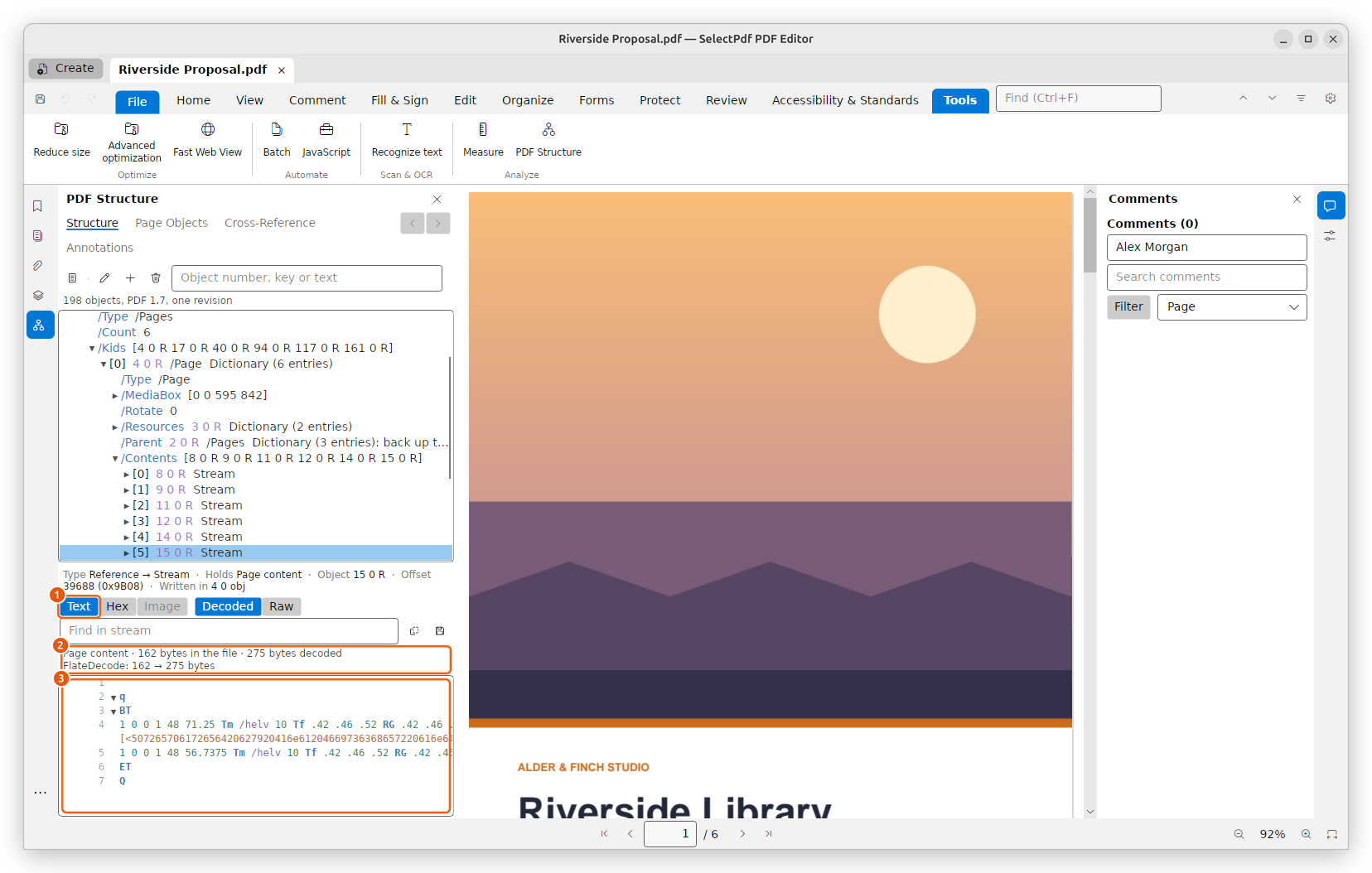
- Text, Hex or Image: how the data is shown.
- What the stream holds, its size in the file and decoded, and what each filter did.
- The data, with line numbers.
- Text shows a content stream, a CMap, a script or XML in colour. Sections fold and unfold from the triangle before their first line: q to Q, BT to ET, marked content, XML elements. Point at an operator of a content stream, such as Tj or re, to read what it does.
- Hex shows the bytes, with their offsets and characters.
- Image shows an image stream as a picture, with its size and colour space.
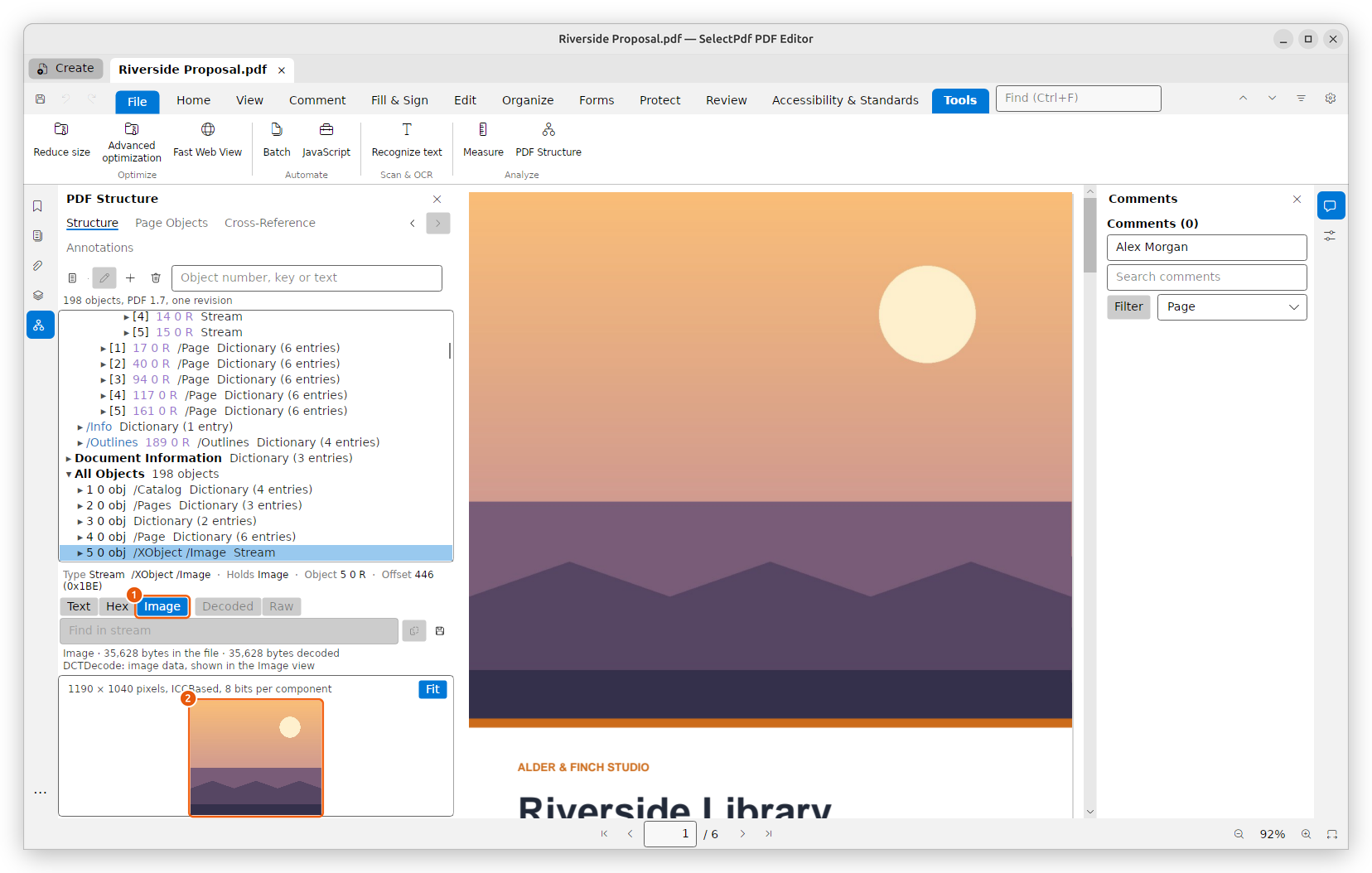
- Image shows the picture.
- The picture, fitted to the panel (Fit) or at its actual size.
Decoded shows the data with its filters undone (decompressed); Raw shows it as it is stored in the file. A filter that fails, or a /Length that does not match the data, is said in red. The save button saves the decoded data, the raw data, or an image as a PNG file.
Page Objects
Page Objects lists what the page shown paints, in the order it is painted: text, paths, images, shadings and forms, with what each form holds.
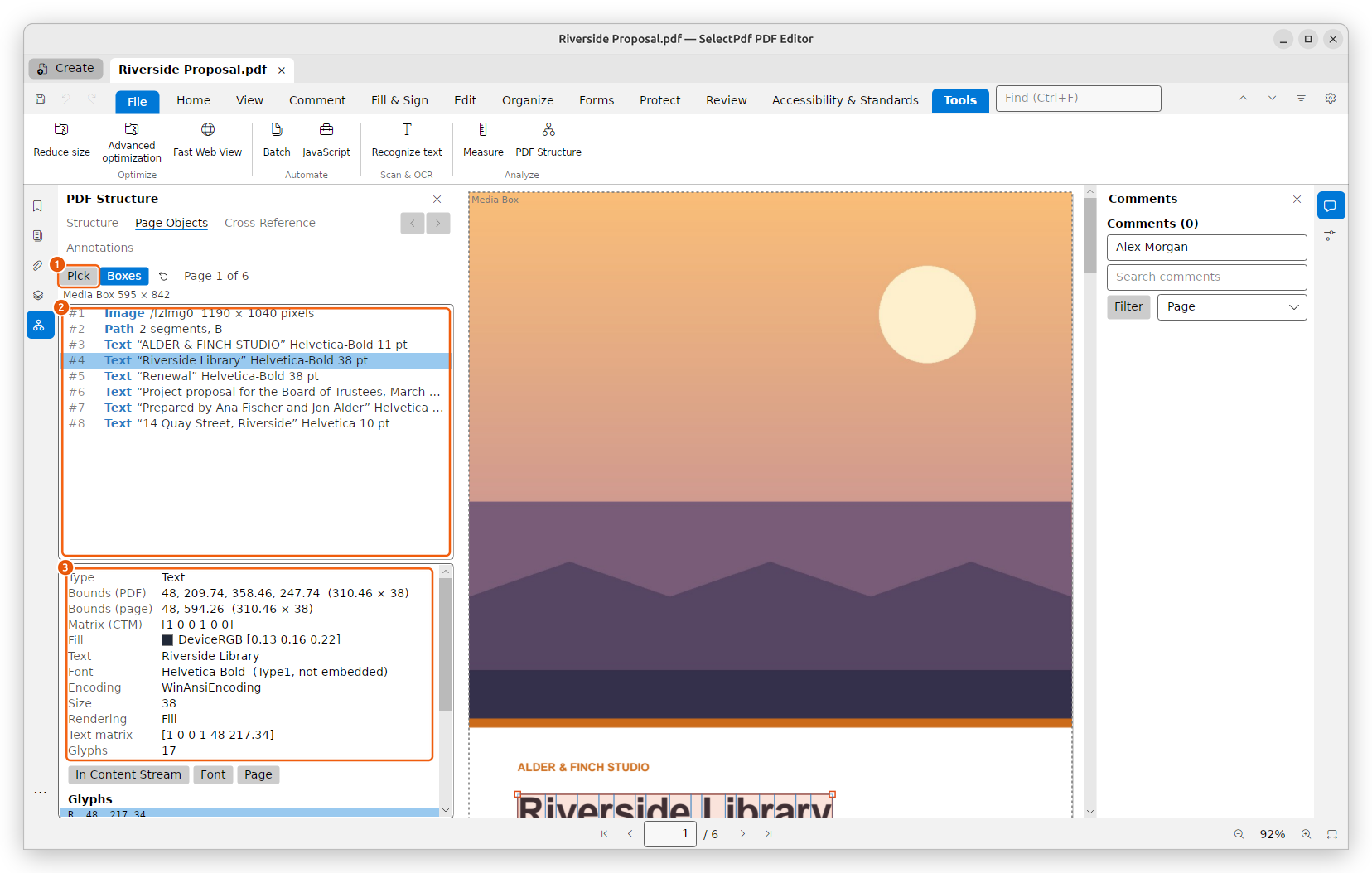
- Pick: click an object on the page to pick it.
- The objects of the page.
- The properties of the object picked.
The object picked is outlined on the page, with its corners. A path shows its points and a text its glyphs; point at one to read where it is, in PDF coordinates and on the page. The properties include its bounds, its matrix, its fill and stroke colour, its font and size, its line width and dash, an image's pixels, colour space and resolution. The buttons below the properties open in the Structure tab the object's font, image, form, shading or colour space, its page, and the place in the content stream that paints it.
Boxes draws the page's boxes on the page: the media box, and the crop, bleed, trim and art boxes the page has. Their sizes, the page's rotation and its user unit are written under the buttons.
Cross-Reference and signatures
Cross-Reference lists the file's cross-reference sections: one for the file as it was first saved, and one more for each update saved after it. Each says where it is, how many entries it has, where its revision ends, and the signatures made on that revision.
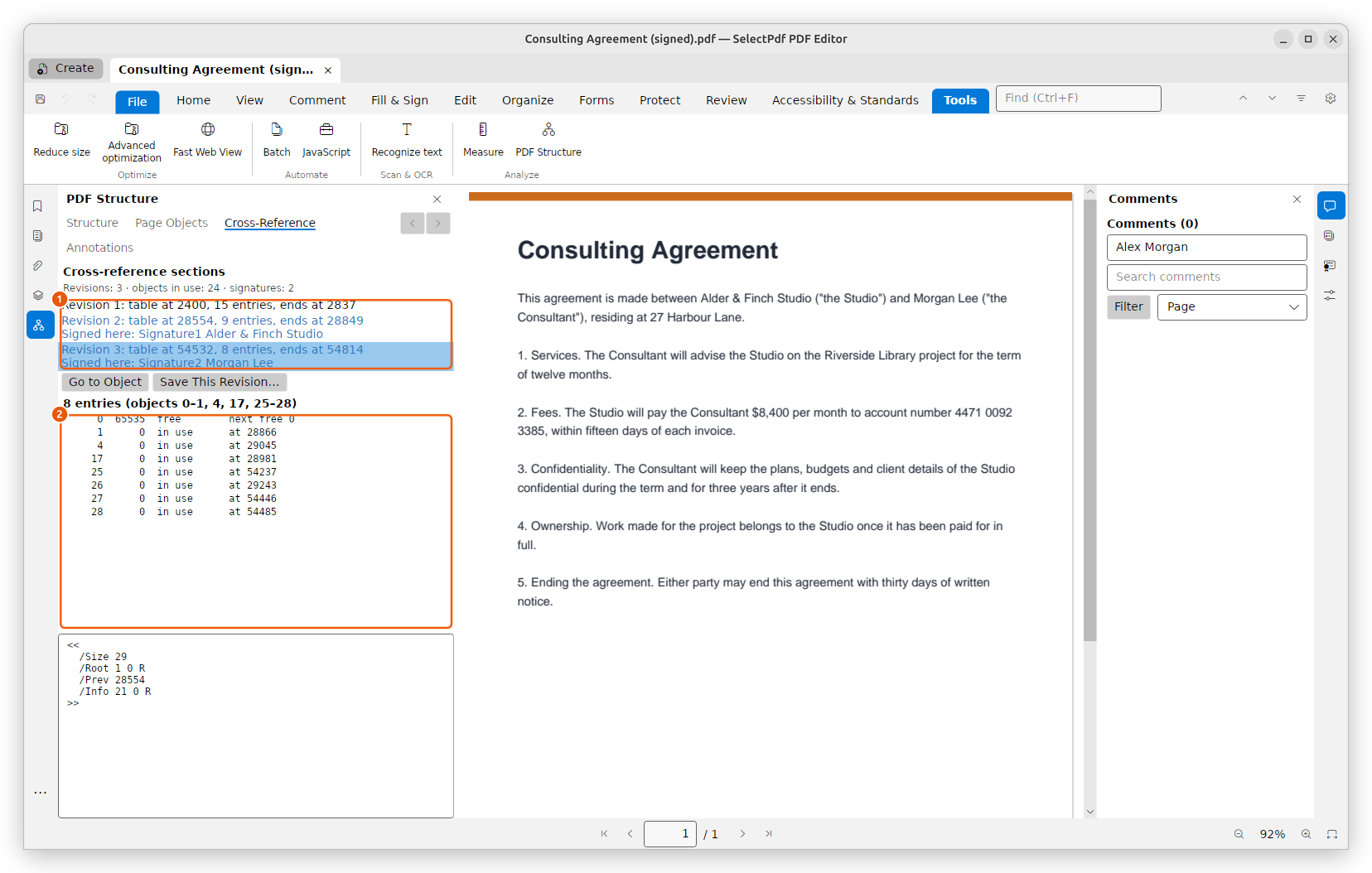
- The sections, one per revision; the last one is selected.
- Its entries: each object, its generation, and where it is (at an offset, in an object stream, or free).
Pick an entry and click Go to Object to see the object in the Structure tab. Save This Revision saves the file as it was at that revision: what a signature of that revision signed.
A signature's /Contents picked in the Structure tab shows the signature decoded: its ASN.1 elements, with their tags and values, the known identifiers named (such as signedData, messageDigest, commonName).
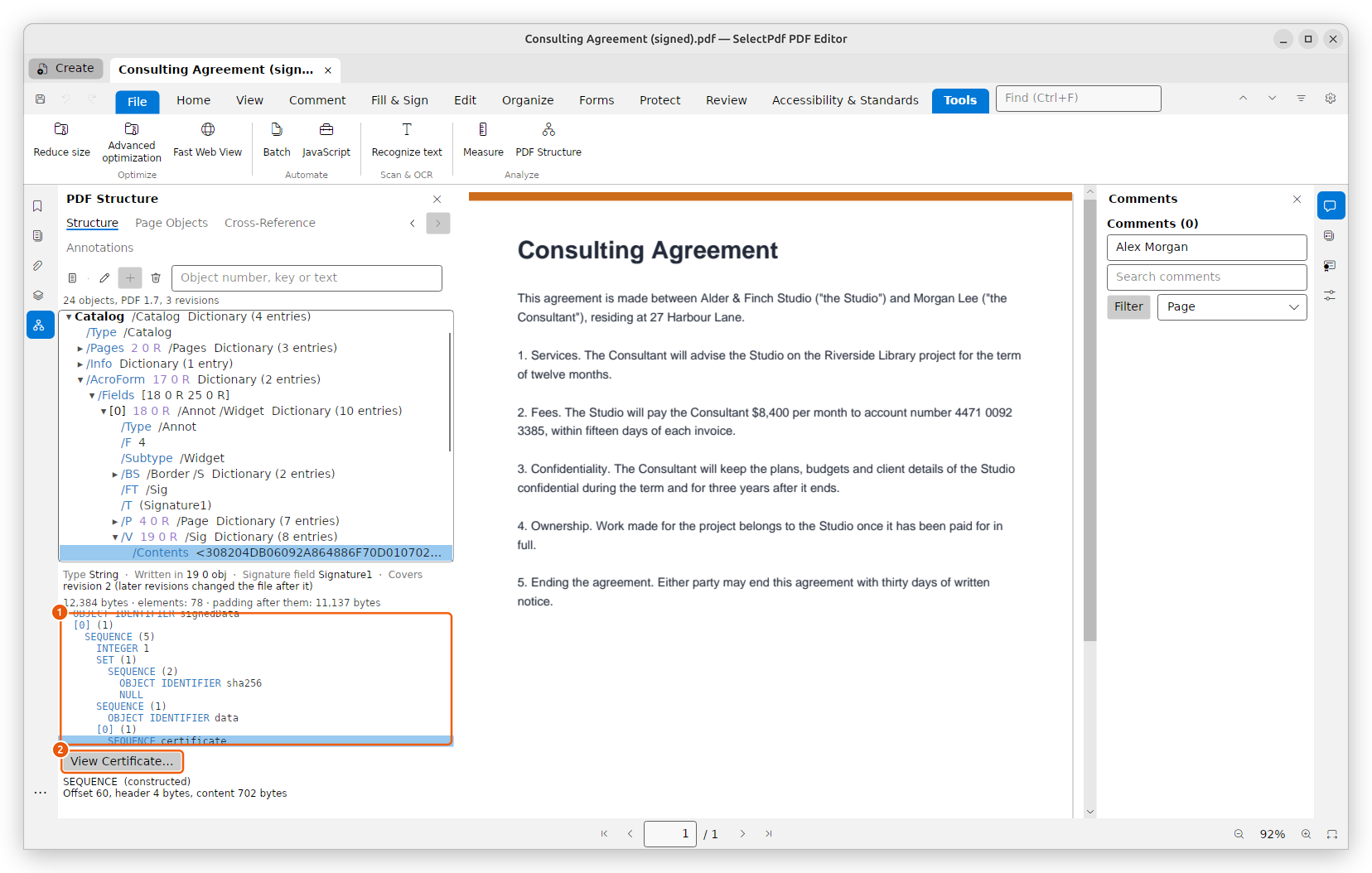
- The elements of the signature.
- View Certificate opens a certificate of the signature.
Annotations
Annotations lists every annotation of every page in one place: comments, links, form fields and the rest, each with its page, its type and its text.
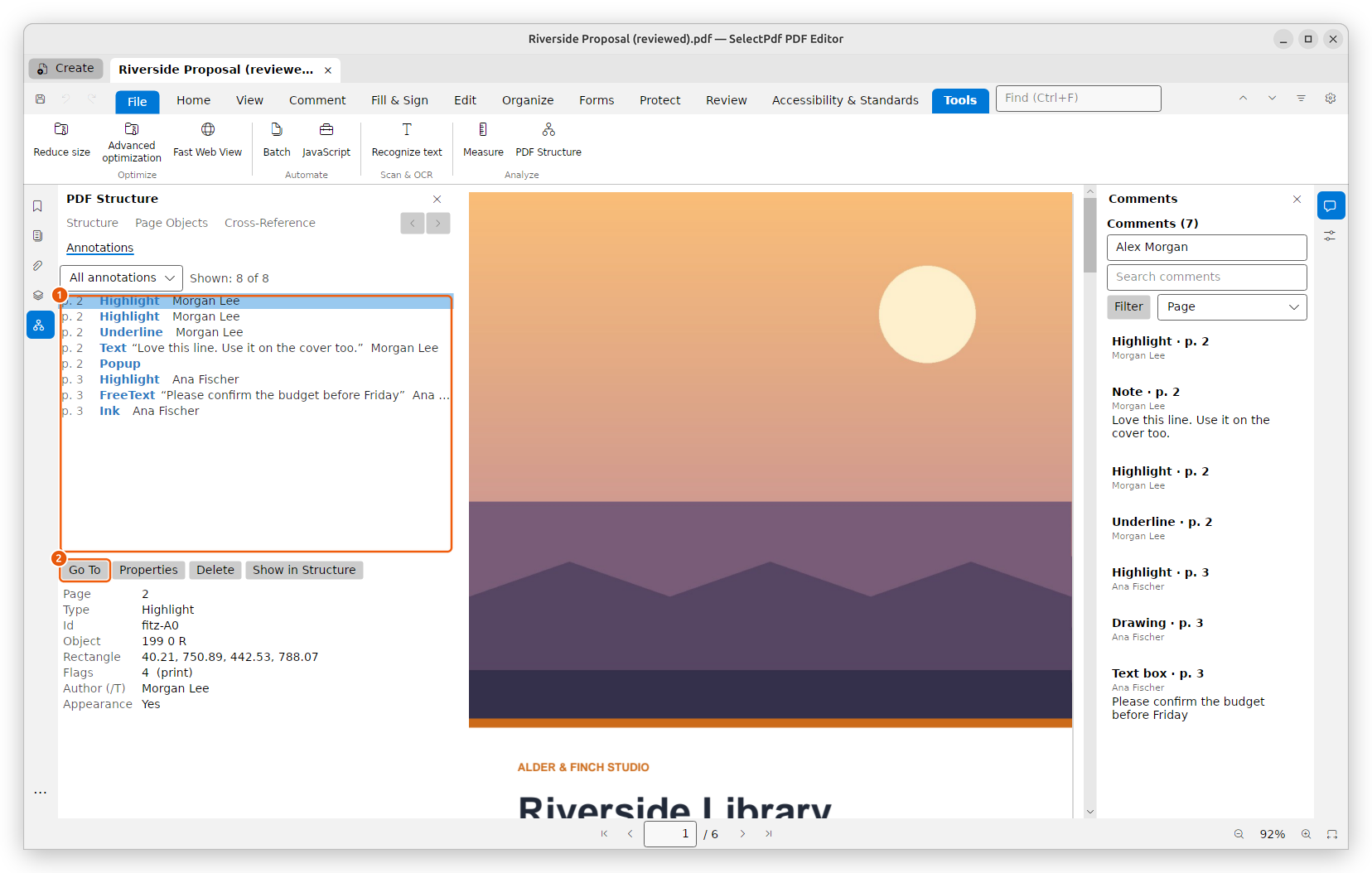
- The annotations; the box above them shows them all or one kind.
- Go To shows the annotation picked on its page, selected.
Properties opens its properties, Delete deletes it, and Show in Structure shows its dictionary in the tree. Below the buttons are its facts: its id, rectangle, flags, author, contents and date.
Right-click the page for Show Annotation in PDF Structure (on a comment) and Show Page in PDF Structure.
A failure in the Standards panel or the Accessibility Checker, and a tag in the Tags panel, have Show in PDF Structure on their right-click menu. It selects the operator a failure names in its content stream, or the object (a tag's structure element), or else the page.
Edit the objects
The buttons above the tree, and the right-click menu of a row, change the file's objects. Each change is one step of Undo, and the tree shows what was changed.
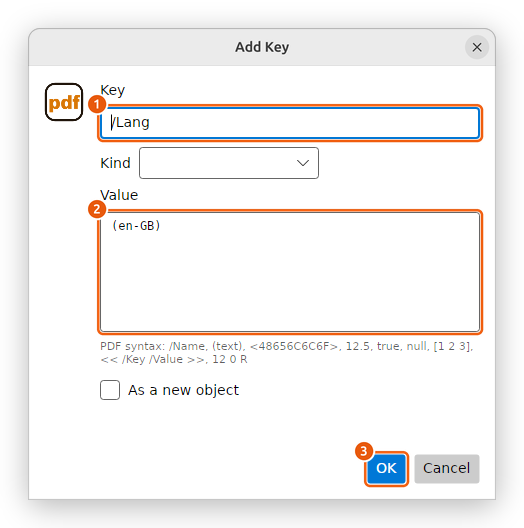
- Key: the name of the new entry.
- Value: the value, as PDF syntax. Kind fills in an example of a name, a string, a number, an array, a dictionary or a reference.
- OK adds it. It is enabled only when the value is valid PDF syntax.
- Edit Value (F2) changes a value; Rename Key renames an entry; Delete (Del) removes an entry or an item.
- Add Key or Add Item (Insert) adds a value to a dictionary or an array. Tick As a new object to write it as an object of its own, referred to from there. Add Reference to an Object adds a reference such as 12 0 R.
- Load Stream Data from File replaces a stream's data with a file's bytes, compressed, stored as they are, or kept under the stream's own filters. Add Stream from File and Add Image from File add a new stream, or an image made from a PNG, JPEG, TIFF, GIF or BMP file.
- Delete Object removes every reference to an object, so that the file no longer uses it.
- Merge Content Streams, on a page, joins its content streams into one. The page looks the same.
Changing the trailer, the page tree, a stream's /Length or /Filter, the encryption or a signature can break the file, so the editor asks first. A changed signature is no longer valid.
For the pages of the document, see Organize pages; for the document's title and author, see Document properties.