SelectPdf PDF Editor for Windows: user guide
How to use every tool of SelectPdf PDF Editor on Windows: read, comment, fill, sign, edit, organize, convert, protect, check and automate PDF files, step by step with pictures.
New to the editor? Start with the window tour, or see what the PDF Editor does.
Get started
- Introduction What SelectPdf PDF Editor does, what is free and what Pro adds, and how this guide is organized.
- Install and update What the PDF Editor needs, how to install it without administrator rights, the 14-day Pro trial, entering a license key, updates, and uninstalling.
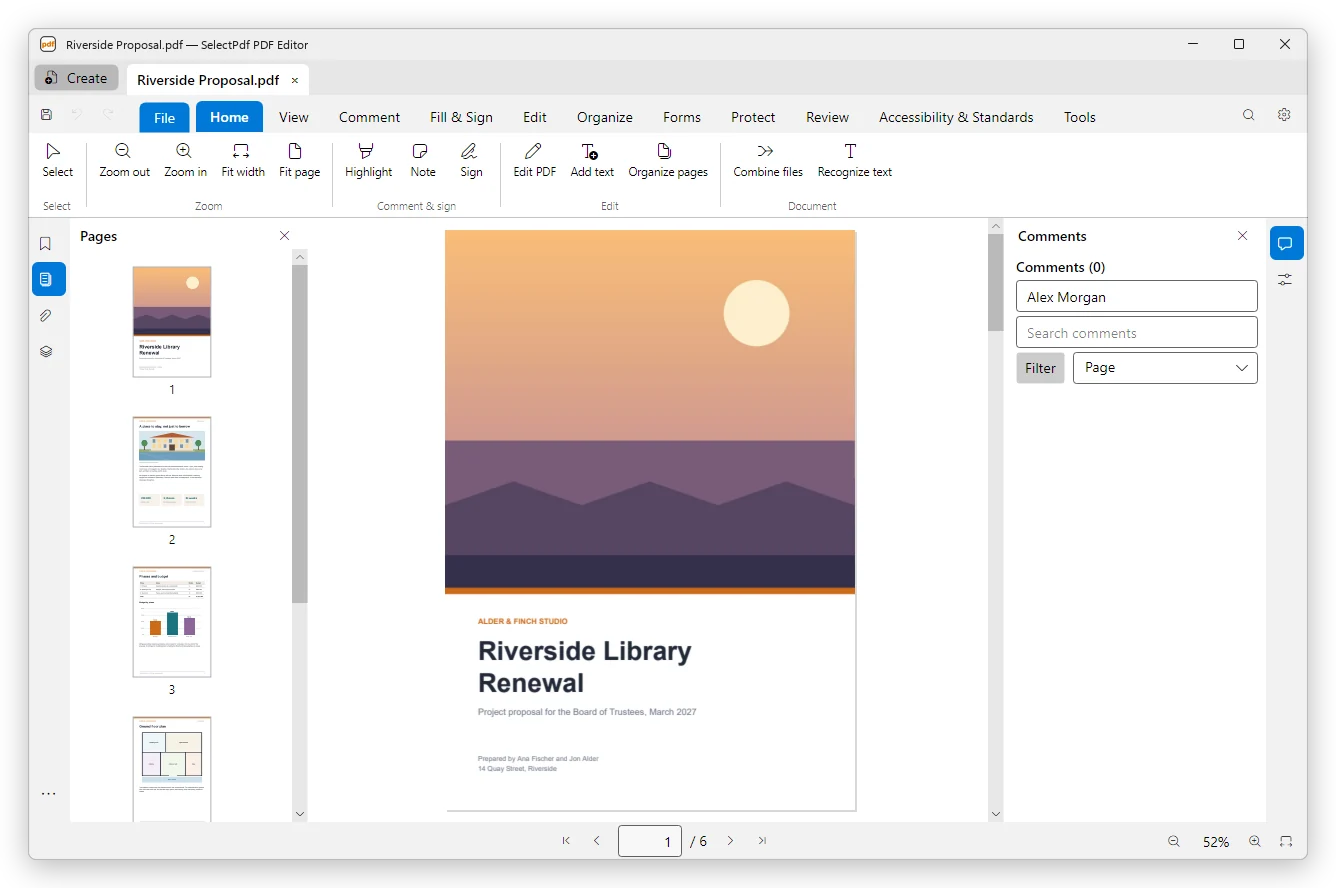
- The editor's window The parts of the PDF Editor's window, from the document tabs and the ribbon to the side panels and the page bar.
- Search commands and keyboard shortcuts Find any tool by typing its name with Ctrl+K, use the quick access buttons, and work faster with the editor's keyboard shortcuts.
- Preferences Every setting of the PDF Editor's Preferences, page by page, from the language, the theme and your name on comments to the grid, signatures, trusted certificates, high-contrast colours and the downloaded components.
- The editor and Windows Make the PDF Editor your default PDF app, open and combine files from the right-click menu in File Explorer, use the taskbar's jump list, drag files onto the window, and start the editor from the command line.
Open, view and save
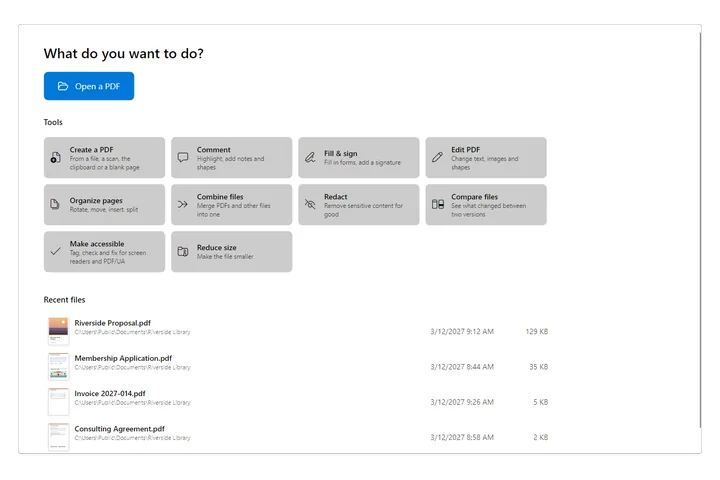
- Open a PDF Open PDF files from the welcome page, the File view, File Explorer or the recent files, open password-protected and certificate-encrypted files, and work with several documents in tabs.
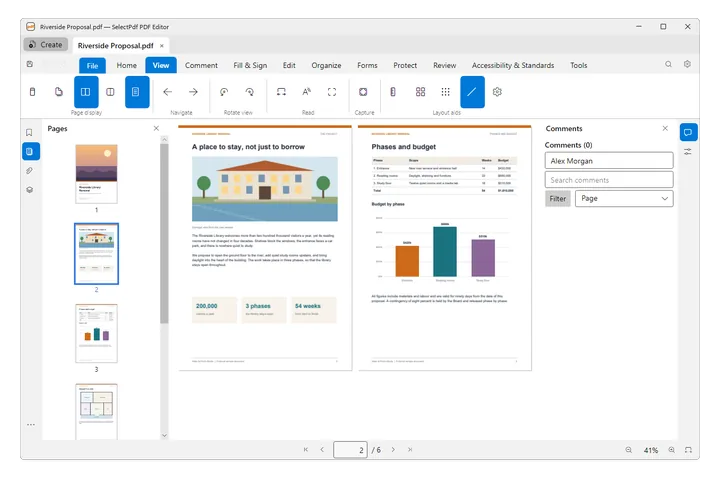
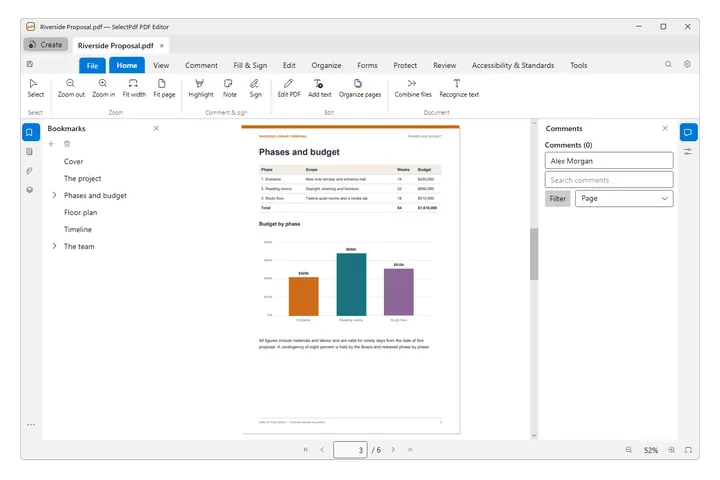
- View a PDF Zoom, move through the pages, show one or two pages at a time, use page thumbnails and bookmarks, turn the view, read in full screen or reflowed, and switch to the dark theme.
- Rulers, grid and guides Measure and line things up on the page with the rulers, the layout grid, guides and Snap to grid, and copy part of a page as a picture with Snapshot.
- Find text Find a word or phrase in a PDF with the find box, search one document, all open documents or a whole folder with Advanced search, and replace text with Find and Replace.
- Save a PDF Save your changes, save a copy under another name, see which documents have unsaved changes, undo and redo, and what saving does to a signed document.
- Document properties See and change a PDF's title, author, subject and keywords, its security, fonts, how it opens, its custom properties and its print and reading settings, in Document Properties.
Navigate a document
- Bookmarks Go to the parts of a document with its bookmarks, and add, rename, move, nest, style and delete bookmarks, or choose what a bookmark does when clicked.
- Links and actions Add and change links, choose how they look and what they do (go to a page, open a web page or a file, submit a form, show layers, run a script...), and set actions that run when the document or a page opens, closes, saves or prints.
- Destinations and articles Name places in a document so links can go to them, and follow or make article threads that lead readers through text in columns and across pages.
- Layers Show and hide a document's layers, lock, rename, arrange, merge, flatten and delete them, set their properties, add new layers, and import a page or a picture as a layer.
- Attachments See the files a PDF carries, open and save them, attach your own files with a description, and play or save the sound and video in a document.
- PDF Portfolios Open a PDF Portfolio and work with its files, and package files of any kind into a new portfolio.
Comment and review
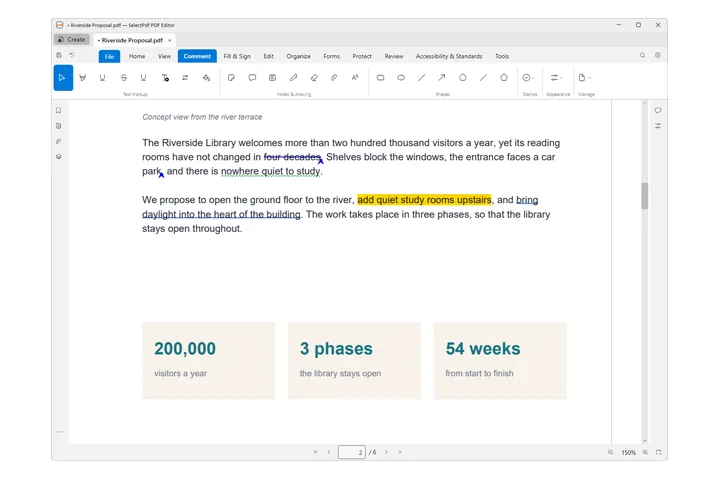
- Comment on a PDF Highlight, underline and strike out text, mark insertions and replacements, add notes, text boxes and callouts, and change how a comment looks in the Properties panel.
- Drawings and shapes Draw freehand with the pen and erase parts of a drawing, draw rectangles, ellipses, lines, arrows, polygons, polylines and clouds, attach files and sounds, and change how a shape looks.
- Stamps Stamp a PDF as Approved, Draft, Confidential or For Comment, or with a dynamic stamp that shows your name and the date and time; move and resize stamps.
- Manage comments Find, sort and filter comments in the Comments panel, reply to them, set their status and check them off, set your name as the author, make a summary of the comments, export and import them, and flatten them into the pages.
- Measure Measure distances, perimeters, areas and radii on a PDF, set the scale of a drawing or calibrate it from a length you know, snap to the drawing's lines, and export the measurements to a spreadsheet.
- Check spelling Check the spelling of comments, form fields and edited text with Check Spelling, see misspelled words underlined while you edit text, and choose the dictionary language.
- Compare two versions See what changed between two versions of a PDF, side by side or drawn over each other, and save a report of the changes.
Forms
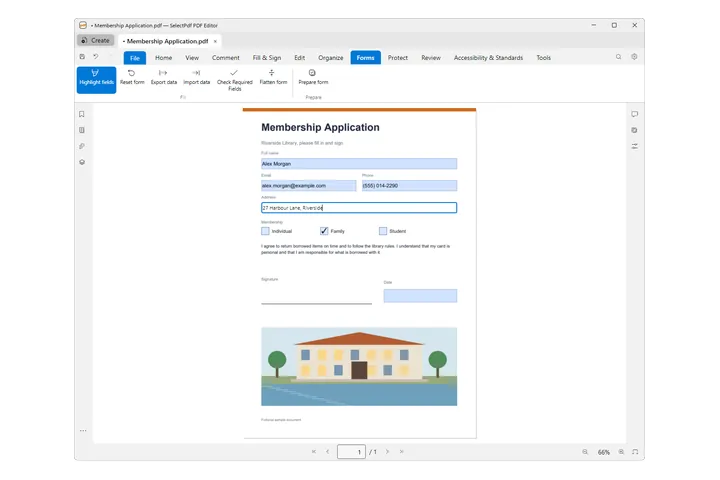
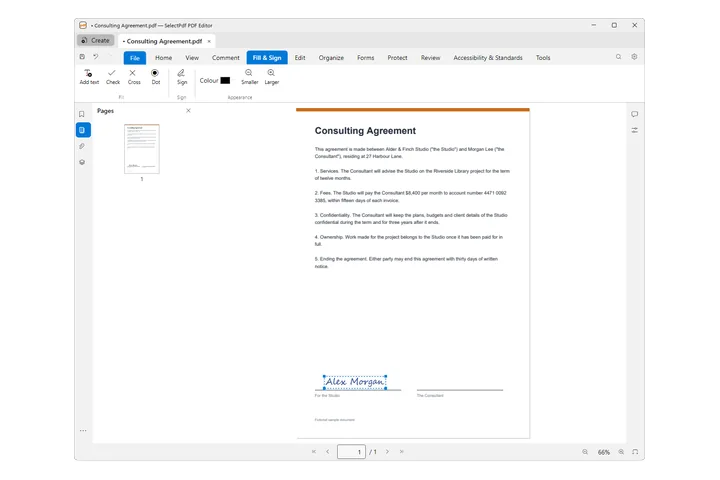
- Fill in a form Type in the fields of a PDF form, tick its boxes, pick dates and pictures, let the form work out its totals, sign it and send it, fill forms that have no fields with Fill & Sign, and save the filled form.
- Create a form Turn a PDF into a form people can fill in: add text fields, check boxes, option buttons, lists, buttons, date, image and signature fields, then move, size, line up, copy and order them.
- Form field properties Set what a form field is called, how it looks and what it does: name, tooltip, required, read-only, visibility, colours and font, the options of each kind of field, its actions and scripts.
- Calculate, format and check values Make a form work out totals by itself, show numbers as amounts, percentages and dates, and refuse values that are out of range, with the Format, Validate and Calculate properties of its fields.
Sign
Edit
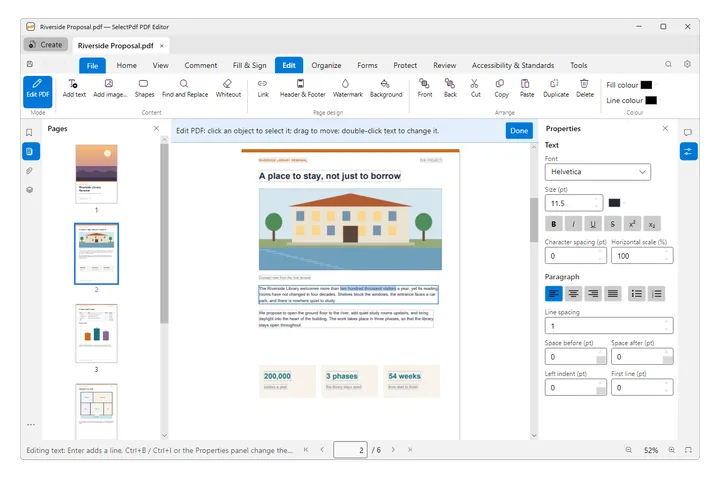
- Edit text and images Change the text of a PDF, its fonts and colours, move and resize text, images and shapes, add new text and pictures, and replace an image, in the Edit PDF mode.
- Headers, watermarks and backgrounds Number the pages, add headers and footers, Bates numbers, watermarks and backgrounds to a PDF, and update or remove them later.
Pages
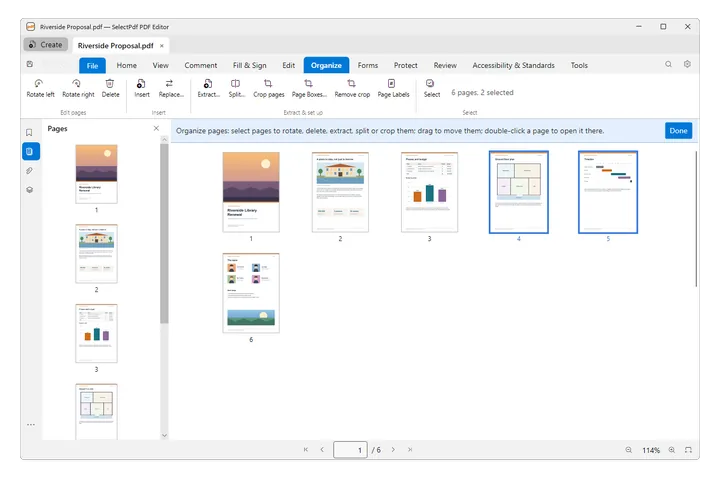
- Organize pages Rotate, delete, move, insert, extract, split and crop the pages of a PDF in the Organize view, one page or many at a time.
- Crop pages, page boxes and page labels Crop the pages of a PDF, set their crop, trim, bleed and art boxes or change their size, number them with page labels such as i, ii, iii, and replace pages with pages of another file.
- Combine files Combine several PDFs, pictures and Office documents into one new PDF, put the files and their pages in order, and choose which pages to keep.
Create and convert
- Create a PDF Make a PDF from a Word, Excel or PowerPoint file, a picture, a scan, the clipboard, a web page or a blank page.
- Export a PDF Save a PDF as a Word, Excel or PowerPoint file, as pictures, as text, or as a PDF/A copy for archiving.
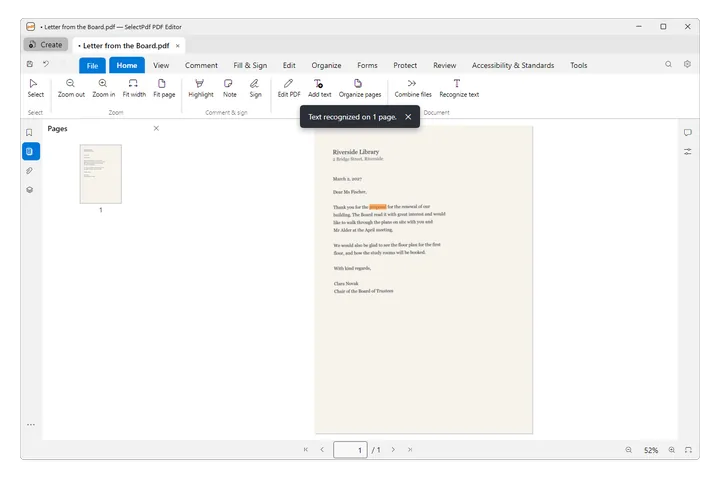
- Recognize text (OCR) Make scanned pages searchable and selectable with text recognition (OCR), for the whole document or an area of a page.
- Electronic invoices (ZUGFeRD, Factur-X, XRechnung) Make a PDF an electronic invoice by attaching its ZUGFeRD, Factur-X or XRechnung XML, see the data of an e-invoice you receive, and save its XML.
Protect
- Protect a PDF with a password Require a password to open a PDF, restrict printing, copying and editing with a permissions password, and remove the security of a document.
- Encrypt with a certificate Encrypt a PDF so that only the people you choose can open it with their digital IDs, give each of them their own permissions, keep your security settings as policies, and open a document encrypted for you.
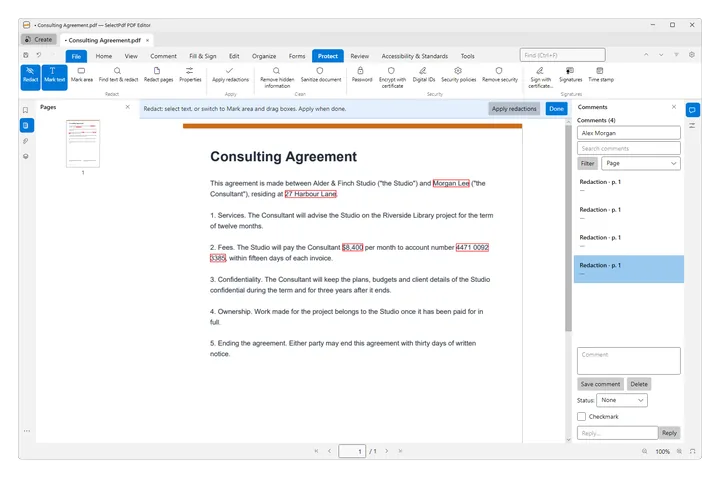
- Redact sensitive information Mark text, areas or whole pages for redaction, find names, numbers and patterns to redact, and apply the redactions to remove the content for good.
- Remove hidden information and sanitize Find what a PDF holds besides its pages (metadata, attachments, comments, hidden text and layers, scripts, links and more), remove what you choose, or sanitize the document to remove all of it in one step.
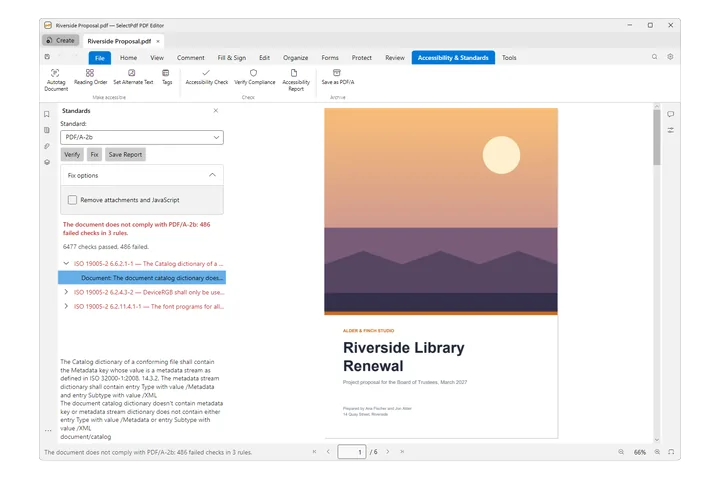
Accessibility and standards
- Accessibility and standards Check whether a PDF can be read with a screen reader, fix what is missing, and check it against the PDF/UA and PDF/A standards.
- Tags and reading order Look at and correct the tags of a PDF in the Tags panel, edit tag properties, alternate text and the role map, fix the reading order and tag content by hand with the Reading Order tool, and set up table headers for PDF/UA.
- PDF standards: PDF/A, PDF/UA and PDF/X Check a PDF against PDF/A, PDF/UA or PDF/X with Verify Compliance, read what the check reports, fix what fails, save a report, and save a copy of a document as PDF/A for archiving.
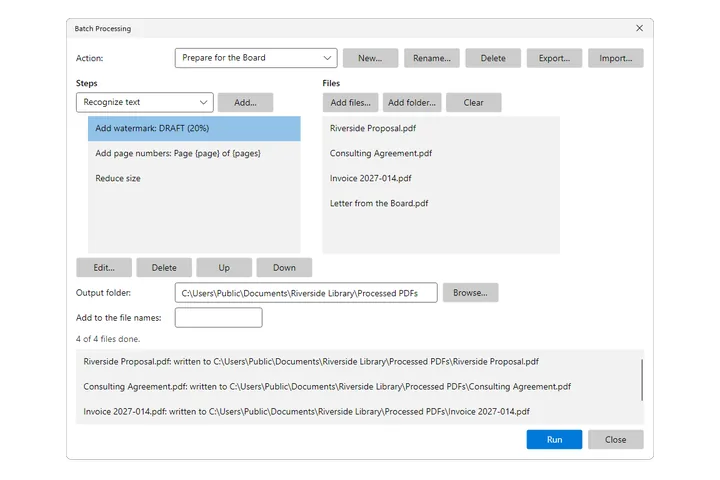
Automate
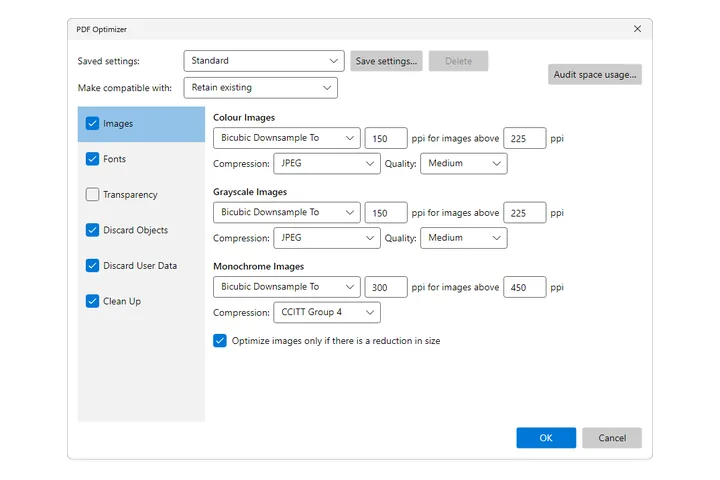
- Process many files at once Run the same steps over many PDF files with Batch (the Action Wizard): add a watermark, page numbers or a password, reduce the size, convert to PDF/A, recognize text and more, then save each file to an output folder.
- JavaScript Add scripts to a PDF: document JavaScripts that run when it opens, actions when it closes, saves or prints or when a page opens, and the scripts of form fields; what the editor's script engine does and how it keeps you safe.