SelectPdf PDF Editor for iPhone and iPad: user guide
How to use SelectPdf PDF Editor on iPhone and iPad: read, comment, fill, sign, edit, organize, convert and protect PDF files with taps and the Apple Pencil, step by step with pictures.
New to the editor? Start with the window tour, or see what the PDF Editor does.
Get started
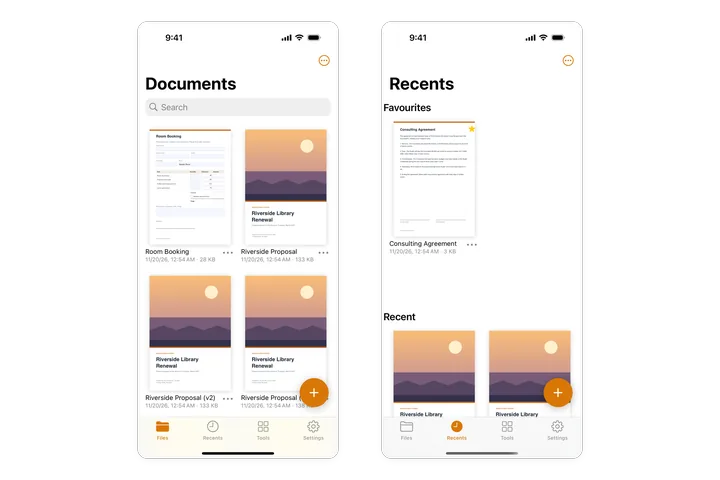
- Introduction What SelectPdf PDF Editor does on iPhone and iPad, what is free and what Pro adds, and how this guide is organized.
- Install and get Pro Getting the app from the App Store on iPhone and iPad, the free trial, buying Pro in the app (yearly, monthly or Lifetime), restoring purchases, entering a licence key, and asking Apple for a refund.
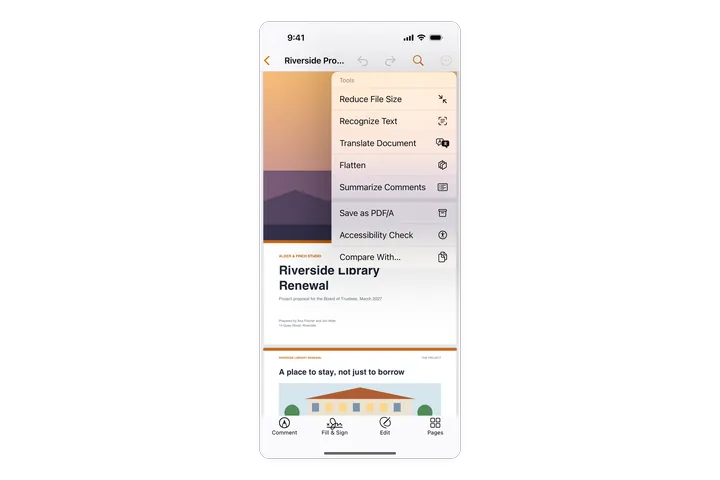
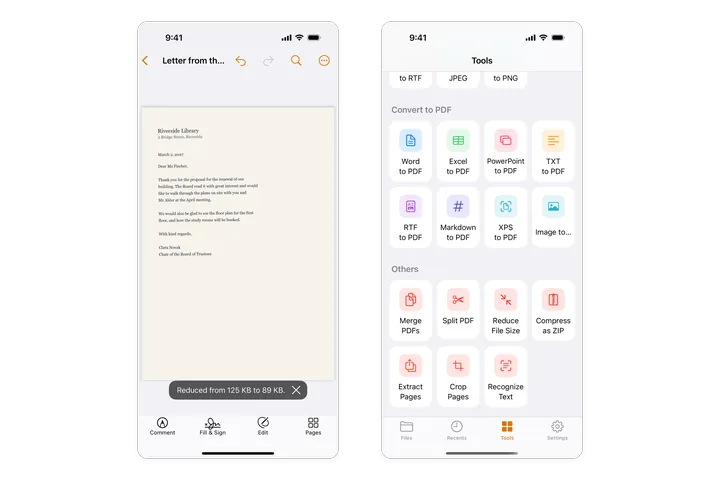
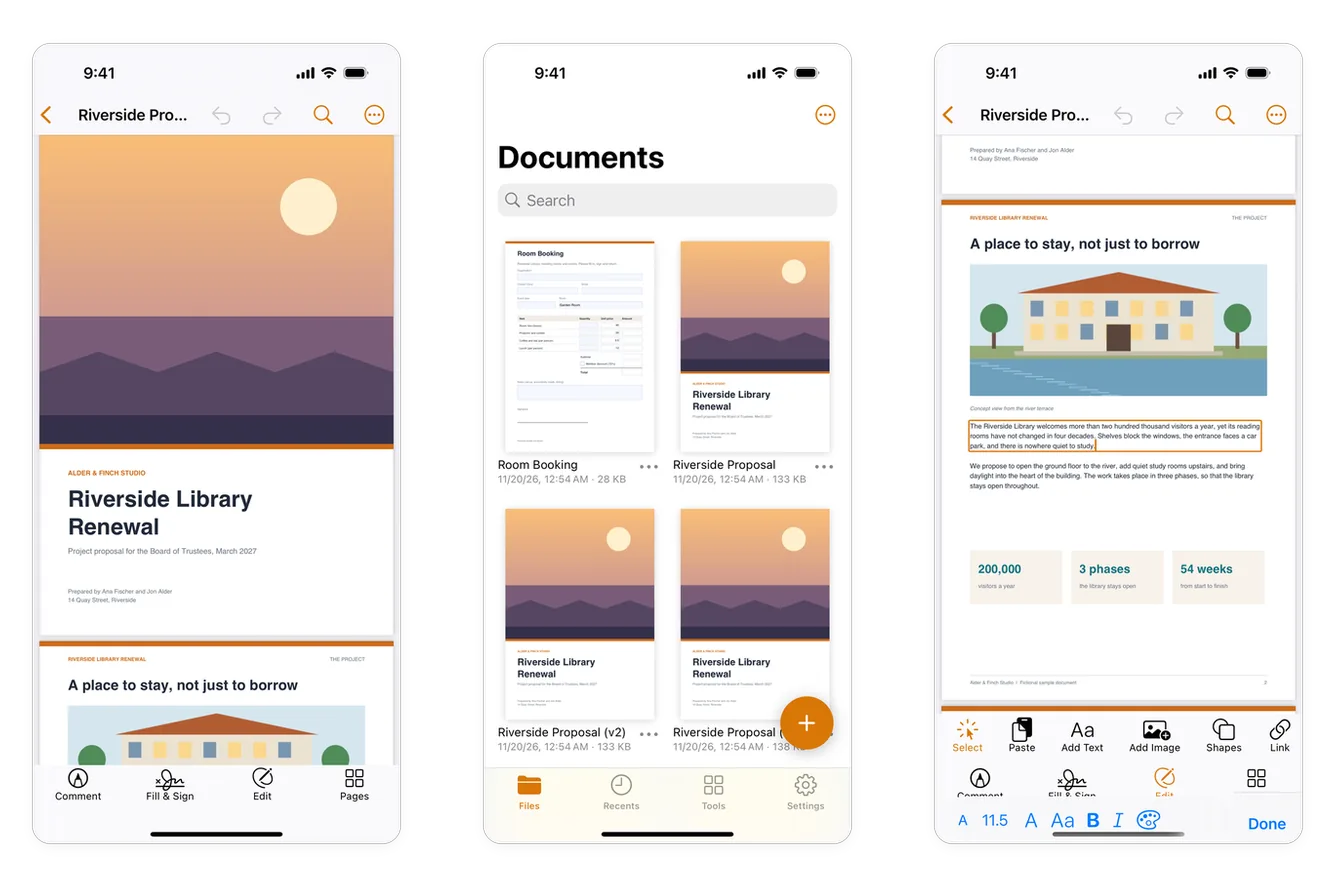
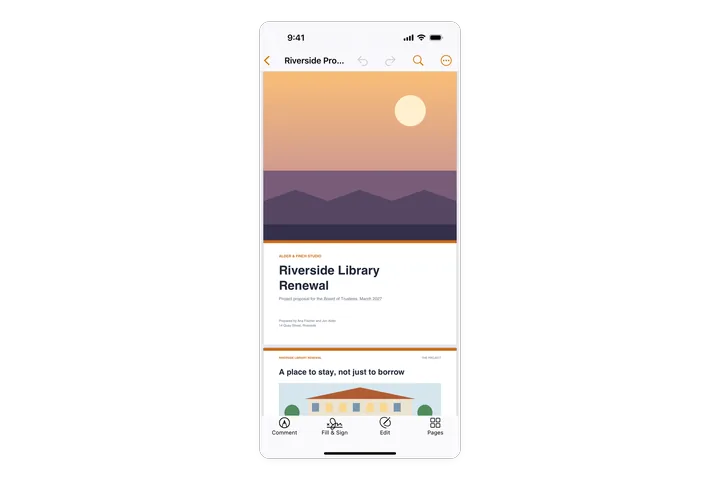
- The app's screens The four tabs of the app, the library, and the parts of the document screen, from the top bar and the More menu to the modes at the bottom and the page thumbnails.
- Settings Every setting of the app's Settings tab, section by section, from your name on comments, the language and the theme to where documents are kept, the Apple Pencil, trusted signatures, Pro and crash reports.
- The library and the Files app Where the app keeps your documents, folders, bringing documents in, editing a file where it is in the Files app, keeping the library in iCloud Drive or another folder, the system's search, and the menu on the app's icon.
- Share and open from other apps Opening PDFs, pictures and Office files from Mail, Safari, Files and other apps with the share sheet, and sending your documents to other apps, to AirDrop or to Files.
- Apple Pencil Drawing, highlighting and signing with the Apple Pencil on iPad, and the setting that keeps your finger for scrolling.
Open, view and save
- Open a PDF Open documents from the library, Recents and favourites, from the Files app and other apps, open password-protected and certificate-encrypted files, and get back changes that were not saved when the app closed.
- View a PDF Scroll and zoom with your fingers, go to a page, show page thumbnails, show one page at a time, read reflowed text in Reading Mode, listen with Read Aloud, and read in Night Mode.
- Find text Find a word or phrase in a PDF with the Find button, move from one result to the next, and see every place it is found marked on the pages.
- Save a PDF How the app saves your changes on its own, Save As, saving a copy to Files, undo and redo, flattening comments and form fields, and what happens when a save fails.
- Document properties See and change a PDF's title, author, subject and keywords, see its file details such as its size, pages and PDF version, and see what its security allows, in Document Properties.
Navigate a document
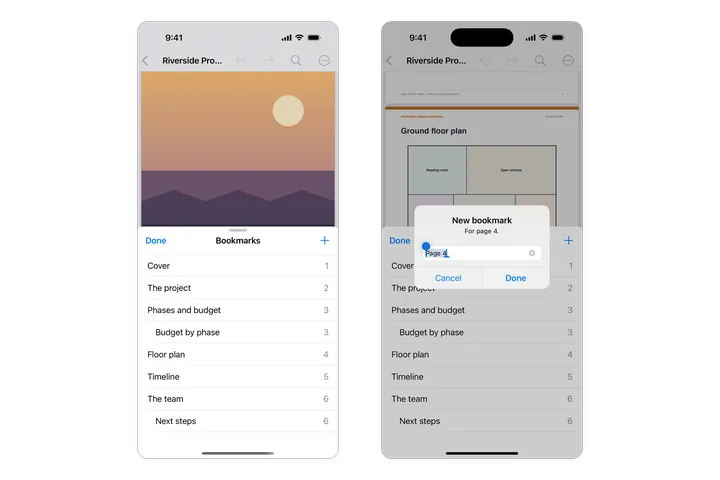
- Bookmarks Go to the parts of a document with its bookmarks, and add, rename, move, nest and delete bookmarks, or point a bookmark at another page.
- Links and actions Follow links, add links to a page of the document or a web address in Edit, move, resize, change and remove them, and set the actions a document and its pages run when they open, close, save or print.
- Layers Show and hide the layers of a PDF, such as the furniture, dimensions and notes of a floor plan, and how the document then opens.
- Attachments See the files a PDF carries, preview and share them, attach a file from the Files app, and delete attached files.
Comment and review
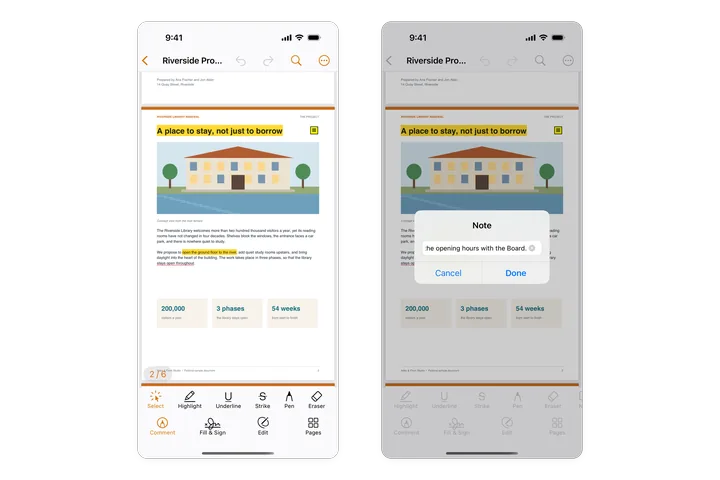
- Comment on a PDF Highlight, underline and strike out text, add notes, audio notes and text boxes, choose colours and thicknesses, and change, reply to, move or delete a comment on iPhone and iPad.
- Drawings and shapes Draw freehand with the pen and erase parts of a drawing, draw rectangles, ellipses, lines and arrows with a finger or the Apple Pencil, and change their colour, thickness and fill on iPhone and iPad.
- Stamps Stamp a PDF as Approved, Draft, Confidential, For Comment and more on iPhone and iPad, choose the stamp's colour, and move, resize or delete it.
- Manage comments See every comment of a document in a list with its replies, go to a comment, reply to it, delete it, set your name as the author, make a summary of the comments, and flatten them, on iPhone and iPad.
- Compare two versions See what changed between two versions of a PDF on iPhone and iPad: the changes counted and listed page by page, and each one marked on both versions.
Forms
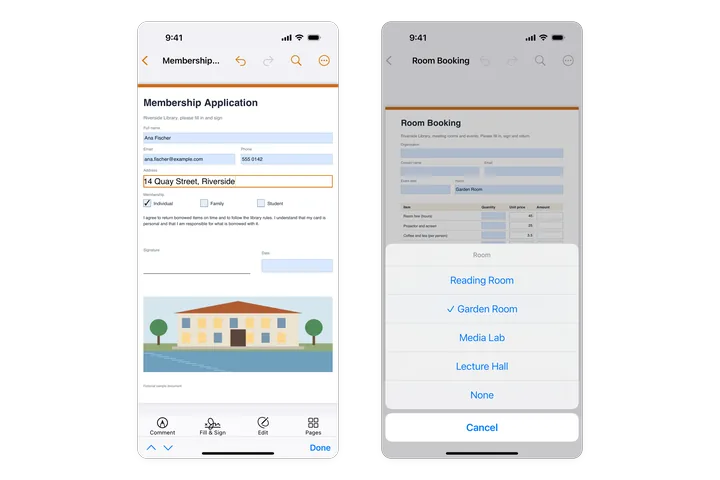
- Fill in a form Type in the fields of a PDF form on iPhone and iPad, tick its boxes, choose from its lists, pick dates and pictures, let the form work out its totals, put in your details with Autofill, fill forms that have no fields with Fill & Sign, and send the filled form.
- Create a form Turn a PDF into a form people can fill in on iPhone and iPad: let the app find the fields, add text fields, check boxes, option buttons, lists, buttons, date, image and signature fields, then move, size, line up, copy and order them.
- Form field properties Set what a form field is called, how it looks and what it does on iPhone and iPad: name, tooltip, required, read-only, visibility, colours and font, the options of each kind of field, its actions and scripts.
- Calculate, format and check values Make a form work out totals by itself on iPhone and iPad, show numbers as amounts, percentages and dates, and refuse values that are out of range, with the Format, Validate and Calculate pages of a field's properties.
Sign
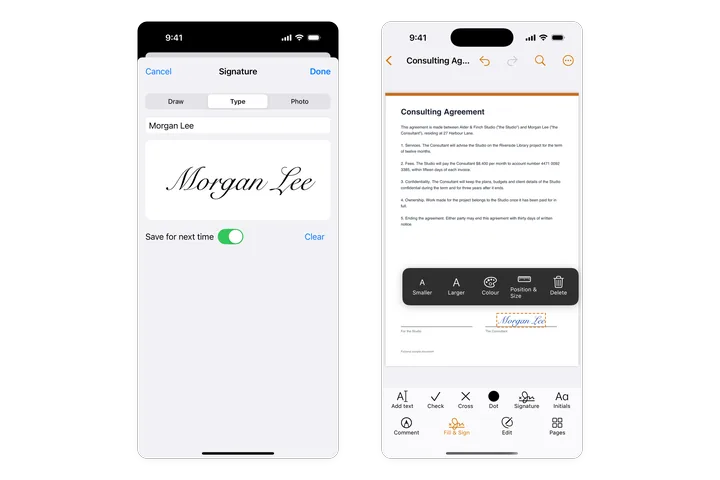
- Sign a PDF Add your signature or initials to a PDF on iPhone and iPad by drawing them with a finger or the Apple Pencil, typing your name or using a photo of your signature, then place, move, resize and recolour them.
- Digital signatures Add or create a digital ID, sign a PDF or a signature field with it on iPhone and iPad, add a time stamp, lock a form after signing, and check the signatures of a signed document.
Edit
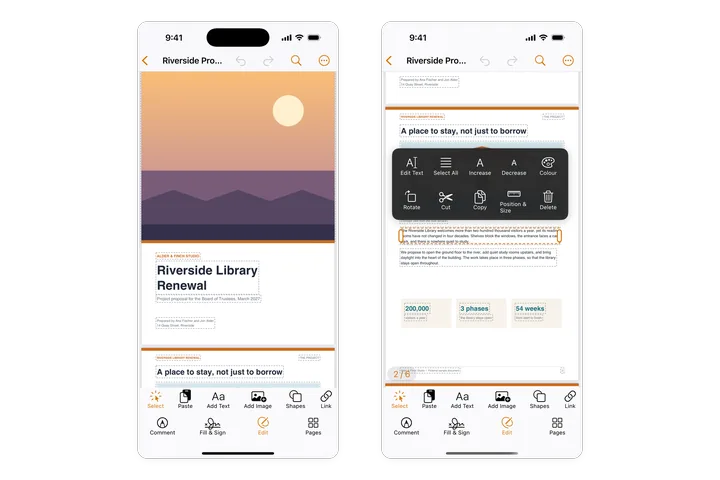
- Edit text and images Change the text of a PDF on iPhone and iPad, its fonts, sizes and colours, move, resize and turn text, images and shapes, add new text, pictures, shapes and links, and replace or crop an image, in the Edit mode.
- Headers, watermarks and backgrounds Number the pages of a PDF on iPhone and iPad, add headers and footers, watermarks and backgrounds, see them in a preview first, and remove them later.
Pages
Create and convert
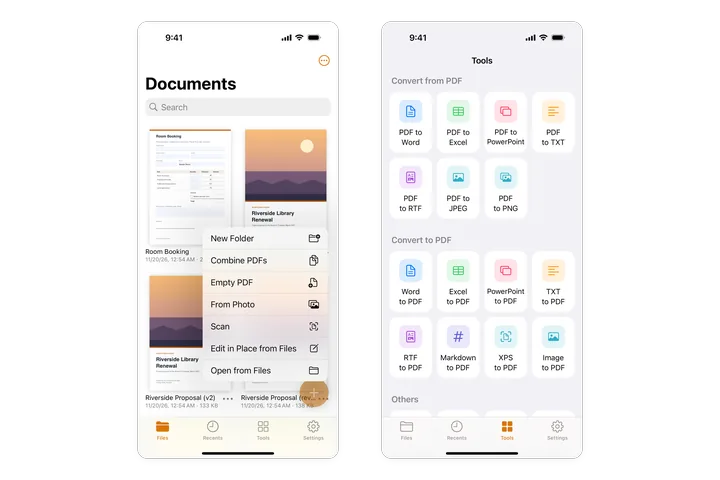
- Create a PDF Make a PDF on iPhone and iPad from a scan, photos, a Word, Excel or PowerPoint file, a text file, or an empty page.
- Export a PDF Save a PDF as a Word, Excel, PowerPoint or RTF file, as text or as pictures on iPhone and iPad, and send several PDFs as a ZIP file.
- Recognize text (OCR) Make scanned pages searchable and selectable on iPhone and iPad with text recognition (OCR), done on the device.
Protect
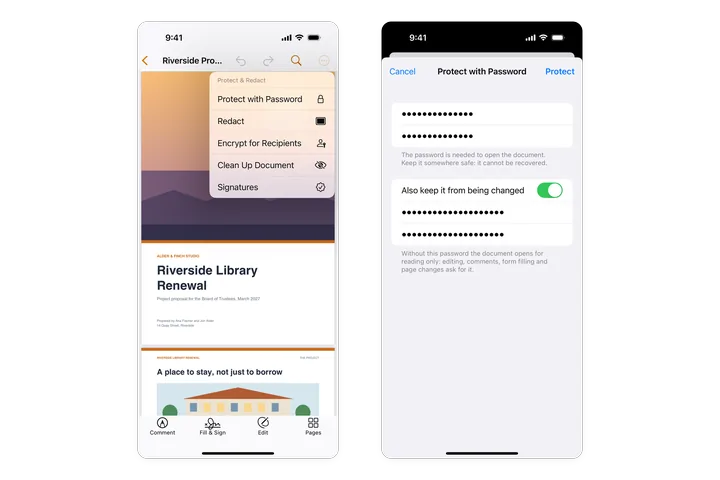
- Protect a PDF with a password Require a password to open a PDF on iPhone and iPad, keep it from being changed with a second password, open a protected document, and change or remove its password.
- Encrypt with a certificate Encrypt a PDF on iPhone and iPad so that only the people you choose can open it with their digital IDs, and open a document encrypted for you.
- Redact sensitive information Mark text, areas or whole pages for redaction on iPhone and iPad, find words and patterns to redact, and apply the redactions to remove the content for good.
- Remove hidden information Find what a PDF holds besides its pages on iPhone and iPad (metadata, attachments, comments, hidden text and layers, scripts, links and more), and remove what you choose with Clean Up Document.
Accessibility and standards
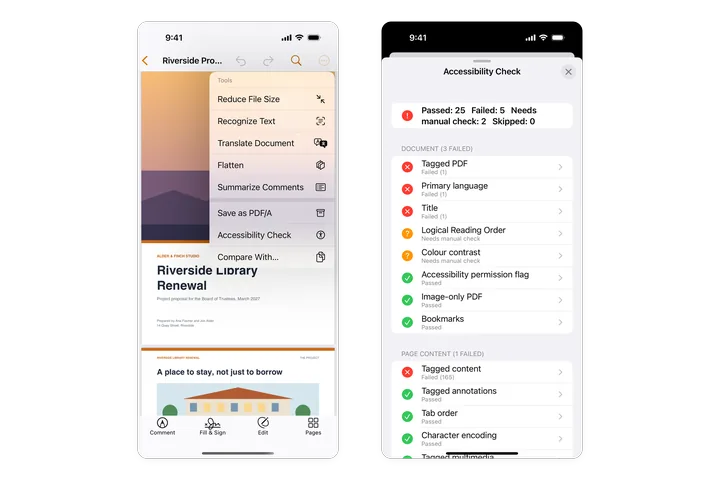
- Accessibility check Check on iPhone and iPad whether a PDF can be read with a screen reader, see which rules it fails and where, and what each rule means.
- PDF standards: save as PDF/A Save a copy of a PDF as PDF/A on iPhone and iPad for archiving, choose the right PDF/A level, and know what keeps a document from being converted.