Check and fix PDFs
for Section 508.
Section 508 asks for PDFs that people can read with a screen reader. SelectPdf PDF Editor checks a PDF against the WCAG criteria the law uses, shows what fails and on which page, and gives you the tools to fix it.
Who Section 508 applies to.
Section 508 of the Rehabilitation Act applies to US federal agencies. The information and communication technology they develop, buy, maintain or use must be accessible to people with disabilities, and that includes their documents: what they publish, and what they use for official business, such as forms, notices, policies and training material.
Companies that work for federal agencies meet it through their contracts. The Federal Acquisition Regulation applies Section 508 to what agencies buy, so reports, forms and other documents delivered to an agency are usually expected to meet the same standard.
What Section 508 asks of a PDF.
Since January 18, 2018, the Revised 508 Standards ask for electronic content that conforms to WCAG 2.0 Level A and AA. A PDF is a non-web document, so four criteria do not apply to it: 2.4.1 Bypass Blocks, 2.4.5 Multiple Ways, 3.2.3 Consistent Navigation and 3.2.4 Consistent Identification.
For a PDF, the criteria come down to these:
- Tags that say what each part is (heading, paragraph, list, table, figure), in a logical reading order 1.3.1, 1.3.2
- Alternate text for each picture, or the picture marked as decoration 1.1.1
- A title and a language for the document, and the language of any part in another language 2.4.2, 3.1.1, 3.1.2
- Headings that describe what follows them 2.4.6
- Tables whose header cells are tagged as headers 1.3.1
- Form fields with a name and a description 3.3.2, 4.1.2
- Enough contrast between text and its background 1.4.3
- Links whose purpose is clear, and a tab order that follows the structure 2.4.3, 2.4.4
The standards also name PDF/UA-1, the ISO standard for accessible PDF, as the format an authoring tool must be able to export.
Check and fix PDF accessibility in the editor.
See what fails, and where.
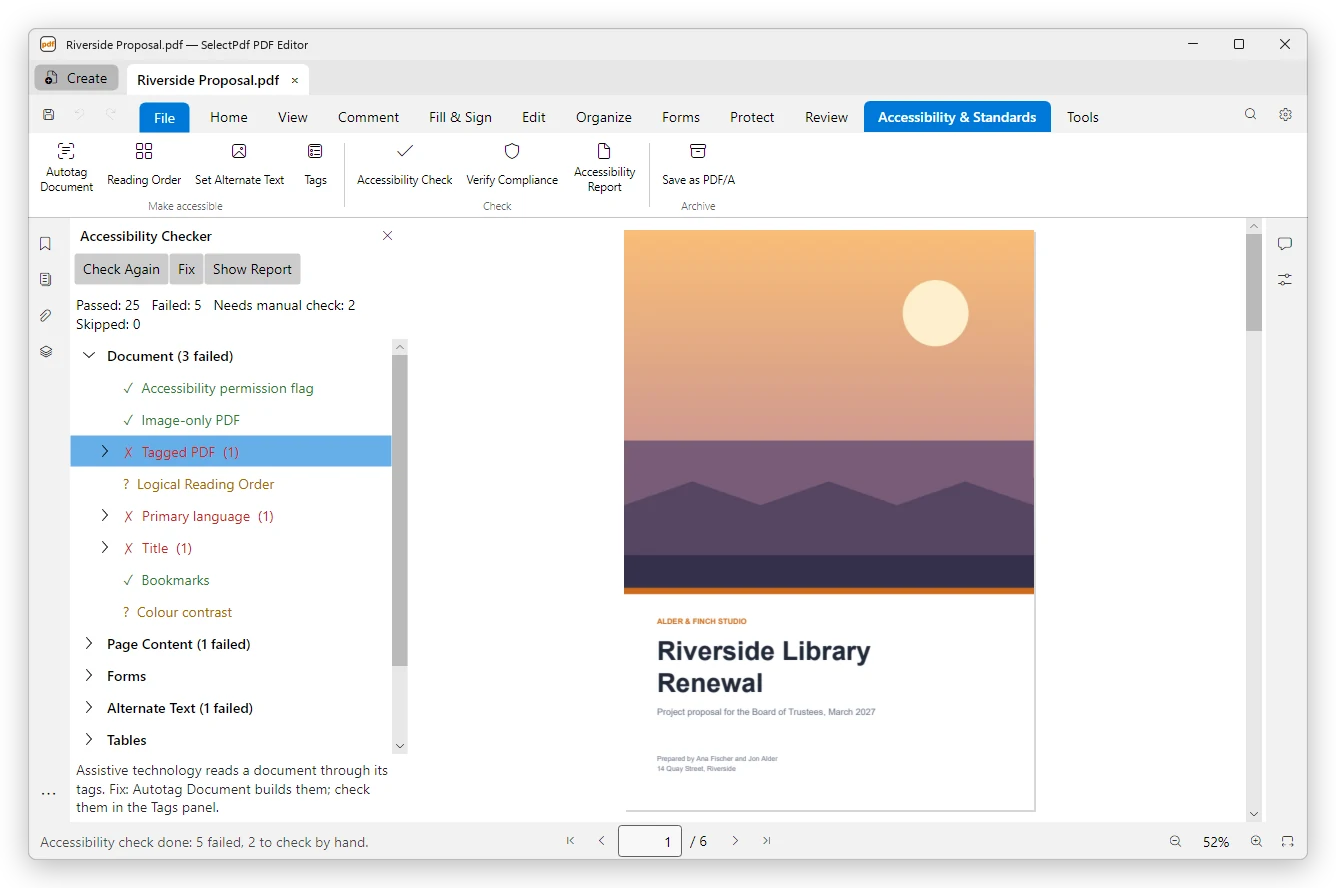
Click Accessibility Check on the Accessibility & Standards tab. The checker runs the 32 rules of a full accessibility check and the PDF/UA requirements of the Matterhorn Protocol. Each rule passes, fails or needs a manual check, and a click on a failure shows where it is on the page.
Show Report saves the results as a web page, with a table of the WCAG criteria the check covered, each with its level, A or AA, and its result. The table also lists 2.4.1 and 2.4.5, which Section 508 sets aside for PDFs.
Fix tags, alternate text and reading order.
Autotag Document tags a PDF that has no tags: headings, paragraphs, lists, tables, figures, links and form fields, with decoration marked as artifacts that screen readers skip. Set Alternate Text goes through the figures one by one, to describe each one or mark it as decorative. Fix on a failed rule sets the language or the title, or opens the tool that fixes it.
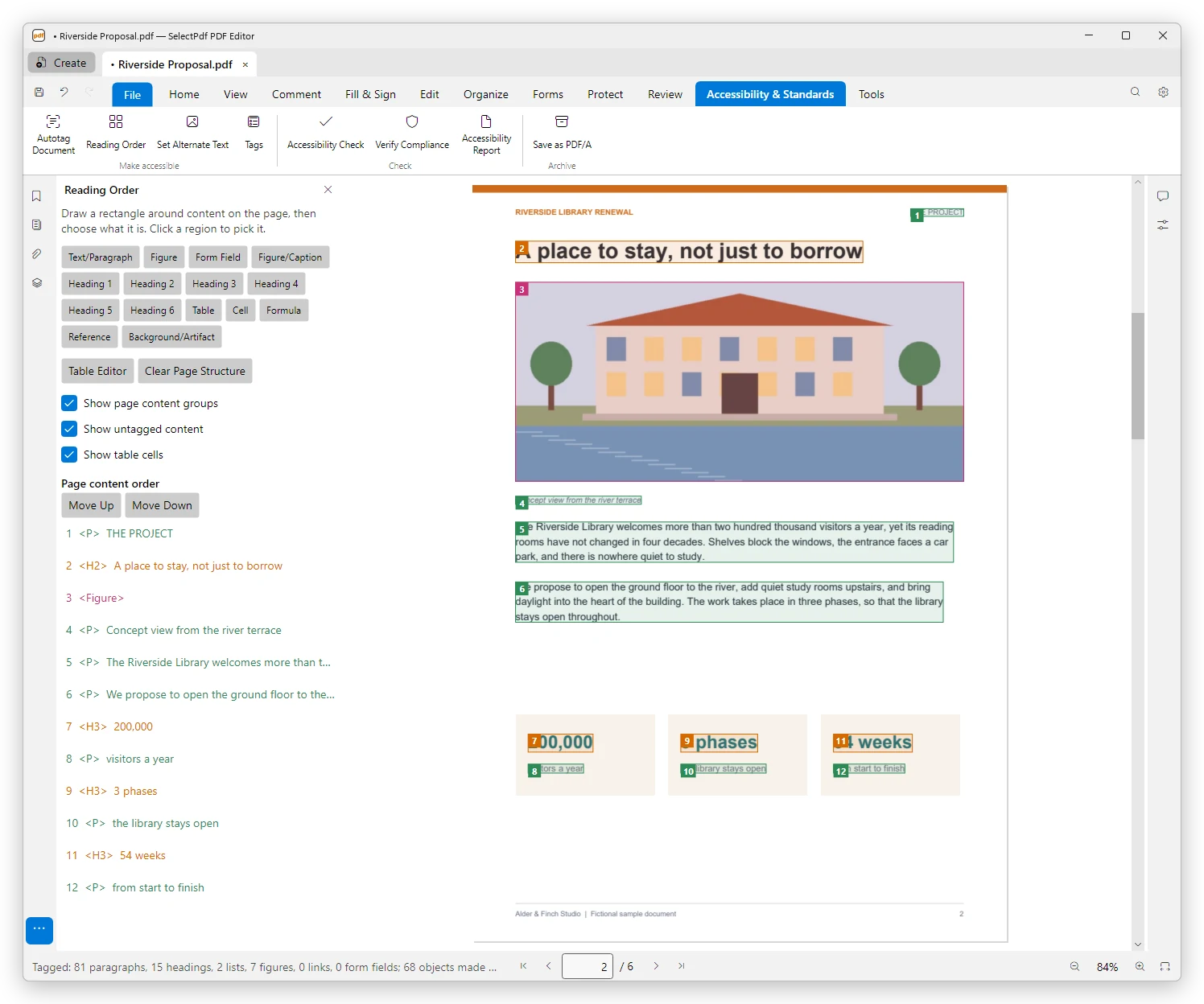
The Tags panel corrects the tag tree. The Reading Order tool shows the order of each page as numbered regions, which you can reorder or tag by drawing. The Table Editor marks header cells and their scope.
Verify PDF/UA-1 and PDF/UA-2.
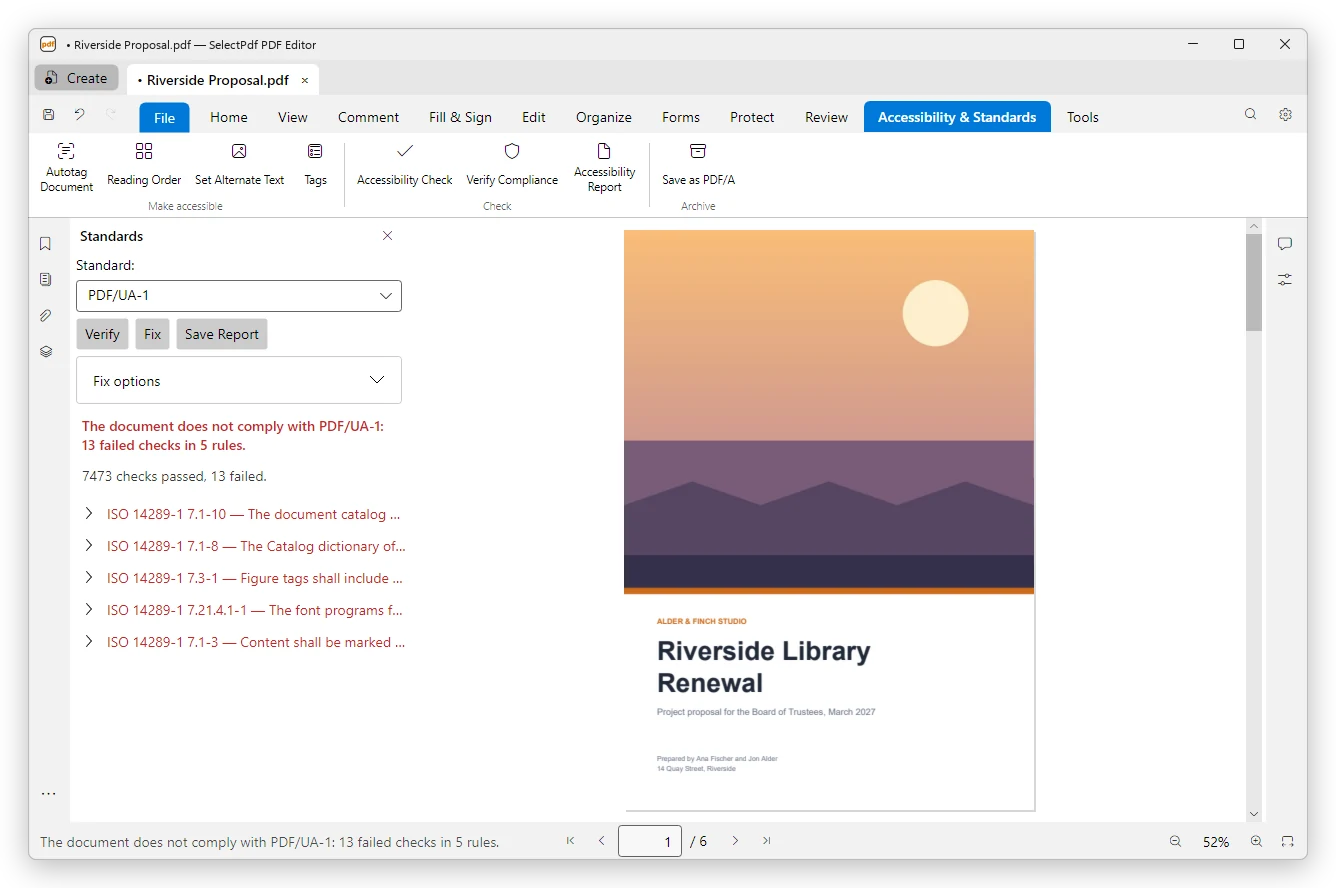
Verify Compliance checks the document against PDF/UA-1 or PDF/UA-2, the ISO standards for accessible PDF. It lists each requirement that fails, fixes what it can in one step and saves a report. It checks PDF/A and PDF/X too.
Many files, and a person's review.
Many files at once.
A batch action with Make accessible tags each file that has no tags and sets its language and title, verifies it against PDF/UA-1 or PDF/UA-2, and saves the accessibility report and the PDF/UA report beside each file. Keep them as a record of what was found. Guide: Batch processing →
What a person still checks.
A checker can see that a picture has alternate text, but not whether the text describes it well, and the same goes for a reading order that makes sense and colors with enough contrast. The check marks these rules for a manual check, and the report says which criteria they cover.
Free to check, Pro to fix.
Checking, verifying and saving the reports are free. Changing the document needs Pro: autotagging, alternate text, the Fix buttons, the tags, the reading order and batch actions. See pricing →
On Windows and Mac.
The fixes, PDF/UA verification and batch actions are in the editor for Windows and Mac. The iPhone and iPad app runs the accessibility check. Download →
SelectPdf PDF Editor helps you check and fix PDFs against the WCAG 2.0 criteria Section 508 uses. It does not certify a document, and it does not replace your organization's own review or legal advice.
The same tools, other rules.
ADA Title II
US state and local governments, public schools and public colleges: WCAG 2.1 Level AA.
European Accessibility Act
Services to consumers in the EU: EN 301 549, which uses WCAG 2.1 or, in its 2026 version, WCAG 2.2 Level AA.