PDF standards: PDF/A, PDF/UA and PDF/X
Check a PDF against PDF/A, PDF/UA or PDF/X with Verify Compliance, read what the check reports, fix what fails, save a report, and save a copy of a document as PDF/A for archiving.
Some PDF files must follow a standard, an ISO specification that says what the file may and must contain:
- PDF/A for documents kept for many years: archives, courts and public offices often ask for it;
- PDF/UA for documents everyone can read, including people who use a screen reader;
- PDF/X for documents sent to a printer.
The editor checks a document against any of them, fixes what it can, and saves a PDF/A copy of a document. The tools are on the Accessibility & Standards tab.

- Verify Compliance checks the document against a standard, in the Standards panel.
- Save as PDF/A saves a copy of the document as PDF/A.
Verifying a document and saving the report are free. Fix in the Standards panel, Fix… on a failure, and Save as PDF/A need Pro.
Verify a document
- Open the document and click Verify Compliance on the Accessibility & Standards tab. The Standards panel opens on the left.
- Choose the Standard. If the document says it meets a standard, that one is chosen already and marked (claimed). A document can claim a standard it does not meet: verify it to be sure.
- Click Verify.
The standards you can verify against are:
| Family | Standards |
|---|---|
| PDF/A | PDF/A-1a, PDF/A-1b, PDF/A-2a, PDF/A-2b, PDF/A-2u, PDF/A-3a, PDF/A-3b, PDF/A-3u, PDF/A-4, PDF/A-4e, PDF/A-4f |
| PDF/UA | PDF/UA-1, PDF/UA-2 |
| PDF/X | PDF/X-1a:2001, PDF/X-1a:2003, PDF/X-3:2002, PDF/X-3:2003, PDF/X-4 |
Read the result
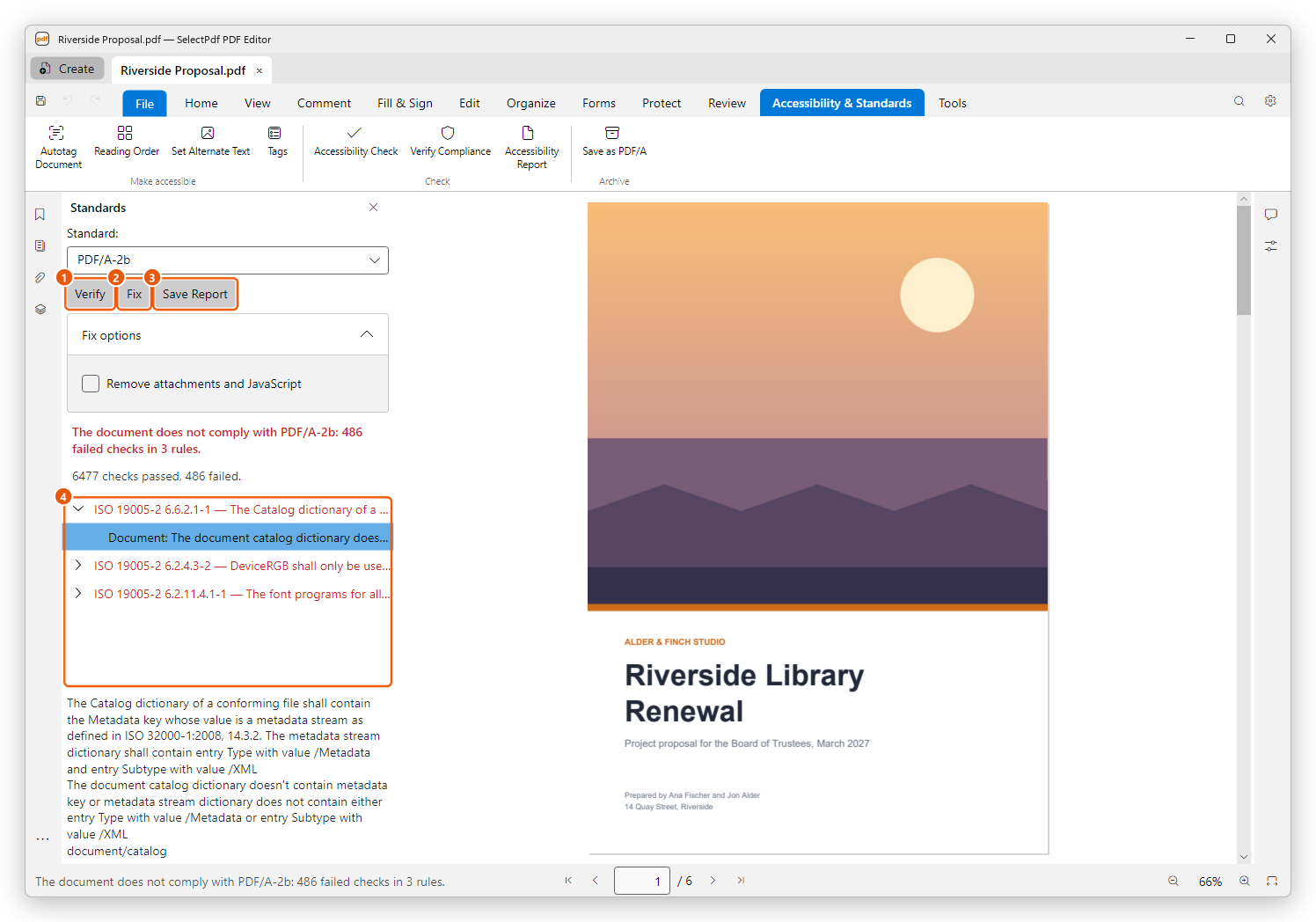
- Verify: check the document again, for example after a change.
- Fix: repair what can be repaired for the chosen standard.
- Save Report: save the result as a web page.
- The rules the document fails.
At the top, the panel says whether the document complies, in green, or how many checks failed in how many rules, in red, followed by how many checks passed and failed in all. A check that could not run to the end is never shown as compliant.
Each failed rule is listed with the clause of the standard it comes from (for example ISO 19005-2 6.2.11.4.1-1 for PDF/A-2), what it requires, and how many times it failed. Click the arrow before a rule to see each failure, with where it is: Document, or a page number.
- Select a rule or a failure to read below the list what the rule requires, what was found, and where in the file.
- Select a failure on a page to see that place on the page.
Fix what fails
Fix in one step
Fix repairs, in one step, what the editor can repair for the chosen standard, then verifies the document again and shows what is left. For PDF/A it converts the document to the chosen level. For PDF/A and PDF/X, a password-protected document loses its password, as these standards do not allow encryption.
Before you click Fix, open Fix options. They depend on the standard:
- PDF/A: Remove attachments and JavaScript removes the attached files the level does not allow, and the scripts.
- PDF/UA: Document language, the language set for the document when it has none, as a language tag such as en-US.
- PDF/X: the Output profile, the ICC profile of the printing condition (CMYK for PDF/X-1a): click Choose… to pick an .icc file, or Clear to use a registered printing condition instead. Remove annotations from the printed area draws what comments and fields print into the page and removes them. Remove attachments and JavaScript removes them.
Fix is one step that Undo (Ctrl+Z) takes back. Save the document to keep it, or use Save As to keep the original as it was.
Fix one failure
Some PDF/UA failures have a tool that fixes them. Select the failure and click Fix… below the list, or double-click it:
- a figure without alternate text opens Set Alternate Text on that figure;
- a table whose structure or headers are wrong opens the Table Editor of the Reading Order tool on that table;
- a form field without a description opens the field's properties;
- a missing document language or title asks for it.
After the fix, the document is verified again. Other failures have no tool of their own: fix them with Fix, or by hand. To fix tags and the reading order by hand, see Tags and reading order.
Save a report
Click Save Report and choose where to save it. The report is a web page you can open in any browser or send to others: the document, the standard, the result, the date of the check, and each failed rule with its failures and where they are.
Save as PDF/A
Save as PDF/A saves a copy of the document that conforms to PDF/A: the fonts are embedded, the colours are defined, and nothing depends on anything outside the file. The open document does not change.
- Click Save as PDF/A on the Accessibility & Standards tab, or click File, then Export, then Save as PDF/A.
- Choose the level. PDF/A-2b is chosen already: it suits most documents.
- Click Save and choose where to save the copy. The name proposed is the document's, with the level, such as Riverside Proposal (PDFA-2b).pdf.
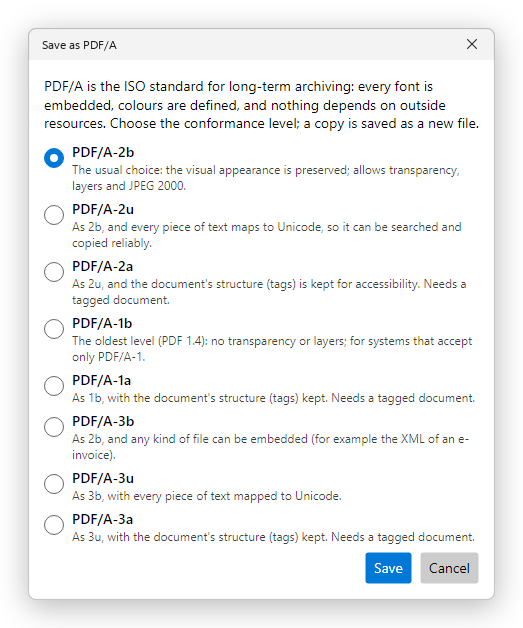
| Level | Choose it when |
|---|---|
| PDF/A-2b | You need PDF/A and nothing more: the pages look the same for years. |
| PDF/A-2u | The text must also be searched and copied reliably. |
| PDF/A-2a | The document must also stay accessible: its tags are kept. |
| PDF/A-1b, PDF/A-1a | The archive accepts only PDF/A-1. PDF/A-1 does not allow transparency or layers. |
| PDF/A-3b, PDF/A-3u, PDF/A-3a | Files of any kind must be attached, such as the XML of an electronic invoice. |
The levels ending in a need a tagged document: for a document without tags, the dialog says so and they cannot be chosen. Tag it first; see Accessibility.
The copy opens in a tab of its own, and the editor verifies it against the level you chose. The message at the top of the window and the status bar say whether it complies; if it does not, the Standards panel opens with what failed.
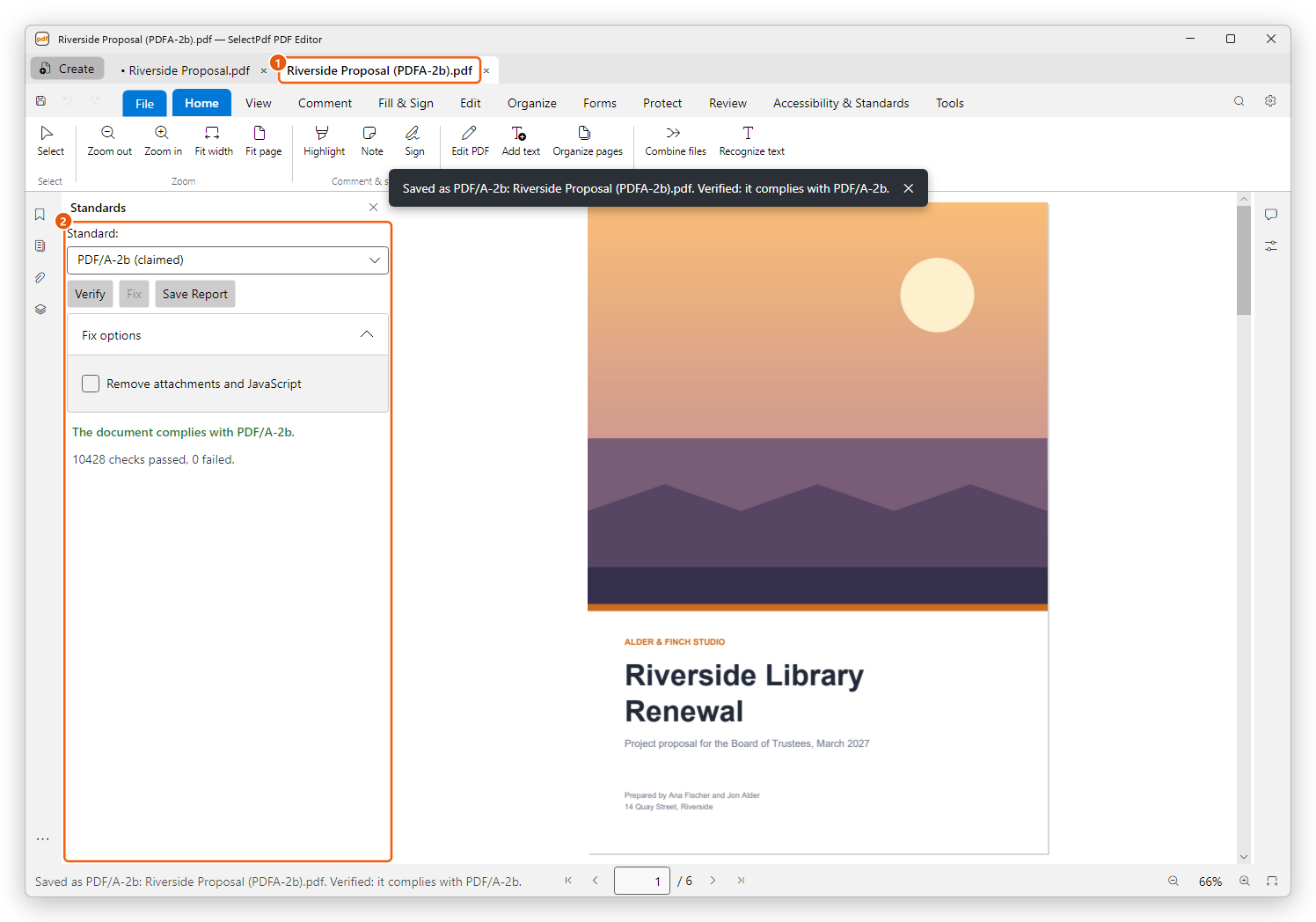
- The copy, in a tab of its own.
- The Standards panel: the copy claims PDF/A-2b and complies with it.
A signed document cannot be saved as PDF/A: converting it would rewrite it and break its signatures. Save as PDF/A before you sign. A password-protected document cannot either, as PDF/A forbids encryption: remove its security first.
To check a document against PDF/A-4, or against a PDF/A level without converting it, use Verify Compliance.