Process many files at once
Run the same steps over many PDF files with Batch (the Action Wizard): add a watermark, page numbers or a password, reduce the size, convert to PDF/A, recognize text and more, then save each file to an output folder.
Batch applies the same steps to many PDF files in one go: for example, mark every file of a report as a draft, number its pages and make it smaller, then save the results in another folder. The steps are kept as an action with a name, so you can run them again on other files another day. Acrobat calls this the Action Wizard.
The files you choose are never changed: each result is saved in the output folder.
Run an action
- Click the Tools tab, then Batch in the Automate group.
- Under Action, choose the action, or click New... to make one and give it a name.
- Add its steps (see below).
- Under Files, click Add files... to choose PDF files, or Add folder... to add all the PDF files of a folder. Clear empties the list.
- Under Output folder, type or Browse... to the folder where the results go. To tell the results from the originals, type a few words for Add to the file names, for example -draft.
- Click Run.
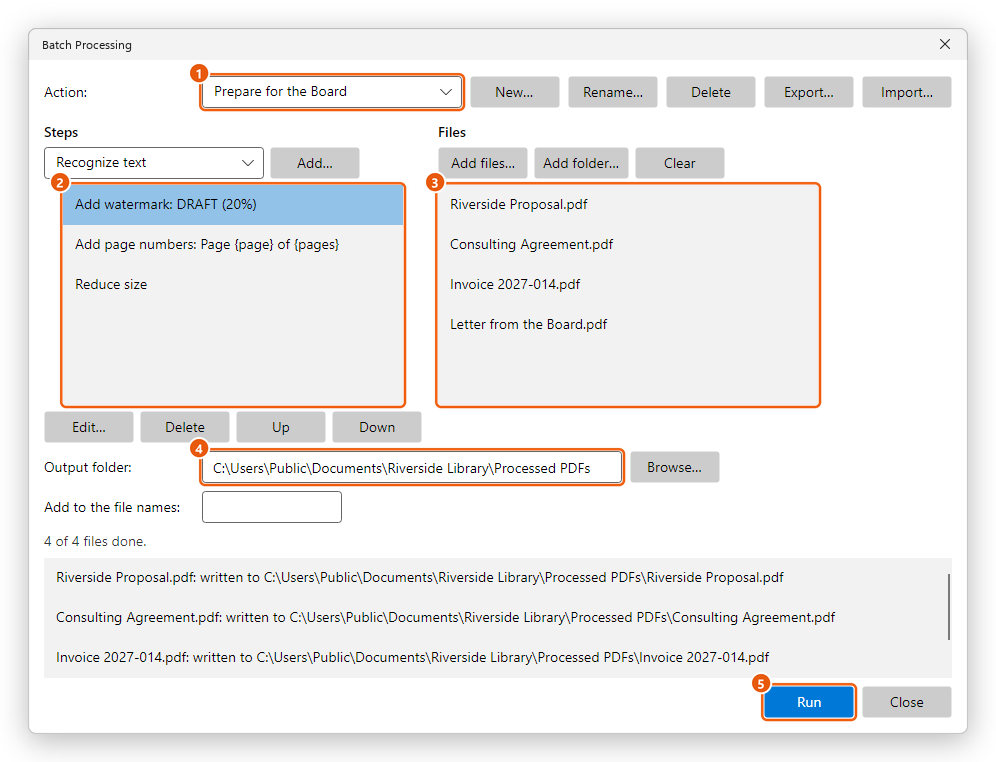
- The action: its name, and the buttons to make, rename, delete, export and import actions.
- Its steps, done in this order on each file.
- The files to process.
- The folder where each result is saved.
- Run starts.
While it runs, the dialog says which file and which step it is on, and at the end how many files were done (3 of 4 files done.). The list at the bottom shows, for each file, where it was written, or why it could not be. Under a file's line is what its steps found: how many matches Find text and redact removed, and the results of the accessibility check that Make accessible runs. A file that cannot be processed is left out, and the others go on: for example a file that needs a password to open.
Each result has the name of its file, with the words added for Add to the file names. A file of that name already in the output folder is replaced. When the result would replace the original itself (the output folder is the file's own folder and nothing is added to the name), that file is left out: choose another folder or add to the names.
Batch needs Pro.
Add and arrange steps
- Choose the step in the list under Steps, and click Add....
- Set the step's settings, if it has any, and click OK.
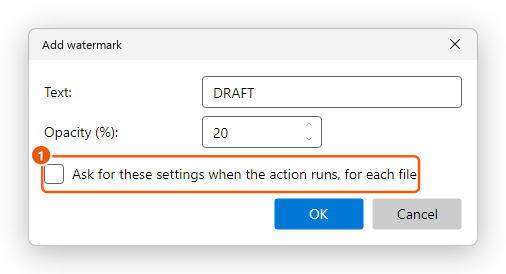
To change a step's settings, double-click it, or select it and click Edit.... Delete removes the selected step, and Up and Down move it in the order.
Tick Ask for these settings when the action runs, for each file (1) to set them file by file: when the action runs, the step's settings are shown for each file, with the file's name in the title. Cancel there leaves that file out.
Actions are kept by the editor from one day to the next. Export... saves the action shown as a file (.pdfaction), and Import... adds an action from such a file: use them to share an action with colleagues.
The steps
| Step | What it does |
|---|---|
| Recognize text | Makes scanned pages searchable, in the Document language given: as a Searchable image or as Editable text and images. See Recognize text. |
| Reduce size | Makes the file smaller, as Reduce size does. See Reduce the file size. |
| Add watermark | Writes a text across every page, such as DRAFT or CONFIDENTIAL, with its Opacity (%). |
| Add page numbers | Writes a line at the bottom of every page, Page of unless you change it. |
| Add Bates numbers | Numbers the pages with a Prefix and a First number, as legal documents are numbered. |
| Add header and footer | Writes texts at the left, center and right of the Header and the Footer. |
| Add background | Puts a colour behind every page (written as #RRGGBB), with its Opacity (%). |
| Flatten form fields | Makes the form's fields part of the page: their values stay, but can no longer be changed. |
| Flatten comments | Makes the comments part of the page. |
| Remove hidden information | Removes what readers do not see, such as metadata and hidden text. See Sanitize a document. |
| Sanitize document | Removes every kind of hidden and active content, as Sanitize does. |
| Find text and redact | Removes for good the words or phrases you type, one per line, or a kind of text, such as phone numbers or email addresses. See Redact. |
| Rotate pages | Turns every page by 90°, 180° or 270°. |
| Delete pages | Deletes the pages given, such as 1-3, 5. |
| Insert pages | Inserts the pages of another PDF at the First or the Last place. |
| Crop pages | Cuts the same margin, in points, from every side of every page. |
| Make accessible | Tags the document if it has no tags, and sets its Language and its title (the file name, when it has none). See Make a PDF accessible. |
| Set document properties | Sets the Title, Author, Subject and Keywords. An empty box keeps what the document has. |
| Set open options | Sets how the document opens: its Navigation tab, Page layout and Magnification. |
| Convert to PDF/A | Saves an archive copy at the PDF/A level chosen. See PDF standards. |
| Fast Web View | Arranges the file so a web browser shows its first page while the rest is still loading. |
| Protect with a password | Adds a password to open the file. The password is asked each time the action runs, and never kept. |
| Export to a document | Saves each result as a document instead of a PDF: Word, RTF, OpenDocument text, a web page or Markdown. It is done after every other step, wherever it is in the list. |
| Run JavaScript | Runs a script on each file, with this being the document. See JavaScript. |
Put Protect with a password last but one at most, before only Export to a document: the steps after it would need the password.
Create a PDF from each of many files
To turn many Word, Excel, PowerPoint or picture files into PDFs, one PDF for each file, use Create multiple PDF files... on the Create page, under Multiple files:
- Click Add files... or Add folder... to choose the files. Remove takes the selected files off the list.
- Under Target folder, choose Same folder as each original, or Folder: and the folder to put the PDFs in.
- Under File names, keep Same name as the original (name.pdf), or choose Add to the original name: and type the words to add Before: or After: it.
- Tick Overwrite existing files to replace PDFs of the same name. Otherwise the new PDF gets a numbered name.
- Click Create. Stop ends the run; the PDFs made until then are kept.
Each file is converted with the saved settings, without asking. See Create a PDF.
Create multiple PDF files needs Pro, as Batch does.