Accessibility and standards
Check whether a PDF can be read with a screen reader, fix what is missing, and check it against the PDF/UA and PDF/A standards.
An accessible PDF can be read by everyone, including people who use a screen reader or enlarge the text. It has tags that give the reading order and say what each part is (a heading, a paragraph, a list, a table, a figure), a description of each picture, a title and a language.
The tools are on the Accessibility & Standards tab.

- Autotag Document builds the tags from the content of the pages.
- Set Alternate Text describes each picture.
- Accessibility Check checks the document and lists what is missing.
- Verify Compliance checks the document against a standard: PDF/UA, PDF/A or PDF/X.
Checking, verifying and saving the reports are free. What changes the document needs Pro: Autotag Document, Set Alternate Text, the Fix buttons, and editing the tags and the reading order.
Check a document
- On the Accessibility & Standards tab, click Accessibility Check.
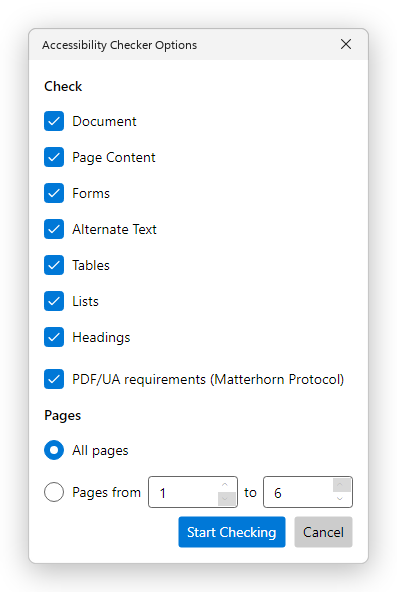
- Choose what to check. Leave everything ticked for a full check, including PDF/UA requirements (Matterhorn Protocol). Choose All pages, or some pages.
- Click Start Checking.
The results open in the Accessibility Checker panel on the left. The line at the top counts the rules that passed, failed, need a manual check, or were skipped. The rules are grouped: Document, Page Content, Forms, Alternate Text, Tables, Lists and Headings, followed by the PDF/UA requirements.
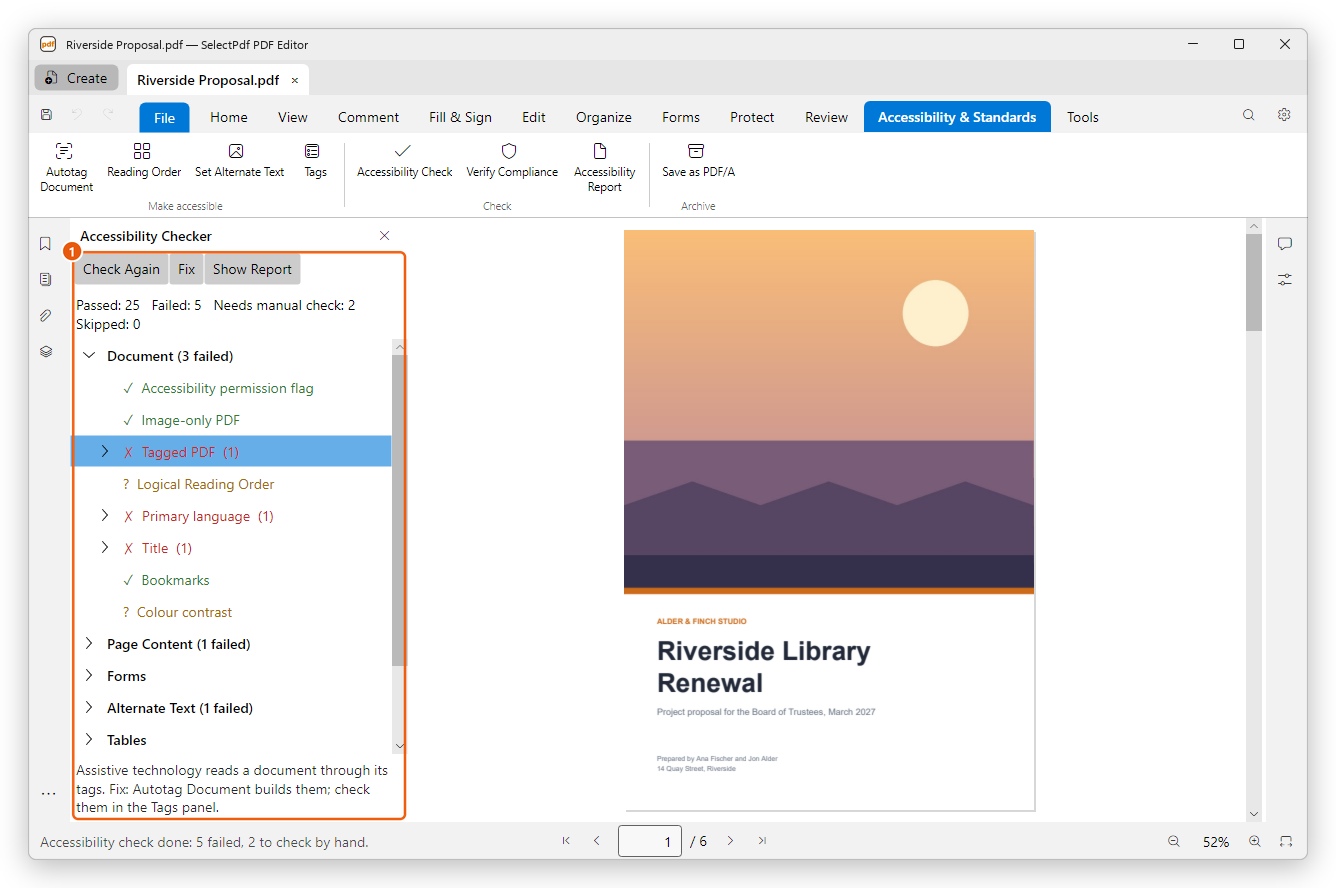
- ✓ in green: the rule passed.
- ✗ in red: the rule failed. Expand it to see where; click a place to show it on the page.
- ? in amber: the editor cannot decide, and you should check it yourself. For example, whether the reading order makes sense, or whether the text stands out from its background.
Click a rule to read below the list what it means and how to fix it.
To keep the results, click Show Report (or Accessibility Report on the ribbon) and save them as a web page you can open in any browser. Check Again runs the check again after you have made changes.
Fix what failed
Select a failed rule and click Fix, or right-click it and choose Fix. What the fix does depends on the rule:
- Tagged PDF: the document is tagged with Autotag Document.
- Primary language: you type the language of the document, as a language tag such as en-US.
- Title: you type the document's title, and it is shown in the title bar.
- Figures alternate text: Set Alternate Text opens.
- Tagged content: the Reading Order panel opens, to tag the content by hand.
- Other rules are fixed at once, where the editor can.
After a fix, the check runs again. A rule that you know is fine can be left out of the results: right-click it and choose Skip Rule.
Fixes change the document like any edit: Undo takes them back, and you save the document to keep them.
Tag a document
A PDF the editor makes from a Word document is tagged already, unless that setting was turned off (see Create a PDF). For a PDF without tags:
- Click Autotag Document. The editor finds the headings, paragraphs, lists, tables, figures, links and form fields, and marks what is only decoration as artifacts, which screen readers skip.
- The status bar says what was tagged.
If the document already has tags, the editor asks whether to replace them.
To look at the tags and correct them, click Tags. To check and correct the order in which the page is read, and to tag content by hand, click Reading Order. Both are explained in Tags and reading order.
Describe the pictures
People who cannot see a picture hear its alternate text instead.
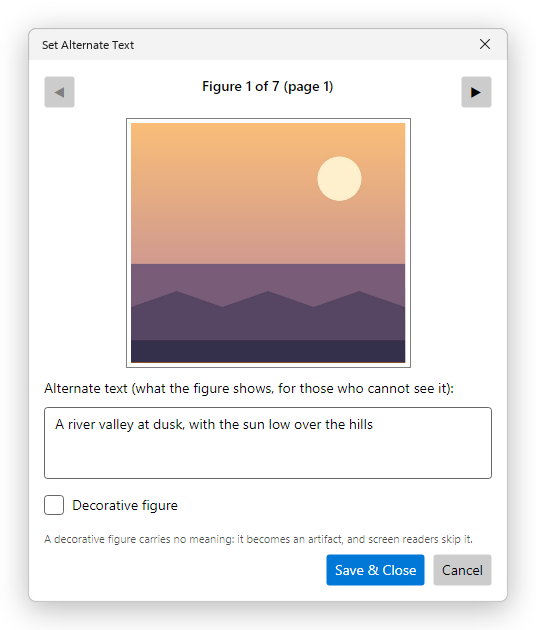
- Click Set Alternate Text. Each figure is shown in turn, and highlighted on its page.
- Type what the picture shows. If it is only decoration, tick Decorative figure: screen readers skip it.
- Go to the other figures with Previous figure and Next figure.
- Click Save & Close.
If the document has no tags, the editor offers to tag it first: a picture needs a figure tag to carry its description.
Check against PDF/UA, PDF/A and PDF/X
Some organizations require a PDF to meet a standard: PDF/UA for accessibility, PDF/A for archiving, PDF/X for printing. Click Verify Compliance, choose the Standard in the Standards panel, and click Verify: the panel says whether the document complies, and lists what fails.
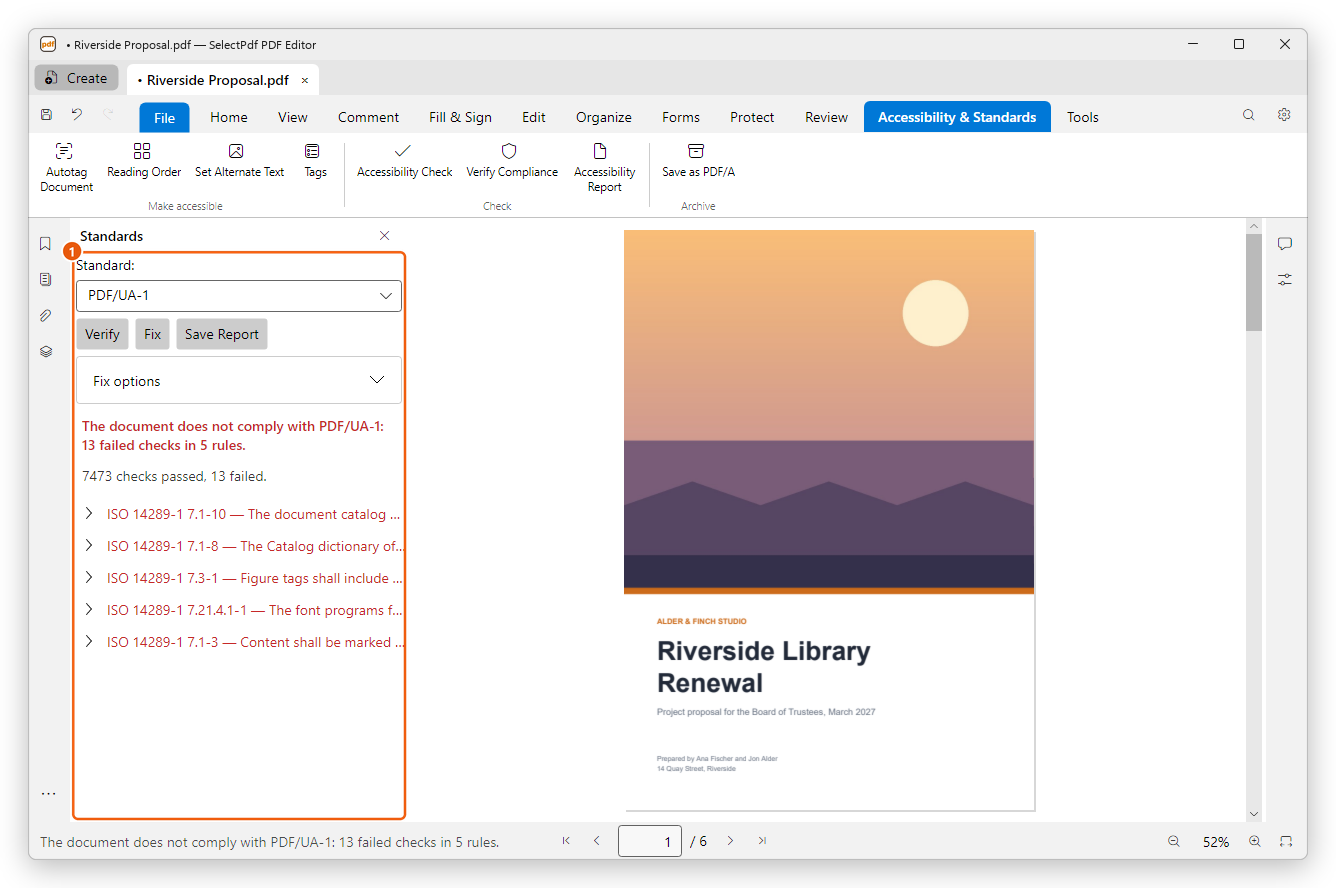
How to read the result, fix what fails, save a report, and save a copy as PDF/A is explained in PDF standards.