Accessibility check
Check on iPhone and iPad whether a PDF can be read with a screen reader, see which rules it fails and where, and what each rule means.
An accessible PDF can be read by everyone, including people who use a screen reader or enlarge the text. It has tags that give the reading order and say what each part is (a heading, a paragraph, a list, a table, a figure), a description of each picture, a title and a language.
The app checks a document against the same rules as SelectPdf Editor on a computer, and against the PDF/UA requirements (the Matterhorn Protocol), and lists what is missing. The check is free.
Check a document
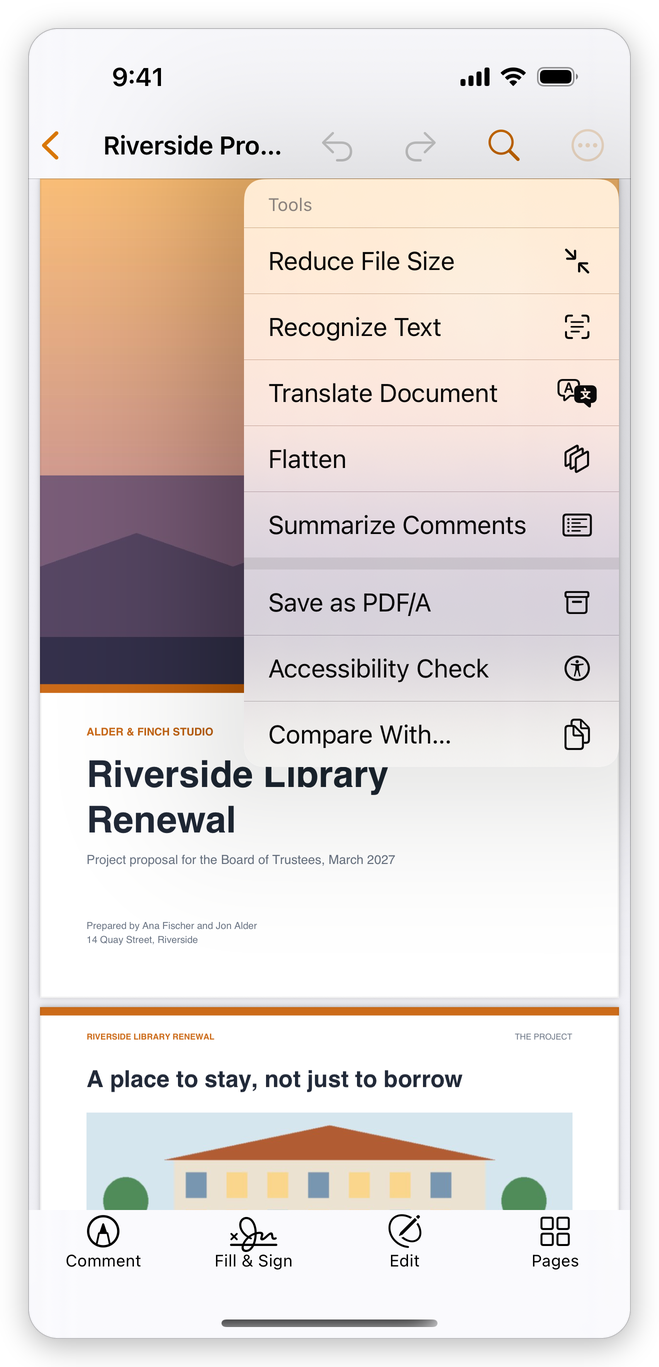
- Open the document and tap the More button (…), then Tools > Accessibility Check.
- The app checks every page, and the results open in a sheet. Drag the sheet up to see more of them.
The line at the top counts the rules that passed, failed, need a manual check, or were skipped. The rules are grouped: Document, Page Content, Forms, Alternate Text, Tables, Lists and Headings. A group with failed rules says how many in its title, and its failed rules come first. The PDF/UA requirements the document fails are listed last, under PDF/UA (Matterhorn Protocol), each with where it fails.
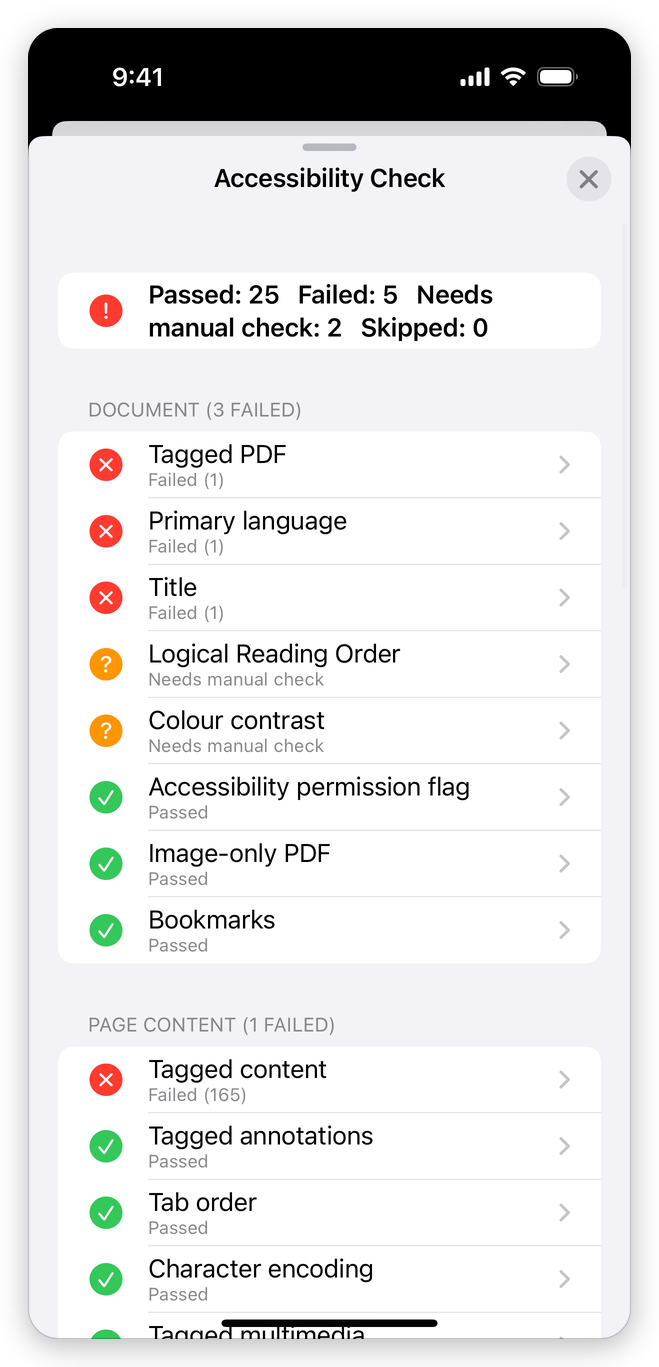
- ✓ in green, Passed: the rule passed.
- ✗ in red, Failed: the rule failed. The number after it says in how many places.
- ? in amber, Needs manual check: the app cannot decide, and you should check it yourself. For example, whether the reading order makes sense, or whether the text stands out from its background.
- Skipped: the rule was not checked.
See what a rule means
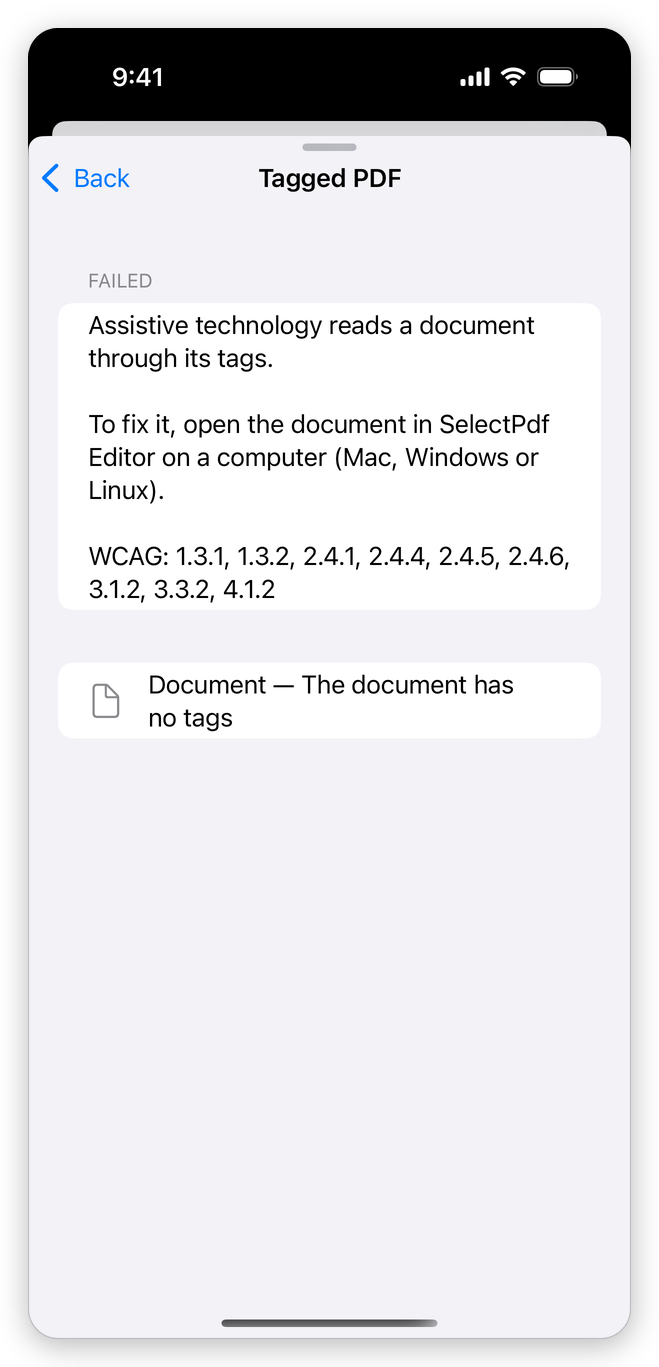
Tap a rule to open it. You read what the rule checks and why it matters, and the WCAG success criteria it covers. For a failed rule, the places where it failed are listed below: tap one on a page to close the results and go to that page.
Section 508 asks for WCAG 2.0 Level A and AA, ADA Title II for WCAG 2.1 Level A and AA, and the European Accessibility Act for EN 301 549, which uses WCAG 2.1 or, in its 2026 version, WCAG 2.2 Level A and AA. The check tests what can be tested in the file; some criteria, such as meaningful alternate text, a logical reading order and colour contrast, also need a person to review the document.
Fix what failed
The app checks a document but does not change its tags. To fix what failed (tag the document, describe its pictures, set its title and language, correct the reading order), open the document in SelectPdf Editor on a computer (Mac, Windows or Linux), as each failed rule says. You can send it there with Share in the More menu (see The Files app for the other ways to move documents).
What the app does fix:
- the document's title: type it in Document properties;
- a scan without text: recognize its text, so that it can be read aloud, searched and copied;
- a document whose security keeps screen readers out: remove its password.