Protect a PDF with a password
Require a password to open a PDF on iPhone and iPad, keep it from being changed with a second password, open a protected document, and change or remove its password.
A PDF can have two kinds of password:
- a password to open it: without it, nobody can open the document;
- a password for changes: the document opens freely, but editing it, commenting on it, filling in its forms, copying from it and changing its pages are restricted, and only this password lifts the limits.
You can use either of them, or both. The tools are in the More menu (…), under Protect & Redact.
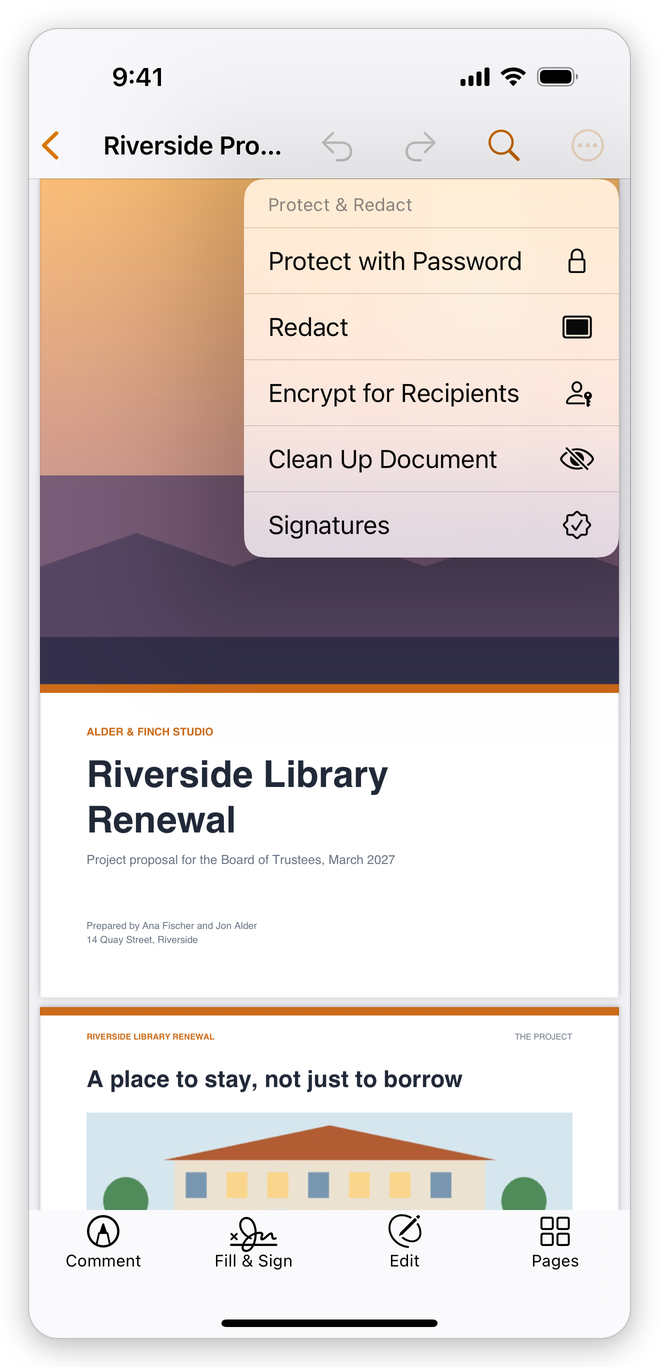
- Protect with Password: add, change or remove the passwords.
- Redact: remove text and pictures for good (see Redact sensitive information).
- Encrypt for Recipients: protect the document for chosen people and their digital IDs (see Encrypt with a certificate).
- Clean Up Document: remove what the document holds besides its pages (see Remove hidden information).
- Signatures: the document's digital signatures (see Digital signatures).
Adding, changing and removing a password needs Pro. Opening a protected document is free. While Pro is not unlocked, a ★ after a tool's name in the menus marks it as Pro.
Require a password to open
- Open the document, tap the More button (…), then Protect & Redact > Protect with Password.
- In the Protect with Password sheet, type the password under Password, and type it again under Confirm password.
- Tap Protect. The app says The document is protected.
The document is saved with its password, as every change is. From then on, the password is asked each time the document is opened, in this app and in any other.
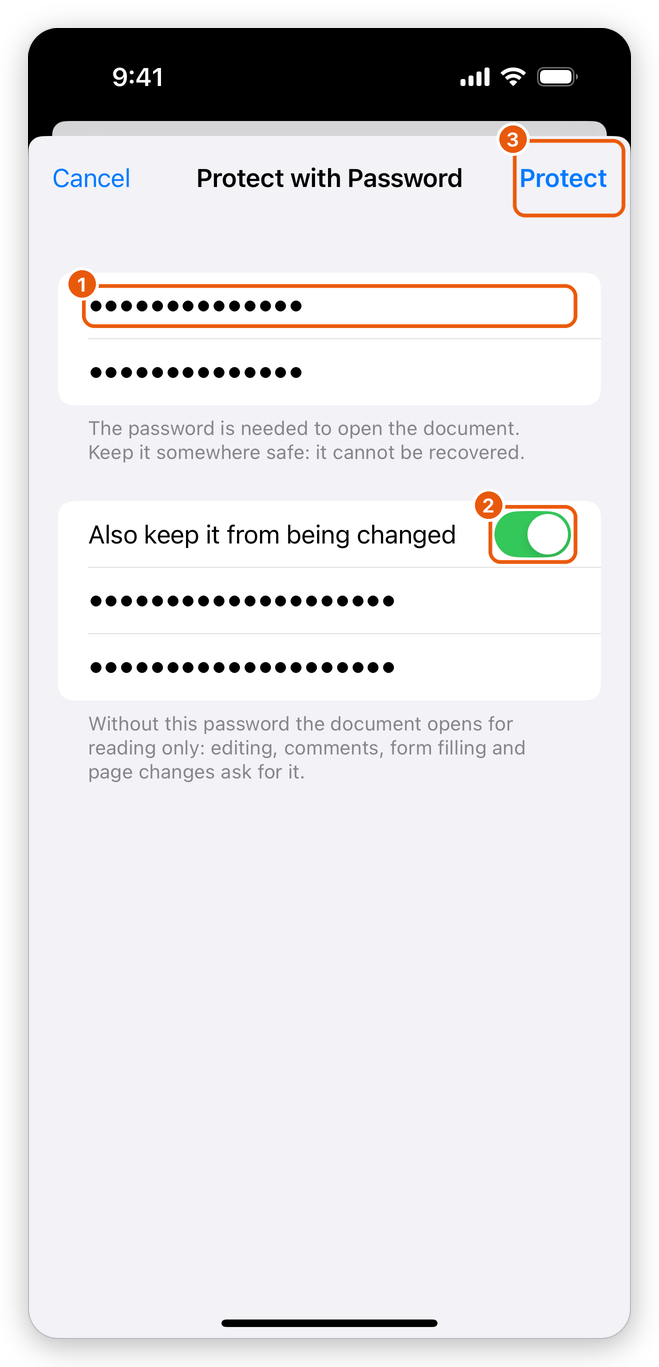
- Password: the password to open the document, and below it the same password again.
- Also keep it from being changed: adds a password for changes.
- Protect: protects the document.
Keep a note of your passwords. A forgotten password cannot be recovered, by the app or by anyone else: a document whose password to open is lost cannot be opened again.
The app encrypts the document with 256-bit AES, the strongest encryption a PDF can have.
Keep it from being changed
- In the Protect with Password sheet, turn on Also keep it from being changed.
- Type the password under Password for changes, and again under Confirm password for changes. It should be different from the password to open.
- Tap Protect.
You can leave Password empty to set only a password for changes: the document then opens without a password, but without the password for changes it cannot be edited, commented on or filled in, its text and pictures cannot be copied or exported, and its pages cannot be added, removed or turned. Printing it and reading it aloud stay allowed.
Restrictions ask PDF apps not to change or copy the document, and the apps that follow the PDF standard respect them, but some apps ignore them. To keep a document from being read, require a password to open it.
Open a protected document
When you open a document that needs a password, the app asks for it: This document is protected. Enter its password.
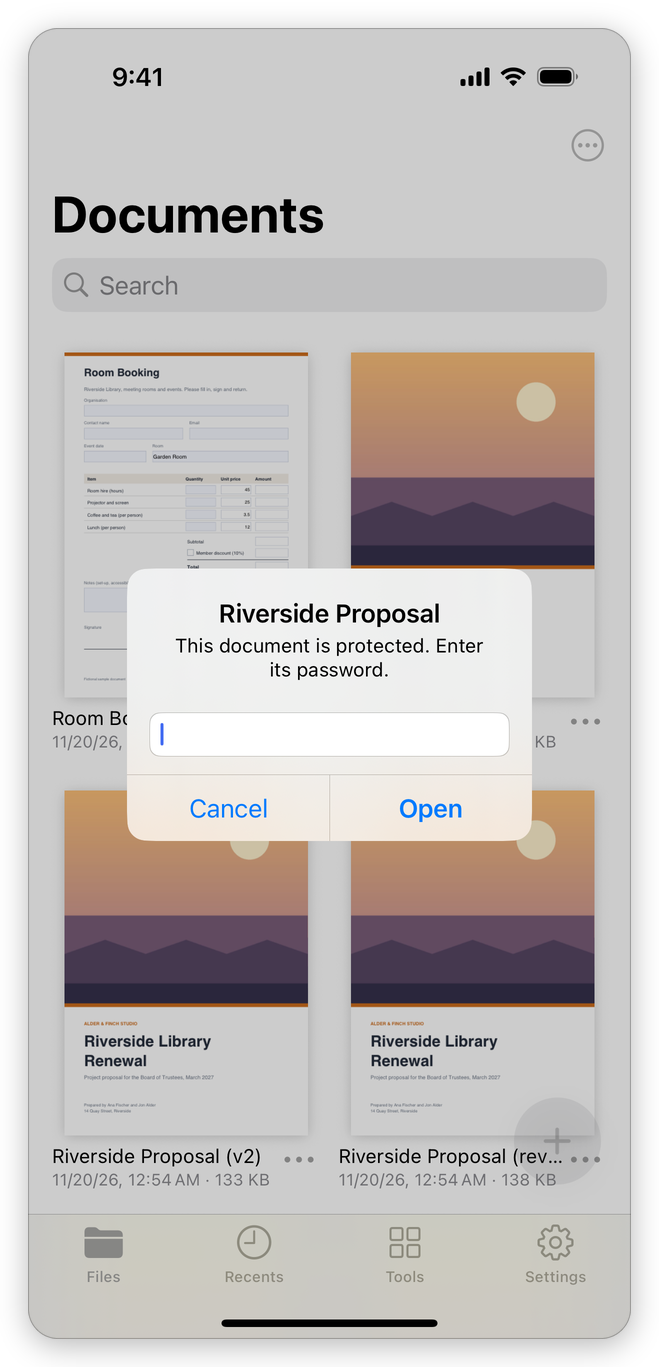
- Type the password.
- Tap Open. If the password is wrong, the app says so and asks again; tap Cancel to leave the document closed.
The document stays protected: while it is open you work on it as on any other, and it is saved with its password.
A document kept from being changed opens for reading. When you choose Comment, Fill & Sign, Edit or Pages, the app asks for the password for changes (Enter the password for changes to edit this document.). When you copy text, export the document to another format or ask the assistant about it, it asks too (Enter the password for changes to copy from this document.). Type it and tap Unlock: the limits are lifted until you close the document.
Change or remove the password
- Open the document and tap the More button (…), then Protect & Redact > Protect with Password.
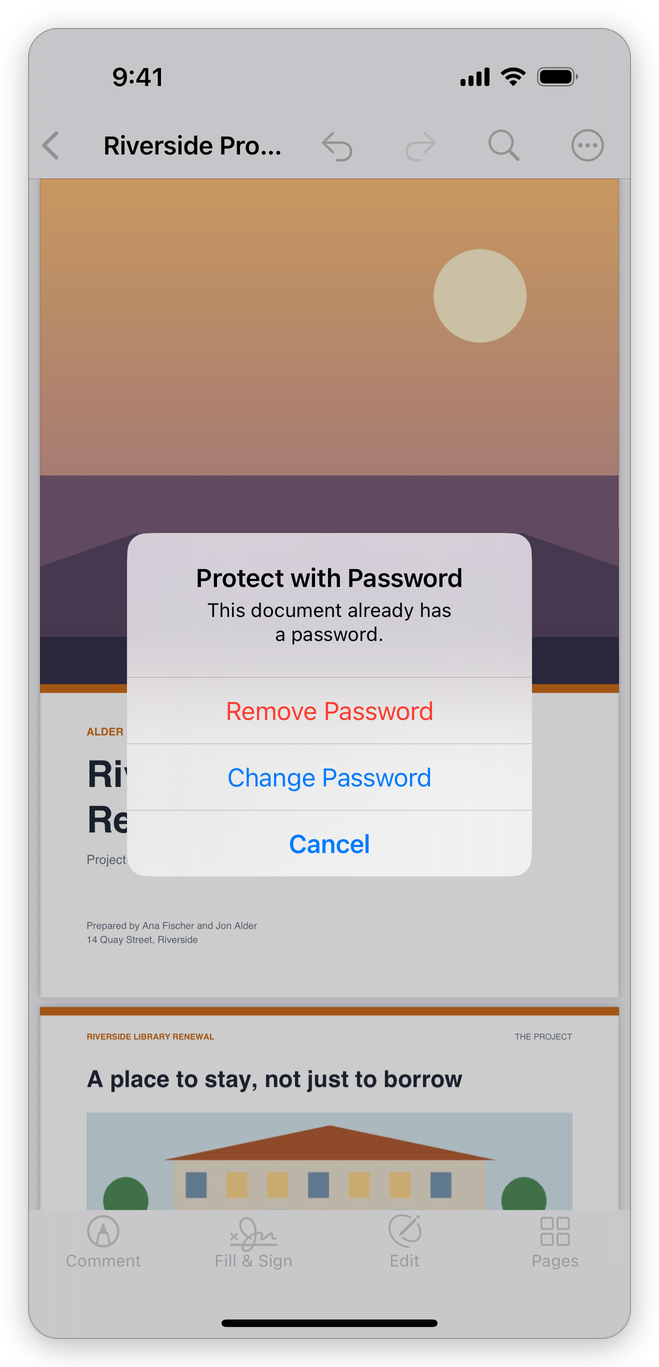
- The app says This document already has a password.
- Tap Remove Password to take the passwords and restrictions off. The app says The password was removed.
- Tap Change Password to open the Protect with Password sheet and choose new passwords.
You can also see how a document is protected in Document Properties (in the More menu), under Security; tap Change settings there to go to the same choice. See Document properties.
Adding or removing a password is one step that Undo takes back while the document is open.
More ways to protect a document
- Encrypt for Recipients lets only the people you choose open the document, each with their own digital ID, instead of with a password. See Encrypt with a certificate.
- To make sure a document does not hide anything you did not mean to share, see Remove hidden information. To remove text and pictures for good, redact them.
- To sign a document with a digital ID, see Digital signatures.