Save a PDF
How the app saves your changes on its own, Save As, saving a copy to Files, undo and redo, flattening comments and form fields, and what happens when a save fails.
Your changes are saved on their own
There is no Save button. Like other iPhone and iPad apps, the app saves your changes to the document by itself:
- a moment (about two seconds) after your last change, so a burst of changes is saved once;
- when you go back to the library;
- when you switch to another app, or the screen locks.
Under the document's name at the top, the app shows Saving… while it writes the file, then Saved. (Before iOS 26, a dot after the name shows while there are changes not saved yet.)
A document opened where it is in the Files app, with Edit in Place from Files, is saved back there. See The library and the Files app.
Sharing, printing and saving a copy also save the document first, so what leaves the app has all your changes.
Save under another name
Save As… gives the document as it is now a new name, and you go on editing it under that name. The original goes back to how it was when you opened it.
Tap More (the circle with three dots), then Save As….
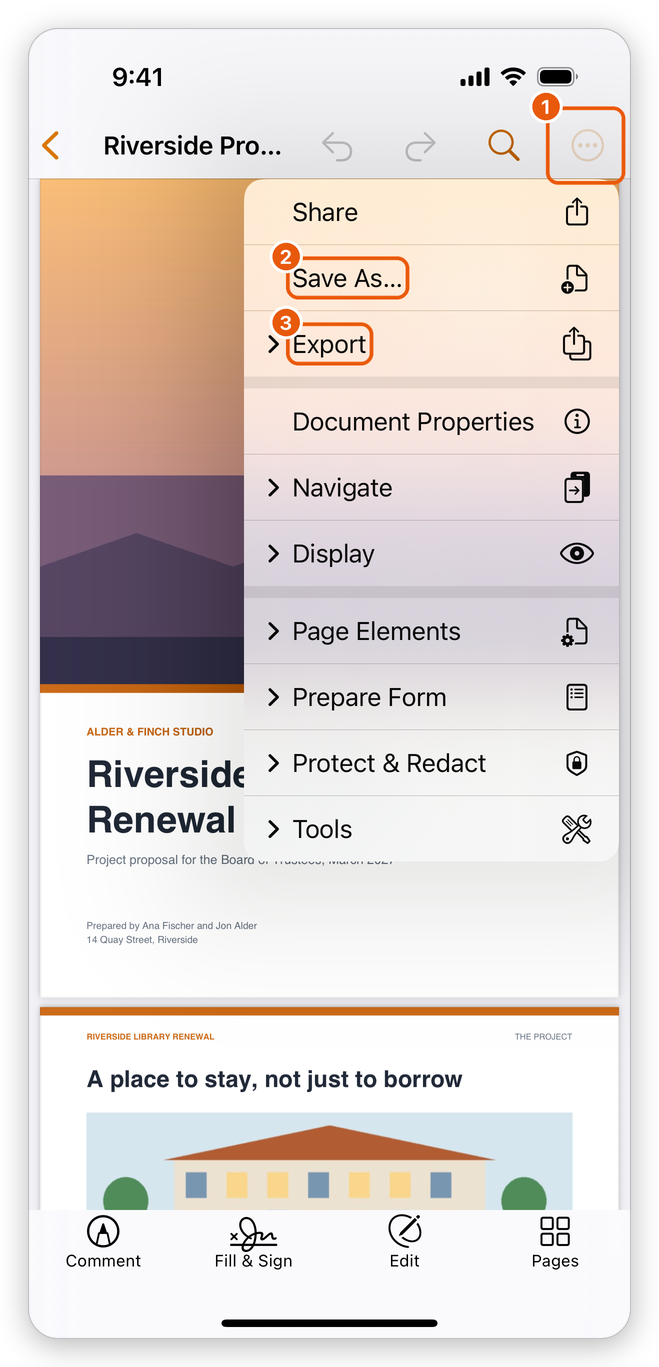
The More menu: Save As and Export - More.
- Save As…: the document under a new name.
- Export: a copy in the Files app, prints, pictures, and other kinds of files.
Type the new name and tap Save.
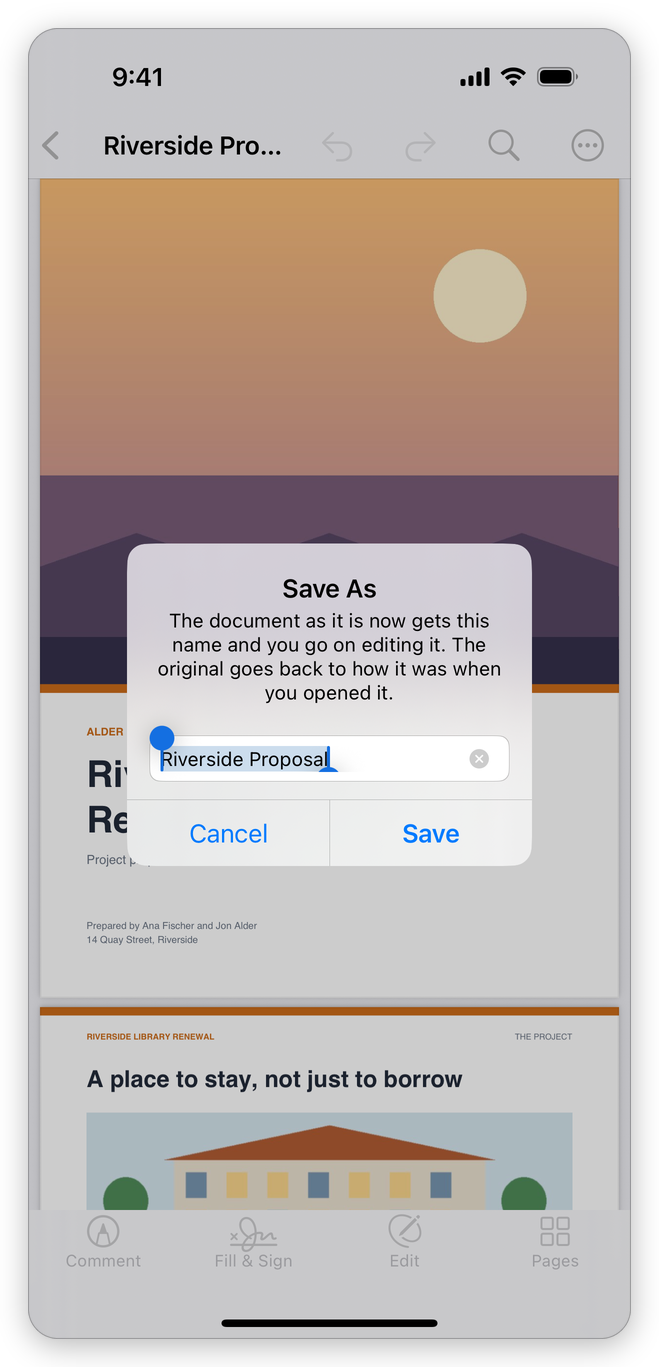
Save As
The new document is in the same folder of the library (a document edited in place in the Files app gets its new name in the library, at its top). When the name is taken, the app adds a number to it. The app says Saved as and the new name.
Save a copy to Files
To put a copy of the document anywhere in the Files app, such as iCloud Drive or a folder on your device, tap More > Export > Save a Copy to Files, and choose the place. The document in the library stays where it is.
To send the document to another app, tap More > Share. Export also saves the document as pictures, Word, Excel, PowerPoint, RTF or text. See Share and open from other apps and Export a PDF.
Undo and redo
- Undo (the arrow turning back, at the top right) takes back the last change.
- Redo (the arrow turning forward) does it again.
The document keeps its changes from the moment you open it until you go back to the library, and you can go back through all of them, also after they were saved. Some tools change many things in one step, such as recognizing the text of scanned pages or flattening: one Undo takes all of it back.
Flatten comments and form fields
Flatten makes the comments and the filled form fields part of the pages: they look the same, but can no longer be changed, moved or deleted, in this app or any other. Do it before you send a filled form that nobody should change.
Tap More > Tools > Flatten.
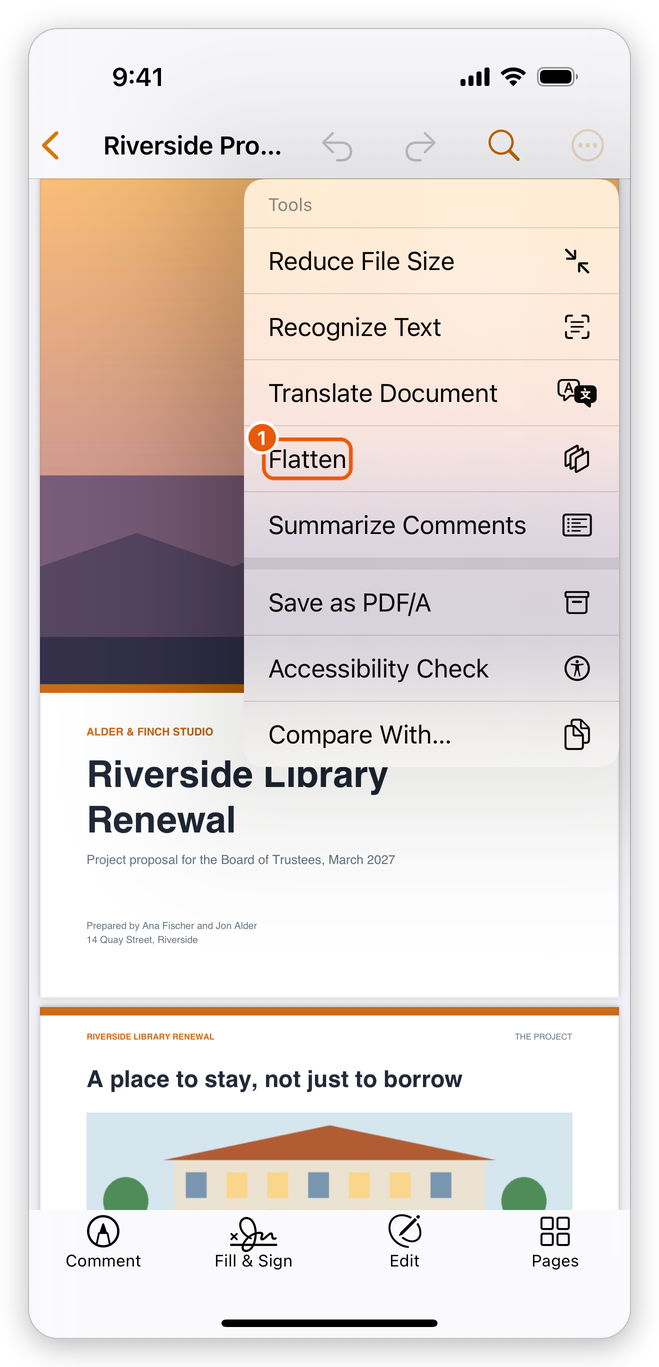
The Tools menu, with Flatten The app asks first: tap Flatten.
The app says Flattened. Undo takes it back while the document is open.
When a save fails
If the file cannot be written, for example the device is full, or a file edited in place is offline, the app says The changes could not be saved and why, and shows Not Saved under the name. Your changes are not lost: the app keeps them, and offers them back the next time it starts (see Open a PDF). You can also save them under another name with Save As….
Related pages
- Open a PDF: getting back changes that were not saved.
- Export a PDF: save as Word, Excel, pictures and more.
- Print: print the document.