Headers, watermarks and backgrounds
Number the pages of a PDF on iPhone and iPad, add headers and footers, watermarks and backgrounds, see them in a preview first, and remove them later.
Page numbers, headers and footers, watermarks and backgrounds are added to many pages at once, and the app remembers them: you can take them off later in one step. They are in the More menu (…), under Page Elements.
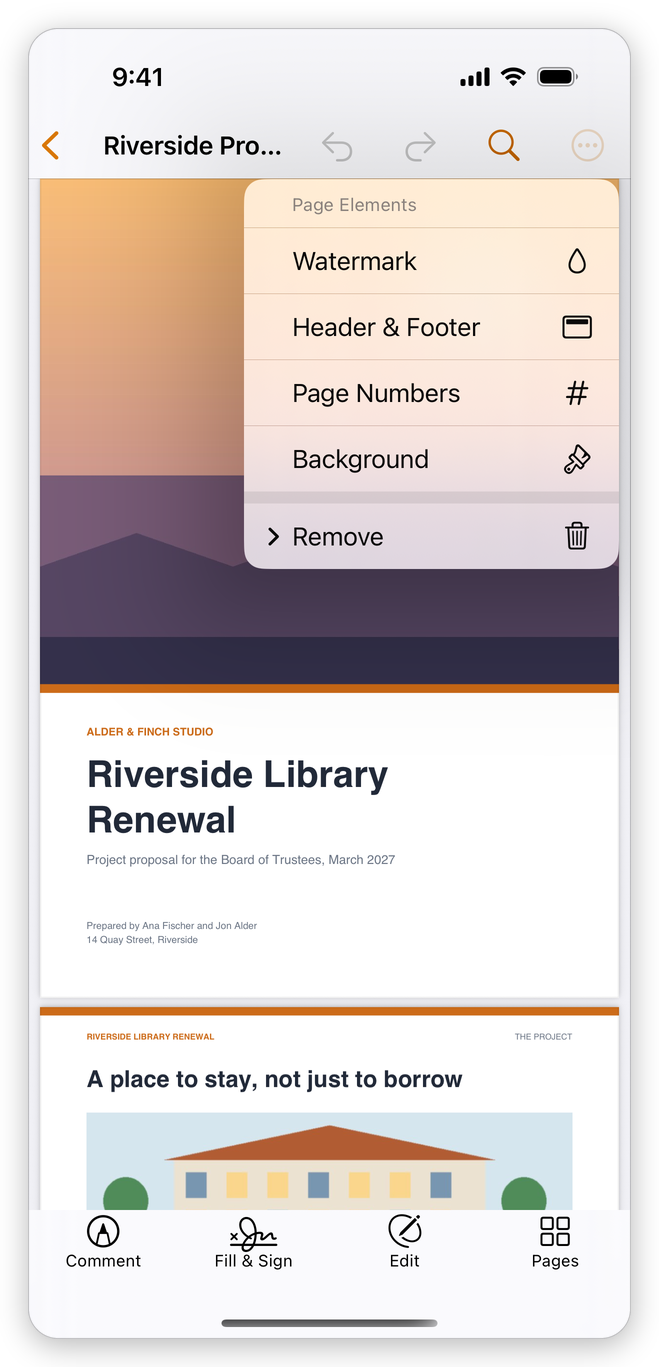
- Watermark: text or a picture across the pages, such as DRAFT or CONFIDENTIAL.
- Header & Footer: text at the top and bottom of the pages, with the page number, the page count, the date or the file name.
- Page Numbers: a page number alone, in the header or the footer.
- Background: a colour or a picture behind the pages.
- Remove: Remove Watermark, Remove Header & Footer or Remove Background.
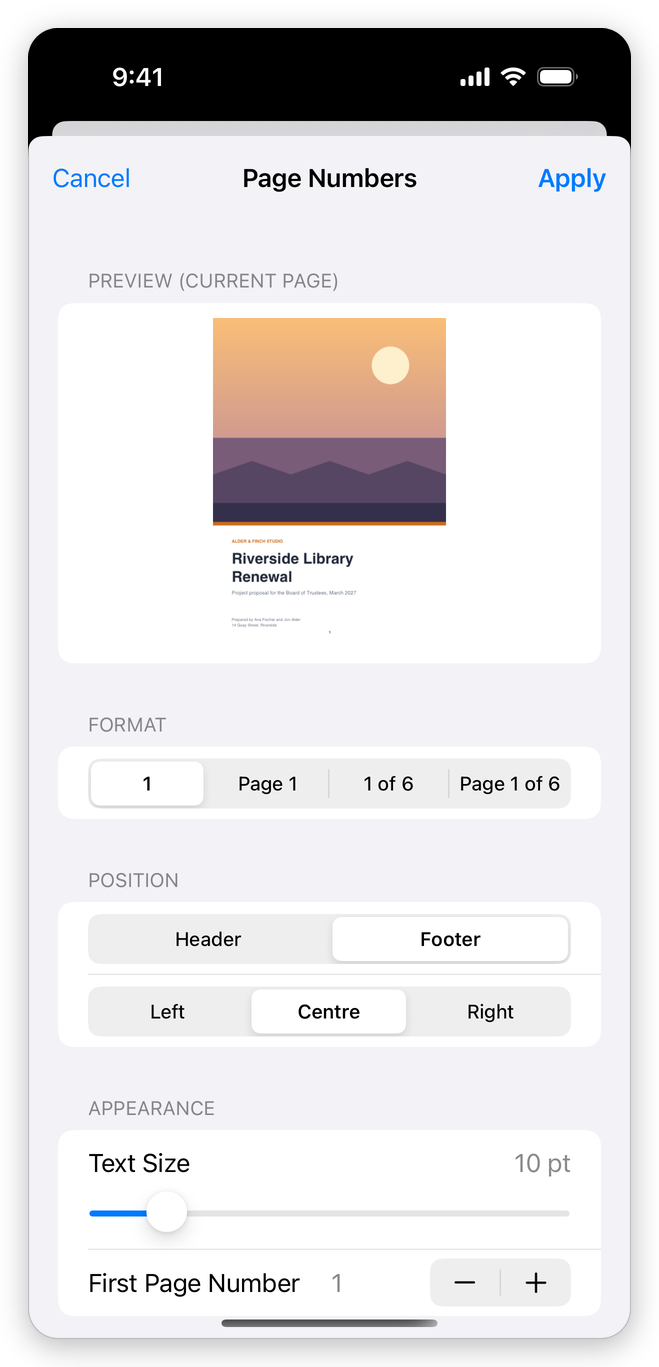
Each of the first four opens a sheet. The Preview (Current Page) at its top shows the page you were on as it will look, and changes as you change the settings. Tap Apply to add it, or Cancel.
Page numbers, headers and footers, watermarks and backgrounds need Pro: Page Elements shows a star ★ until you have Pro. Pro is bought in the app, as a subscription or for a lifetime, or unlocked with a licence key; a free trial comes first. See Install the app.
Choose the pages
Every sheet ends with Pages: All, Current page, or Pages and a range typed in the box, such as 1-3, 5, 8- (from page 8 to the end).
Number the pages
- In the More menu (…), tap Page Elements > Page Numbers.
- Under Format, choose how the number is written: 1, Page 1, 1 of 6 or Page 1 of 6 (the page number and the page count).
- Under Position, choose Header or Footer, and Left, Centre or Right.
- Set the Text Size, and the First Page Number if the numbering should not start at 1.
- Tap Apply. Page numbers are a footer (or a header): if the document already has one, the app asks whether to Replace it or to Add new.
Add a header or footer
- In the More menu (…), tap Page Elements > Header & Footer.
- Under Header and Footer, type in the boxes for the Left, Centre and Right. Leave empty the ones you do not need. The centre of the footer starts with the page number.
- To put the page number, the page count, the date or the file name in the text, tap Page number, Page count, Date or File name on the keys above the keyboard. They show as , , and in the box, and as the real values in the preview.
- Under Appearance, set the Text Size, the Colour and the First Page Number. Under Margins, set the space between the text and the edges of the page: Top and Bottom, and Left and Right.
- Choose the pages and tap Apply.
If the document already has a header or footer, the app asks whether to Replace it or to Add new.
Add a watermark
- In the More menu (…), tap Page Elements > Watermark.
- Choose Text and type the text of the watermark (CONFIDENTIAL to begin with), then set its Text Size and Colour. Or choose Image, tap Choose from Photos and pick a picture, then set its Size.
- Under Appearance, set the Opacity and the Rotation, and turn on Behind the page to put the watermark under what is on the page rather than over it.
- Under Position, choose Top, Middle or Bottom, and Left, Centre or Right.
- Choose the pages and tap Apply.
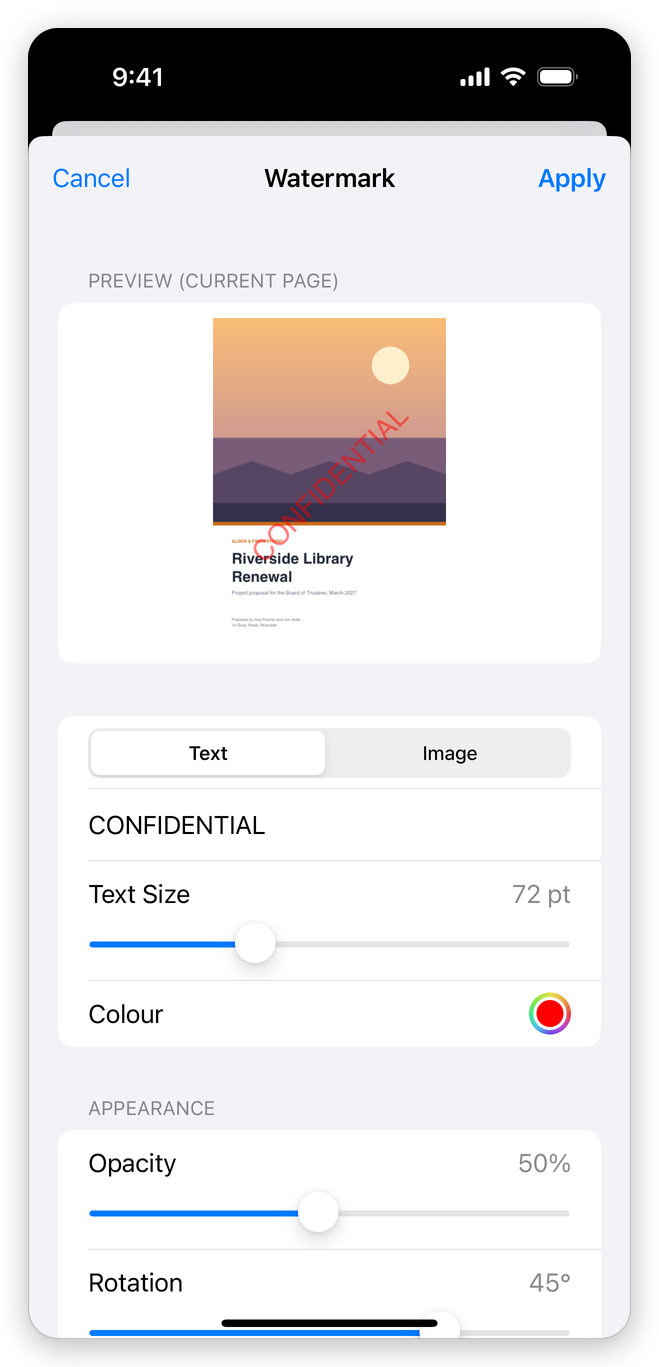
If the document already has a watermark, the app asks whether to Replace it or to Add new on top of it.
Add a background
- In the More menu (…), tap Page Elements > Background.
- Choose Colour and pick the colour, or choose Image, tap Choose from Photos and set the picture's Size.
- Set its Opacity, choose the pages, and tap Apply.
A background goes behind what is on the page, so it shows only where the page is not covered: on pages with a picture across them, choose a watermark instead.
Remove them
To take a watermark, a header and footer, or a background off every page, tap More (…) > Page Elements > Remove, then Remove Watermark, Remove Header & Footer or Remove Background. Page numbers are a header or footer: Remove Header & Footer takes them off. If the document has none, the app says so.
To change one, remove it and add it again with the new settings, or add the new one and choose Replace.
Like any change, these can be undone with Undo at the top of the screen. The app saves the document as you go.
Related pages
- Edit text and images: change what is on the pages.
- Print: print the document with its page numbers.