The app's screens
The four tabs of the app, the library, and the parts of the document screen, from the top bar and the More menu to the modes at the bottom and the page thumbnails.
The four tabs
The tab bar has the app's four screens:
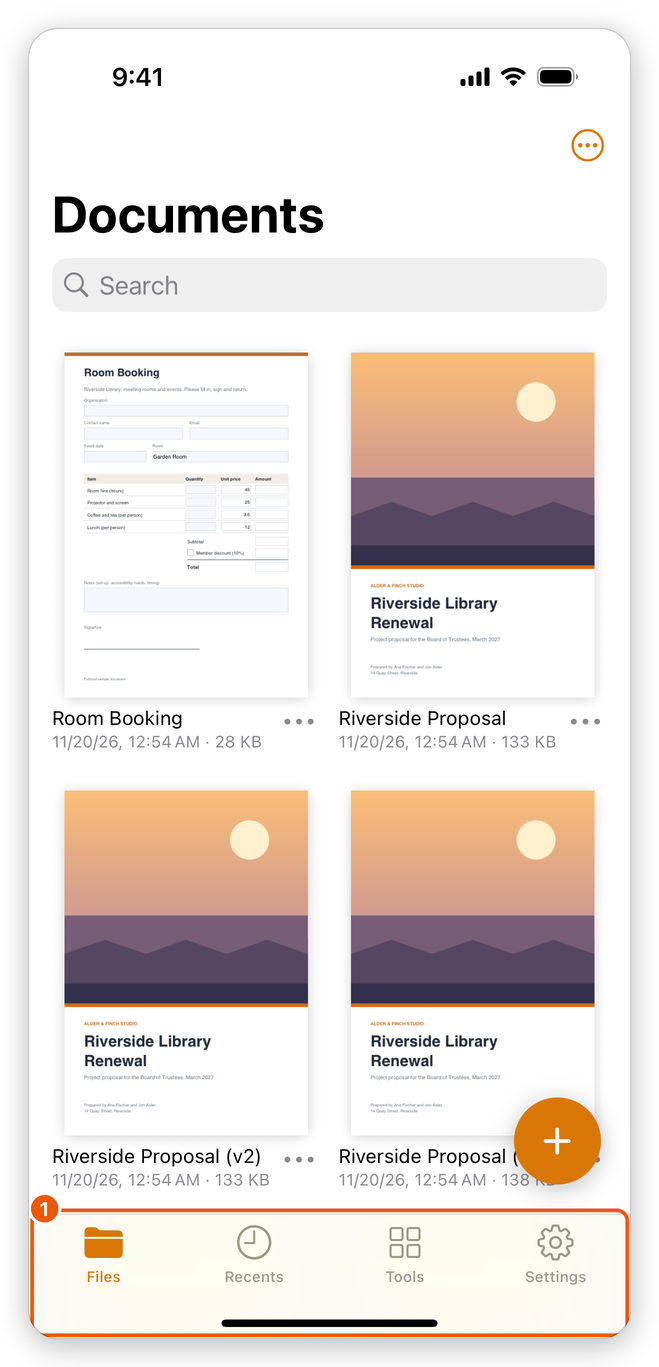
- Files: your library, the documents and folders the app keeps (its title is Documents). Tap a document to open it. The Add button (+) at the bottom right brings documents in: from the Files app, a scan, a photo, an empty page, or files combined. See The library and the Files app.
- Recents: the documents you opened lately, newest first, and under Favourites the ones you marked. Documents you opened where they are, in the Files app or another place, are listed here too.
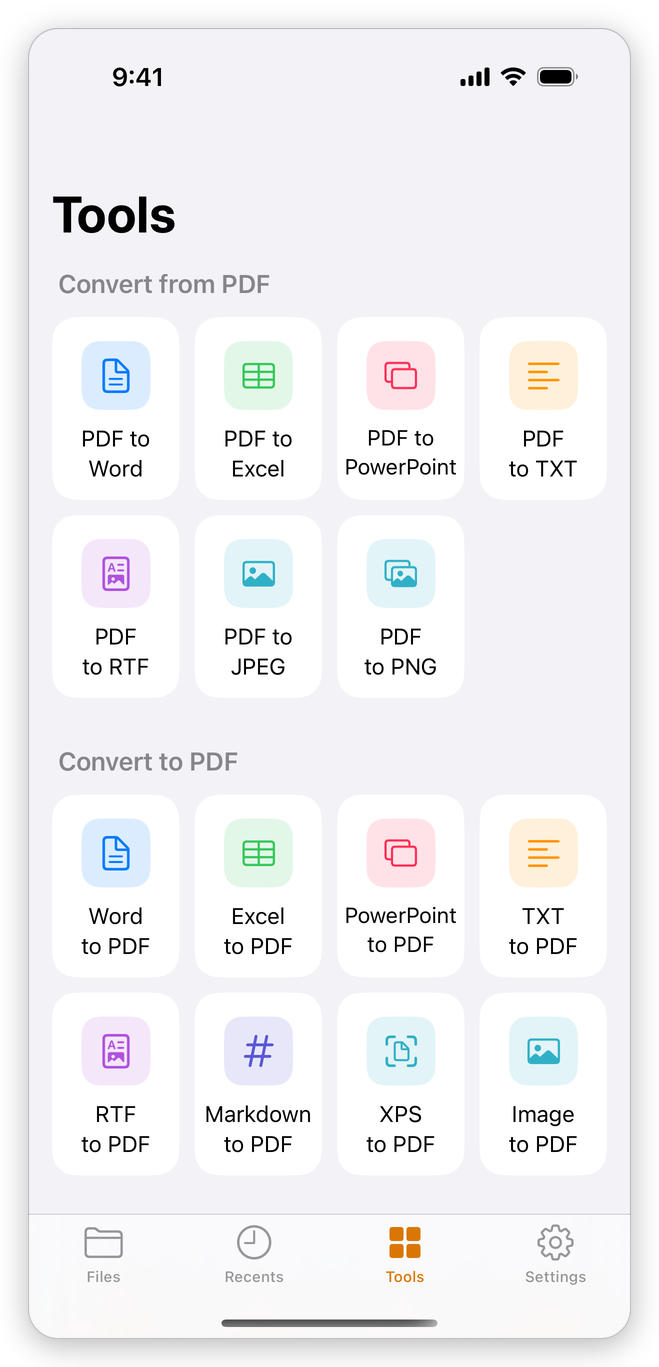
- Tools: converting and page tools, each working on a document you choose. Convert from PDF makes Word, Excel, PowerPoint, text, RTF, JPEG or PNG files of a PDF; Convert to PDF makes a PDF of a Word, Excel, PowerPoint, text, RTF, Markdown or XPS file or of photos; Others has Merge PDFs, Split PDF, Reduce File Size, Compress as ZIP, Extract Pages, Crop Pages and Recognize Text. See Create a PDF and Export a PDF.
- Settings: your name on comments, the language and theme, where documents are kept, Pro, and more. See Settings.
In the library, search with the Search field at the top, and use the button with three dots at the top right to sort (Sort By Date, Name or Size), to show the documents as Icons or a List, to Select several, or to make a New Folder. Each document has its own menu: touch and hold it, or tap the three dots beside its name (More actions).
The document screen
When a document is open, the screen has three parts.
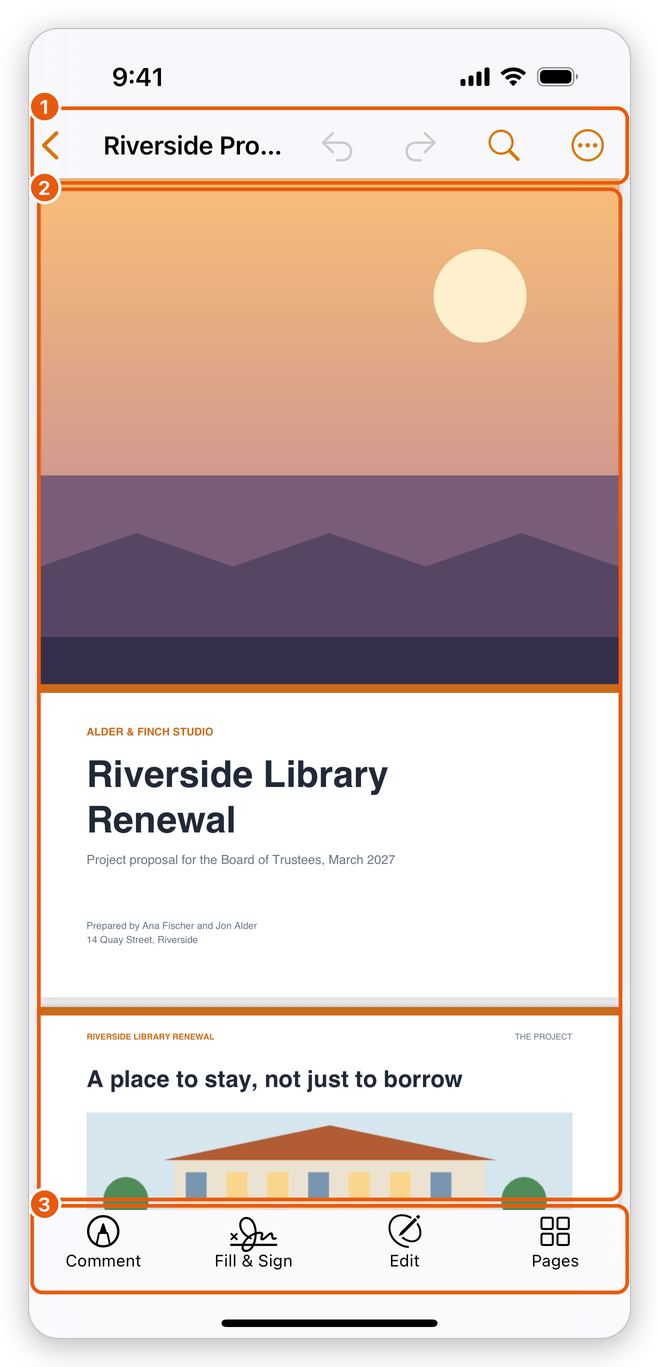
- Top bar. The back button returns to the library; the document's name is in the middle. On the right are Undo and Redo, Find (the magnifying glass, see Find text) and More (the circle with three dots), which has everything else.
- The pages. Swipe to scroll, and pinch to zoom. While you scroll, the page number shows for a moment. What a tap on the page does depends on the mode chosen at the bottom.
- Modes. Comment, Fill & Sign, Edit and Pages, and AI on devices that run Apple Intelligence. Tap a mode to show its tools above the bar; tap it again to put it down and just read.
On an iPhone, the tab bar hides while a document is open; on an iPad it hides too, and comes back when you return to the library. The app saves your changes when you leave the document: see Save a PDF.
The modes
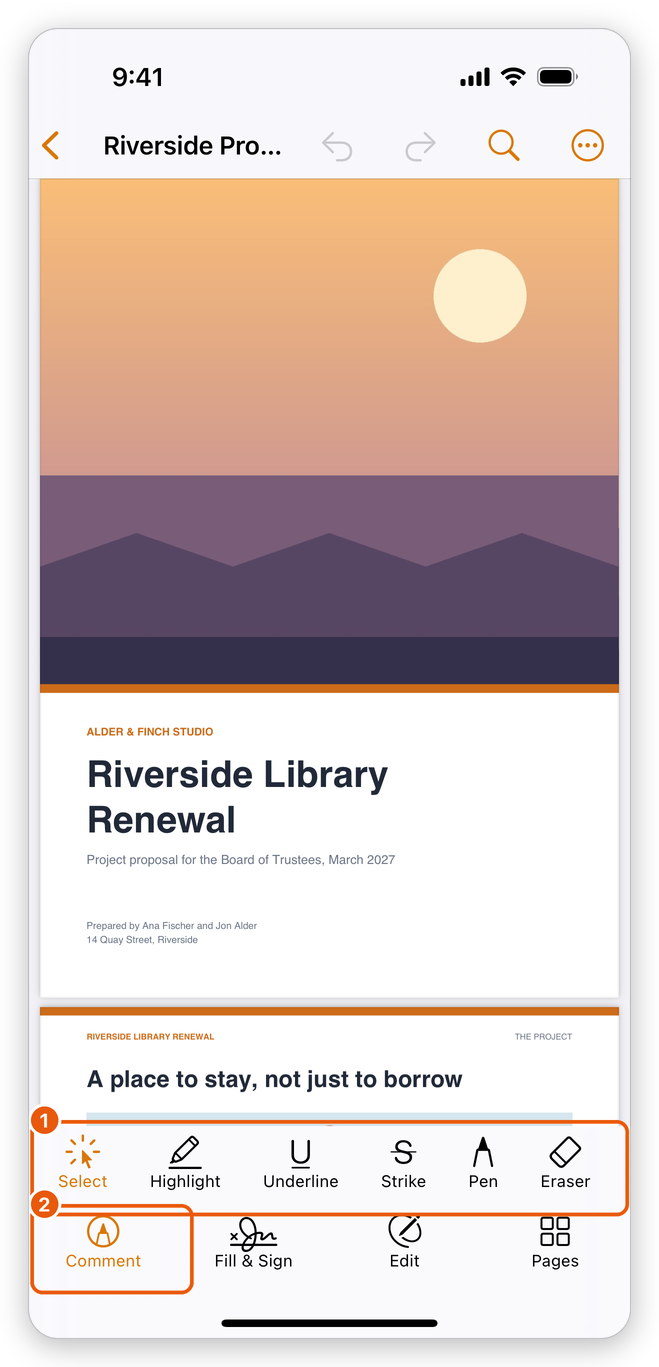
- Comment: highlight, underline and strike out text, draw with the Pen, erase, add notes, voice notes, text boxes, shapes and stamps, choose colours, and list the comments. See Comment on a PDF.
- Fill & Sign: fill in forms, type text, add ticks, crosses and dots anywhere, add your Signature and Initials, sign with a digital ID (Sign with ID) and Autofill a form with your details. See Fill in forms and Sign.
- Edit: change the text and pictures on the page, add text, images, shapes and links. See Edit a PDF.
- Pages: opens the page organizer, to rotate, move, insert, delete and extract pages. See Organize pages.
- AI: the assistant, which summarizes the document and answers questions about it. See AI assistant.
When there are more tools than fit the screen, swipe the row of tools sideways.
Edit and AI need Pro.
The More menu
Tap More (the circle with three dots) at the top right. The menu is in groups:
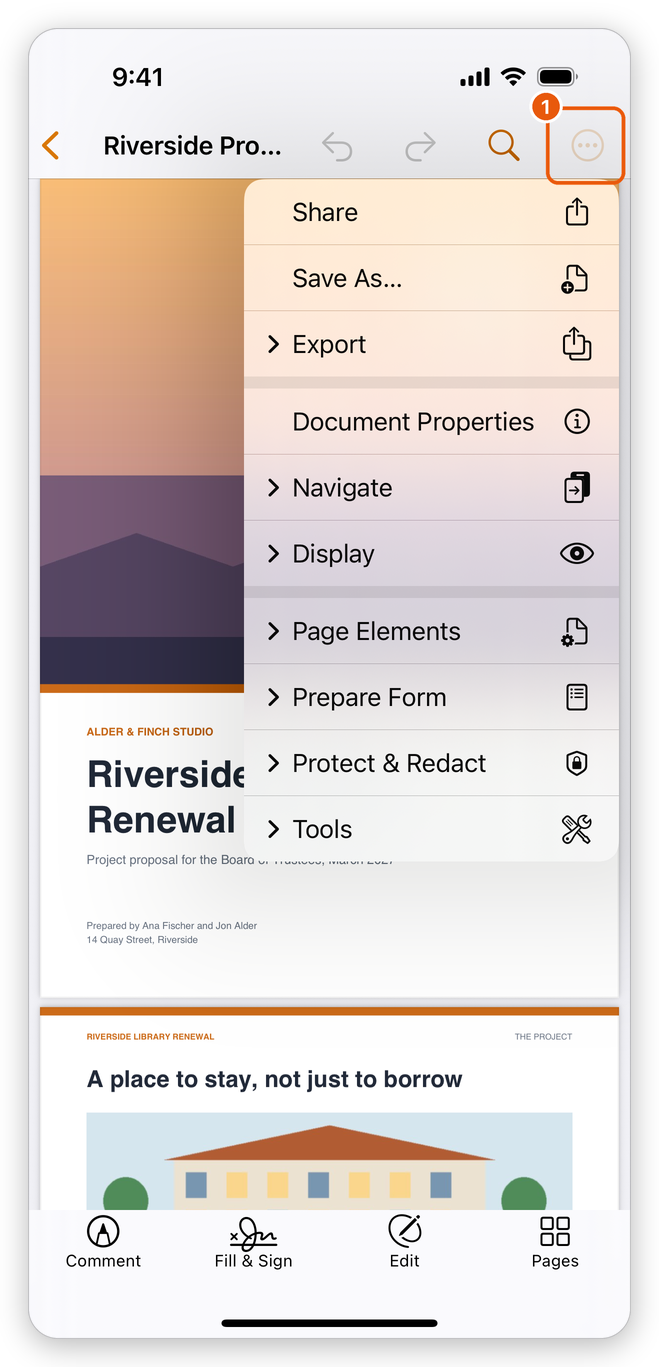
- Share, Save As… and Export: send the document, save it under another name, save a copy to Files, print, save pages as images, export to Word, Excel, PowerPoint, RTF or text, or print several pages on a sheet. See Share and open from other apps, Save a PDF, Export a PDF and Print.
- Document Properties: the title, author, page size and other details. See Document properties.
- Navigate: Go to Page, Bookmarks and Attachments. See Bookmarks and Attachments.
- Display: Reading Mode, Read Aloud, Page Thumbnails, Layers, One Page at a Time or Continuous Scrolling, and Night Mode. See View a PDF.
- Page Elements: watermarks, headers and footers, page numbers and backgrounds. See Headers and watermarks.
- Prepare Form: add and change form fields. See Create a form.
- Protect & Redact: passwords, redaction, certificate encryption, removing hidden information and the signatures of the document. See Protect a PDF and Redact.
- Tools: Reduce File Size, Recognize Text, Translate Document, Flatten, Summarize Comments, Save as PDF/A, Accessibility Check and Compare With…. See Reduce size, Recognize text, PDF standards, Accessibility and Compare.
Page thumbnails
More > Display > Page Thumbnails shows small pictures of the pages: on an iPhone in a strip above the modes, on an iPad in a column at the left (shown at first). Tap a page to go to it. Choose Page Thumbnails again to hide them.
Related pages
- Open a PDF: every way to open a document.
- Settings: the app's settings.