Create a PDF
Make a PDF on iPhone and iPad from a scan, photos, a Word, Excel or PowerPoint file, a text file, or an empty page.
The app turns other things into PDFs: paper documents you scan with the camera, photos, Word, Excel and PowerPoint documents, text and XPS files. What you create is added to your documents and opens. Creating PDFs is free.
The + menu
On the Files tab, tap the + button (Add) at the bottom right.
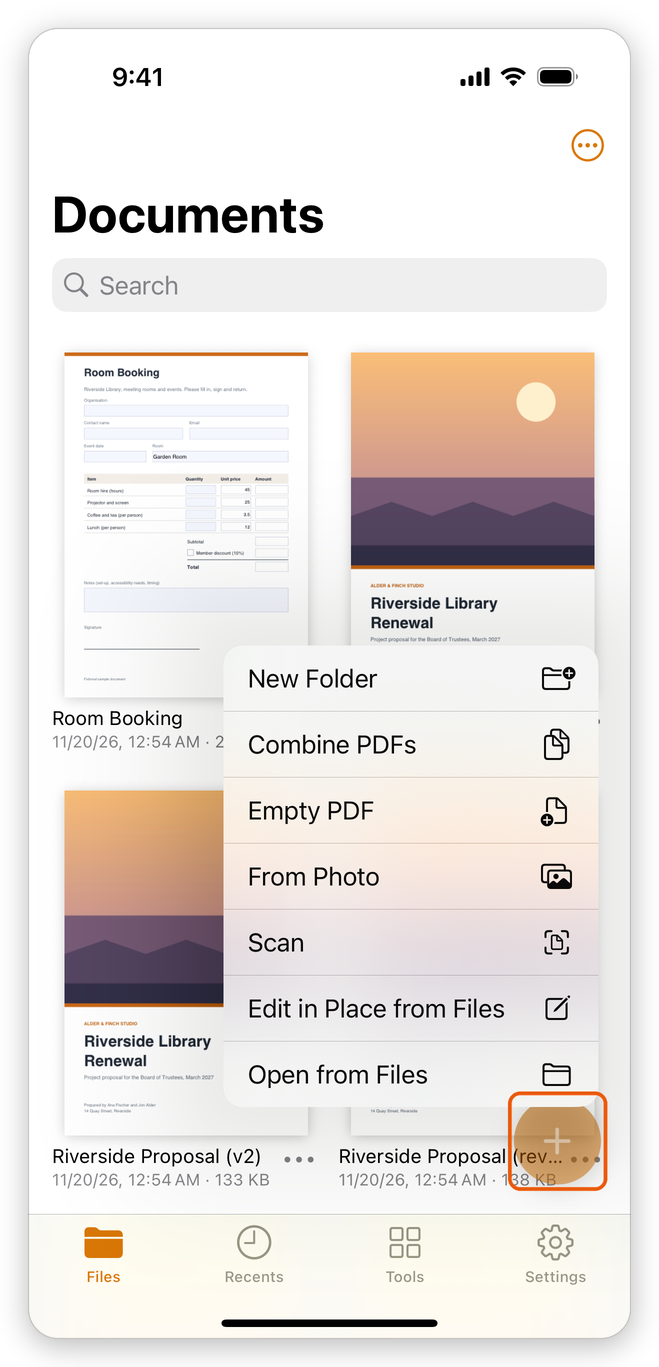
- Open from Files: add PDFs and pictures from the Files app. A picture becomes a PDF of one page.
- Edit in Place from Files: open a PDF where it is, without adding a copy (see Open a PDF).
- Scan: scan paper documents with the camera.
- From Photo: make a PDF of photos.
- Empty PDF: start with an empty page.
- Combine PDFs: put several documents together (see Combine files).
- New Folder: make a folder for your documents.
New documents go into the folder you are looking at.
Scan a paper document
- Tap the + button and choose Scan. The camera opens.
- Hold the camera over the page. The camera finds the edges of the page and takes the picture on its own; you can also tap the shutter button. Check the picture, and tap Keep Scan or Retake.
- Scan the other pages the same way, then tap Save.
- Choose how the pages look: Colour, Greyscale or Black and White. Black and white makes the smallest file and suits text.
The PDF is added to your documents, named Scan with the date and time, and opens. With Pro, the app asks whether to Recognize Text in it, so that you can search and copy its words: tap Recognize Text, or Not Now for a photo. See Recognize text.
You can also scan with Insert > Scan on the Pages screen, to add the scanned pages to a document (see Organize pages).
Scanning needs a camera. Touch and hold the app's icon on the Home Screen to start a Scan from there.
From photos
- Tap the + button and choose From Photo.
- Choose one or more photos, and tap Add.
Each photo becomes a page of its own size, in the order you chose them. The PDF is named Photo.
An empty PDF
Tap the + button and choose Empty PDF. The new document, named Blank, has one empty Letter page. Add text and pictures with the Edit mode, which needs Pro (see Edit a PDF), and more pages with Insert on the Pages screen.
From Word, Excel, PowerPoint and other files
The Tools tab has a Convert to PDF section. Tap a tool, choose the file in Files, and the PDF is made, added to your documents and opened.
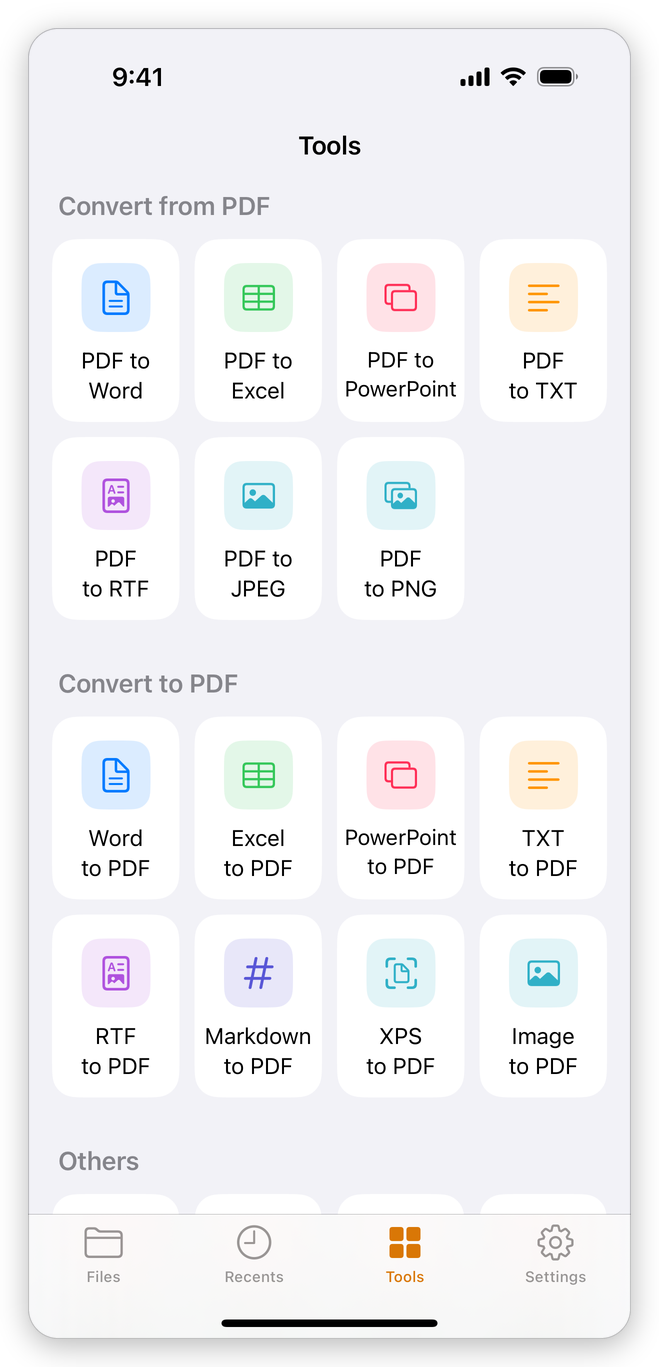
| Tool | File types |
|---|---|
| Word to PDF | .docx, .doc, .docm, .dotx, .dot |
| Excel to PDF | .xlsx, .xls, .xlsm, .xltx, .csv |
| PowerPoint to PDF | .pptx, .pptm, .potx, .ppsx, .ppsm |
| TXT to PDF | .txt |
| RTF to PDF | .rtf |
| Markdown to PDF | .md |
| XPS to PDF | .xps, .oxps |
| Image to PDF | photos from your photo library, several at once |
The app converts the files itself: you do not need Microsoft Office. A file protected with a password asks for it first.
Open an Office file in the app
You don't have to use the Tools tab. Share a Word, Excel, PowerPoint, text or RTF file to the app from another app, or open it with the app from Files, and the app makes a PDF of it, adds it to your documents and opens it. See Share to the app and The Files app.