Make a PDF smaller
Reduce the size of a PDF on iPhone and iPad in one tap, or make a smaller copy of a document from the Tools tab.
Large PDFs are slow to send and to open. Reduce File Size makes them smaller, with settings that suit most documents. It is free.
Reduce the size of the open document
- Open the document.
- Tap More (…) at the top right, then Tools > Reduce File Size.
- Wait while the file is made smaller. A ring shows how far it is; tap Cancel to stop and keep the document as it was.
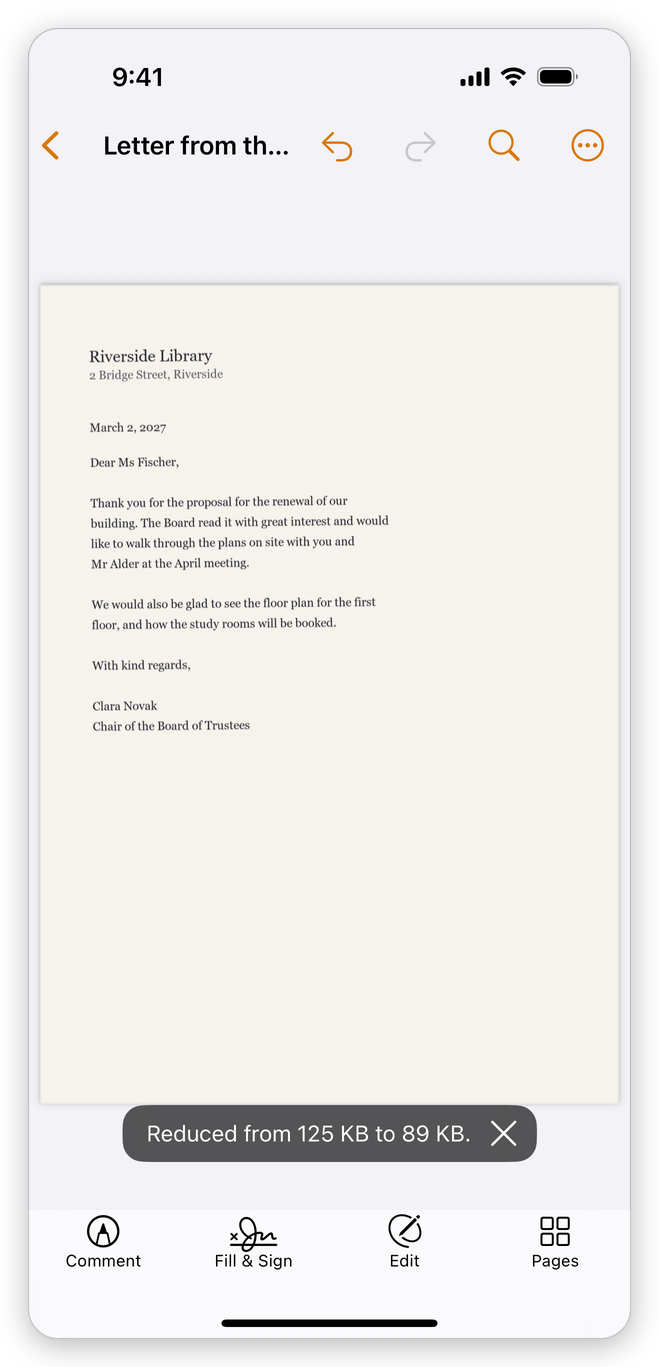
When it is done, a message at the bottom of the screen says the size before and after, such as Reduced from 4.2 MB to 1.1 MB. If the file cannot be made much smaller, the app says This document is already as small as it can be made.
What it does:
- Pictures shown at a higher resolution than the page needs are made smaller, and pictures are compressed again when that makes them smaller.
- Embedded fonts are reduced to the characters the document uses.
- Data the document does not need is removed, and the file's structure is compressed.
The text stays text, and the comments, form fields and bookmarks stay as they were.
The change is saved like any edit. If you don't like the result, tap Undo: the document is as it was.
Make a smaller copy
To keep the original as it is, use the Tools tab:
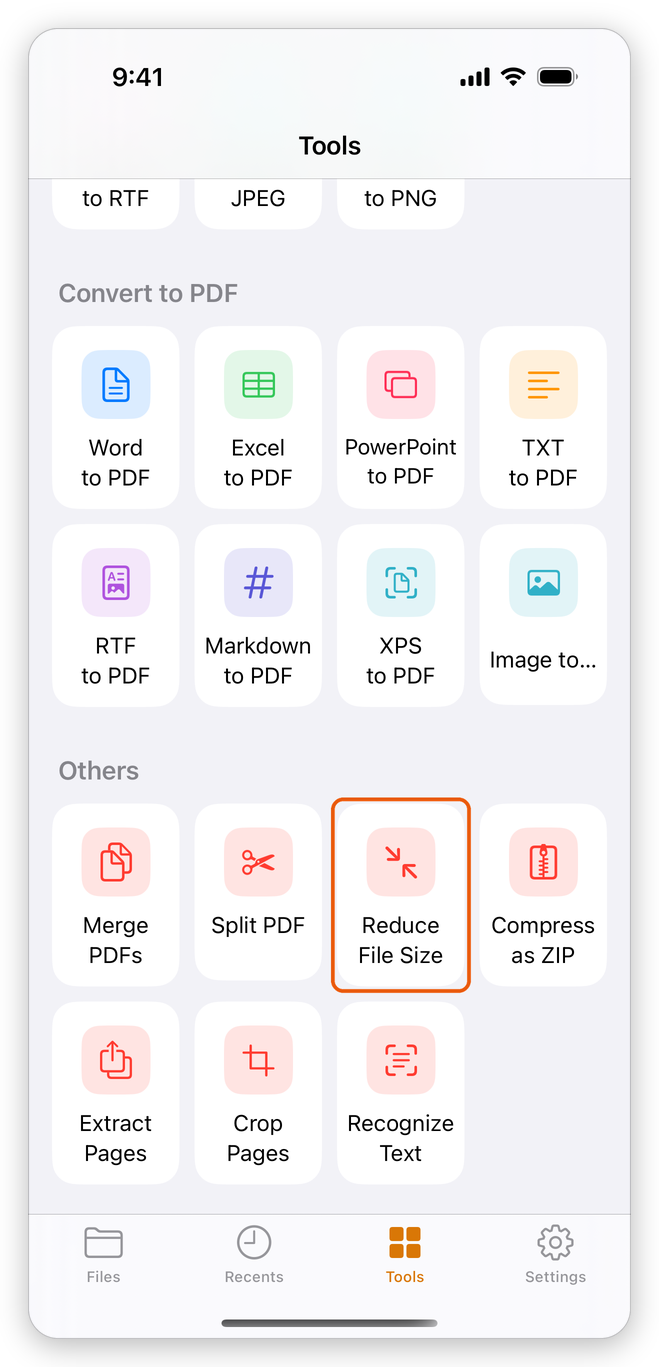
- On the Tools tab, under Others, tap Reduce File Size.
- Tap the document in the list.
A smaller copy is added to your documents, beside the original, named after it with (smaller), such as Riverside Proposal (smaller). The message at the bottom of the screen says the size before and after.
Signed and very large documents
A signed document cannot be made smaller: rewriting it would break the signatures. The app says so. Reduce the size of a document before it is signed.
A very large document may not fit in the memory the app can use; the app then says the file could not be optimized and leaves it as it was. Pictures it has no room for are left as they are.