Find text
Find a word or phrase in a PDF with the Find button, move from one result to the next, and see every place it is found marked on the pages.
Find a word in the document
With a document open, tap Find (the magnifying glass) at the top right.
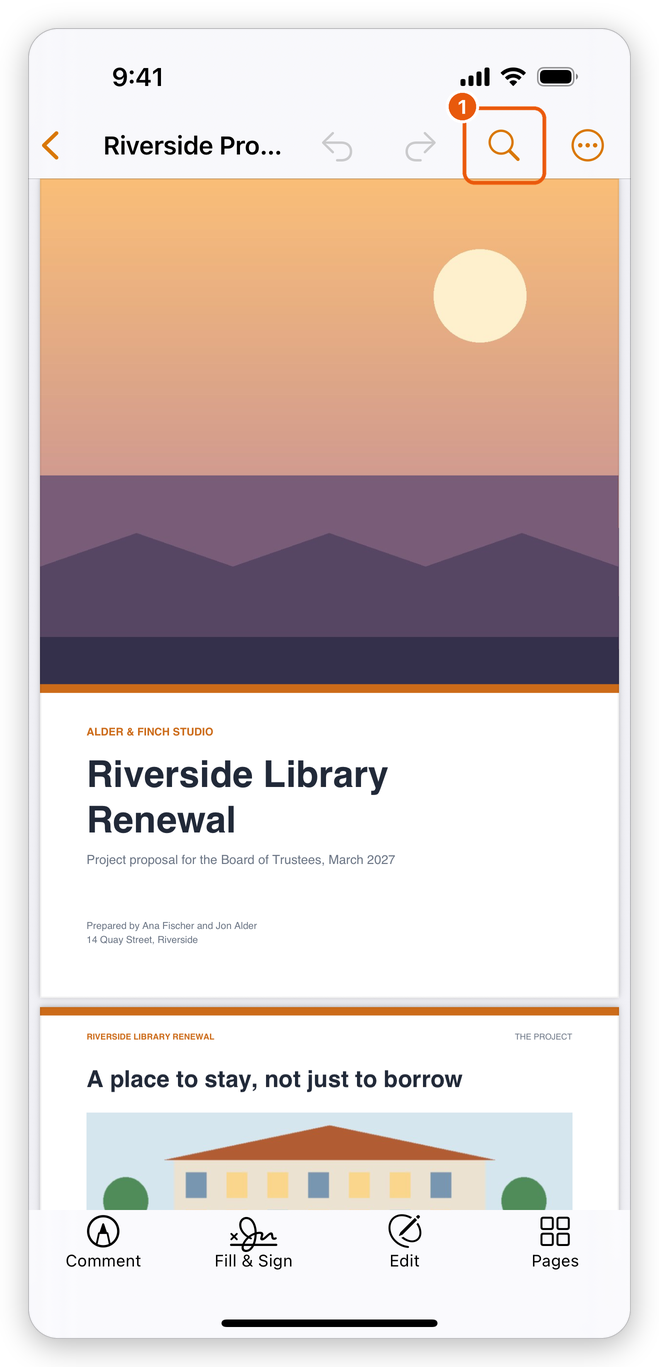
Find, in the top bar The find bar opens above the keyboard. Type the word or phrase, and tap Search on the keyboard.
The app goes to the first place the text is found and marks it. Every other place it is found is marked too, in a lighter colour, so you can see at a glance where the word is on each page.
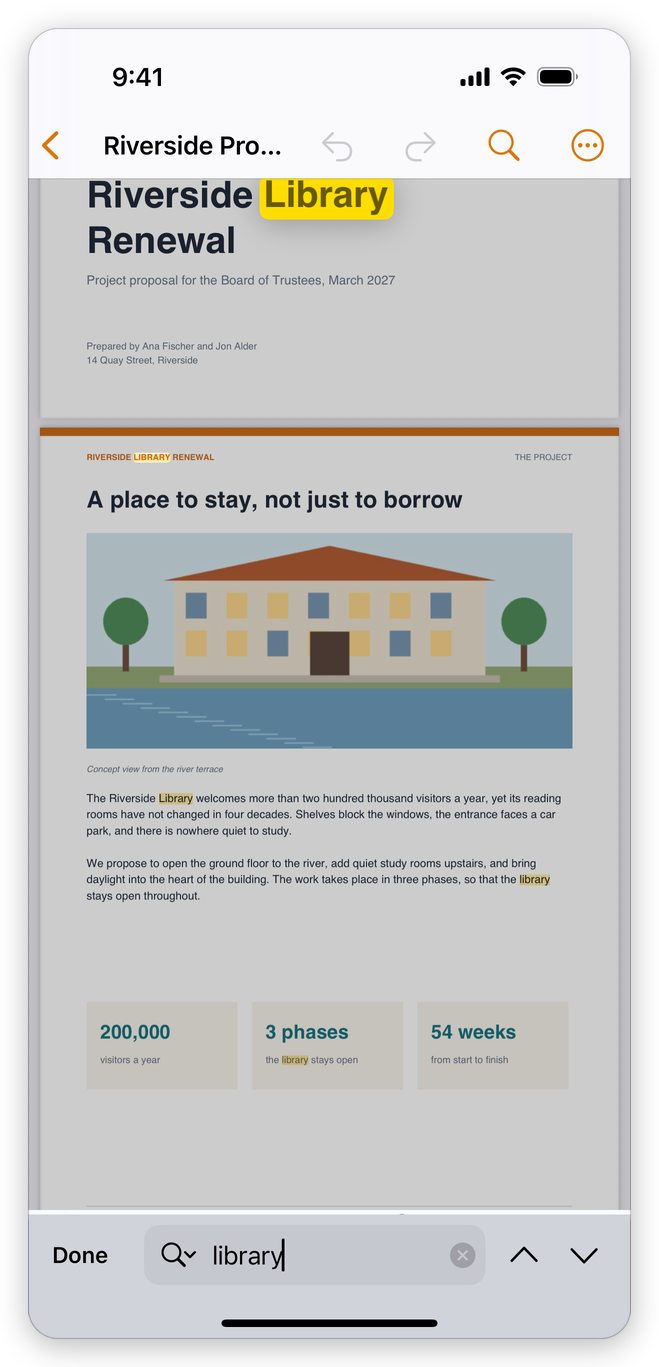
- Tap the arrows of the find bar to go to the next or the previous result. The bar says how many results there are.
- Change the text to search for something else: the marks follow.
- Tap Done, or close the find bar, to end the search. The marks go with it.
While you search, the pages end above the find bar and the keyboard, so the result shown is never under them.
The marks do not care about upper and lower case or accents: "library" also finds "Library", and "resume" also finds "résumé". They are only on the screen: nothing is added to the document.
A scanned page is only a picture of text, so its words cannot be found. Recognize its text first with More > Tools > Recognize Text (a Pro tool). See Recognize text.
Find a word to remove it
To find every place a word is and black it out for good, for example a name or an account number, use More > Protect & Redact > Redact, then Find in the redaction bar: it finds words and patterns such as e-mail addresses and phone numbers, with Whole words only and Case-sensitive. See Redact.
Finding text is free.
Related pages
- View a PDF: zoom, scroll and go to a page.
- Bookmarks: go to the parts of a document.