Document properties
See and change a PDF's title, author, subject and keywords, see its file details such as its size, pages and PDF version, and see what its security allows, in Document Properties.
Every PDF carries information about itself: a title, an author, keywords that help find it, when it was made, and how it is protected. Document Properties shows it, and lets you change the description.
Open Document Properties
With a document open, tap More (the circle with three dots), then Document Properties. A sheet opens with three groups: Description, Advanced and Security.
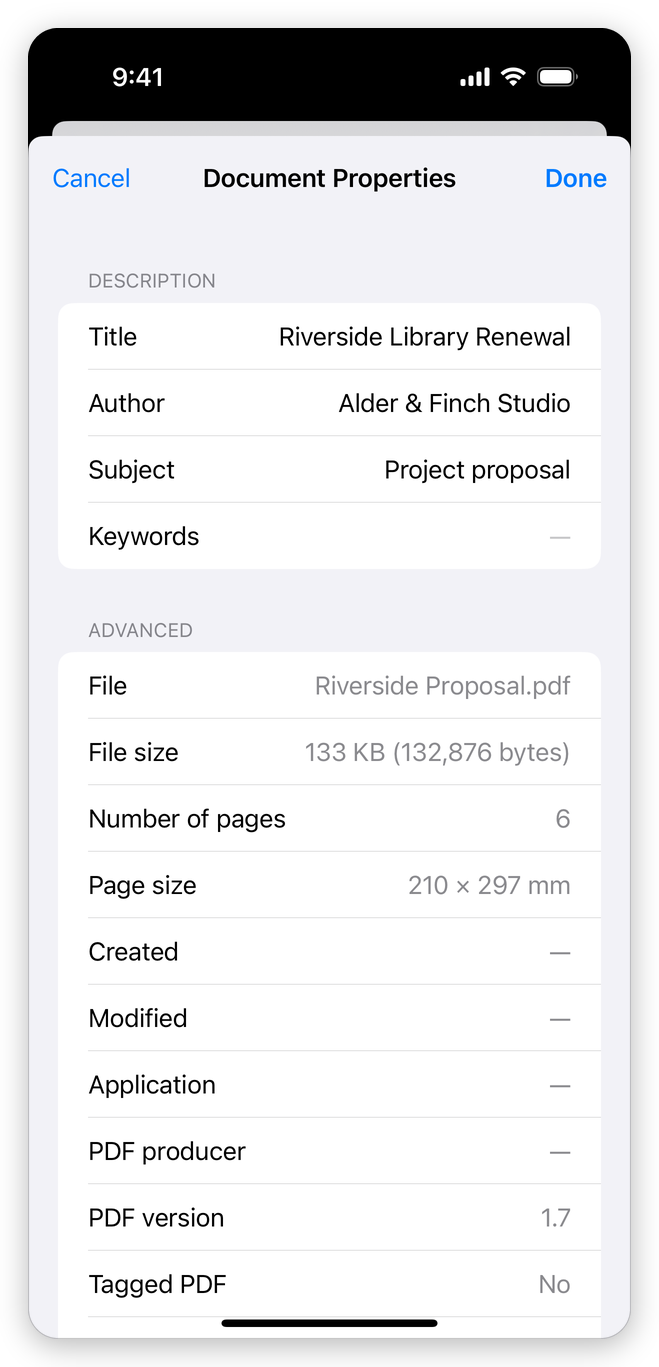
Tap Done to put your changes in the document, or Cancel (or swipe the sheet down) to leave it as it was. The changes are one step that Undo takes back, and the app saves them with the document: see Save a PDF.
Description
Tap a row to change it:
- Title: the document's title. Screen readers read it, and some PDF readers show it in place of the file name.
- Author: who wrote it.
- Subject: what it is about.
- Keywords: words that help find it, separated by commas.
Leave a row empty to remove it from the document.
Advanced
The file's details, which you can read but not change here:
- File and File size. With unsaved changes, the size is that of the document as it is now.
- Number of pages and Page size: the size of the first page, in millimeters.
- Created and Modified: when the document was made and last changed, as the document records them.
- Application: the program the original document was made in, for example a word processor.
- PDF producer: the program that wrote the PDF.
- PDF version.
- Tagged PDF: whether the document has the tags screen readers use. See Accessibility.
- Fast web view: whether the file is arranged to show its first page in a web browser before it has all downloaded.
Security
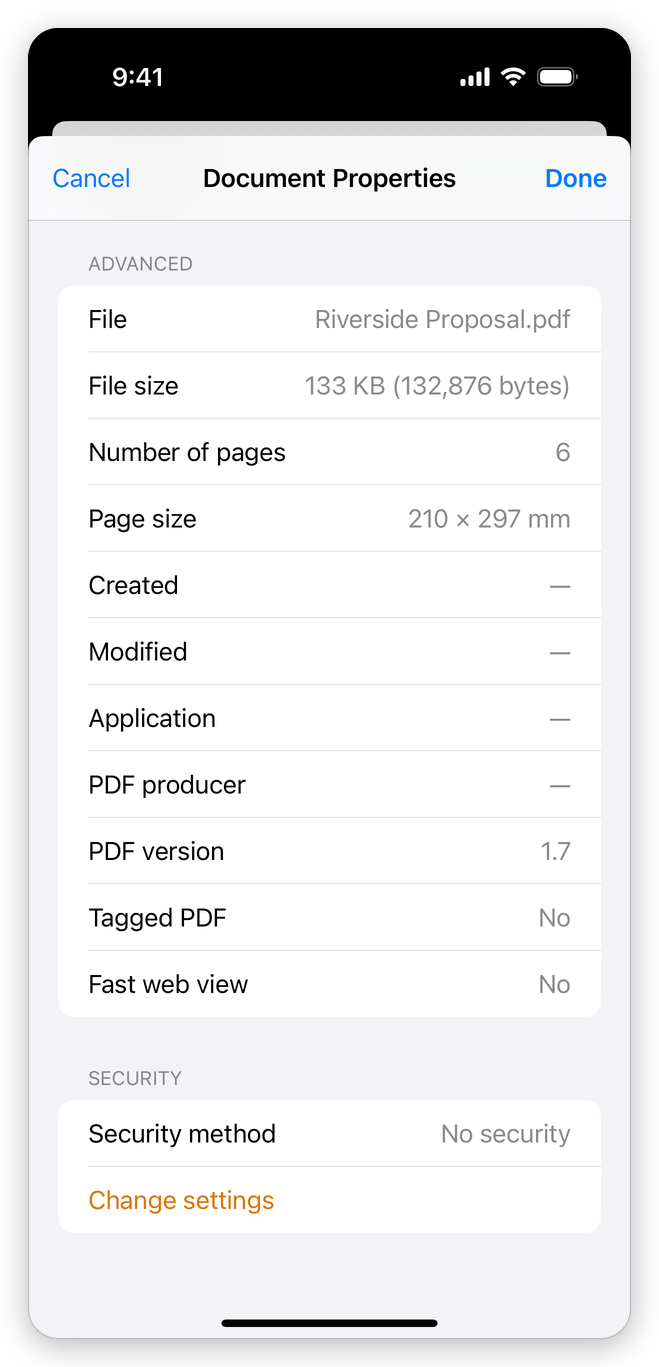
Security method says how the document is protected: No security, password security, or certificate security with the number of recipients. For a protected document, the rows below say what it allows, each Allowed or Not allowed: Printing (or Low resolution), Changing the document, Document assembly, Content copying, Content copying for accessibility, Page extraction, Commenting, Filling of form fields, Signing and Creation of template pages. When a password is needed to open the document, the group says so under it.
Change settings closes the sheet, keeping what you typed in the description, and goes on to protect the document with a password, or to change or remove its protection. See Protect a PDF with a password and Certificate security.
Changing the description is free. Adding, changing and removing a password needs Pro. Seeing the security of a document is free.
Related pages
- Protect a PDF with a password: passwords and what a document allows.
- Accessibility: tags, and checking a document for screen readers.
- PDF standards: PDF/A.