Apple Pencil
Drawing, highlighting and signing with the Apple Pencil on iPad, and the setting that keeps your finger for scrolling.
On an iPad, the Apple Pencil works wherever the app lets you draw: the drawing tools of Comment, and your signature. Everything the Pencil does, a finger can do too.
Draw and highlight
- Open a document, and tap Comment at the bottom.
- Tap a tool: Highlight, Underline, Strike, Pen, Eraser, or a shape from Shapes.
- Draw on the page with the Pencil. With Highlight, Underline and Strike, draw over the words: the mark follows the lines of text.
Tap the tool again to put it down. Colour chooses the colour and the thickness of the next marks. See Comment on a PDF and Drawing and shapes.
While a drawing tool is chosen, one finger draws too, and you scroll with two fingers.
Draw with the Pencil only
If your hand or finger draws where you did not want it to, let only the Pencil draw:
- Open the Settings tab.
- Under Drawing, turn on Draw with Apple Pencil only.
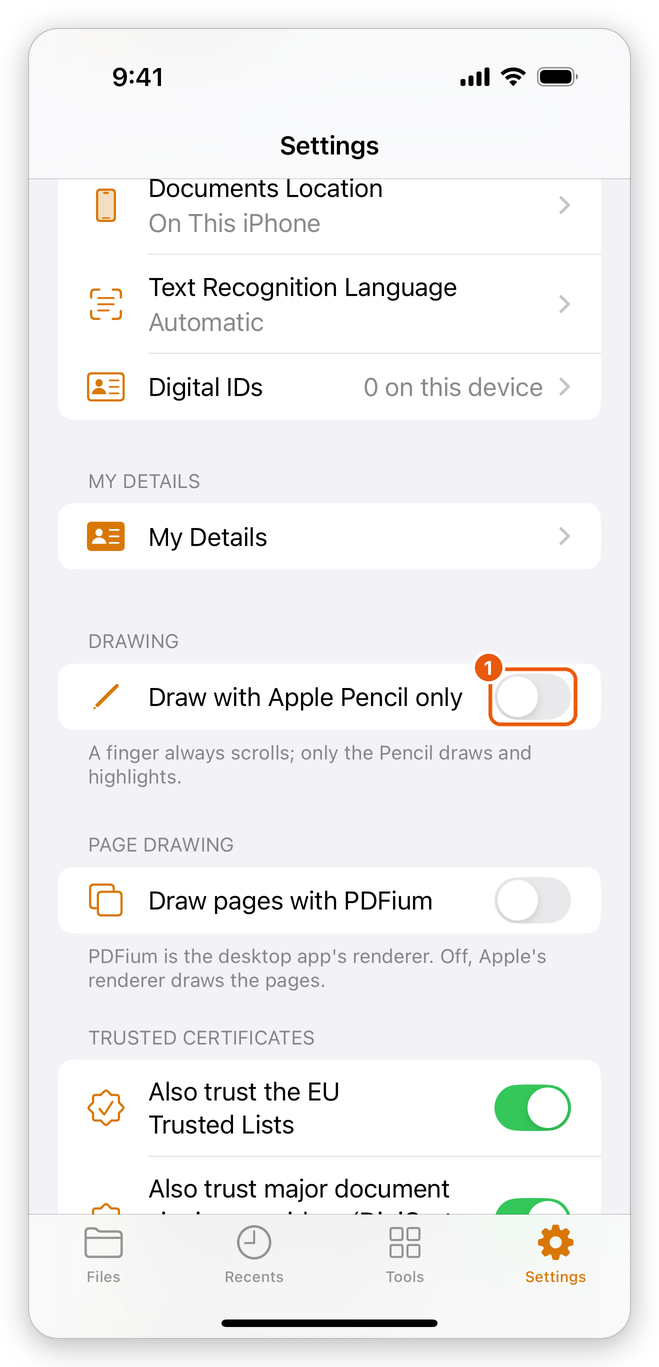
Now a finger always scrolls, with a drawing tool chosen too; only the Pencil draws and highlights. Turn the setting off to draw with a finger again.
Sign with the Pencil
- Open the document, and tap Fill & Sign at the bottom.
- Tap Signature (or Initials).
- With Draw chosen at the top, sign in the white box with the Pencil. Clear starts again.
- Keep Save for next time on to use the same signature again, and tap Done.
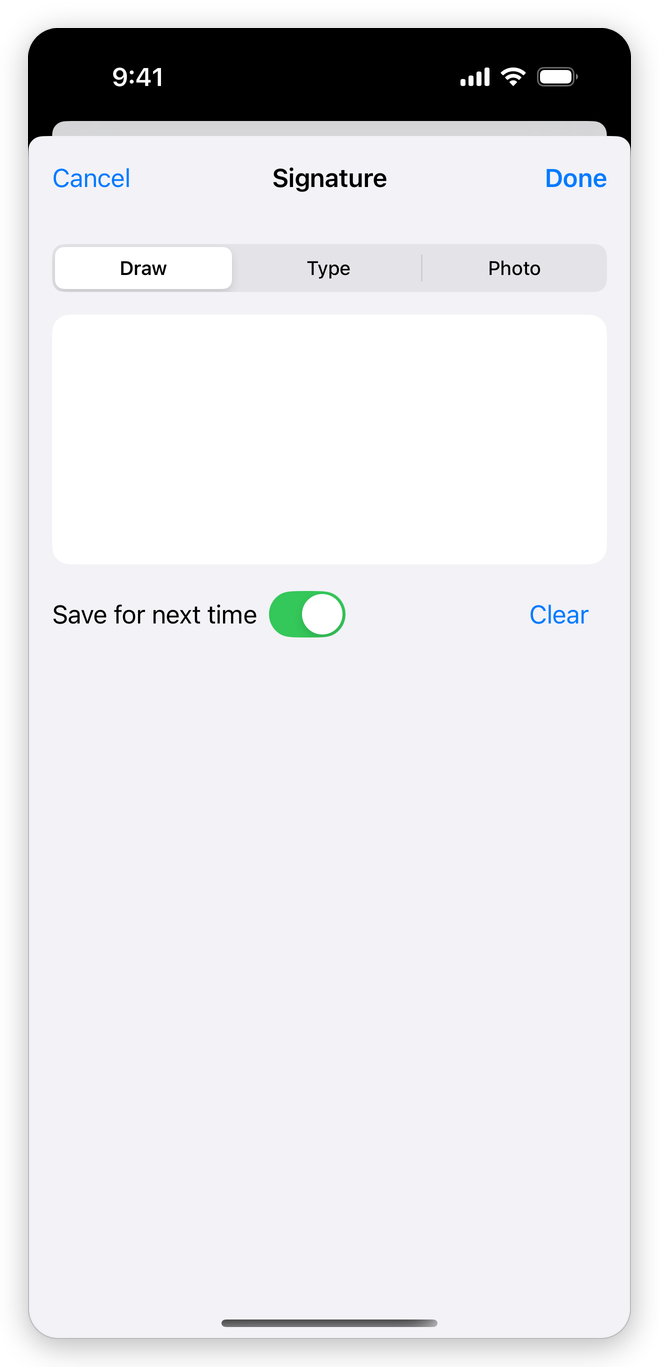
The signature is drawn in black, on a transparent background. See Sign a PDF for placing it on the page.
Related pages
- Comment on a PDF: every comment tool.
- Sign a PDF: signatures and initials.
- Settings: the app's settings.