Install and get Pro
Getting the app from the App Store on iPhone and iPad, the free trial, buying Pro in the app (yearly, monthly or Lifetime), restoring purchases, entering a licence key, and asking Apple for a refund.
What you need
- An iPhone or iPad with iOS or iPadOS 17 or later.
- An internet connection to download the app, to buy or restore Pro, and to activate a licence key. Reading, editing and saving your documents work without one.
A few tools need a newer system: translating a document needs iOS 18, and the AI assistant needs iOS 26 on a device with Apple Intelligence.
Install the app
- Open the App Store on your iPhone or iPad.
- Search for SelectPdf PDF Editor, then tap Get.
- When it has installed, tap its icon (SelectPdf) on the Home Screen.
The same app runs on iPhone and iPad. The app for the Mac is a separate download, from the Mac App Store. The App Store updates the app like your other apps.
The first time it starts, the app opens on the Files tab with a welcome document: a short guide, a topic on each page, to try things on. See the app's screens.
Free and Pro
Everything described as free in this guide works without paying, with no time limit. A tool that needs Pro has a star (★) after its name; tap it, and the app shows the upgrade screen, which says the tool is part of Pro and what Pro costs.
Buy Pro
- Open the Settings tab and tap Upgrade to Pro. (The upgrade screen also opens by itself when you tap a Pro tool.)
- Choose a plan:
- The yearly subscription, the large button at the top, with its price a year.
- The monthly subscription, with its price a month.
- Lifetime, the button under them: one payment for Pro and every update for life.
- Confirm the purchase on Apple's sheet, with Face ID, Touch ID or your Apple Account password.
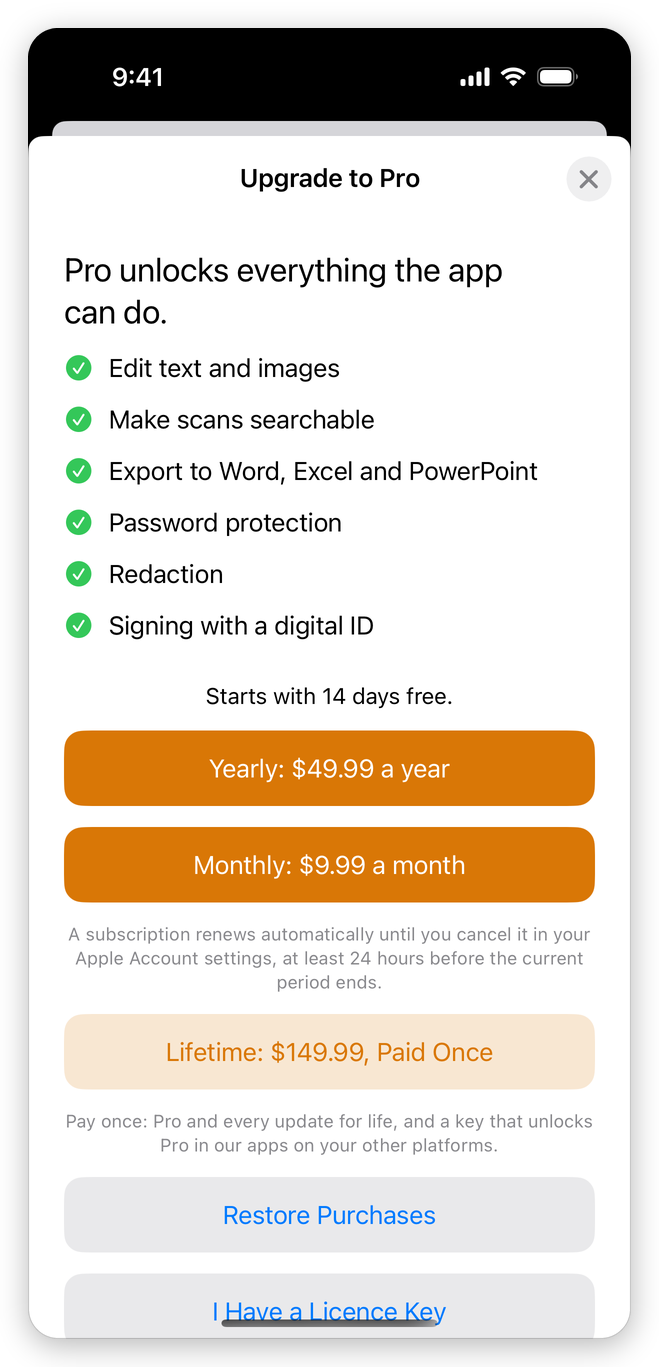
The subscriptions start with a two-week free trial if your Apple Account has not had one before; the upgrade screen then says so above the buttons. You pay nothing until the trial ends, and you can cancel before then. Prices are in your country's currency, as the App Store sets them.
When the purchase is done, the app says Pro is unlocked. Thank you!, the stars go, and every tool works. A subscription renews by itself until you cancel it in your Apple Account settings, at least 24 hours before the current period ends. Terms of Use and Privacy Policy, at the bottom of the upgrade screen, open the terms of the purchase.
On your other devices
A purchase belongs to your Apple Account, so it unlocks Pro on every iPhone, iPad and Mac signed in with that account. On another device, open the Settings tab and tap Restore Purchases (also on the upgrade screen). If the account bought nothing, the app says No purchase was found for this Apple Account.
A purchase also gives you a licence key for our apps on Windows, Linux and Android: see below.
Your plan in Settings
The Pro section of the Settings tab says what this device has, for example a yearly subscription and the date it is paid until, and has what you can do about it:
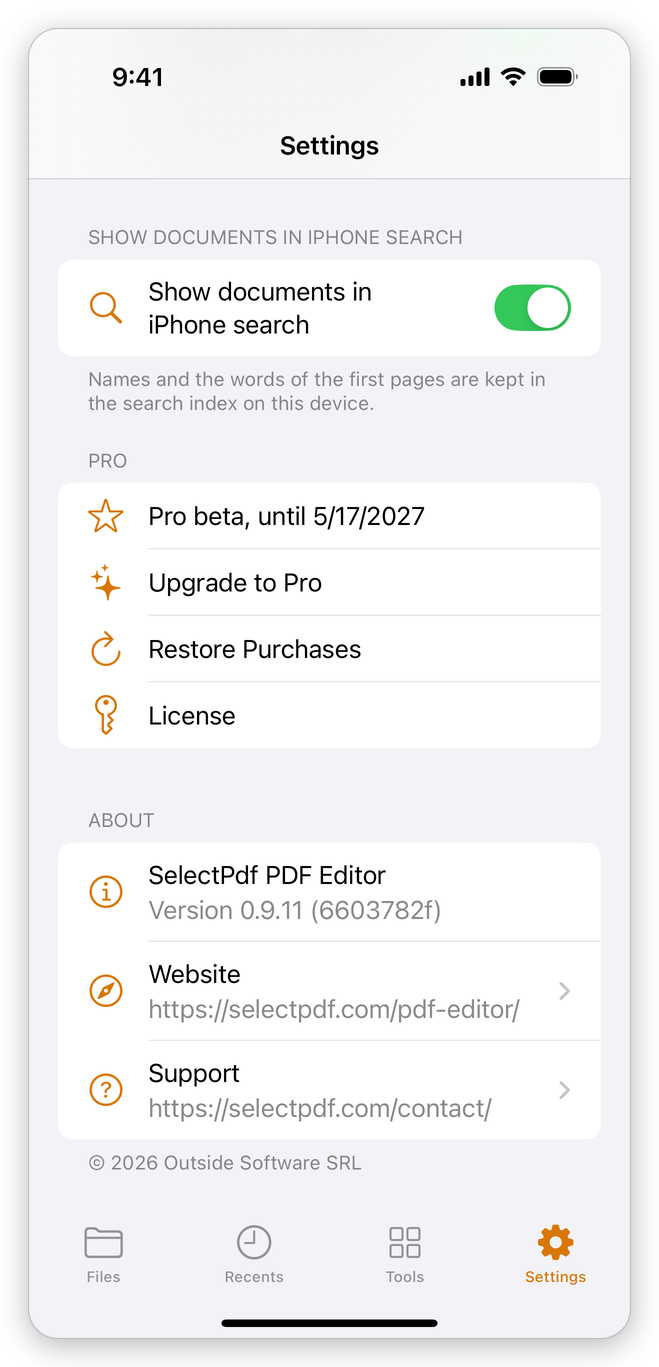
- Upgrade to Pro: the upgrade screen, while you do not have Pro.
- Restore Purchases: looks for what your Apple Account bought.
- Manage Subscription: Apple's page of your subscriptions, to change the plan or cancel it.
- Request a Refund: Apple's refund sheet for your purchase. Apple decides on refunds, later: the app says Your request was sent to Apple, who decides on refunds. If Apple refunds the purchase, Pro locks on your devices.
- License: enter a licence key, or see the key that came with your purchase.
Enter a licence key
A plan bought on our website, or in another store, gives you a licence key. It unlocks Pro on one iPhone or iPad.
- Open the Settings tab and tap License. (On the upgrade screen, I Have a Licence Key opens the same page.)
- Type or paste the key in License key.
- Tap Activate.
The page says The key is activated on this device., and shows what the key gives. The app checks the licence over the internet now and then; offline, Pro keeps working for a long time, and if the licence has not been checked for too long, the page asks you to connect the device to the internet once.
- If the key is in use on another device, the page says so, with Move the License to This Device.
- Deactivate This Device removes the key from this device, so that another device can use it. Pro locks here until a key is entered again.
- Device ID is what to send to support if you need help with your licence: tap it to copy it. It says nothing about you or your files.
Your key for other platforms
After you buy Pro in the app, the License page shows Your Licence Key (for Lifetime, Your Lifetime Key): a key that unlocks Pro in our apps on your other platforms, one device on each. Tap the key to copy it, or Share to send it to yourself. The key appears once your purchase is confirmed, which needs an internet connection; until then, Get My Key tries again.
Uninstall
Touch and hold the app's icon on the Home Screen, tap Remove App, then Delete App. This also deletes the documents of the app's library that are on the device (the ones under On My iPhone in the Files app). Documents in a folder you chose in Files, such as iCloud Drive, stay there. A purchase stays with your Apple Account: install the app again and tap Restore Purchases.
Related pages
- Settings: every setting of the app.
- The library and the Files app: where your documents are kept.