Open a PDF
Open documents from the library, Recents and favourites, from the Files app and other apps, open password-protected and certificate-encrypted files, and get back changes that were not saved when the app closed.
Open a document of the library
- Tap Files in the tab bar. The library shows your documents and folders, with a picture of each document's first page.
- Tap a folder to open it, and tap the document.
The document opens on its first page, as wide as the screen. To go back to the library, tap Back at the top left. The app saves your changes on its own: see Save a PDF.
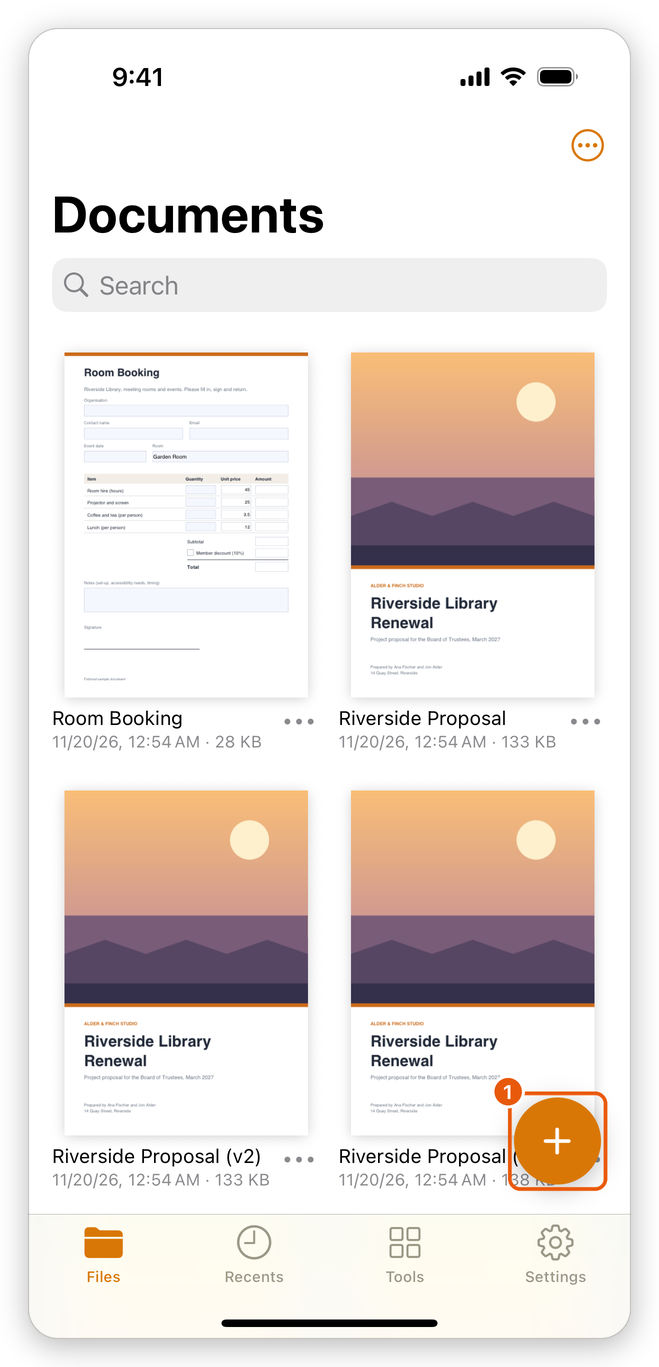
- Add (+): bring documents in from the Files app, scan paper pages, start with a photo or an empty page. See The library and the Files app.
To find a document, type part of its name in the Search field at the top of the library: it looks in every folder. The button with three dots at the top right sorts the documents (Sort By Date, Name or Size) and shows them as Icons or a List.
You can also touch and hold a document and choose Open in its menu. The same menu has Share, Add to Favourites, Rename, Duplicate, Move and Delete.
Open a recent document or a favourite
Tap Recents in the tab bar. It lists the documents you opened lately, the newest first. Tap one to open it.
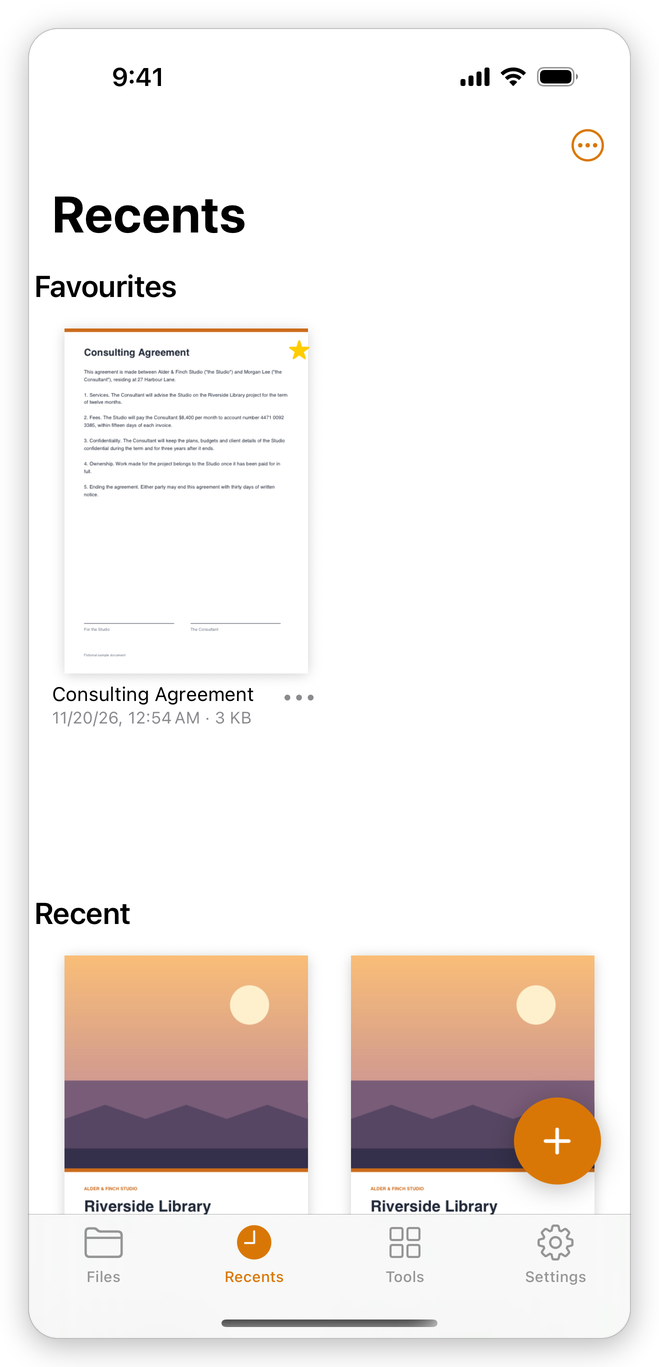
To keep a document at the top of Recents, touch and hold it (in the library or in Recents) and choose Add to Favourites. The favourites show under Favourites, above the Recent documents. To take one off the list, choose Remove from Favourites.
A document you opened where it is in the Files app, without a copy in the library, is listed in Recents too.
Open a file from the Files app or another app
- In the library, tap Add (+), then Open from Files, and choose PDFs or pictures. A copy of each is added to the library, and when you choose one file, it opens. A picture becomes a one-page PDF.
- Add (+) > Edit in Place from Files opens a PDF where it is, in the Files app, iCloud Drive or another service, and saves your changes back to it.
- From another app, such as Mail or Safari, share a PDF to the app, or tap a PDF in the Files app and open it with the app.
See The library and the Files app and Share and open from other apps.
Open a password-protected file
A PDF can be protected with a password that is needed to open it. When you open one, the app asks for it: This document is protected. Enter its password.
- Type the password. Passwords are case-sensitive: River is not river.
- Tap Open.
If the password is wrong, the app says That password is not right. Try again. and asks again. Tap Cancel to give up. Without the password the file cannot be opened: nobody, the app included, can recover a forgotten password.
A document can also be protected from changes with a second password, the permissions password. Such a document opens without a password, and you can read it. When you choose a mode to change it, such as Comment or Edit, the app asks for the permissions password (Protected from changes): type it and tap Unlock. To see what a document allows, open Document properties and look under Security. To protect your own documents, see Protect a PDF with a password.
Open a file encrypted for certain people
A PDF can be encrypted for certain recipients, with their digital IDs, instead of a password. Only someone who has the digital ID of one of the recipients can open it.
- Open the document. The app shows Open with a Digital ID and lists the digital IDs on your device.
- Tap your digital ID.
- Type the digital ID's password and tap Done.
If the digital ID is not one of the recipients, the app says This digital ID is not one of the document's recipients. and lets you choose another. When there is no digital ID on the device, the app says so: add yours in Settings > Digital IDs, then open the document again. See Certificate security and Digital signatures.
Get back unsaved changes
The app saves your changes on its own, and keeps a copy of your work when you switch to another app. If iOS ended the app before your changes were saved, the app asks at its next start: Unsaved Changes, ... had changes that were not saved when the app closed. Restore them?
- Restore opens the document with your changes.
- Discard throws them away. The document stays as it was last saved.
When a file does not open
The app says Could not open, the file's name and the reason. Some reasons:
- The file is not a PDF, or it is damaged, for example by a download that did not finish. Download it or copy it again, or ask the sender for a new copy.
- A document opened where it is in the Files app was moved or deleted there, or its place is offline.
- The file is too large for the memory of the device.
Related pages
- The library and the Files app: folders, bringing documents in, and editing files where they are.
- View a PDF: zoom, scroll and move through the pages.
- Save a PDF: how the app saves your changes.