Settings
Every setting of the app's Settings tab, section by section, from your name on comments, the language and the theme to where documents are kept, the Apple Pencil, trusted signatures, Pro and crash reports.
Open Settings
Tap the Settings tab at the bottom of the screen. The settings are in sections; each change is saved at once, with no button to confirm it.
Comments
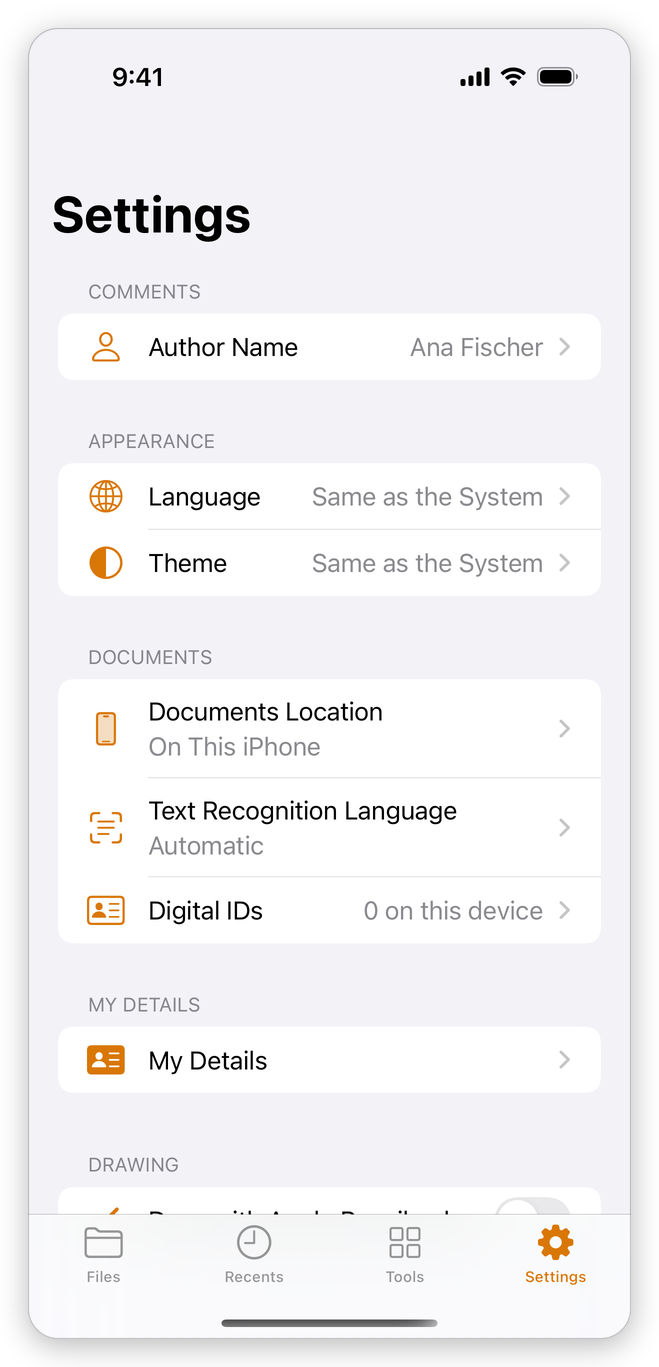
Author Name: the name shown on your comments and stamps, so that others reviewing the document know who wrote what. Tap it, type the name, and tap Done. Left empty, the app uses your device's name. See Comment on a PDF.
Appearance
- Language: the language of the app. Same as the System follows the language of your iPhone or iPad. The app speaks English, Romanian, German, French, Spanish, Italian, Portuguese (Brazil), Dutch, Polish, Japanese, Chinese (Simplified) and Korean. The app changes language at once, and shows the Settings tab again.
- Theme: Light, Dark, or Same as the System to follow the appearance you chose in the system's settings.
Documents
- Documents Location: where the library is: On This iPhone (or iPad), or A Folder in Files…, such as a folder in iCloud Drive, so that your documents are the same on every device. See The library and the Files app.
- Text Recognition Language: the language Recognize Text reads. Automatic recognizes the language of each page by itself.
- Digital IDs: the certificates you sign and decrypt with, and how many are on this device. Tap it to add, see or remove one. See Digital signatures.
My Details
My Details: your name, email, phone, address, date of birth, company and job title. Autofill in Fill & Sign puts them in the fields of a form that ask for them. They stay on this device, in the keychain. See Fill in forms.
Drawing
Draw with Apple Pencil only: a finger always scrolls; only the Pencil draws and highlights. Off, a finger draws too when a drawing tool is chosen, and you scroll with two fingers. See Apple Pencil.
Page Drawing
Draw pages with PDFium: PDFium is the desktop app's renderer. Off, Apple's renderer draws the pages. If a page does not look right, try the other renderer. Only the screen changes: the document stays as it is.
Trusted certificates
Which signatures the app trusts when it checks the signatures of a document:
- Also trust the EU Trusted Lists: the European Union's lists of qualified trust service providers.
- Also trust major document signing providers (DigiCert, GlobalSign and others).
- Documents you trust: the documents you chose to trust always, with how many there are. Their forms may reach the internet. Tap it to see the list, and remove one to be asked again the next time it opens.
See Digital signatures.
Show documents in iPhone search
Show documents in iPhone search: the documents of your library are found by the system's search (swipe down on the Home Screen), by their names and the words of their first pages. Tap a result to open the document in the app. The search index stays on this device; turning the setting off empties it. See The library and the Files app.
Pro
What this device has (the free version, a subscription and the date it is paid until, or Lifetime), and the rows to buy, restore or manage it:
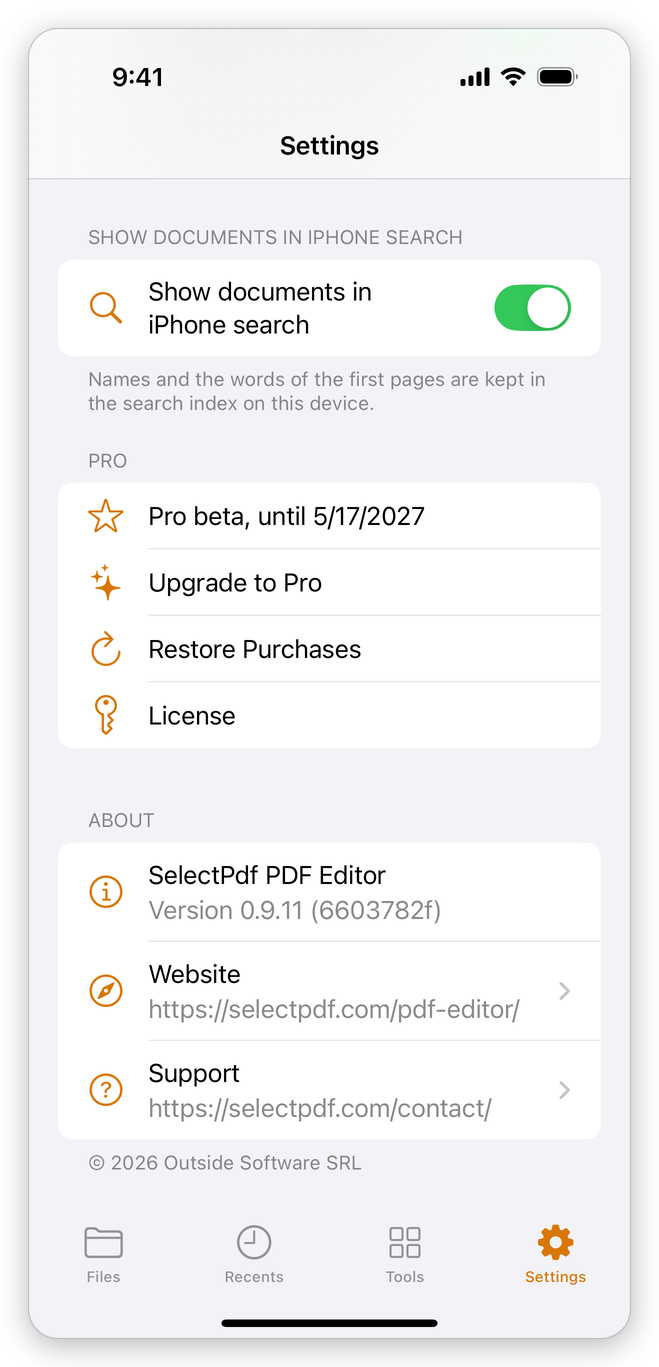
Upgrade to Pro, Restore Purchases, Manage Subscription, Request a Refund and License. See Install and get Pro.
Crash reports
What happens when the app has a problem it cannot recover from: Send automatically, Ask each time or Never. A report says the version, the system, the license type and where in the program the problem happened. It never holds your documents, file names or anything you typed.
About
The app's version, and Website and Support, which open our website in Safari.
Related pages
- The app's screens: the tabs and the document screen.
- Install and get Pro: buying Pro, restoring it, and licence keys.