Drawings and shapes
Draw freehand with the pen and erase parts of a drawing, draw rectangles, ellipses, lines and arrows with a finger or the Apple Pencil, and change their colour, thickness and fill on iPhone and iPad.
Drawings and shapes are comments, like notes and highlights: they sit on top of the page, and you can move, change or delete them at any time. Use them to circle a figure, point at a detail or mark an area of a plan.

- Pen, in the row of tools of Comment. On the page: a ring drawn by hand round a figure.
- Eraser: rubs out parts of the drawings.
To draw shapes into the page itself rather than as comments, use Edit instead: see Edit a PDF.
Draw with a finger or the Apple Pencil
While the pen, the eraser or a shape is chosen, one finger draws and two fingers scroll the page or zoom it.
With an Apple Pencil, you can have the Pencil draw and a finger always scroll: turn on Draw with Apple Pencil only in Settings > Drawing. See Use the Apple Pencil.
Choose the colour and the thickness first
Choose the tool, then tap Colour:
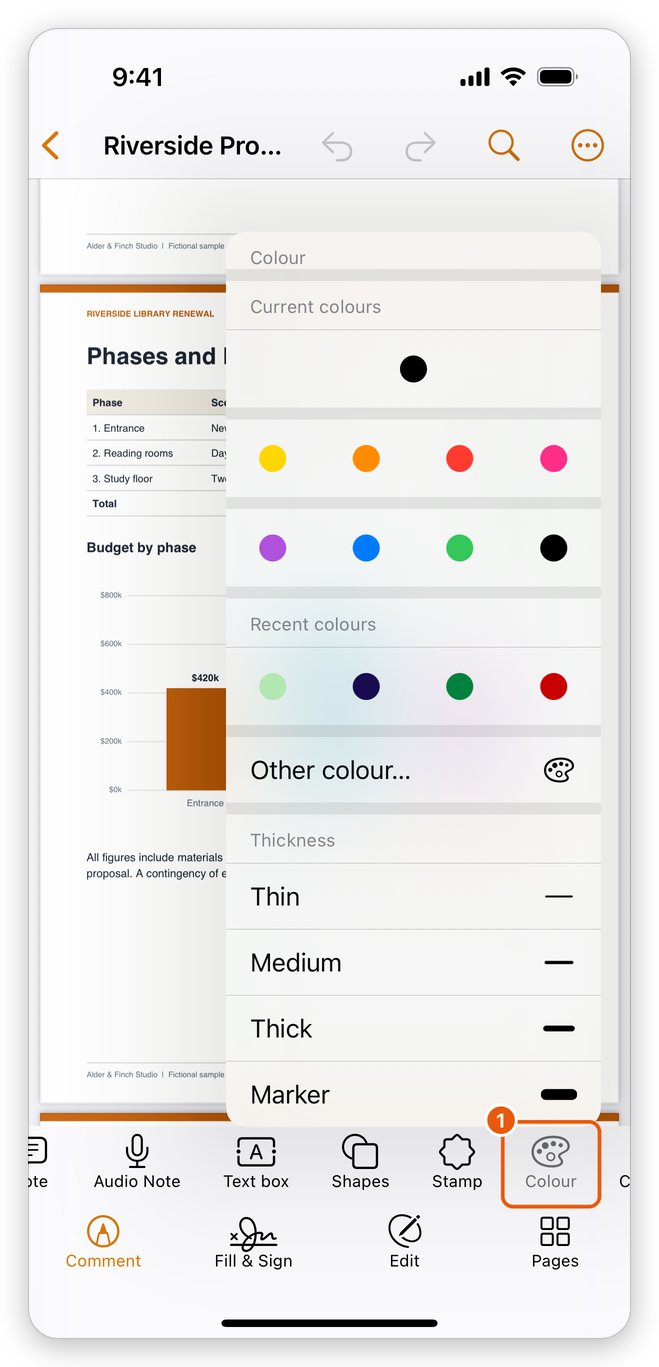
- Colour: the colours on top, and under them the Thickness: Thin, Medium, Thick or Marker.
For a rectangle or an ellipse, Fill chooses the colour inside it; No fill leaves it empty.
Each tool keeps its own colour and thickness: the pen draws in black and the shapes in red at first. What you choose applies to everything you draw next with that tool. You can change it afterwards for each drawing (see Change a drawing or a shape).
Draw freehand with the pen
- In Comment, tap Pen.
- Draw on the page. Each stroke, from touching the page to lifting your finger or the Pencil, is one drawing.
- Draw more strokes, or tap Pen again when you are done.
A stroke belongs to the page where it started.
Erase parts of a drawing
Eraser works like a rubber on paper, but only on drawings made with the pen: it leaves the page's content and other comments alone.
- Tap Eraser.
- Drag over the parts of the drawings you want to remove. The trail shows in grey as you drag.
- Lift your finger: what the trail covered is erased.
A stroke cut in two by the eraser becomes two strokes, and a drawing with nothing left is deleted. Each drag is one step that Undo takes back.
To delete a whole drawing, select it with Select and tap Delete.
Draw a rectangle, an ellipse, a line or an arrow
- Tap Shapes, then Rectangle, Ellipse, Line or Arrow.
- Drag on the page: from one corner to the opposite one for a rectangle or an ellipse, from one end to the other for a line or an arrow. The arrow head is where you lift your finger.
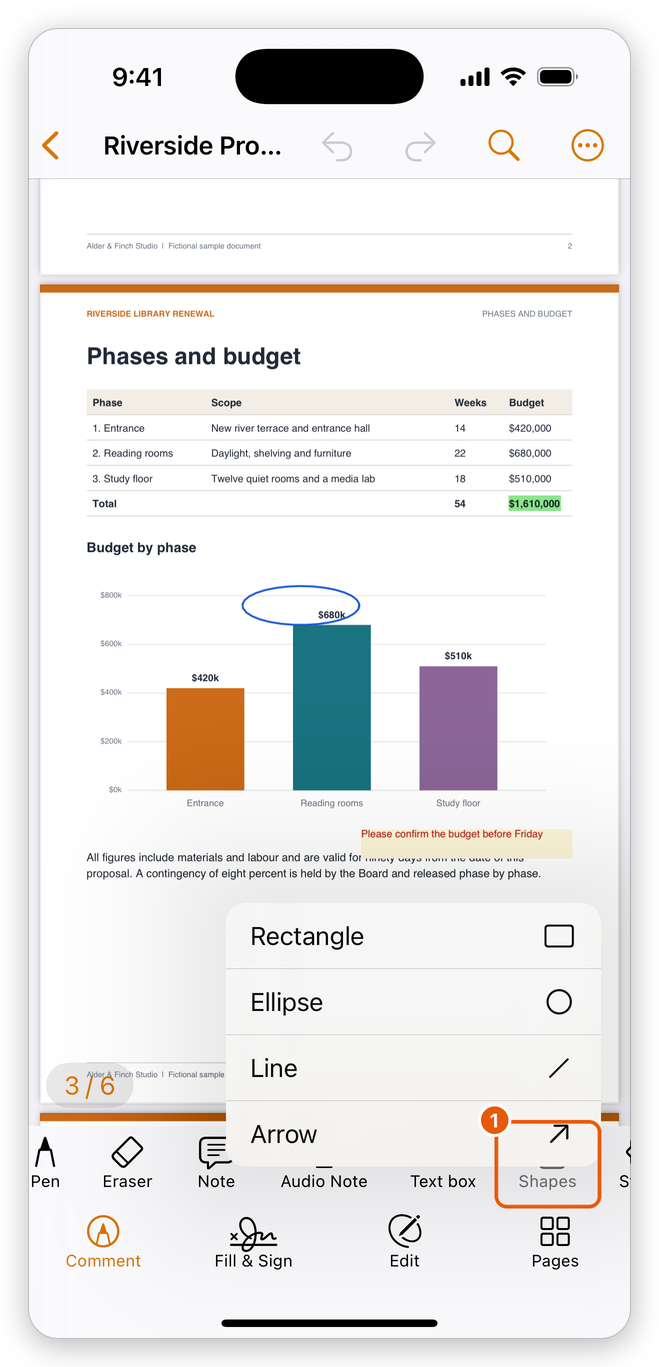
- Shapes, with its four shapes.
A very short drag adds nothing. The shape tool stays chosen, so you can draw several shapes in a row; tap Select when you are done.
Change a drawing or a shape
Tap Select, then tap the drawing or the shape. A dashed frame shows around it, with a handle at each corner and a bar of what you can do to it.
- Move it: drag it.
- Resize it: drag a corner handle.
- Change its colour or thickness: tap Colour in its bar.
- Change its fill (a rectangle or an ellipse, or a line whose ends are closed arrow heads): tap Fill.
- Place it exactly: tap Position & Size.
- Delete it: tap Delete.
The list of comments shows drawings and shapes too, and you can reply to them as to any comment. See Manage comments.
The pen, the eraser and the shapes are free.
Related pages
- Comment on a PDF: text markup, notes, audio notes and text boxes.
- Stamps: Approved, Draft and the other stamps.
- Use the Apple Pencil: drawing with the Pencil only.