AI assistant
Summaries of a document, answers to questions about one or several documents, translated pages and documents, and help rewriting text, all by Apple's models on your device.
The app's AI tools use the models Apple puts on your iPhone or iPad. Your documents never leave the device: nothing is sent to a server. Once the models and languages are on the device, the tools work without an internet connection.
What you need
- For the assistant and the writing help: iOS or iPadOS 26 or later, on a device that runs Apple Intelligence, with Apple Intelligence turned on in the system's settings. On other devices the AI mode is not shown.
- For translating a whole document: iOS or iPadOS 18 or later. It does not need Apple Intelligence.
If Apple Intelligence is off, or its model is still downloading, the app says so when you tap AI: Turn on Apple Intelligence in Settings to use the assistant., or Apple Intelligence is still getting ready. Try again in a while.
The assistant, Ask AI About These Documents, Writing Help and Translate Document need Pro.
Summarize a document
- Open the document, and tap AI at the bottom.
- The AI Assistant opens with Summary chosen, and writes a summary of the document in the app's language.
Drag the sheet up to read more of it at once. A long document is read in parts, and the sheet says which part it is reading. Stop (the square at the top) stops the assistant; Share sends the text to another app, or copies it. Tap the close button (X) at the top left when you are done.
A scanned document has no text to read until it is recognized: the assistant says This document has no text to read. Use Recognize Text first. See Recognize text.
Ask about a document
- In the AI Assistant, tap Ask.
- Type your question in Ask about this document, and tap the arrow.
The answer comes from the document's own text, and names the pages it comes from. If the document does not say, the assistant tells you so. Ask as many questions as you like: the answers stay in the sheet, one under the other.
Ask about several documents
- In the Files tab, tap the button with three dots at the top right, then Select.
- Tap the documents you want.
- Tap Ask AI About These Documents (the sparkles) in the bar at the bottom.
The assistant opens with Summary and Ask for all of them together; its answers name the document and the page each part comes from. A document protected by a password is left out.
Translate a page
- In the AI Assistant, tap Translate.
- Tap the language button (To: and a language) to choose the language.
- Tap Translate Page, which names the page shown.
The translation shows in the sheet; the document does not change.
Translate a document
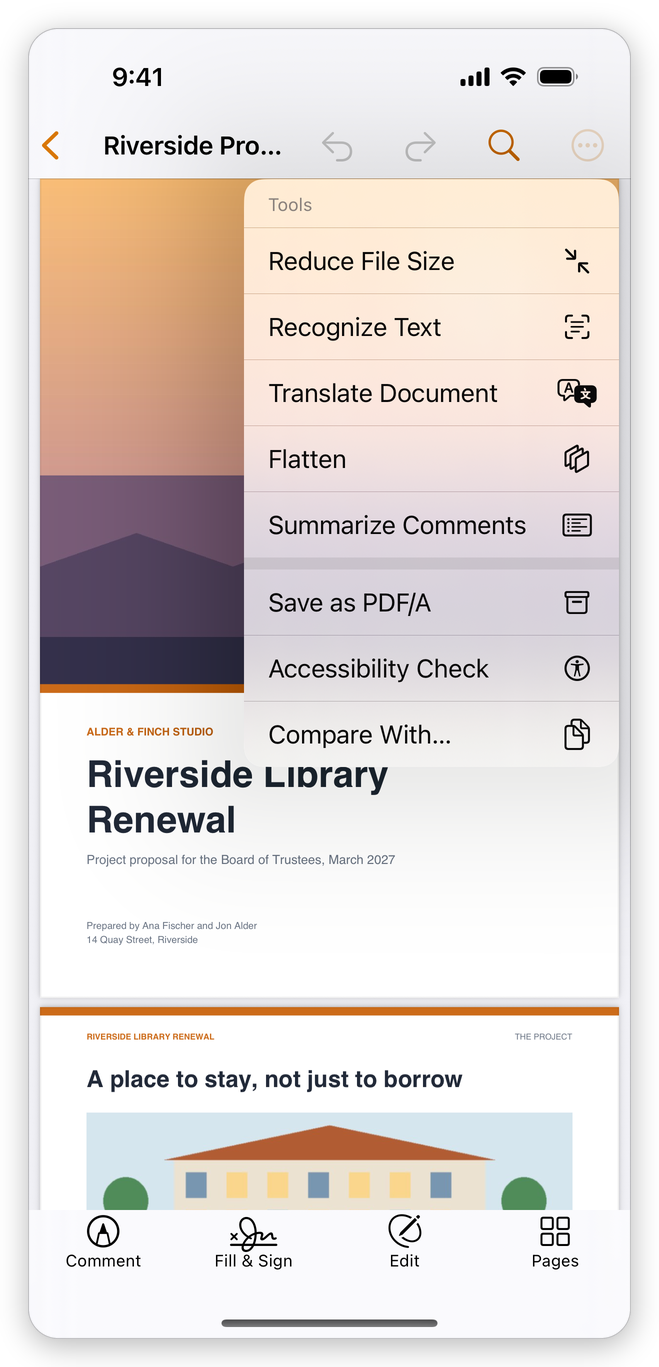
Translate Document makes a new PDF in another language, each paragraph replaced where it stands, so the pages keep their layout. This document stays as it is.
- Open the document, tap More (the circle with three dots), then Tools, then Translate Document.
- Choose the language. The list has the languages the system can translate this document into.
- The first time you use a language, the system asks to download it, once.
The new document is added to your library, with the language after its name, and opens. If some paragraphs could not be changed, the app says how many; they stay in the original language.
Writing help
When you edit a paragraph in Edit (see Edit a PDF), the bar above the keyboard has Writing Help (the sparkles):
- Improve: clearer and better phrased, about as long.
- Make Shorter.
- More Formal.
- Friendlier.
- Fix Spelling and Grammar: changes nothing else.
The new text replaces the paragraph in the editor as it is written, in the paragraph's own language. Tap Done to put it on the page, or Undo afterwards to bring the old text back.
Related pages
- Recognize text: make scanned pages readable for the assistant.
- Edit a PDF: change the text on the page.
- The library and the Files app: selecting several documents.