View a PDF
Scroll and zoom with your fingers, go to a page, show page thumbnails, show one page at a time, read reflowed text in Reading Mode, listen with Read Aloud, and read in Night Mode.
Scroll and zoom
A document opens on its first page, as wide as the screen. The pages are one under the other:
- Swipe up and down to scroll through the pages.
- Pinch out to zoom in, and pinch in to zoom out. Once zoomed in, drag with one finger to move across the page.
While you scroll, the page number and the number of pages show for a moment at the bottom left of the pages, for example "3 / 6". Tap it to show or hide the page thumbnails.
When you open a document again, it opens on its first page.
The Display menu
How the pages are shown is in the More menu (the circle with three dots, at the top right), under Display.
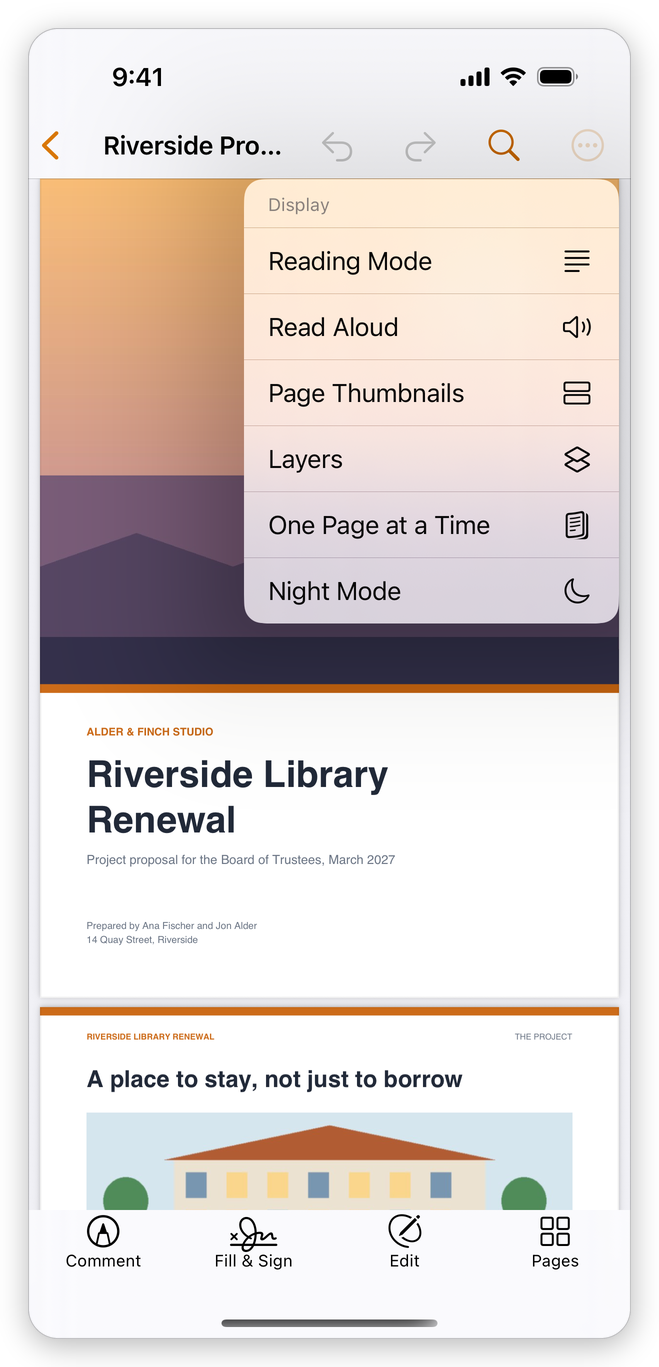
- Reading Mode: the text reflowed to the screen (see below).
- Read Aloud: the app reads the text to you (see below).
- Page Thumbnails: small pictures of the pages.
- Layers: show and hide the layers of a document that has them. See Layers.
- One Page at a Time or Continuous Scrolling: how the pages follow each other.
- Night Mode or Day Mode: light pages or dark ones.
Go to a page
- Tap More, then Navigate > Go to Page.
- Type the page number (A page number from 1 to ...) and tap Open.
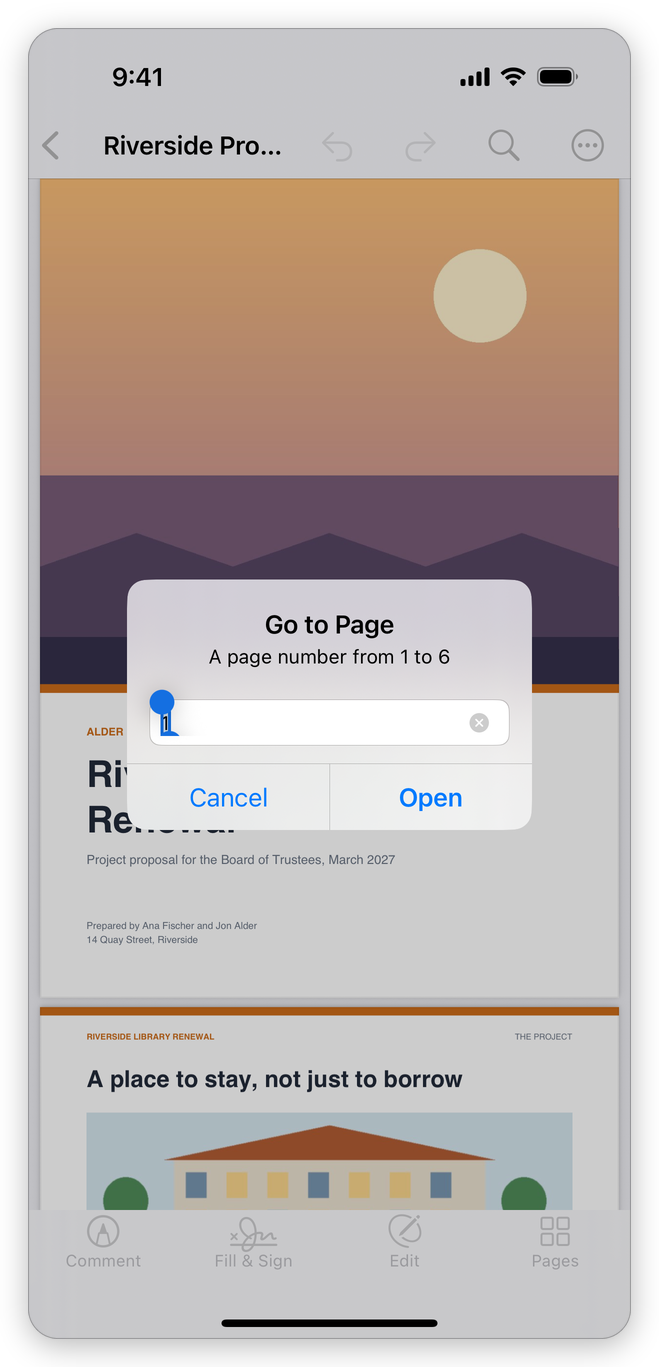
You can also tap a page in the thumbnails, or a bookmark: see Bookmarks.
Page thumbnails
Tap More > Display > Page Thumbnails. Small pictures of the pages show: on an iPhone in a strip above the modes at the bottom, on an iPad in a column at the left of the pages. Tap a page to go to it; swipe the strip to see the others.
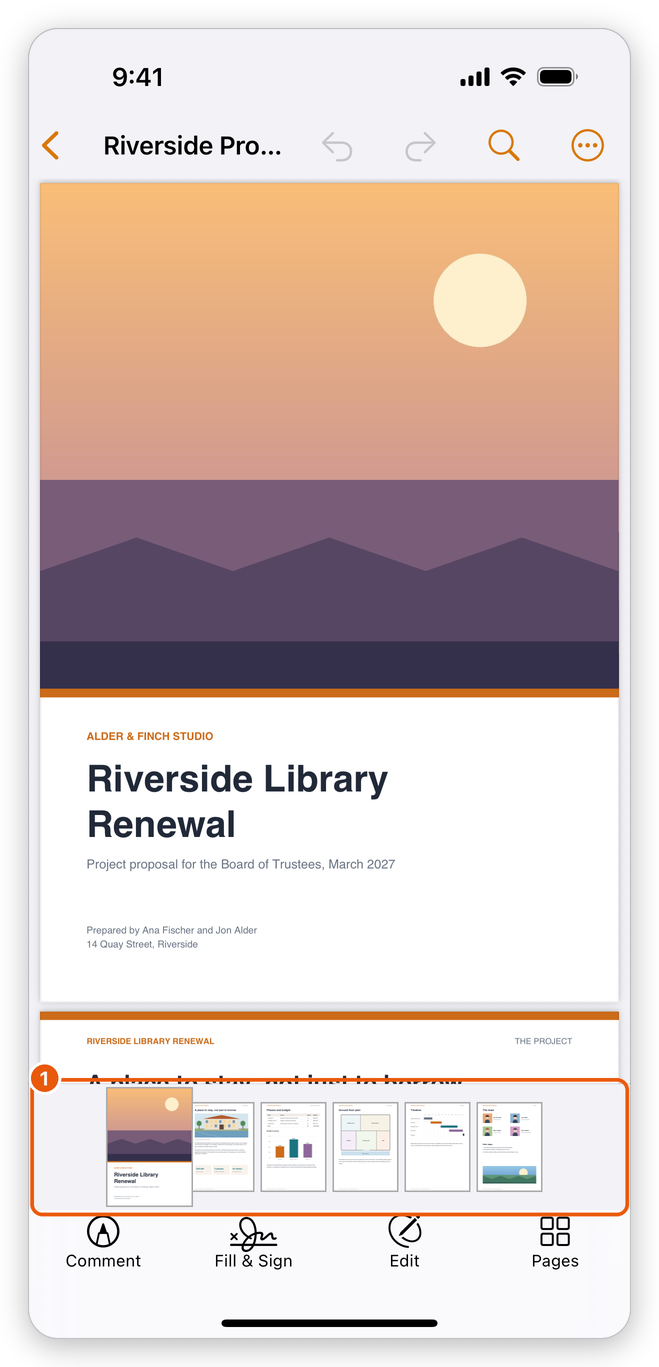
- The thumbnails. The page shown has a frame.
Choose Page Thumbnails again to hide them. On an iPad the column shows when a document opens; on an iPhone, the strip shows when you ask for it.
One page at a time
Tap More > Display > One Page at a Time. Each page fills the screen alone, and you swipe to the left or right to turn to the next or the previous page, as in a book. To scroll through the pages again, choose Continuous Scrolling in the same place.
Reading Mode
On a phone, reading a page often means zooming and moving across it. Reading Mode shows the document's text in one column as wide as the screen: titles, paragraphs, lists and pictures, in reading order, page after page.
- Go to the page you want to read.
- Tap More > Display > Reading Mode.
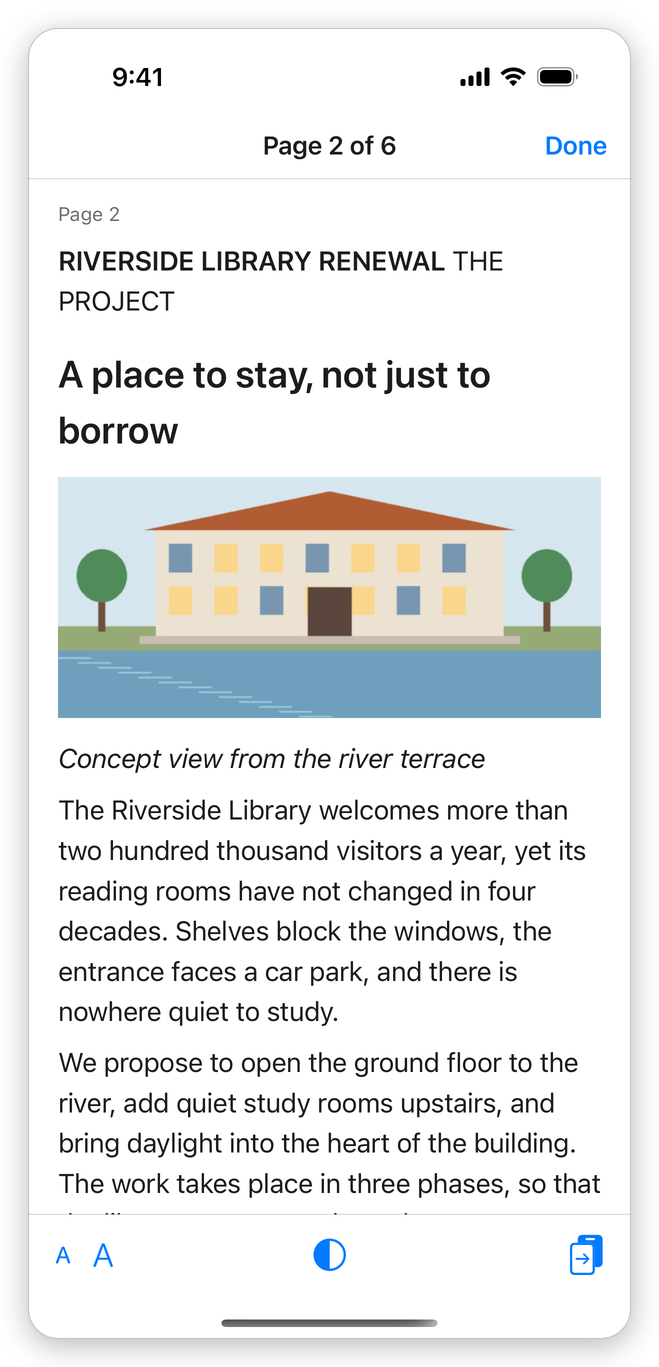
Scroll to read on: the next pages follow. The buttons at the bottom:
- Smaller Text and Larger Text: the size of the text.
- Theme: Light, Sepia or Dark.
- Go to Page: another page.
The app remembers the size and the theme. Tap Done to go back to the pages, on the page you were reading.
Reading Mode shows the text the pages have. A scanned page is only a picture: recognize its text first with More > Tools > Recognize Text (a Pro tool). See Recognize text.
Read Aloud
Read Aloud reads the text with the voices of your device, in the language of each page, from the page shown to the end of the document.
- Go to the page where you want to start.
- Tap More > Display > Read Aloud.
The word being read is highlighted, and the pages follow. A bar at the bottom has:
- Previous Page and Next Page: read the page before or after.
- Pause and Resume.
- Speed: from 0.75 to 2 times as fast. The app remembers it.
- Stop Reading.
Reading goes on when the screen locks or you switch to another app. A document with no text says This document has no text to read.: recognize the text of scanned pages first.
Night Mode
Tap More > Display > Night Mode. The pages show light on dark, which is easier on the eyes in the dark. The document itself does not change. Choose Day Mode to show the pages as they are. The app keeps your choice for every document.
Night Mode is only for the pages. To make the whole app dark or light, see Settings.
Related pages
- Find text: find a word in the document.
- Bookmarks: go to the parts of a document.
- The app's screens: the parts of the document screen.