Export a PDF
Save a PDF as a Word, Excel, PowerPoint or RTF file, as text or as pictures on iPhone and iPad, and send several PDFs as a ZIP file.
Exporting makes a copy of the document in another format. The PDF itself does not change.
Choose a format
- With the document open, tap More (…) at the top right, then Export.
- Tap the format you want.
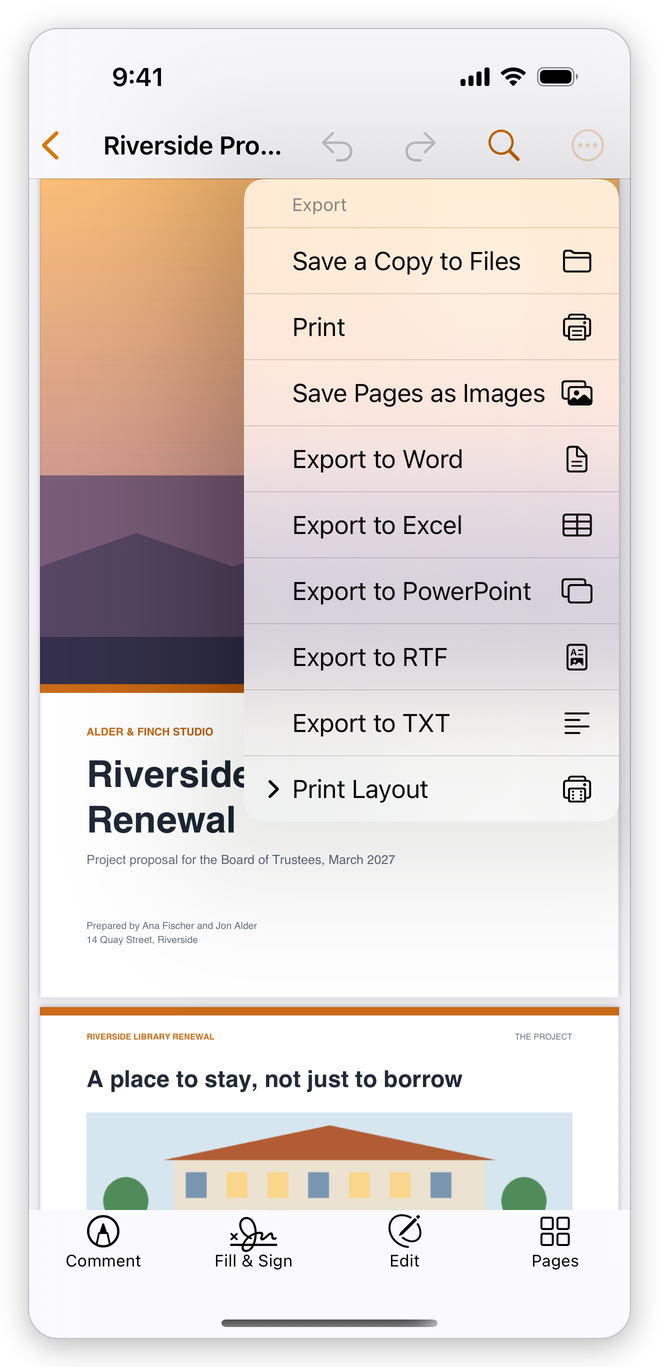
| Menu item | What you get |
|---|---|
| Save a Copy to Files | A copy of the PDF, saved where you choose in Files. |
| Save Pages as Images | A JPEG picture of the page you are on, or of every page. |
| Export to Word | A .docx document you can edit in Word or Pages. |
| Export to Excel | The tables of the PDF as worksheets of an .xlsx workbook. |
| Export to PowerPoint | A .pptx presentation with a slide for each page. |
| Export to RTF | A document for other word processors. |
| Export to TXT | The text only. |
Print and Print Layout are on the same menu: see Print.
While a Word, Excel, PowerPoint or RTF file is being made, a sheet shows how far it is; tap Cancel to stop. Then the share sheet opens: tap Save to Files to keep the file, or choose an app to send it with. The file is also kept beside the PDF, in the folder of your documents.
The app writes these files itself: you do not need Microsoft Office. If the document has changes not saved yet, it is saved first.
Exporting to Word, Excel, PowerPoint and RTF needs Pro. Pictures and text are free. A star after a menu item shows it needs Pro.
Word and RTF
Before a Word or RTF file is made, the app asks how it should be laid out:
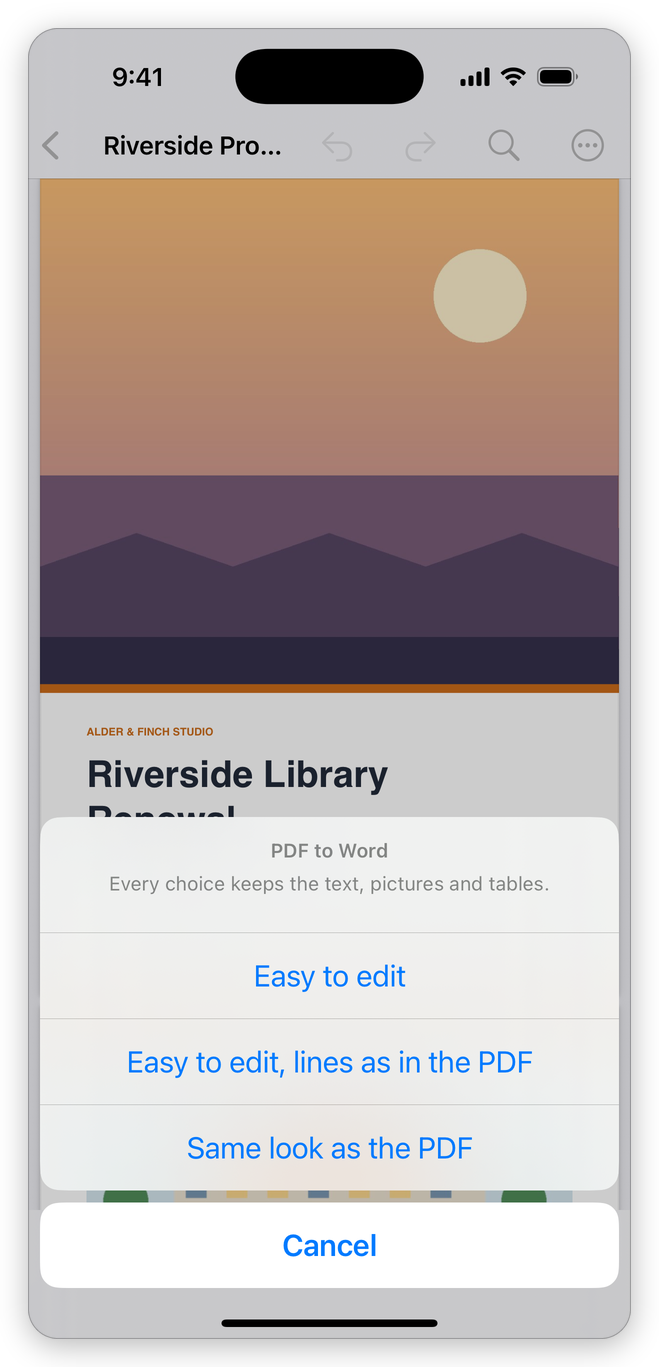
- Easy to edit writes paragraphs, headings, lists and tables that flow, as in any Word document. Choose it when you want to change the text.
- Easy to edit, lines as in the PDF flows the same way, but keeps each line and page break of the PDF.
- Same look as the PDF puts everything where it was on the page. The document looks like the PDF but is harder to edit.
Every choice keeps the text, pictures and tables.
Excel and PowerPoint
- Export to Excel puts the tables of the PDF on worksheets. Numbers, amounts and dates become values you can calculate with.
- Export to PowerPoint makes a slide of each page. Every block of text is a text box you can edit, where it was on the page, with the pictures and shapes.
Pictures
Tap Save Pages as Images. In a document of several pages, choose This Page or All Pages. Each page becomes a JPEG picture at 150 dpi, and the share sheet opens: save them to your photo library, or tap Save to Files.
From the Tools tab
The Tools tab converts a document of your library without opening it. Its Convert from PDF section has PDF to Word, PDF to Excel, PDF to PowerPoint, PDF to TXT, PDF to RTF, PDF to JPEG and PDF to PNG.
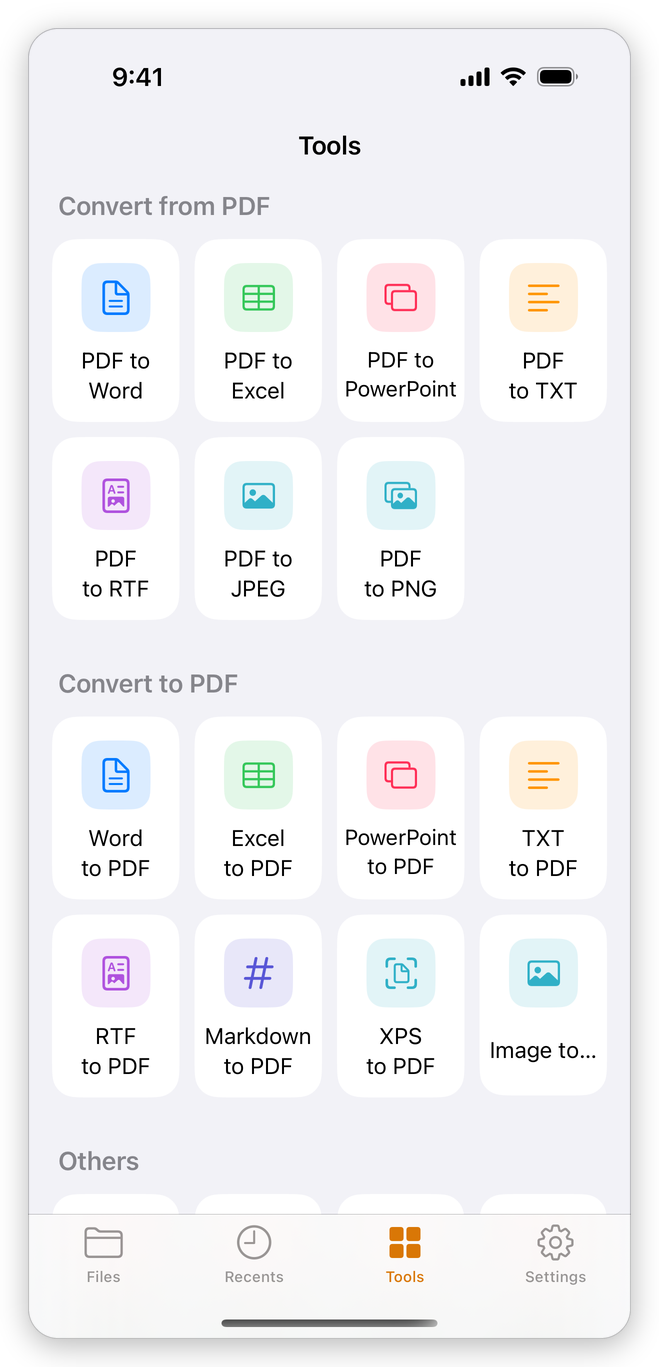
- Tap the tool.
- Tap the document in the list. A document protected with a password asks for it.
- For Word and RTF, choose the layout, as above.
When the file is made, the share sheet opens: save it to Files or send it. PDF to JPEG and PDF to PNG make a picture of every page.
Several PDFs as a ZIP file
Compress as ZIP, in the Others section of the Tools tab, puts PDFs of your library into one ZIP file, to send them together.
- Tap Compress as ZIP.
- Tap the documents to put in it.
- Tap Compress. The share sheet opens with the ZIP file.
Compressing as ZIP is free.
To save a copy of the document as PDF/A, for archiving, see PDF standards.