Edit text and images
Change the text of a PDF on iPhone and iPad, its fonts, sizes and colours, move, resize and turn text, images and shapes, add new text, pictures, shapes and links, and replace or crop an image, in the Edit mode.
In the Edit mode you change what is on the pages themselves: the text, the pictures and the drawings. To add notes or highlights without changing the page, use comments instead.
Editing the content of the pages needs Pro: the Edit mode and everything in it, and the headers, footers and watermarks of Page Elements. Edit shows a star ★ until you have Pro. Pro is bought in the app, as a subscription or for a lifetime, or unlocked with a licence key; a free trial comes first. See Install the app.
Start editing
- Open the document and tap Edit at the bottom of the screen. Its tools show above it.
- Tap a paragraph, a picture or a drawing on the page to select it. A dashed outline with handles shows around it, and above it a dark bar of what you can do with it.
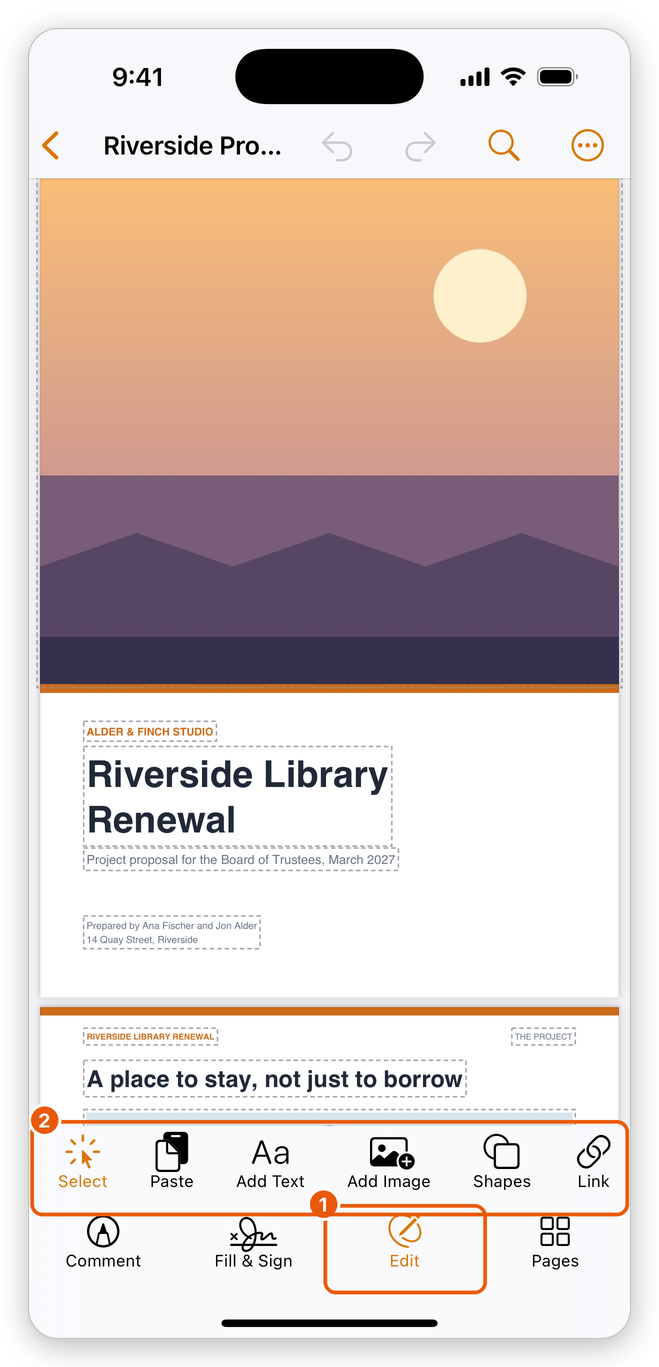
- Edit, at the bottom of the screen.
- The tools of the mode: Select, Paste, Add Text, Add Image, Shapes, Link and Whiteout. They scroll sideways when they do not all fit.
Select is the tool to start with: a tap selects what is under your finger. Tap Edit again to leave the mode.
Change text
Tap the paragraph you want to change. It is selected, with its bar above it.
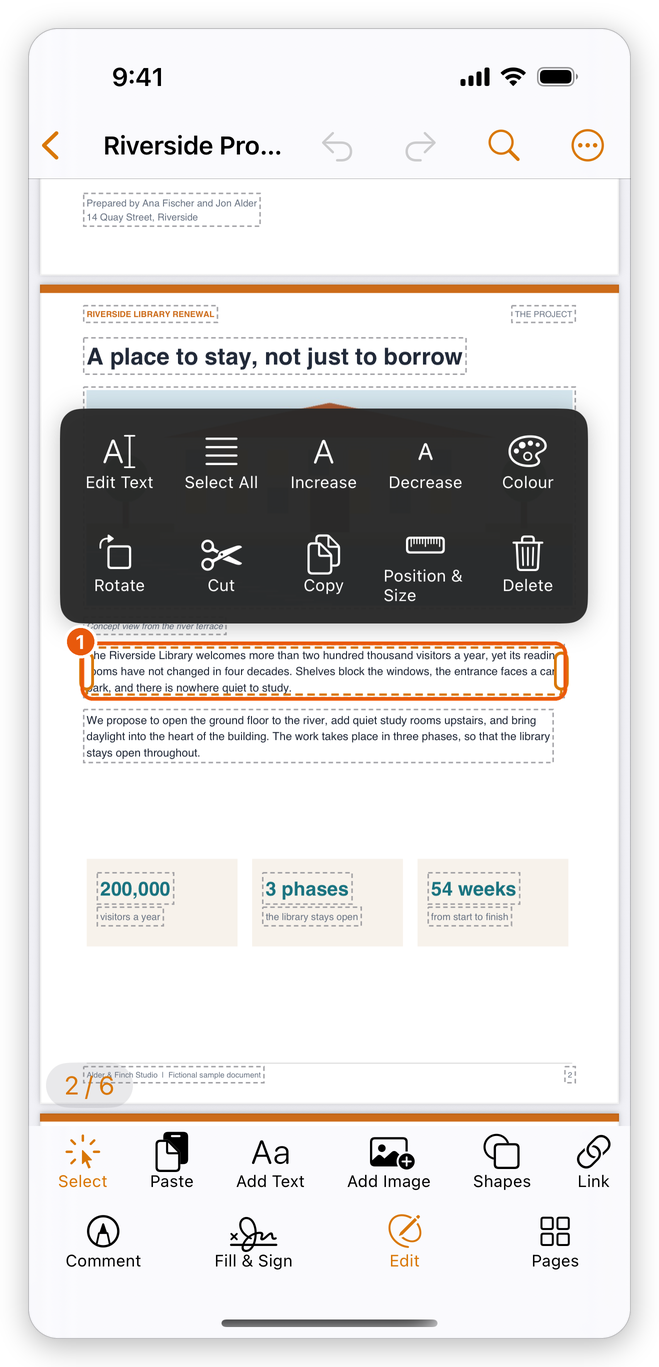
A paragraph selected, with its bar - The paragraph selected: drag it to move it, or drag the handles at its sides to set the width its text wraps to.
Tap the paragraph again, or tap Edit Text on its bar. The keyboard opens, with the text in place on the page. Select All on the bar opens it with all of its text selected.
Type, delete and select text as anywhere in iOS. The text wraps inside the paragraph as you type.
To change the look of some words, select them and use the bar above the keyboard: Smaller and Larger, the size (a menu of sizes), the Font, Bold, Italic and the Colour. With nothing selected, they set the look of what you type next.
Tap Done at the end of the bar, or tap the page outside the paragraph, to finish.
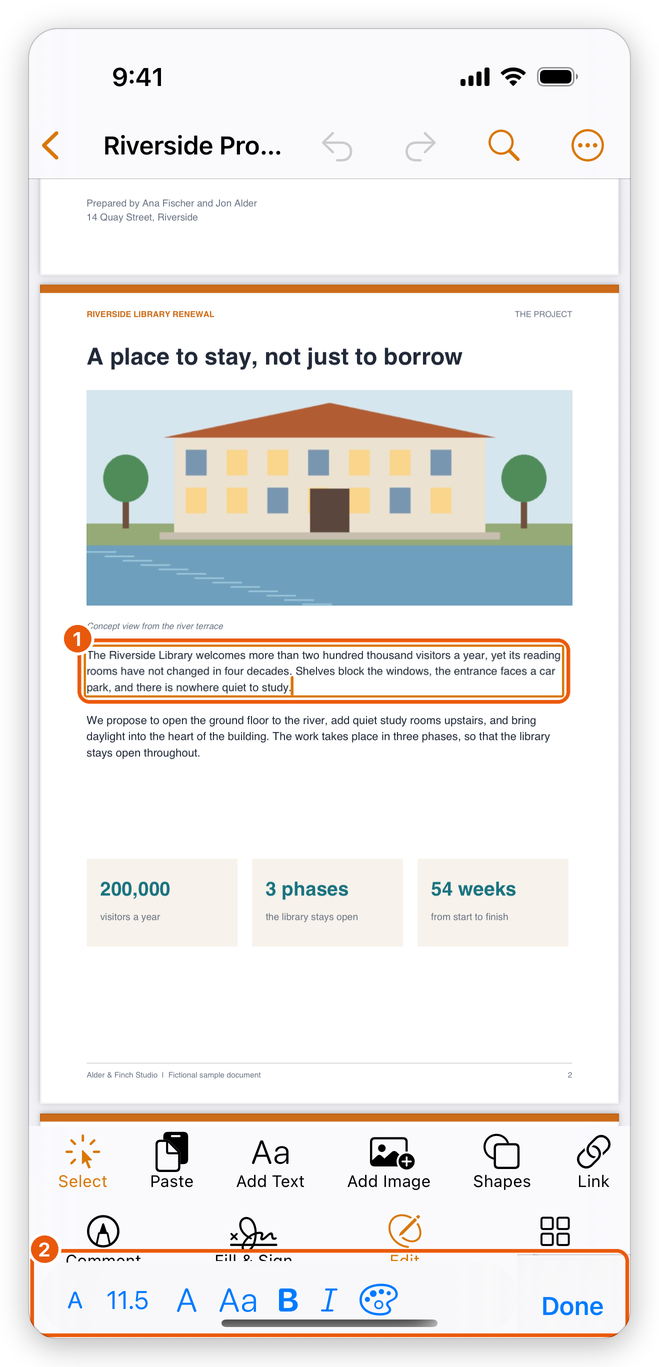
- The paragraph being edited.
- The format bar.
The Font button lists the fonts In This Document and the fonts On This Device, with a search box; Add Font… adds a font file of your own. When some characters you type are not in the paragraph's font, a similar font is used for them, and the app says so. When a paragraph grows past the bottom of the page, the app says so too: shorten it, or move part of it to the next page.
Where the on-device AI runs, the format bar also has Writing Help: it improves, shortens or fixes the grammar of the paragraph, or makes it more formal or friendlier. It needs Pro.
Without opening the paragraph, its bar also has Increase and Decrease, to make all its text larger or smaller, and Colour, to colour all of it.
Move, resize and turn
- Move: drag the selected paragraph, picture or drawing.
- Resize: drag a handle. A picture keeps its proportions. For a paragraph, the handles at its sides set the width the text wraps to.
- Turn: tap Rotate on its bar. A panel at the foot of the screen has a slider for the angle, a box to type an exact one and Rotate Right for a quarter turn. What is selected turns as you change them; tap Done to keep it, or Cancel.
- Place it exactly: tap Position & Size and type its X (pt) and Y (pt) (its top-left corner, in points from the top-left corner of the page as it is shown, 72 to an inch), its Width and its Height. It moves as you type; tap Done to keep it.
Cut, Copy, Duplicate and Delete on the bar work on the selection as their names say. Arrange puts a picture or a drawing in front of what it overlaps (Bring to front) or behind it (Send to back). When part of what you moved is cut off by the page's clipping, Clear Clip shows it whole again.
Add text
- Tap Add Text, then tap the page where the text goes.
- Type the text. Change its size, font and colour on the bar above the keyboard as you type.
- Tap Done, or tap the page outside the text, to finish.
New text starts in the look of the text you added last.
Add, replace or crop a picture
To add a picture, tap Add Image and choose a photo. It is placed in the middle of the part of the page you see, and selected: drag it where it goes, and drag a corner to size it.
Tap a picture to select it. Its bar has:
- Replace: choose another photo. The new picture takes the place and size of the old one.
- Crop: drag the corners to the part to keep, then tap Apply.
- Horizontal and Vertical: flip it.
- Export: the picture as a file, in the share sheet, to save or send.
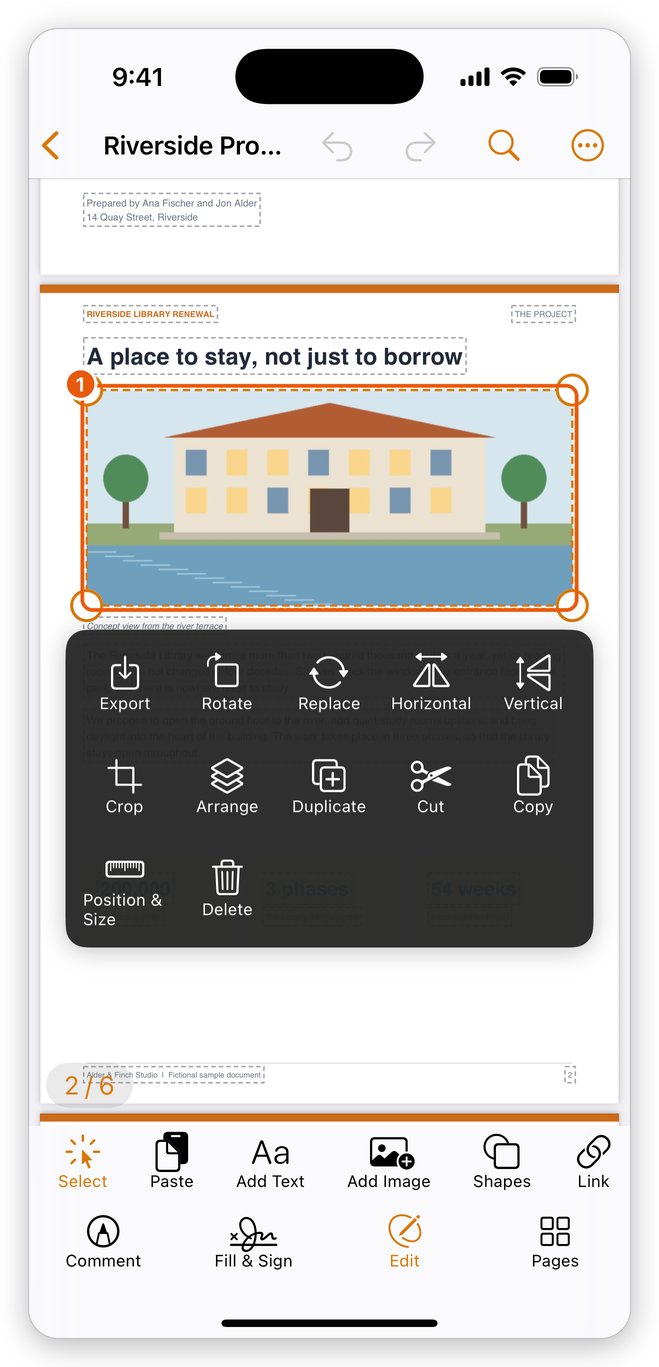
- The picture selected, with Export, Rotate, Replace, Horizontal, Vertical, Crop and the rest of its bar.
Paste
Paste puts on the page what you copied: a paragraph, a picture or a drawing copied in the app, or a picture or text copied in another app. It goes on the page you see, and is selected.
You can also touch and hold the page where it should go, then tap Paste.
Draw shapes and cover content
- Tap Shapes and choose Rectangle, Ellipse, Line, Arrow or Freehand, then drag on the page with one finger to draw. Two fingers scroll. The shape becomes part of the page. Tap Select when you are done drawing.
- Tap a shape to select it. Its bar has Fill and Outline (with No fill and No Outline), Line width, the Corner radius of a rectangle, and the rest.
- Tap Whiteout, then tap the page: a white box covers that place. Select it to move it and size it with its handles.
Whiteout only hides what is under it: the text is still in the file and can be copied or found. To remove content for good, redact it.
Add a link
- Tap Link, then drag a box over the text or picture that should be the link.
- Choose A Page of This Document and type the page number, or A Web Address and type it. Tap Done.
To change a link, tap Link, then tap the link: its bar has Change, Remove link and Position & Size, and you can drag it or its corners. Links and actions explains links and the actions they run.
Undo and save
Every change can be undone: tap Undo at the top of the screen, and Redo to do it again. The app saves the document as you go.
Related pages
- Headers, watermarks and backgrounds: page numbers, headers and footers, watermarks.
- Redact: remove content for good.
- Comment: notes and markup that leave the page as it is.