Comment on a PDF
Highlight, underline and strike out text, add notes, audio notes and text boxes, choose colours and thicknesses, and change, reply to, move or delete a comment on iPhone and iPad.
Comments sit on top of the page: they never change the document's own text, and anyone with a PDF reader can see them. Tap Comment at the bottom of the screen to see the tools.
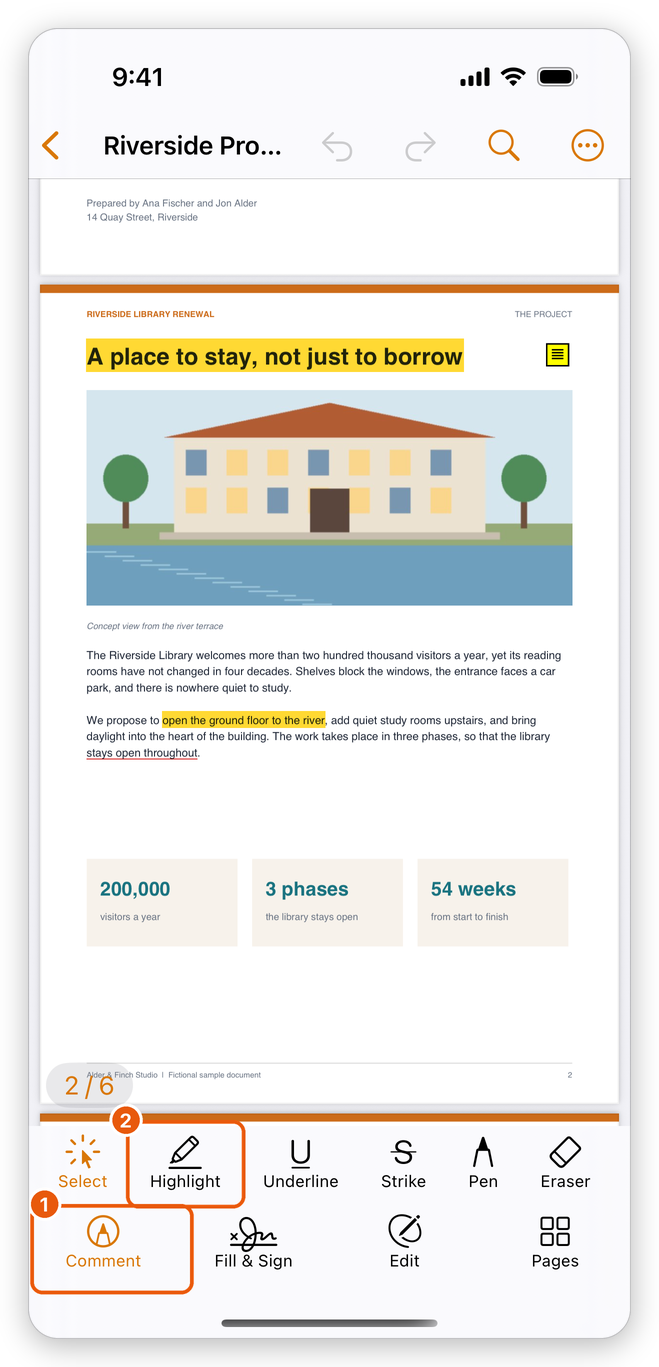
- Comment, one of the modes at the bottom of the screen. Tap it again to put the tools away and just read.
- Highlight, one of the comment tools, in the row above the modes.
This page covers marking up text, notes, audio notes, text boxes and how a comment looks. The other tools have pages of their own: drawings and shapes and stamps. To see every comment of the document in a list, see Manage comments.
The comment tools
From left to right, the row of tools has:
- Select: tap a comment to select it.
- Highlight, Underline and Strike: mark text.
- Pen and Eraser: draw freehand and erase drawings. See Drawings and shapes.
- Note, Audio Note and Text box.
- Shapes: Rectangle, Ellipse, Line and Arrow. See Drawings and shapes.
- Stamp: Approved, Draft, Confidential and other stamps. See Stamps.
- Colour: the colour, and for lines the thickness, of what you add next, or of the comment selected.
- Fill: the inside of a rectangle, an ellipse or a text box. It shows only when it can be used.
- Comments: the list of the document's comments.
On an iPhone the row is wider than the screen: swipe it sideways to see the rest.
The tool you choose shows in colour. Highlight, Underline, Strike, Pen, Eraser and the shapes stay chosen until you choose another tool, or tap the same one again to put it down (back to Select). Note, Audio Note, Text box and Stamp add one comment and then go back to Select.
Highlight, underline or strike out text
There are two ways to mark up text.
With the tool:
- Tap Comment, then Highlight, Underline or Strike.
- Drag your finger over the text. The words you pass are selected as you go, and marked when you lift your finger.
- Drag over more text to mark it the same way.
While one of these tools is chosen, one finger marks text and two fingers scroll the page. With an Apple Pencil you can set the app so that only the Pencil marks and a finger always scrolls: see Use the Apple Pencil.
From a selection: touch and hold a word to select it, drag the handles to take in more, then choose Highlight, Underline or Strike in the menu over the selection. This works while reading too, without choosing a tool first.
Each kind of mark keeps its own colour: highlights are yellow, underlines blue and strike-outs red at first. To change it, choose the tool, tap Colour and pick a colour: the tool keeps it for the next marks.
Add a note
A note shows as a small icon on the page; its text opens when you tap it.
- Tap Note.
- Tap the page where the note goes.
- Type your comment and tap Done.
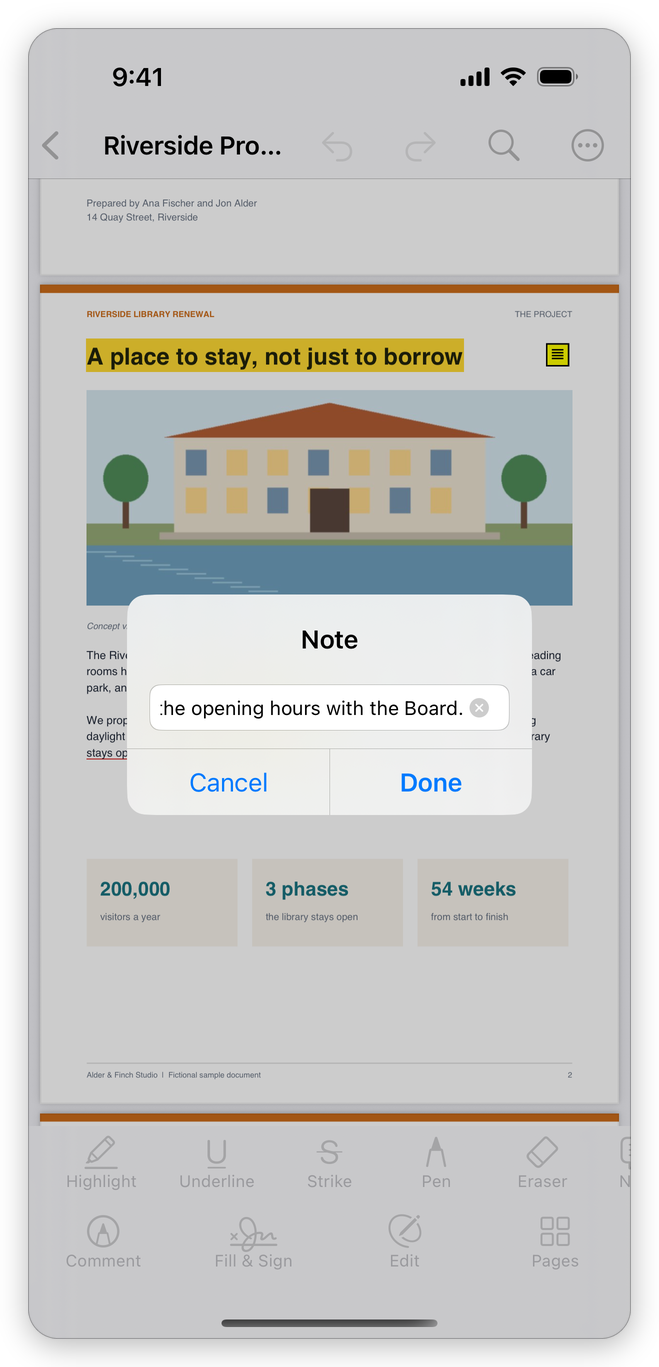
The tool goes back to Select after each note.
Add an audio note
An audio note is a recording kept in the document as a sound comment, shown on the page as a speaker icon. Other PDF readers that play sound comments, such as Acrobat, play it too.
- Tap Audio Note.
- Tap the page where the note goes.
- The first time, iOS asks whether the app may use the microphone: tap Allow.
- Speak. The recording time shows as you go.
- Tap Done to keep the recording, or Cancel to throw it away.
To hear it, tap the speaker icon with Select, then tap Play in the bar that shows.
If you did not allow the microphone, the app says that the microphone is turned off for it. Turn it on in the Settings app of your device, under Privacy & Security, Microphone.
Add a text box
Unlike a note, a text box shows its text on the page itself.
- Tap Text box.
- Tap the page where the text starts.
- Type the text. The bar above the keyboard has Smaller, the size, and Larger.
- Tap Done above the keyboard, or tap elsewhere on the page.
The text takes the colour chosen with Colour (black at first), and the box the colour chosen with Fill. A text box with no text is not added.
Select a comment
Tap Select (or put down the tool you have chosen), then tap a comment on the page. A dashed frame shows around it, with a bar of what you can do to it.
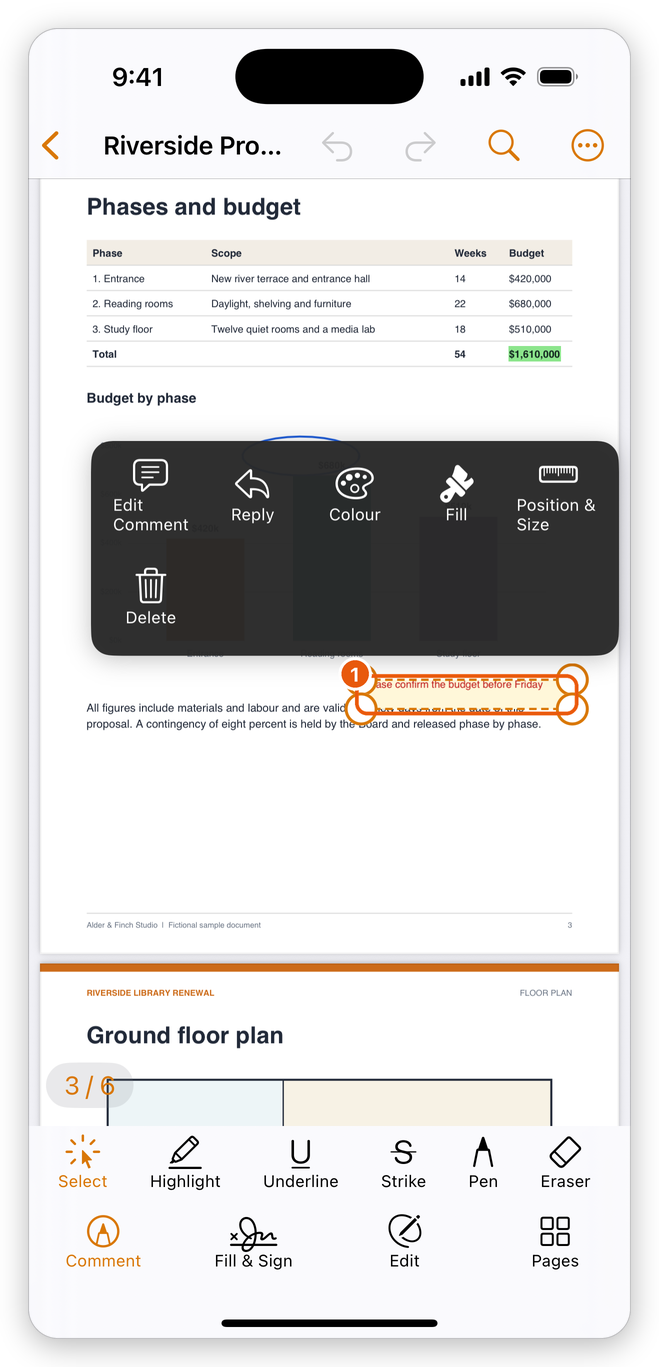
- The comment selected and its bar: Edit Comment, Reply, Colour, Fill, Position & Size and Delete, depending on the kind of comment.
Where several comments overlap, the tap selects the smallest one (a note on a highlight, for example).
Change a comment's text
Select the comment and tap Edit Comment, or tap the comment again once it is selected. Its text opens in a box: change it and tap Done.
This is the comment's text as other readers see it in their lists of comments: the words of a note or a text box, or the remark attached to a highlight.
Reply to a comment
Select the comment and tap Reply. Type your answer and tap Reply. The reply is saved in the PDF under the comment, with your name, so other PDF readers show the conversation too. Replies show in the list of comments: see Manage comments.
Colours and thickness
Before you add a comment, choose the tool, then:
- Colour: yellow, orange, red, pink, purple, blue, green or black. For the pen, the shapes and the lines, the same menu has the Thickness: Thin, Medium, Thick or Marker.
- Fill: the inside of a rectangle, an ellipse or a text box; No fill leaves it empty.
Each tool remembers its own colour and thickness: a yellow highlighter, a black pen and red shapes at first.
After you add it, select the comment and use Colour or Fill in its bar, or on the row of tools. The change applies at once.
Move, resize or delete a comment
Select the comment, then:
- Move it: drag it. A highlight, an underline or a strike-out stays on its text and does not move.
- Resize it: drag a corner handle. Shapes, drawings, text boxes and stamps have them; a note keeps the size of its icon.
- Place it exactly: tap Position & Size and type where it goes and how big it is.
- Delete it: tap Delete. Its replies go with it.
Undo at the top of the screen takes back any change, one step at a time, and Redo puts it back.
Your name on your comments
Each comment and reply carries the name of its author. Yours is Author Name in Settings > Comments: set it before you start, so that others know who wrote what. Until you set it, the app uses your device's name. See Settings.
All the comment tools are free: text markup, notes, audio notes, text boxes, drawings, shapes, stamps and replies.
The app saves your comments in the document on its own, a moment after each change. See Save a PDF.
Related pages
- Drawings and shapes: the pen, the eraser and the shapes.
- Stamps: Approved, Draft and the other stamps.
- Manage comments: the list of comments and the summary.
- Use the Apple Pencil: drawing and marking with the Pencil only.