Bookmarks
Go to the parts of a document with its bookmarks, and add, rename, move, nest and delete bookmarks, or point a bookmark at another page.
Bookmarks are a document's table of contents: a list of titles, each leading to a page of the document. They can be nested, like chapters and their sections.
Go to a bookmark
- Tap More (the circle with three dots), then Navigate > Bookmarks. A sheet opens with the document's bookmarks; the ones inside another are indented under it, and the page number of each is at the right.
- Tap a bookmark. The view goes to its page, at the place the bookmark points to.
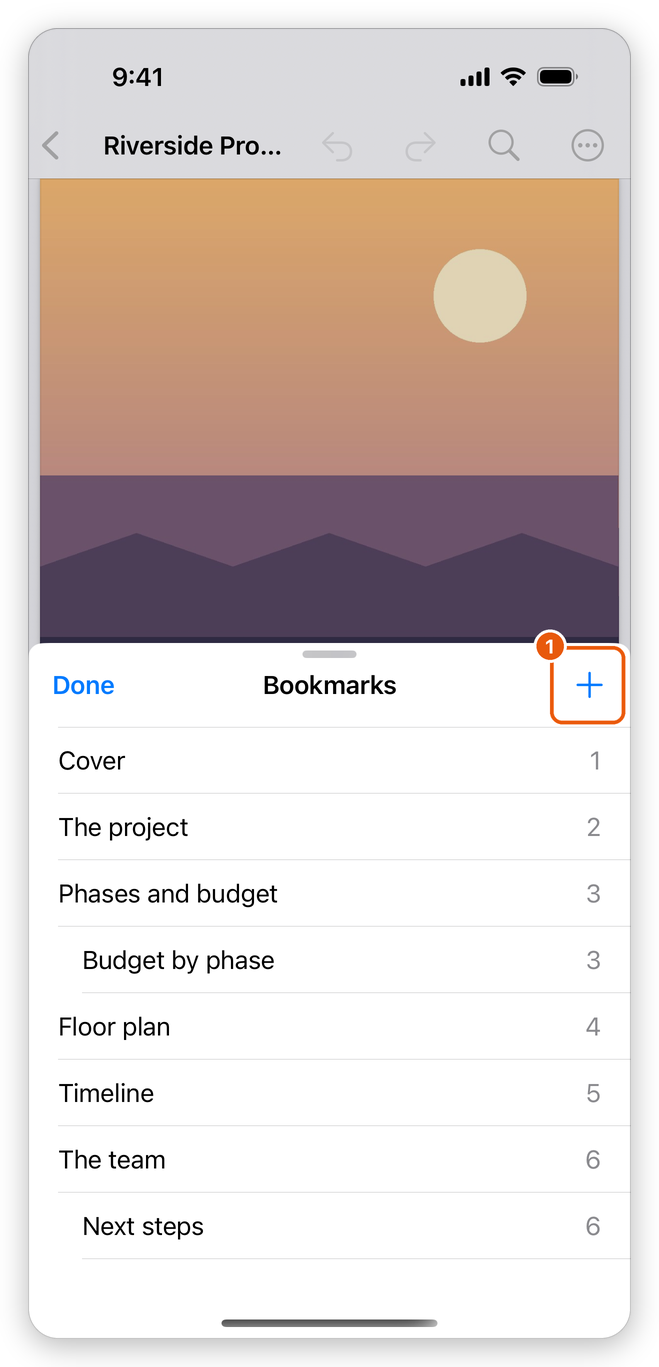
- Add bookmark (+): a new bookmark for the page shown.
On an iPhone the sheet closes so you see the page; on an iPad it stays open beside it. Drag the sheet up to see more bookmarks, and tap Done to close it. A document without bookmarks says No bookmarks. Tap + to add one for the page shown.
Titles are shown as the document made them, in bold or in colour.
Add a bookmark
- Go to the page the bookmark should lead to.
- Open Bookmarks and tap Add bookmark (+).
- Type the title, or keep the one offered (the page's number), and tap Done.
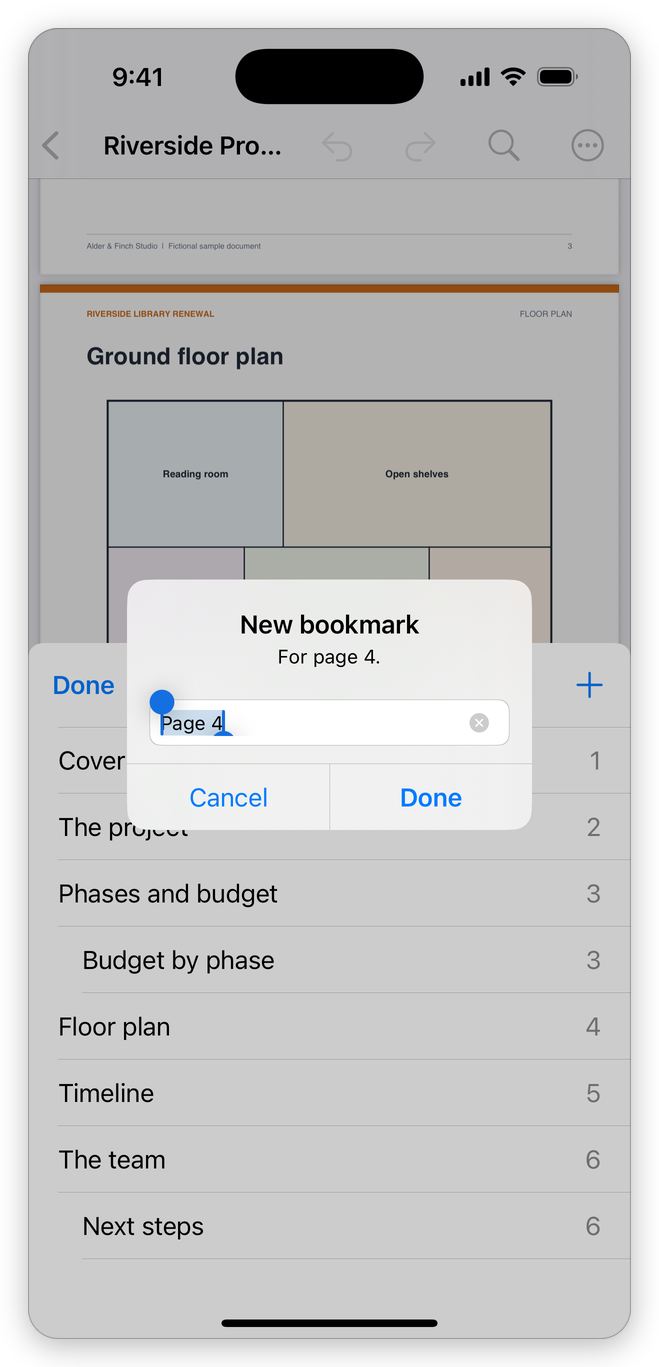
The new bookmark comes after the last one, and leads to the page that was shown. To add it inside another bookmark instead, as the last one under it, touch and hold that bookmark and choose Add bookmark inside.
Change a bookmark
Touch and hold a bookmark for its menu:
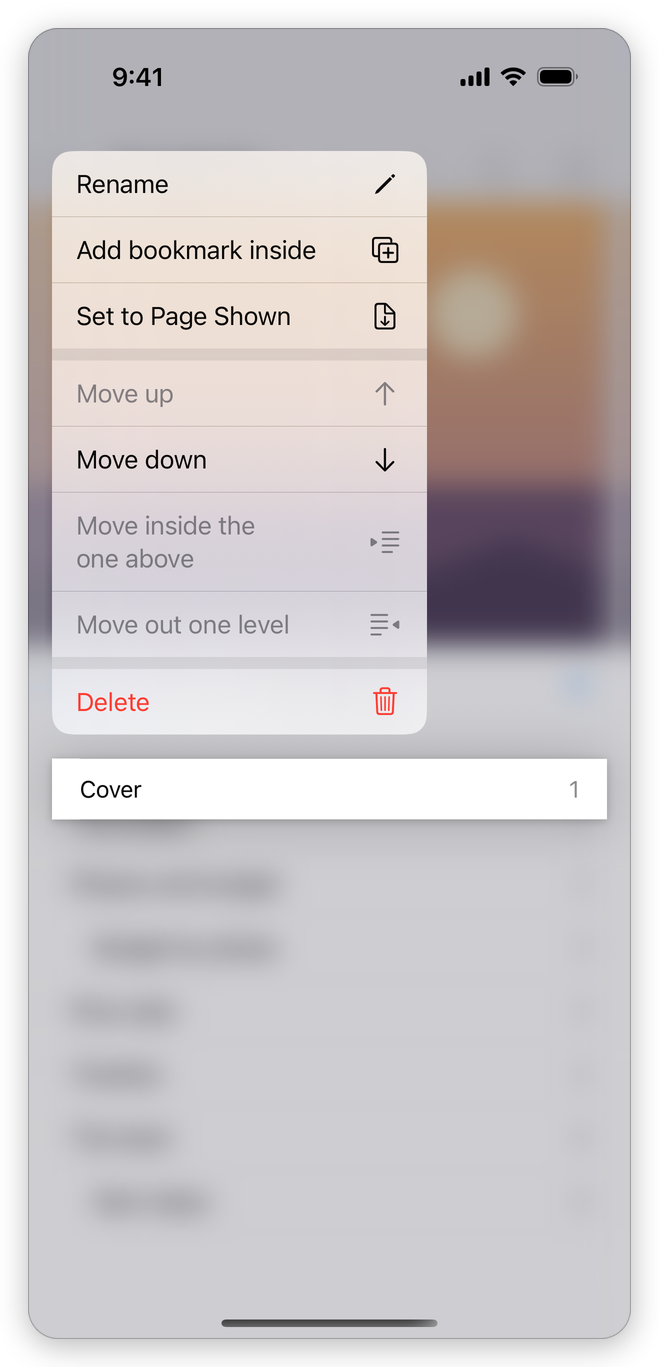
- Rename: a new title. You can also swipe the bookmark to the right and tap Rename.
- Add bookmark inside: a new bookmark under this one, for the page shown.
- Set to Page Shown: the bookmark now leads to the page you see.
- Move up and Move down: before or after the bookmark beside it.
- Move inside the one above: the bookmark goes under the one above it, as its last bookmark.
- Move out one level: the bookmark goes up a level, after the one it was in.
- Delete: removes the bookmark. You can also swipe it to the left and tap Delete.
The bookmarks under one you move go with it. Deleting a bookmark with bookmarks inside it asks first, as they are deleted with it. Deleting a bookmark never changes the pages.
Each change is one step: Undo (at the top of the document) takes it back, also a deleted bookmark. The app saves the bookmarks with the document: see Save a PDF.
Going to bookmarks is free. Adding, renaming, moving and deleting bookmarks needs Pro.
Bookmarks made for you
When you combine documents into one, the new document has a bookmark at the start of each of them, named after it.
Related pages
- View a PDF: page thumbnails and Go to Page.
- Links and actions: links to other pages of the document.