PDF standards: save as PDF/A
Save a copy of a PDF as PDF/A on iPhone and iPad for archiving, choose the right PDF/A level, and know what keeps a document from being converted.
Some PDF files must follow a standard, an ISO specification that says what the file may and must contain. PDF/A is the standard for documents kept for many years: archives, courts and public offices often ask for it. A PDF/A file has its fonts embedded, its colours defined, and nothing that depends on anything outside the file, so it looks the same for years.
The app saves a copy of a document as PDF/A. The document you have open does not change.
Save as PDF/A needs Pro.
Save as PDF/A
- Open the document, tap the More button (…), then Tools > Save as PDF/A.
- Choose the level. PDF/A-2b is chosen already: it suits most documents.
- Tap Save.
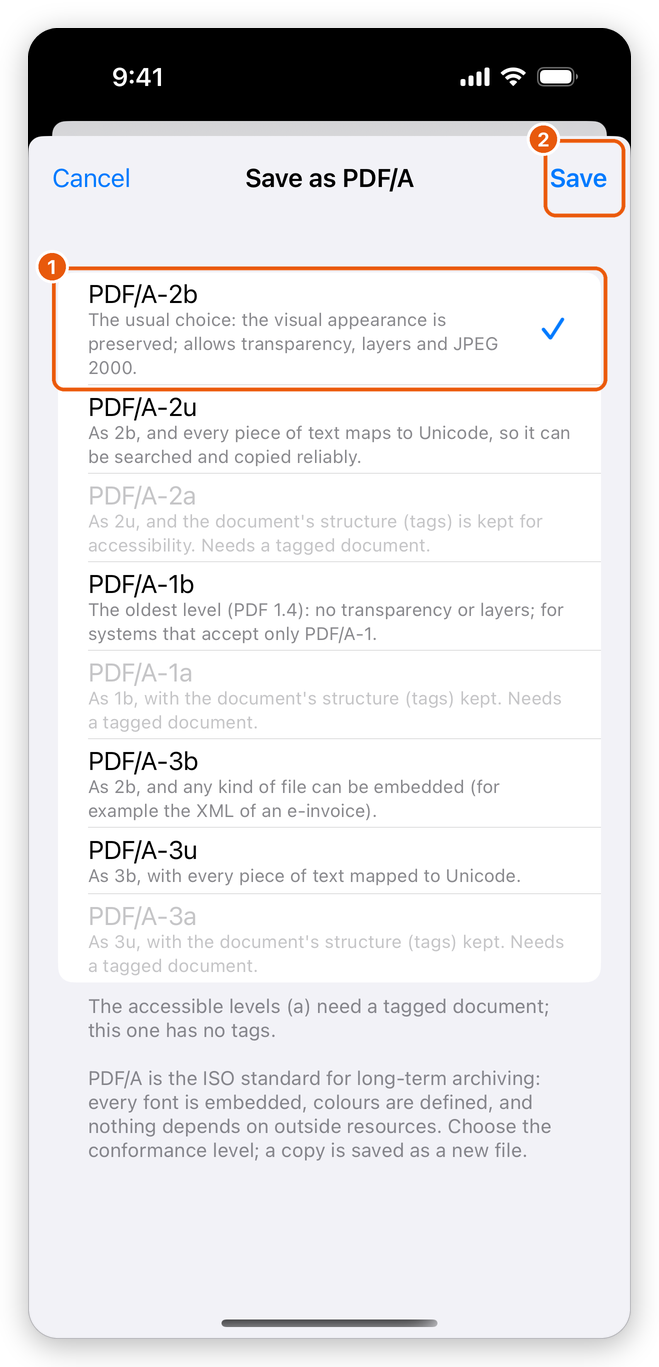
- The level chosen, with what it means below its name.
- Save: saves the PDF/A copy.
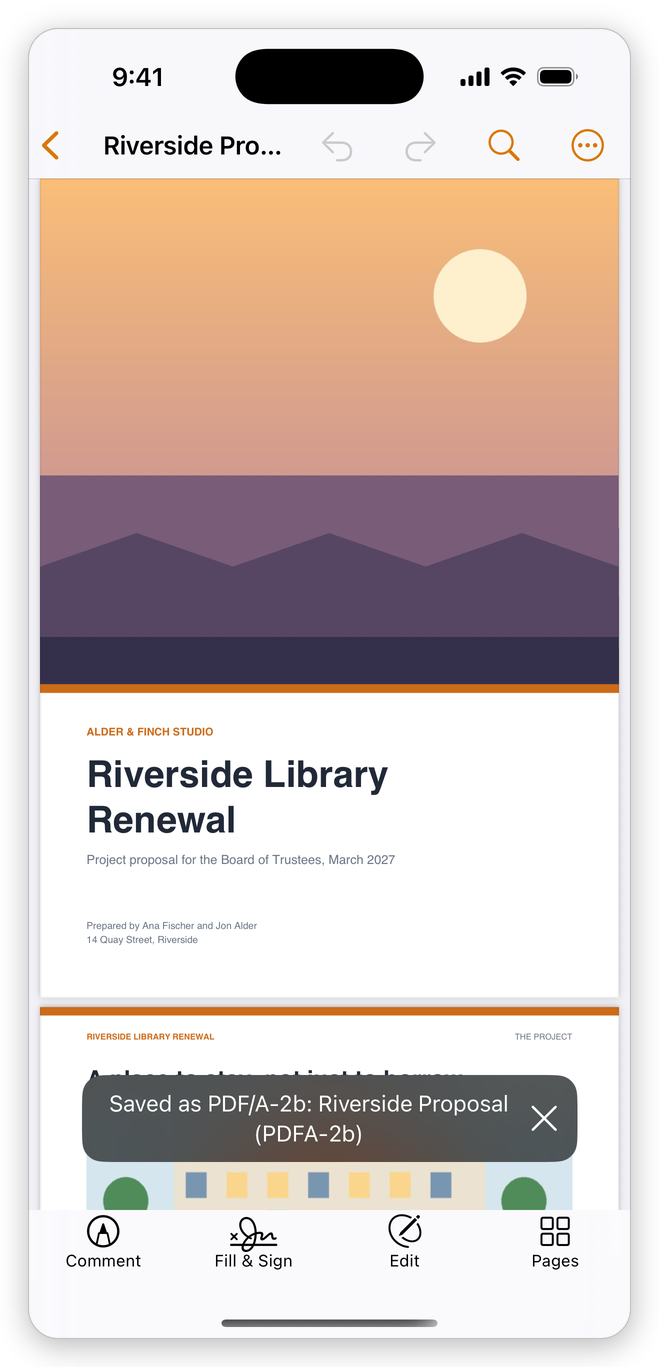
The copy is saved next to the document, in the same folder of the library. Its name is the document's, with the level, such as Riverside Proposal (PDFA-2b), and the app says so when it is done.
| Level | Choose it when |
|---|---|
| PDF/A-2b | You need PDF/A and nothing more: the pages look the same for years. |
| PDF/A-2u | The text must also be searched and copied reliably. |
| PDF/A-2a | The document must also stay accessible: its tags are kept. |
| PDF/A-1b, PDF/A-1a | The archive accepts only PDF/A-1. PDF/A-1 does not allow transparency or layers. |
| PDF/A-3b, PDF/A-3u, PDF/A-3a | Files of any kind must be attached, such as the XML of an electronic invoice. |
The levels ending in a need a tagged document: for a document without tags, the sheet says so and they cannot be chosen. If the document already claims a PDF/A level, the sheet says which.
A signed document cannot be saved as PDF/A: converting it would rewrite it and break its signatures. Save as PDF/A before you sign. A password-protected document cannot either, as PDF/A forbids encryption: remove its password first.
Check a document against a standard
Verifying a document against PDF/A, PDF/UA or PDF/X, and fixing what fails, is done in SelectPdf Editor on a computer (Mac, Windows or Linux). On iPhone and iPad, the accessibility check lists the PDF/UA requirements a document fails.