Share and open from other apps
Opening PDFs, pictures and Office files from Mail, Safari, Files and other apps with the share sheet, and sending your documents to other apps, to AirDrop or to Files.
The share sheet is how iOS passes files between apps: the Share button (a square with an arrow) in Mail, Safari, Files, Photos and most other apps, and Share in this app.
Open a document from another app
- In the other app, open the PDF or touch and hold the attachment, then tap Share.
- In the row of apps, tap SelectPdf. If you do not see it, swipe the row to the end and tap More.
What happens depends on where the file comes from:
- From Mail, Safari, Messages and most apps: they give the app a copy. The copy is added to your library, in the Files tab, and opens.
- From the Files app: the app opens the file where it is, and saves your changes back to it there. It is listed in the Recents tab, not copied into the library. See The library and the Files app.
- A Word, Excel, PowerPoint, RTF or other office file: the app makes a PDF of it, adds the PDF to your library and opens it. The file you shared stays as it is. See Create a PDF.
Pictures and several files
Share one or more pictures (from Photos, for example), or several files at once, and tap SelectPdf in the share sheet. The app opens and adds them to your library: each PDF as it is, each picture as a one-page PDF, each office file converted to PDF. The app says A shared document was added to your library., or how many were added. If there was one document, it opens; with several, the library shows them.
If nothing that was shared can be used, the share sheet says This cannot be added.
Send a document
From the document screen
- Tap More (the circle with three dots) at the top right.
- Tap Share.
- Choose where it goes: AirDrop, Mail, Messages, Save to Files, another app, or Print.
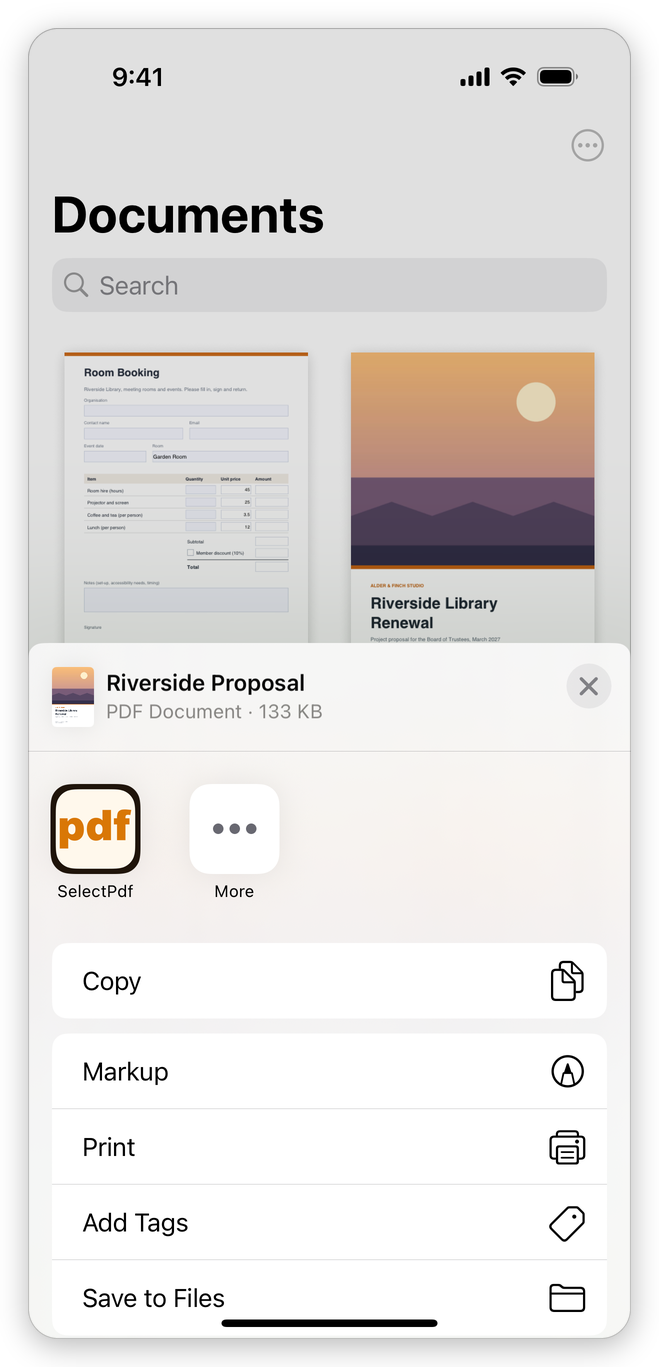
The app saves your changes first, so what you send is the document as you see it. If a form has required fields that are still empty, the app asks first: Go to Field, or Continue Anyway.
The Export submenu of More has other ways out:
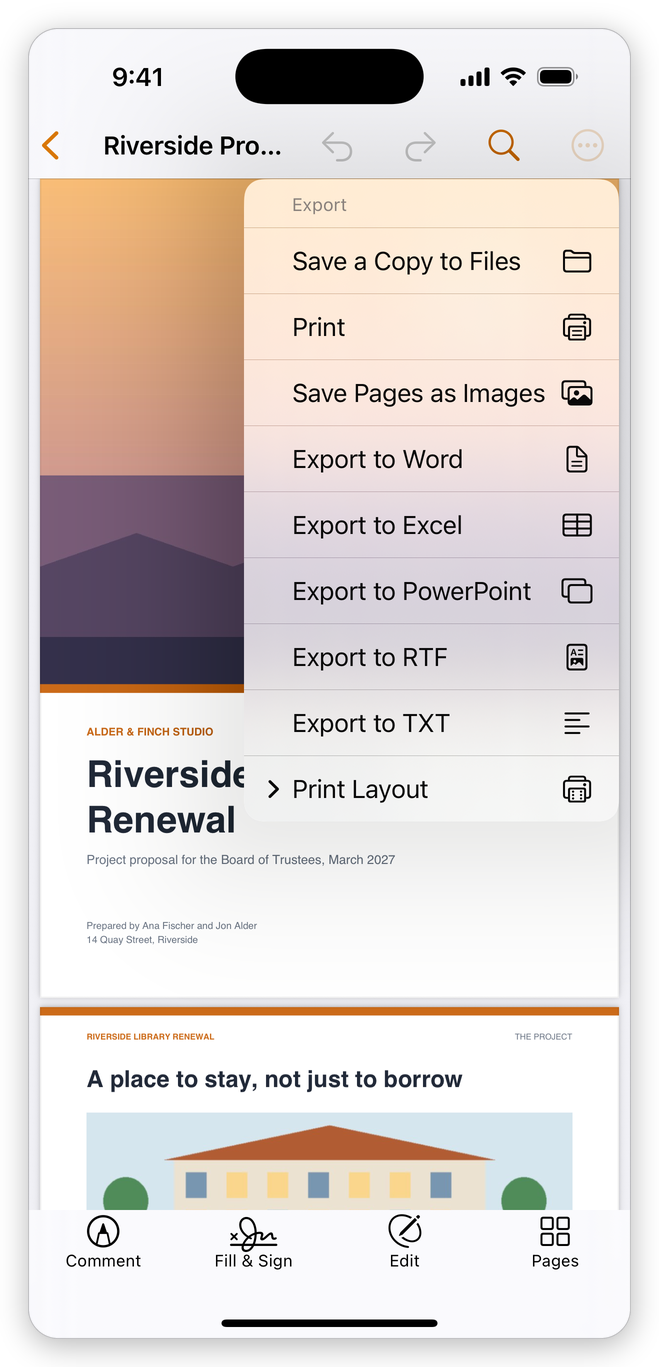
- Save a Copy to Files: choose a folder in the Files app, on the device or in iCloud Drive or another service.
- Print: see Print.
- Save Pages as Images: the page shown or all the pages, as JPEG pictures, then the share sheet, where Save Image puts them in Photos.
- Export to Word, Export to Excel, Export to PowerPoint and Export to RTF: an Office file made of the document. See Export a PDF.
- Export to TXT: the document's text.
- Print Layout: several pages on each sheet, or a booklet, to print or share as a PDF. See Print.
Export to Word, Export to Excel, Export to PowerPoint and Export to RTF need Pro. Sharing, saving a copy, printing, and saving pages as images or text are free.
From the library
Touch and hold a document in the Files or Recents tab (or tap the three dots beside its name), then tap Share. To send several documents together, tap the button with three dots at the top right of the library, Select, tap the documents, then the Share button of the bar at the bottom.
Related pages
- The library and the Files app: where your documents are kept.
- Open a PDF: every way to open a document.
- Export a PDF: Word, Excel, PowerPoint, text and images.