Introduction
What SelectPdf PDF Editor does on iPhone and iPad, what is free and what Pro adds, and how this guide is organized.
SelectPdf PDF Editor opens, reads, edits and creates PDF files on your iPhone and iPad. Everything happens on your device: your documents are never uploaded anywhere, and the AI tools use Apple's model on the device too.
What you can do
| Task | What you can do | Pages |
|---|---|---|
| Read and find | Open PDFs from your library, the Files app or other apps, zoom with a pinch, read one page at a time or scrolling, switch to night mode or reading mode, listen to a document, find text. | Open, View, Find text |
| Navigate | Jump with page thumbnails and bookmarks, follow links, show and hide layers, open attachments. | Bookmarks, Links, Layers, Attachments |
| Comment and review | Highlight, underline and strike out text, draw with your finger or the Apple Pencil, add notes, voice notes, text boxes, shapes and stamps; list and summarize comments; compare two versions. | Comment, Drawing and shapes, Stamps, Manage comments, Compare |
| Forms | Fill in forms, and design your own: text fields, check boxes, radio buttons and lists, with formats and calculations. | Fill forms, Create forms, Field properties, Calculations |
| Sign | Sign with your handwriting, a typed name or a photo of your signature, or with a digital ID, and check other people's signatures. | Sign, Digital signatures |
| Edit | Change the text and pictures already on a page, add text, images and links, and add watermarks, headers, footers, page numbers and backgrounds. | Edit a PDF, Headers and watermarks |
| Pages | Rotate, move, insert, delete, extract, split and crop pages, and combine files into one PDF. | Organize pages, Combine files |
| Create and convert | Make PDFs from scans, photos, Word, Excel, PowerPoint and text files; save PDFs as Word, Excel, PowerPoint, RTF, text or images; recognize the text of scanned pages. | Create, Export, Recognize text |
| Protect | Add passwords and permissions, encrypt for certificate holders, redact sensitive content for good, remove hidden information. | Protect, Certificates, Redact, Sanitize |
| Accessibility and standards | Check accessibility, check PDF/A and save as PDF/A. | Accessibility, Standards |
| On-device AI | Summarize a document, ask questions about one or several documents, translate a page or a whole document, and get help rewriting text. | AI assistant |
| Optimize and print | Make files smaller, and print with AirPrint. | Reduce size, Print |
Free and Pro
The app is free to use for reading, commenting (shapes and stamps included), filling in forms, signing with your own signature, checking signatures, organizing pages, combining files, scanning, making PDFs, saving pages as images or text, and making files smaller. Pro adds editing the page content, form design, signing with a digital ID, passwords and certificate encryption, redaction, removing hidden information, saving as PDF/A, export to Word, Excel, PowerPoint and RTF, text recognition (OCR), comparing documents, editing bookmarks and the AI assistant. See Install and get Pro for the trial and the plans.
A tool that needs Pro has a star (★) after its name while you do not have Pro. Pages that describe a Pro tool say so in a box like this one:
This tool needs Pro. Without it, the app shows the upgrade screen when you tap the tool, and says which part of Pro the tool is.
How this guide is organized
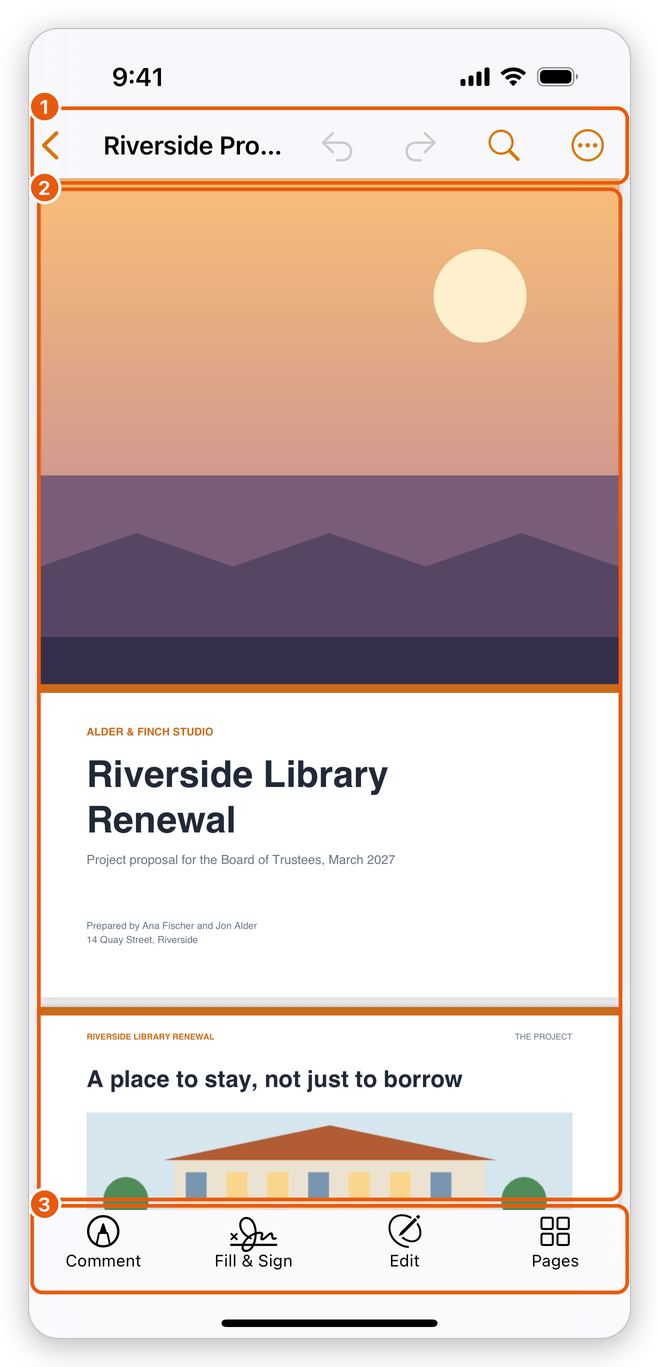
Each page covers one task, with numbered steps and pictures of the app as it looks on an iPhone. On an iPad the screens are the same, with more room: some lists open as popovers next to the button you tapped, and the page thumbnails show in a column at the side. Names of buttons, tabs and menus are written in bold, exactly as the app shows them.
New to the app? Start with the app's screens, then open a PDF.