Recognize text (OCR)
Make scanned pages searchable and selectable on iPhone and iPad with text recognition (OCR), done on the device.
A scanned page is only a picture: you cannot find, select or copy its words. Recognize Text reads the words in the picture (this is called OCR, optical character recognition) and adds them to the page. The page looks the same, but now you can search it, select its text and copy it.
The text is read on your iPhone or iPad, with Apple's own text recognition: the pages are not sent anywhere.
Recognizing text needs Pro.
Recognize the text of a document
- Open the scanned document.
- Tap More (…) at the top right, then Tools > Recognize Text.
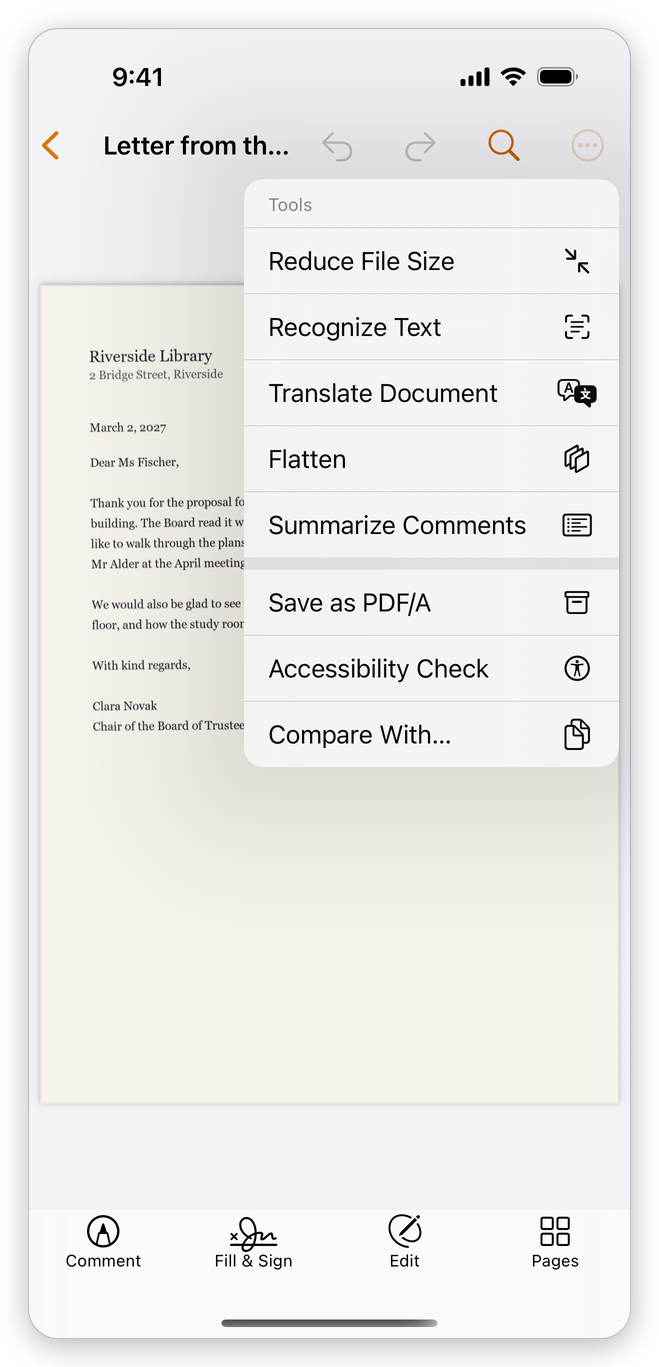
- Wait while the pages are read. The app says how many pages it has read so far.
When it is done, a message at the bottom of the screen says on how many pages text was recognized. Try it: tap Find at the top and search for a word of the page (see Find text).
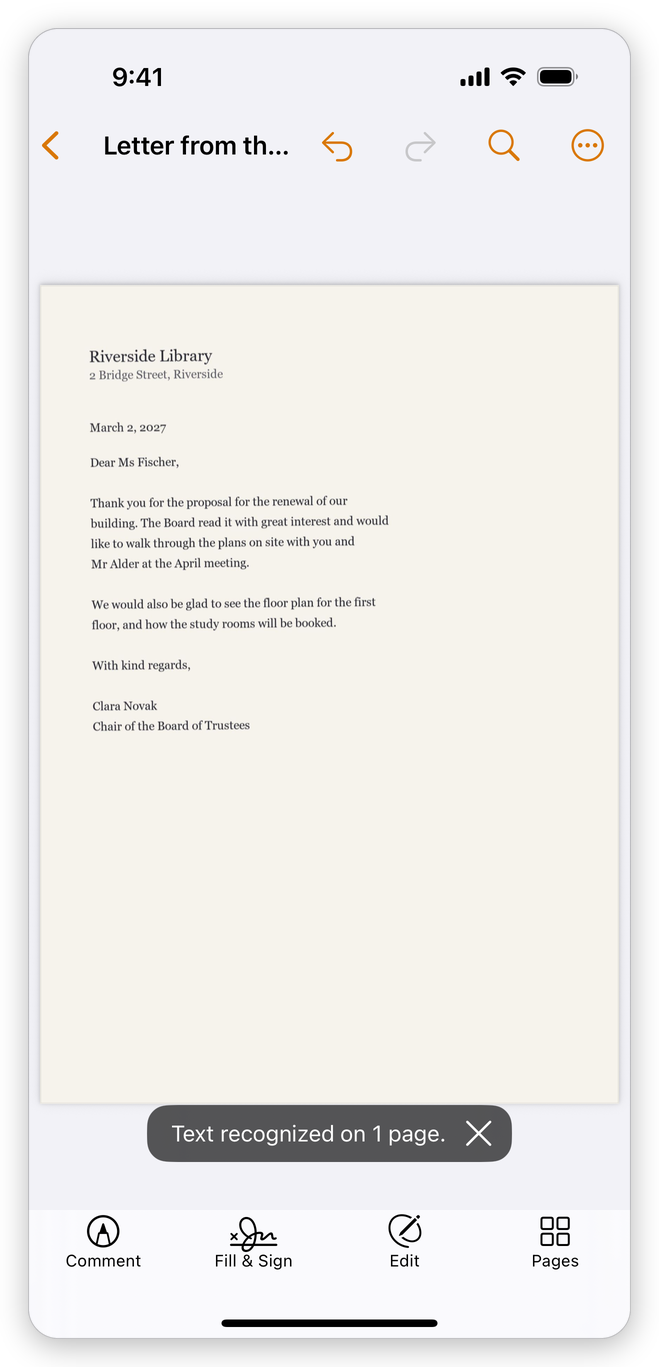
What the app does:
- Only the pages that have no text are read. Pages that already have text are left as they are; if every page has text, the app says This document already has text.
- Pages scanned sideways or upside down are turned upright, and pages scanned a little crooked (up to 15 degrees) are straightened.
- The words are added invisibly over the picture, where they are on the page.
Recognition changes the document like any edit: tap Undo to take it back.
The language
At first the app finds the language of each document itself. If the words come out wrong, choose the language the documents are written in:
- On the Settings tab, tap Text Recognition Language.
- Choose the language, or Automatic to let the app find it again.
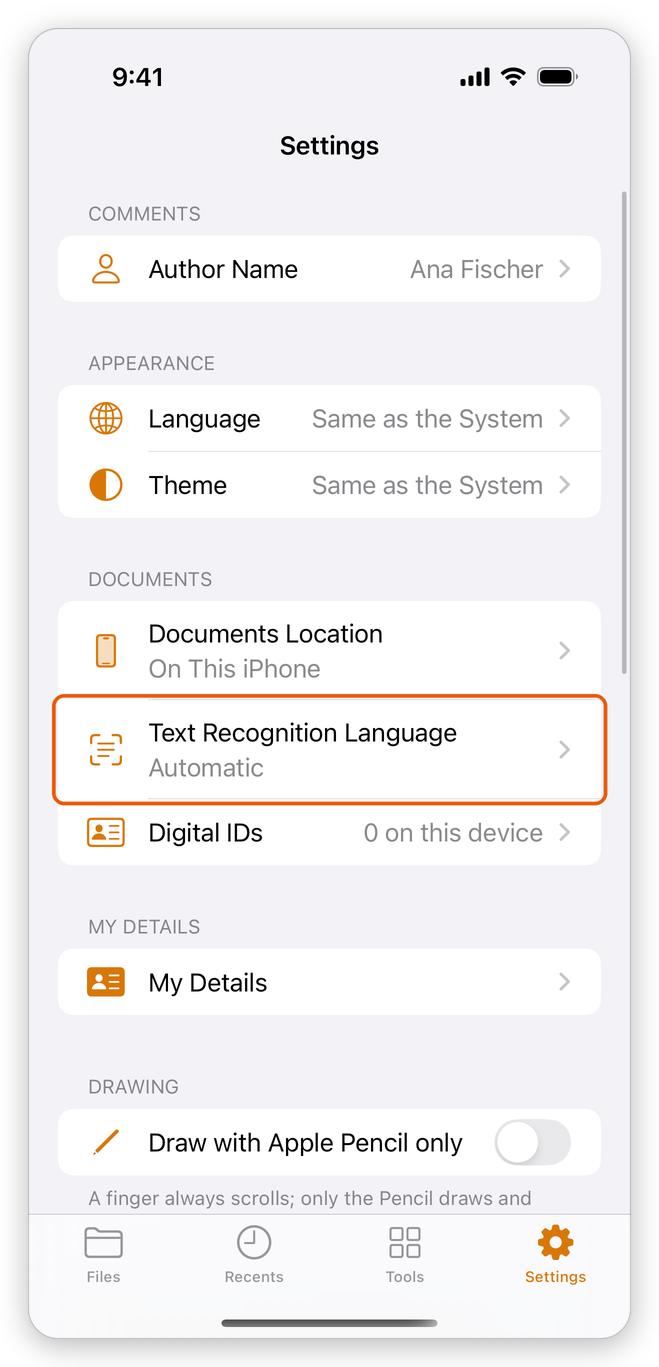
The languages listed are the ones Apple's text recognition reads on your device.
Other places text is recognized
- On the Tools tab, tap Recognize Text and choose a document of your library: it opens, and its text is recognized.
- When you scan a paper document, the app asks whether to recognize the text in the scan. Tap Recognize Text, or Not Now for a photo, which has no text to read.