Compare two versions
See what changed between two versions of a PDF on iPhone and iPad: the changes counted and listed page by page, and each one marked on both versions.
Compare With… shows what changed between two versions of a document: text taken out, put in or replaced, changes of font, size and colour, pictures, drawings, comments and whole pages.
Comparing files needs Pro.
Compare two versions
Both versions must be in your library (see Open a PDF).
- Open the older version.
- Tap More (the circle with three dots) at the top right, then Tools > Compare With….
- Tap the newer version in the list. The list has the other documents of your library, the most recently changed first.
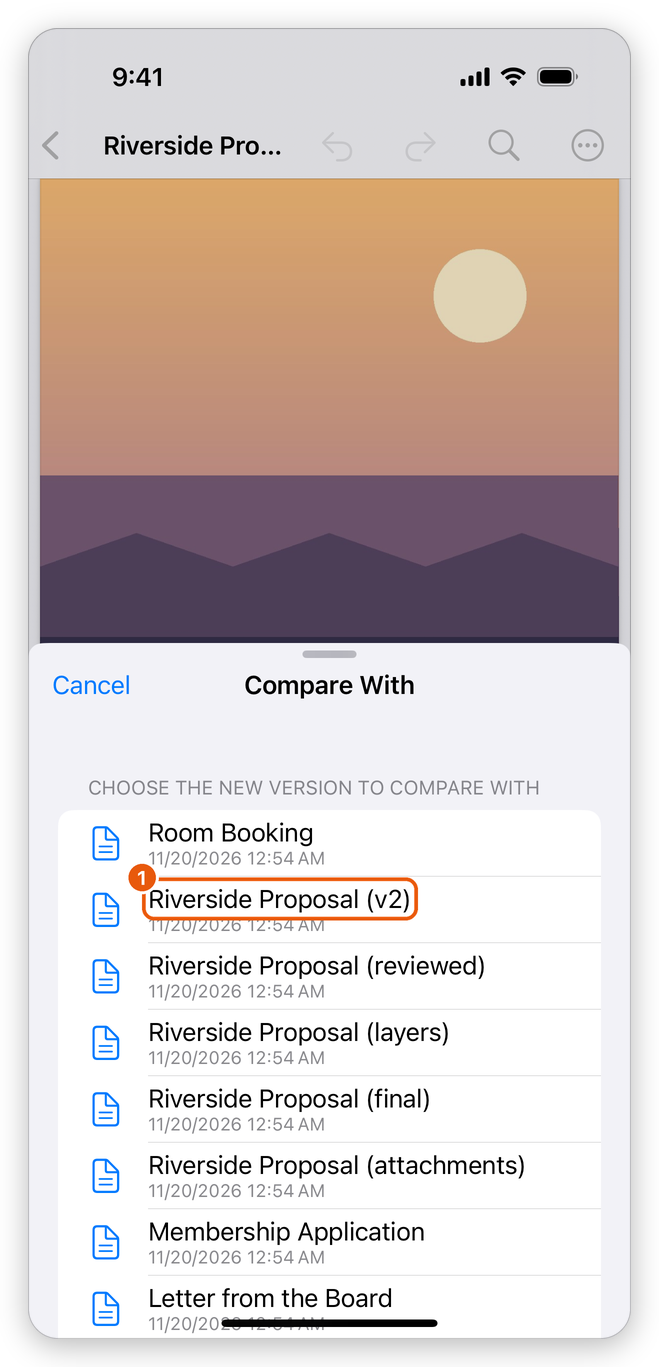
- The newer version of the proposal.
If the newer version has a password, the app asks for it. The document you have open is compared as it is now, with any changes you have not saved yet.
Read the changes
The app compares the two versions, then shows the result in a sheet.
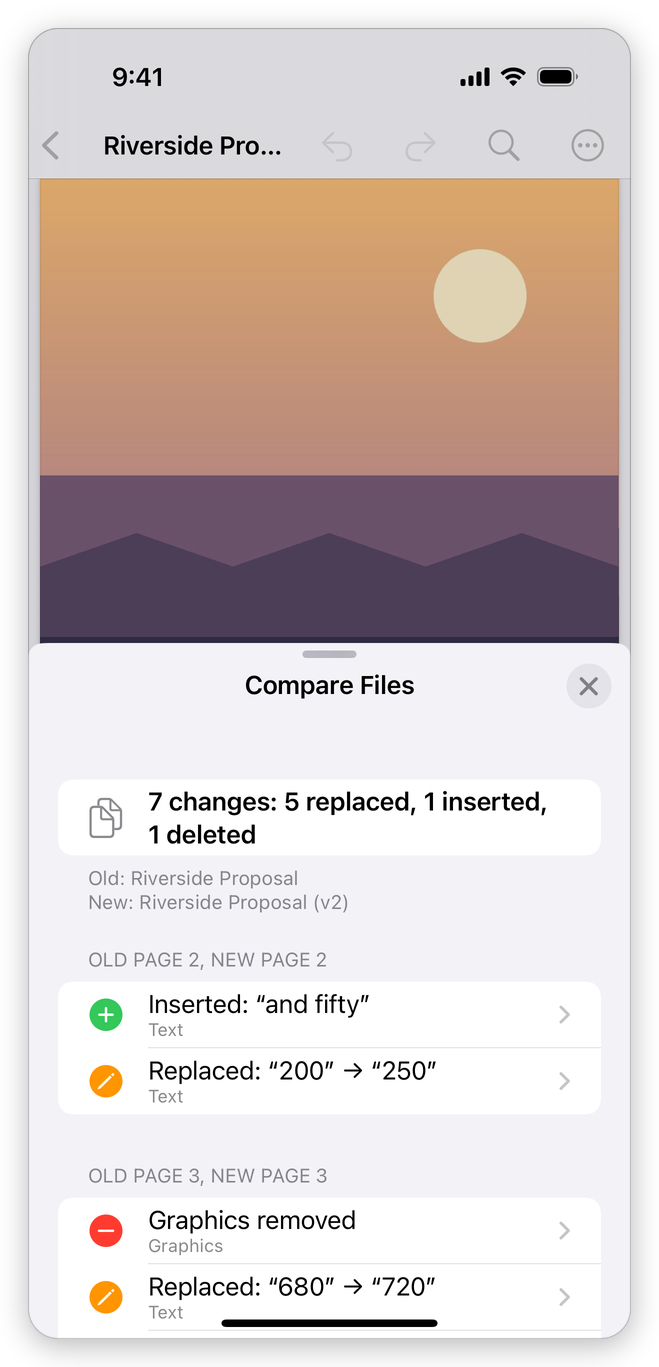
At the top, a line counts the changes: how many were replaced, inserted and deleted, with the names of the old and the new version under it. Two versions with nothing different say No differences found.
Below come the changes, grouped by pair of pages (Old page 2, new page 2). Each change says what happened, for example Replaced: "200,000" → "250,000", and what kind of change it is: Text, Formatting, Images, Graphics, Comments or Pages. Its icon shows what happened to it:
- Red: taken out.
- Green: put in.
- Orange: changed.
- Blue: a page that moved.
See a change on the pages
Tap a change to see it on both versions: on an iPhone the old page above the new one, on an iPad (or wherever the screen is wide enough) side by side. The change is marked strongly in its colour, the other changes of the same pages lightly.
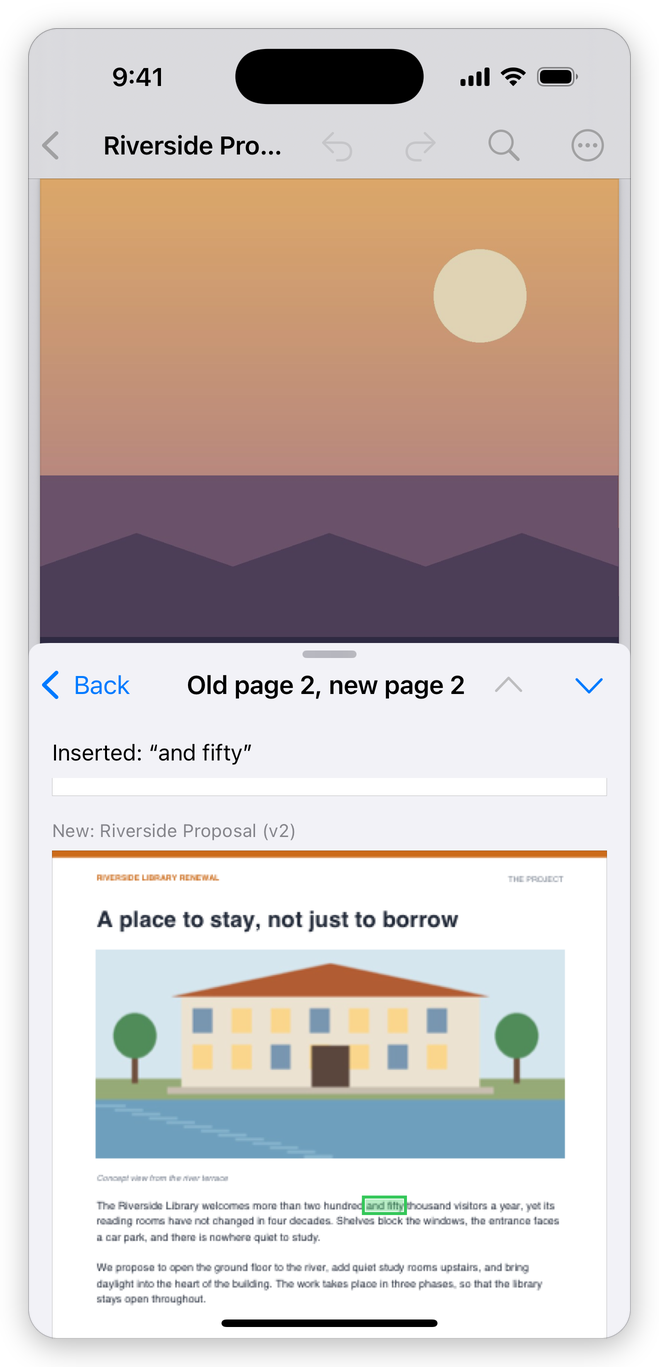
Use the up and down arrows at the top right (Previous and Next) to go from one change to the next. A page that is in one version only says so on the other side. Tap the back button to return to the list of changes, and the close button (×) of the list to close it.
Related pages
- Open a PDF: getting both versions into your library.
- Digital signatures: the changes made to a document after it was signed.