Links and actions
Follow links, add links to a page of the document or a web address in Edit, move, resize, change and remove them, and set the actions a document and its pages run when they open, close, save or print.
A link is an area of a page that does something when it is tapped: it goes to another page of the document, or opens a web page or a new e-mail. What a link, a form button, the document or one of its pages does is a list of actions.
Follow a link
Tap the link.
A link to a page of the document goes there.
A link to a web page or an e-mail address asks first, in Open Link: Open ...? with the address. Tap Open to open it in your browser or mail app, or Cancel.
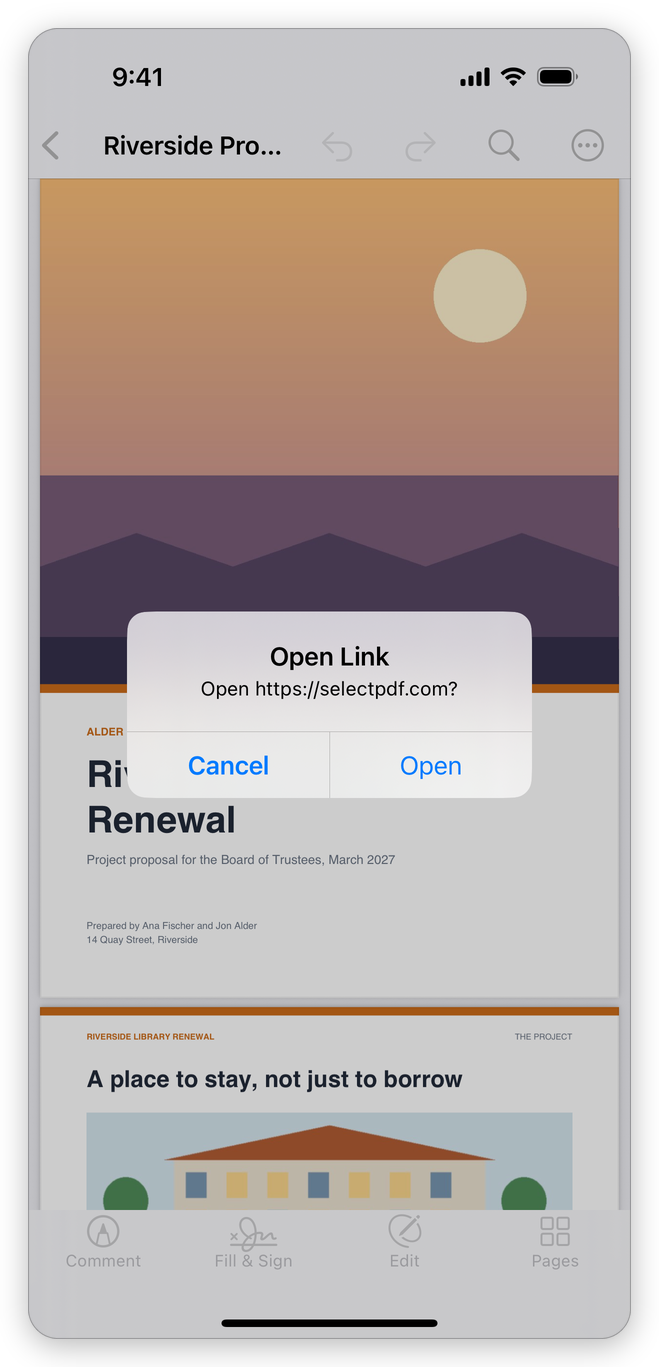
The app asks before it opens a web address A link or a form button that would open another file says that files can't be opened this way on this device.
Add a link
Tap Edit at the bottom of the screen, then Link among its tools. The app says what to do: Drag a box for a new link, or tap a link to change it. Two fingers scroll.
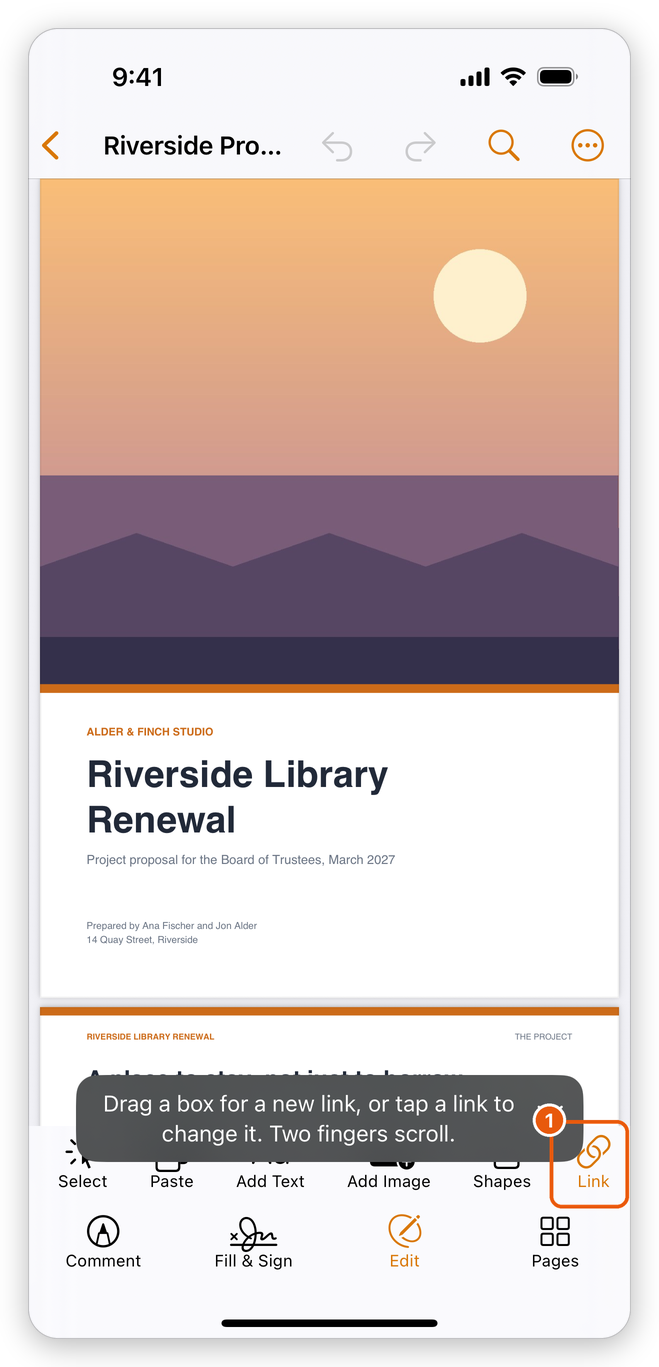
Edit, with the Link tool chosen Drag a box with one finger over the text or picture that should be the link. To scroll the page while the tool is on, use two fingers.
The app asks Where does the link go?
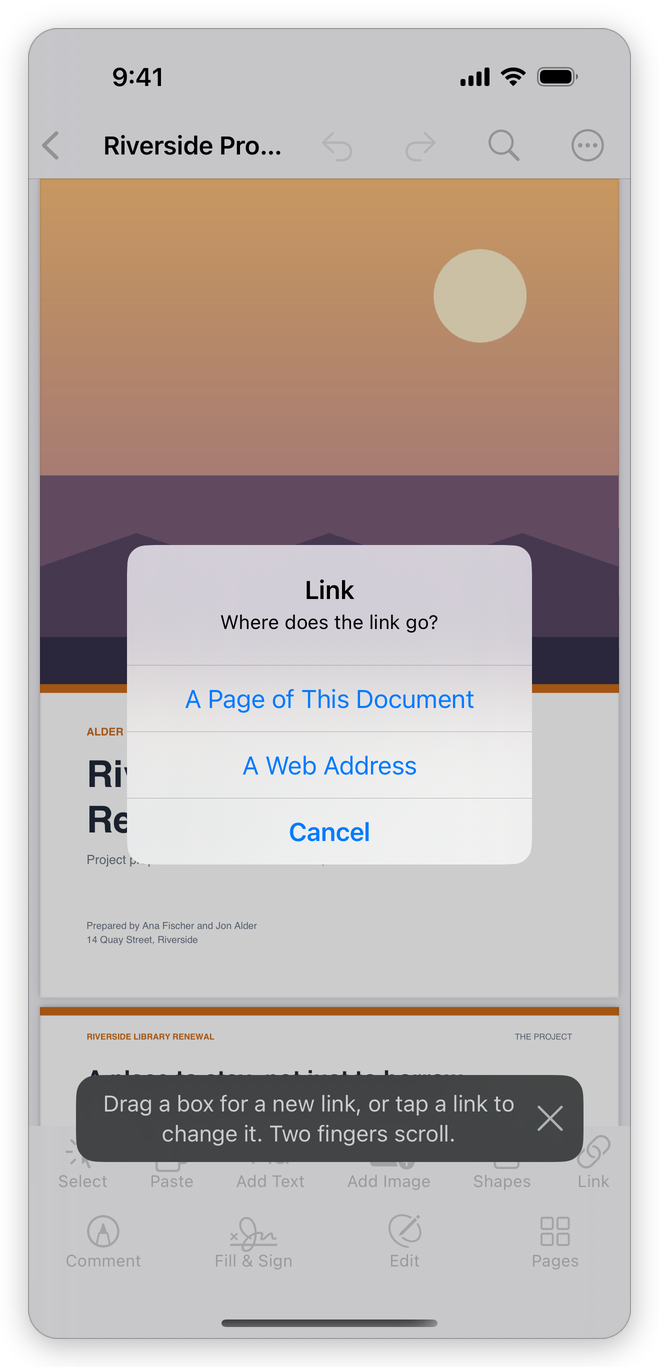
Where the new link goes - A Page of This Document: type the page number and tap Done.
- A Web Address: type the address and tap Done. An address without https:// gets it, and an e-mail address (name@example.com) becomes a link that writes a new e-mail.
The app says Link added. The tool stays on, so you can draw more links.
Change, move or remove a link
With Edit and its Link tool (or Select), tap a link. A frame with a handle at each corner shows around it, and buttons beside it:
- Change: choose again where the link goes.
- The link's place, such as Page 3 or the web address: tap it to follow the link.
- Position & Size: type where the link is and how large.
- Remove link: takes the link off the page.
Drag the link to move it, or drag a corner to change its size. Each change is one step that Undo takes back.
A link made in another program can have more than one action: the app shows and changes the first one, and keeps the others.
Following links is free. Edit, and so adding and changing links, needs Pro.
Actions of the document and of its pages
Besides links, a document can run actions on its own:
- Tap More > Prepare Form > JavaScript.
- Choose Document Actions… for the whole document, or Page Actions… for the page shown.
- Each moment the actions run at is a group:
- Document Actions: Document will close, Document will save, Document did save, Document will print, Document did print.
- Page Actions: Page open (the page is shown) and Page close (the page is left).
- Tap Add Action in a group, choose the kind of action, fill in its page and tap Done.
- Tap Done to keep the actions of every group at once.
To change an action, tap it: Edit… opens it again, Up and Down change the order, and Delete removes it. The same lists are used for the actions of form fields and buttons: see Form field properties.
Document JavaScripts…, in the same menu, holds the scripts that run when the document opens.
The actions
| Action | What it does | What you choose |
|---|---|---|
| Go to a page view | Shows a page of this document. | The Page and the Zoom: Fit Page, Fit Width, Fit Height, Fit Visible or Inherit Zoom (the reader's own zoom). |
| Go to a named destination | Goes to a place named in the document. | One of the document's named destinations. |
| Open a web link | Opens a web page, or a new e-mail with a mailto: address. | The Web address (URL). |
| Reset a form | Clears form fields back to their default values. | All fields, only some, or all except some. |
| Submit a form | Sends the form's data to a web address. | Send to this address (URL), the Export format, Include fields with no value, and the fields. |
| Show/hide a field | Shows or hides form fields. | Hide or Show, and the fields. |
| Run a JavaScript | Runs a script. | The script. |
| Go to another page | Moves through the document. | The next, previous, first or last page. |
| Set layer visibility | Shows, hides or toggles layers. | For each layer: Leave as is, Show, Hide or Toggle. |
An action made in another program that the app cannot change is listed as Other action (kept as it is), and kept.
Prepare Form, and with it Document Actions…, Page Actions… and Document JavaScripts…, needs Pro.
Related pages
- Bookmarks: the document's table of contents.
- Edit a PDF: the other tools of Edit.
- Create a form: form fields and buttons.