Combine files
Combine several PDFs of your documents into one new PDF on iPhone and iPad, in the order you choose.
Combine PDFs makes one new PDF from several documents of your library, one after the other. The documents you combine do not change. Combining files is free.
Choose the documents
- On the Files tab, tap the + button (Add) at the bottom right and choose Combine PDFs. The same list opens from Merge PDFs on the Tools tab.
- Tap the documents in the order they go in. Each one shows its place: 1, 2, 3... Tap a document again to take it out.
- Tap Combine. It can be tapped once two documents are chosen.
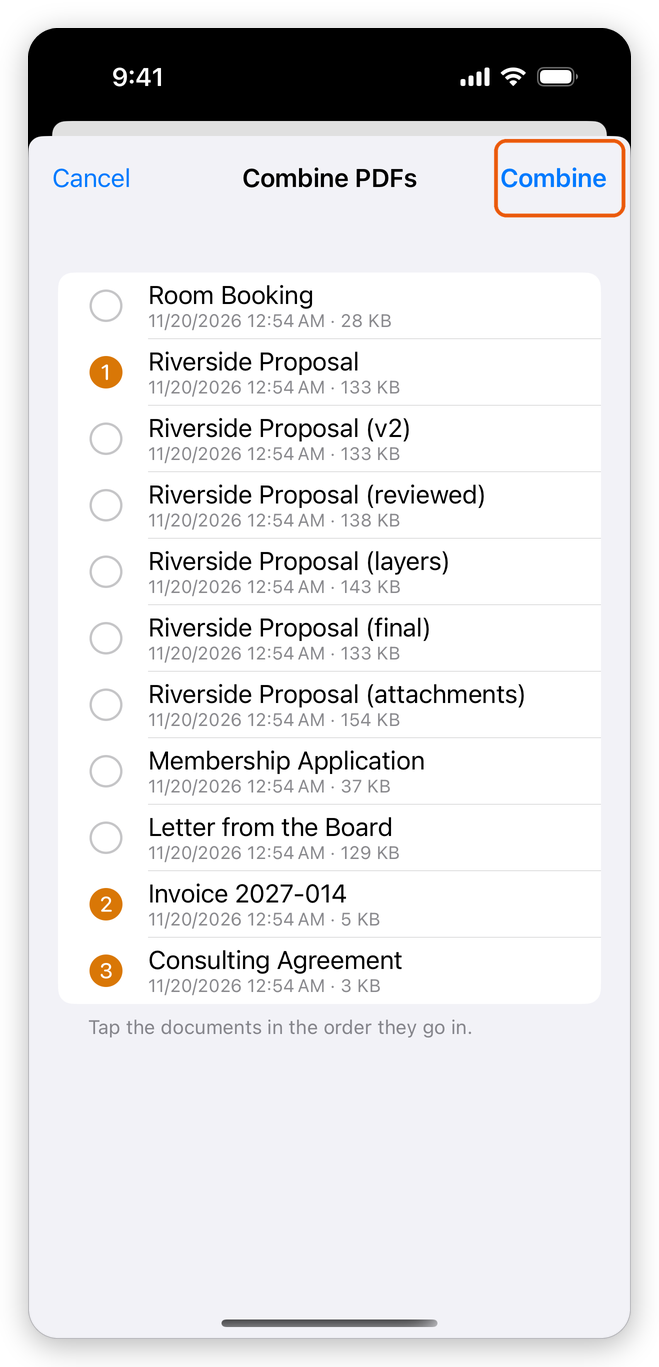
Tap Cancel to close the list without combining.
Combine the documents you selected
You can also start from the documents in your library:
- On the Files tab, tap the … button at the top right and choose Select.
- Tap the documents to combine, in the order they go in.
- Tap the Combine PDFs button in the bar at the bottom.
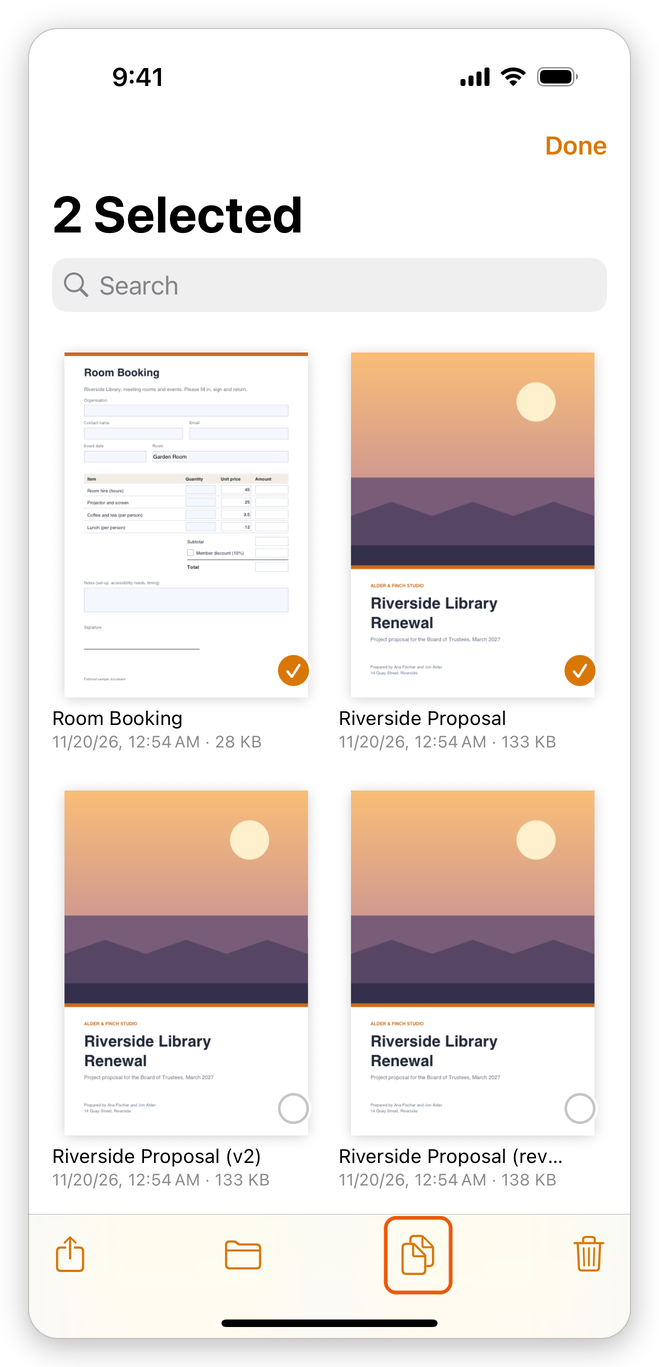
Tap Done at the top to stop selecting.
The new PDF
The new document is added to your documents, named Combined, and opens. Each document you combined starts with a bookmark of its name, so you can go from one to the next (see Bookmarks).
Only PDFs can be combined. To combine pictures, scans or Word, Excel and PowerPoint files, first make PDFs of them (see Create a PDF): they are added to your documents, and you can then combine them.
You can also touch and hold the app's icon on the Home Screen and choose Combine PDFs.
To add the pages of one PDF to a document that is already open, you do not need to combine: use Insert > PDF from Files in Organize pages.