Attachments
See the files a PDF carries, preview and share them, attach a file from the Files app, and delete attached files.
A PDF can carry other files: the spreadsheet behind a report's figures, the photos of a survey, the source of an invoice. They travel inside the PDF, and anyone who has it can open them. The Attachments sheet lists them all: the files attached to the document itself, and the files attached to its pages as comments.
See the attached files
With the document open, tap More (the circle with three dots), then Navigate > Attachments.
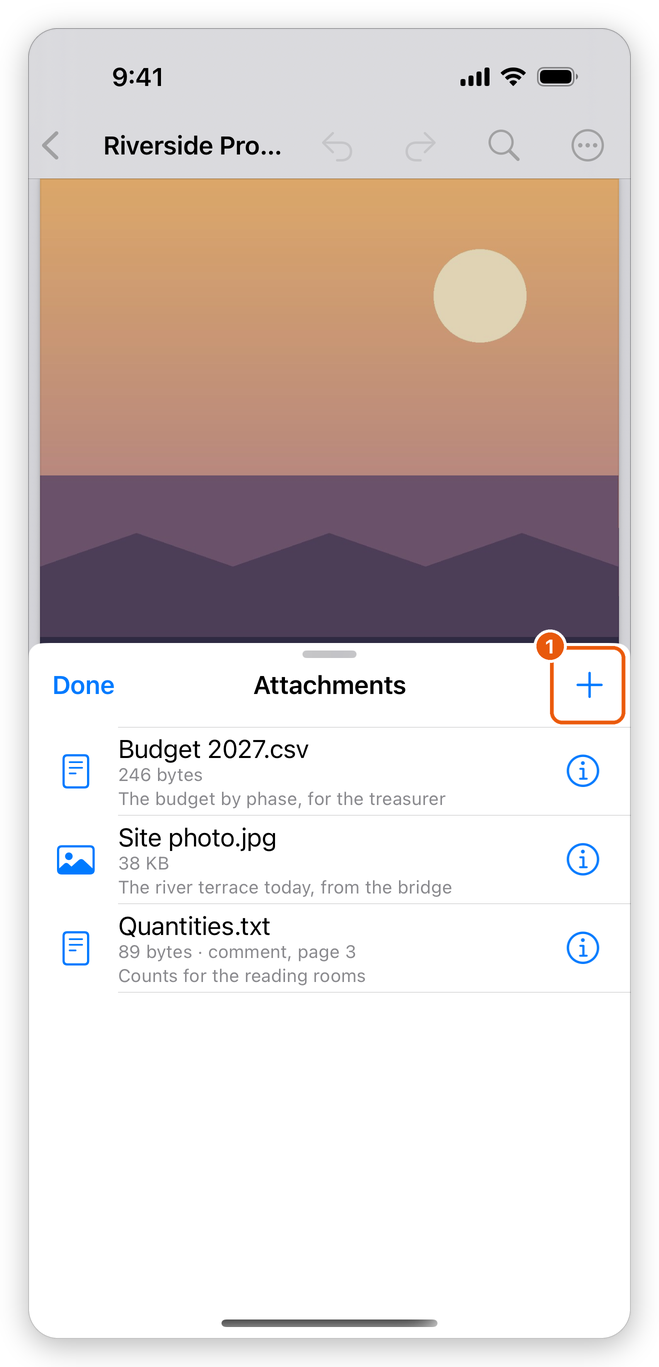
- Attach a file (+).
Each file shows its name, its size and its description. A file attached to a page as a comment says so, with its page: comment, page 3. A document with no files says No files are attached to this document. Tap + to attach one. Tap Done to close the sheet.
Open an attached file
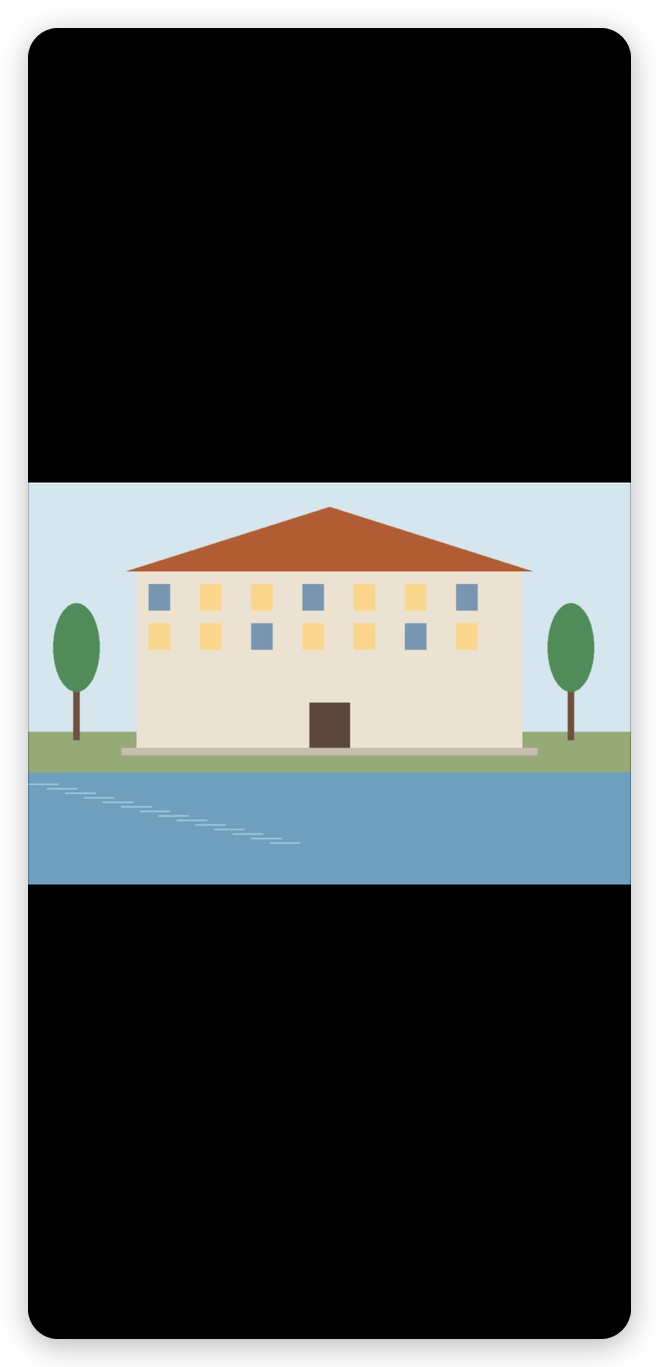
Tap the file. It opens in a preview: pictures, PDFs, text, spreadsheets and the other files iOS can show. From the preview you can also share the file.
Share or save an attached file
Touch and hold the file, or tap the ⓘ button at its right, and choose:
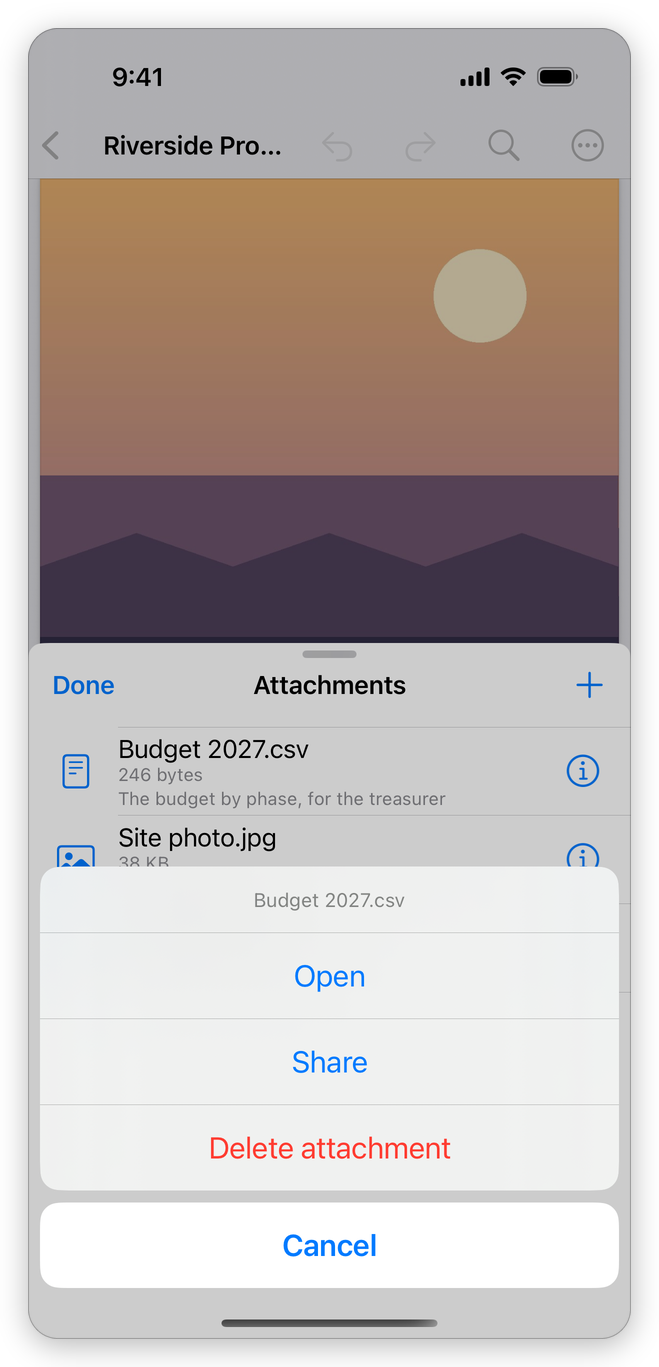
- Open: the preview.
- Share: send the file to another app, or save it with Save to Files. See Share and open from other apps.
- Delete attachment: takes the file out of the document (see below).
Attach a file
- Tap Attach a file (+).
- Choose a file in the Files app: any kind of file.
The file is attached to the document, and the app says so. Files attached to a page as comments, made in another program, are listed here too.
Delete an attached file
Swipe the file to the left and tap Delete attachment, or choose Delete attachment in its menu, then confirm. Deleting a comment's file deletes the comment from its page.
Attaching and deleting are each one step that Undo takes back. The app saves the change with the document: see Save a PDF.
Opening and sharing attached files is free. Attach a file and Delete attachment need Pro.
Attachments and privacy
Attached files are easy to forget. Before you share a document, More > Protect & Redact > Clean Up Document lists the attached files with the other things readers do not see, and removes the ones you choose. See Remove hidden information.
Related pages
- Share and open from other apps: sending files from the app.
- Remove hidden information: attached files and the other things readers do not see.