Print a PDF from iPhone and iPad with AirPrint, and print several pages on a sheet or a booklet.
The app prints with AirPrint, the printing built into iPhone and iPad. Printing is free.
Print a document
- With the document open, tap More (…) at the top right, then Export > Print.
- In the print options, choose the printer, the number of copies and the pages to print. What else you can choose, such as both sides of the paper or colour, depends on the printer.
- Tap Print.
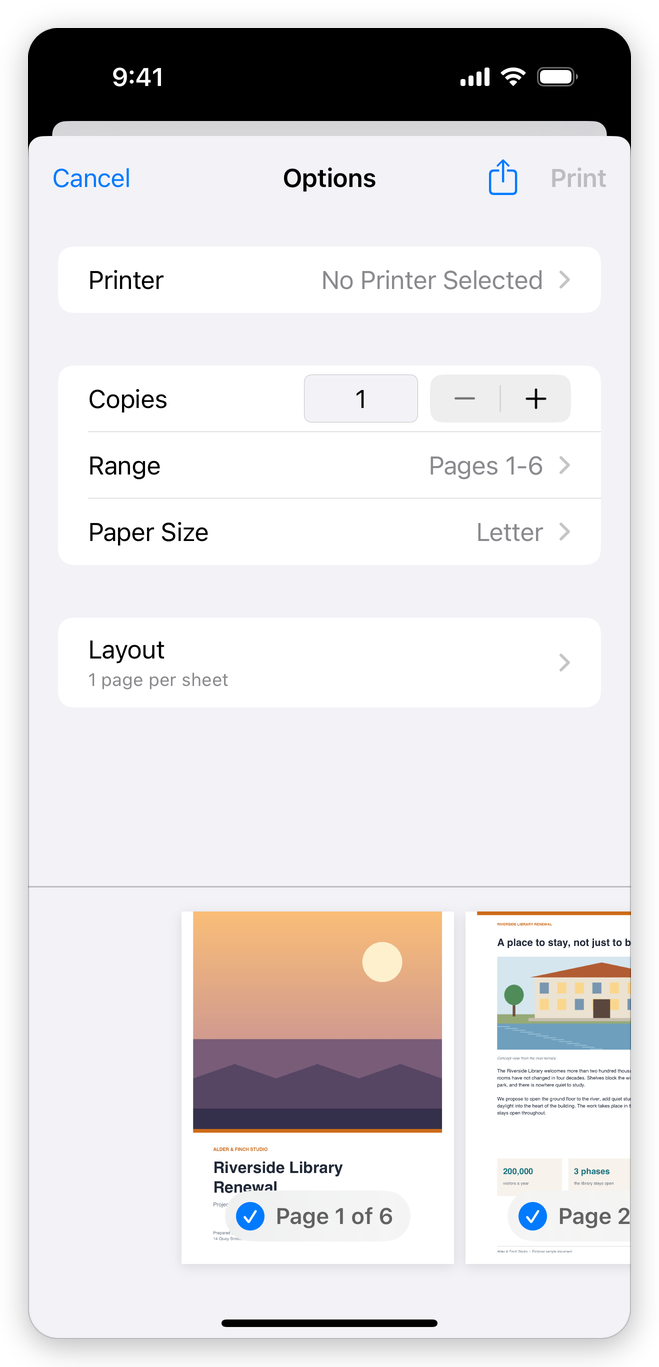
On iPad, the print options open beside the More button.
The pages print as they are in the app, with their comments and filled form fields. If the document has changes not saved yet, it is saved first. A document protected with a password asks for the password before it prints.
Printing needs a printer that works with AirPrint, on the same Wi-Fi network. If your iPhone or iPad cannot print at all, the app says Printing is not available on this device.
Several pages on a sheet, and booklets
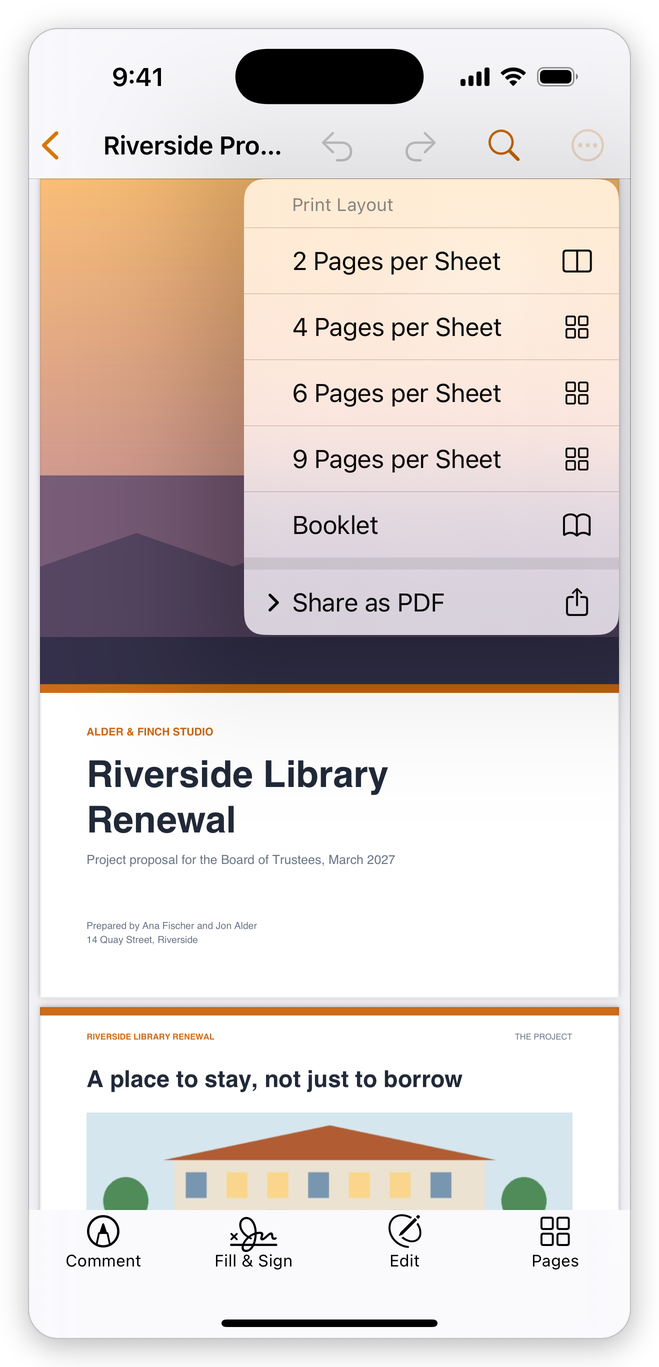
Print Layout arranges the pages on sheets of paper before they print:
- Tap More (…), then Export > Print Layout.
- Choose the layout:
- 2 Pages per Sheet: two pages side by side on a sheet turned sideways.
- 4, 6 or 9 Pages per Sheet: the pages in rows on an upright sheet.
- Booklet: the pages arranged so that the printed sheets, folded in the middle, read as a book.
- The print options open with the sheets: print them as above.
The sheets are A4 or Letter, as your region uses. Comments and filled form fields are printed on the pages as they show.
To print a booklet, choose to print on both sides of the paper, flipped on the short edge, if the printer can. Then fold the stack of sheets in the middle.
To keep the sheets as a PDF instead of printing them, choose Print Layout > Share as PDF, then the layout. The share sheet opens with the new PDF, named after the document and the layout, such as Riverside Proposal (booklet): tap Save to Files or choose an app to send it with.
Some documents do not allow printing: their author set this with a password. Print Layout then says This document does not allow printing.
Print a summary of the comments
To print a list of the document's comments instead of its pages, make a summary of them first with More > Tools > Summarize Comments, then print the summary. See Manage comments.