Layers
Show and hide the layers of a PDF, such as the furniture, dimensions and notes of a floor plan, and how the document then opens.
Some documents keep parts of their pages in layers (also called optional content): a plan with its furniture, its dimensions and its notes, a map with its roads and its labels, a form in several languages. Each layer can be shown or hidden, so readers see only what they need.
Show and hide layers
- With the document open, tap More (the circle with three dots), then Display > Layers. A sheet opens with the document's layers, in its own order; layers inside another are indented under it.
- Turn a layer's switch off to hide what it draws, and on to show it again.
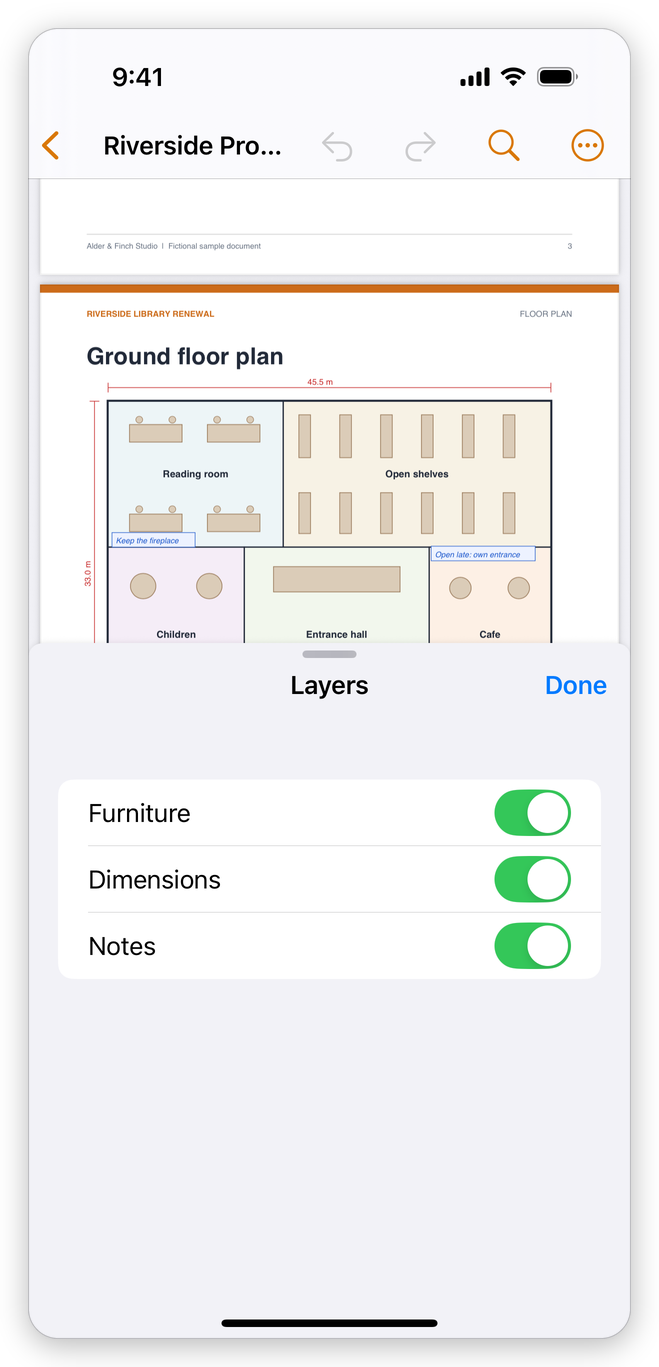
The sheet opens at half height, so the page stays in view above it and you see each change at once. Drag the sheet up to see more layers, and tap Done to close it.
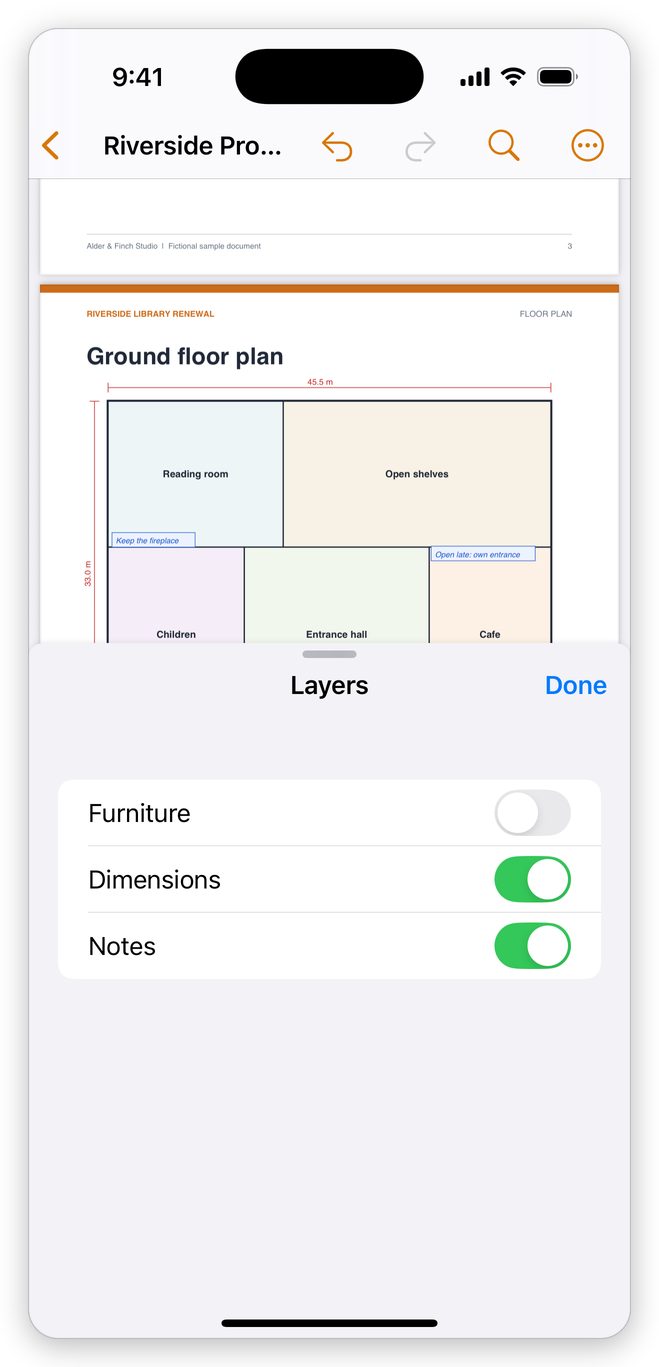
- The Furniture layer switched off: the tables, chairs and shelves are gone from the plan.
A document without layers says This document has no layers.
What showing and hiding changes
What you show or hide is how the document opens from now on, for you and for anyone you send it to: it is a change to the document, saved with it. Each switch is one step that Undo takes back, and the switches follow when you undo.
A Locked layer, marked with a padlock, cannot be shown or hidden: its switch is greyed out.
A link, a bookmark or a form button can show, hide or toggle layers too: see the action Set layer visibility in Links and actions.
On iPhone and iPad you can show and hide layers. Renaming, locking, arranging, merging and flattening layers, their properties, and adding new layers are done in the app for Windows and Mac.
Showing and hiding layers is free.
Related pages
- View a PDF: the other choices of the Display menu.
- Links and actions: links that show and hide layers.