The library and the Files app
Where the app keeps your documents, folders, bringing documents in, editing a file where it is in the Files app, keeping the library in iCloud Drive or another folder, the system's search, and the menu on the app's icon.
The Files tab is your library: the documents the app keeps, and their folders. The library is an ordinary folder, so the Files app shows it too, under On My iPhone (or On My iPad) > SelectPdf: what you put there appears in the app, and the other way round.
Bring documents in
Tap the Add button (+) at the bottom right of the library:
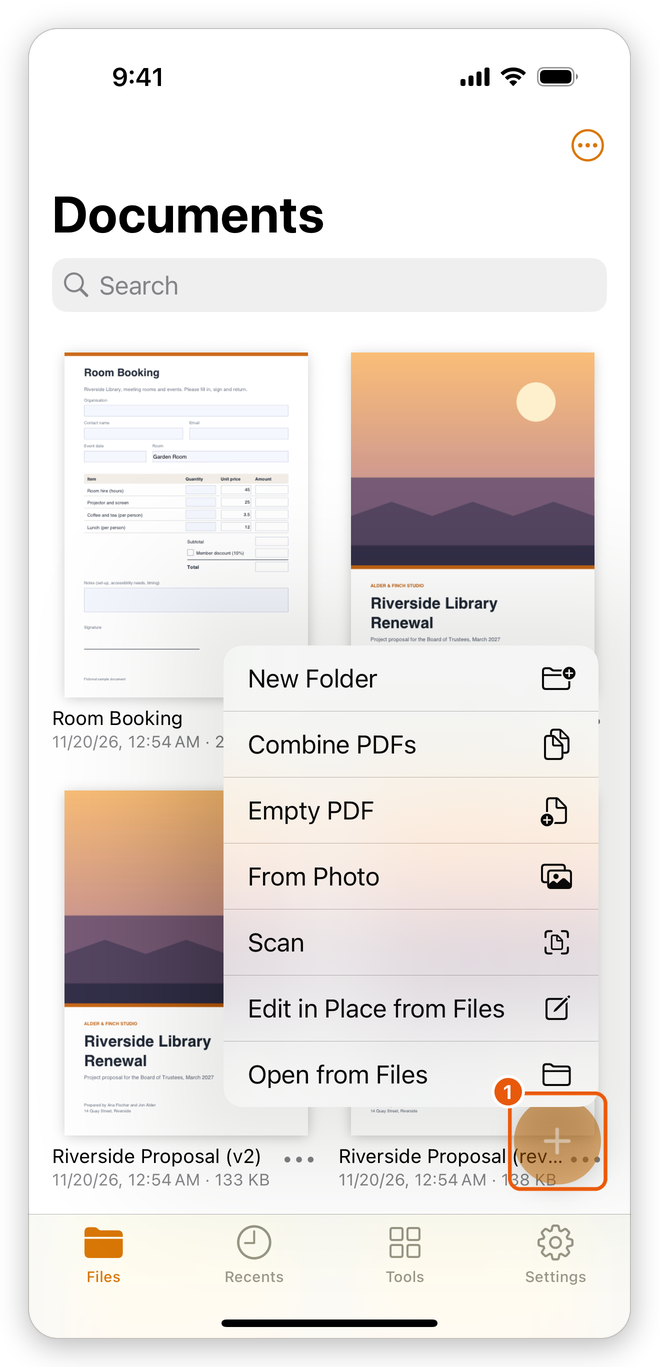
- Open from Files: choose PDFs or pictures in the Files app: on the device, in iCloud Drive or in any service whose app is installed. A copy of each is added to the library (a picture as a one-page PDF). When you choose one, it opens.
- Edit in Place from Files: choose a PDF in the Files app to open it where it is, without a copy. See below.
- Scan: scan paper pages with the camera. See Create a PDF.
- From Photo: choose photos; they become one PDF, a photo on each page.
- Empty PDF: a new document with one blank page.
- Combine files: choose documents of the library to make one PDF of them. See Combine files.
- New Folder: a folder in the folder shown.
New documents go into the folder shown. Documents shared to the app from other apps are added too: see Share and open from other apps.
Folders and documents
Tap a folder to open it, and the back button to go up. The button with three dots at the top right of the library sorts the documents (Sort By Date, Name or Size), shows them as Icons or a List, and makes a New Folder. To find a document in any folder, type in the Search field at the top of the library.
Each document has its own menu: touch and hold it, or tap the three dots beside its name.
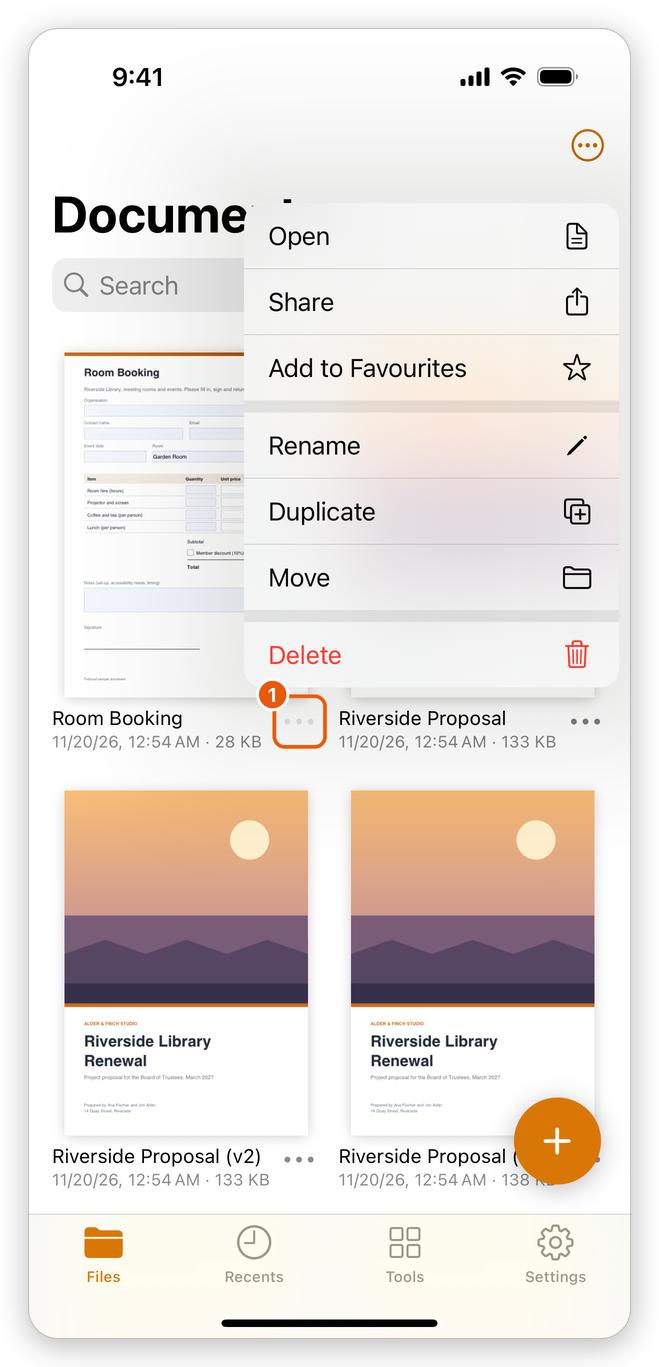
- Open, Share (see Share and open from other apps), and Add to Favourites (Remove from Favourites): favourites are listed at the top of the Recents tab, and have a star in the library.
- Rename, Duplicate, and Move, to another folder or to the top of the library (Documents).
- Delete: after you confirm, the document is deleted from the device. This cannot be undone.
A folder's menu has Rename, Move and Delete; deleting a folder deletes the documents in it.
Several documents at once
- Tap the button with three dots at the top right, then Select.
- Tap the documents you want: each gets a tick.
- Tap a button of the bar at the bottom: Share, Move, Combine files (two documents or more), Ask AI About These Documents (on devices that run Apple Intelligence, see AI assistant) or Delete.
Tap Done to stop selecting.
Edit a file where it is
A PDF you open from the Files app, with Edit in Place from Files or by sharing it from Files to the app, is not copied: the app edits the file where it is, in iCloud Drive, another service or another folder of the device, and saves your changes back to it. Such a document is listed in the Recents tab. Its menu says where it is (Edited where it is, in its folder) and has:
- Open, Share and Add to Favourites.
- Copy to Documents: adds a copy to your library.
- Remove from Recents: takes it off the list. The file itself stays where it is.
If the file was moved or deleted in the meantime, or its place is offline, the app says it was not found.
Keep the library in a folder of Files
Your documents can be kept in a folder of the Files app instead of on the device: in iCloud Drive, to have the same documents on all your devices, or in Google Drive, OneDrive, Dropbox or another service whose app is installed.
- Open the Settings tab and tap Documents Location.
- Tap A Folder in Files….
- Choose the folder, or make a new one, and tap Open.
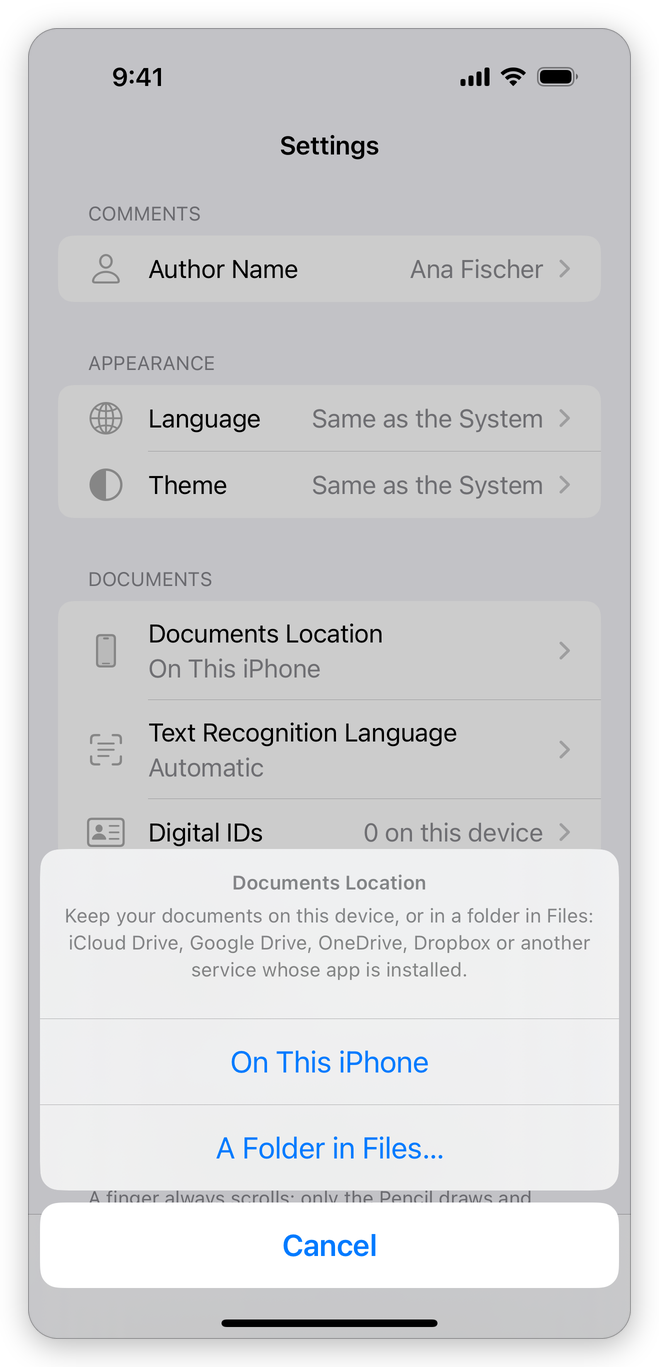
The Files tab now shows that folder, and the app says Documents are now in: and its name. Documents that are in the cloud and not yet on the device say In the cloud; the app downloads one when you open it. The folder keeps its own favourites and recent documents.
To go back to the documents on the device, tap Documents Location again, then On This iPhone (or iPad). Nothing is moved between the two places: each keeps its documents. If the folder cannot be reached when the app starts, Documents Location says (not available) after its name, and the library is the one on the device until you choose the folder again.
Find documents from the Home Screen
With Show documents in iPhone search on in the Settings tab (it is on at first), the system's search finds the documents of your library: swipe down on the Home Screen and type a word of a document's name or of its first pages. Tap a result to open it in the app. A document protected by a password is found by its name only. The search index stays on the device.
The menu on the app's icon
Touch and hold the app's icon on the Home Screen for:
- Last Document: opens the document you opened last (its name is shown under it).
- Scan: starts a scan at once.
- Combine files: chooses documents to combine.
The app also gives Shortcuts and Siri four actions: Scan a Document, Recognize Text in a PDF, Combine PDFs and Open the Last Document. Find them under the app's name in the Shortcuts app, or say, for example, "Scan a document with SelectPdf".
Related pages
- Share and open from other apps: documents from Mail, Safari and other apps.
- Open a PDF: every way to open a document.
- Settings: the app's settings.