Organize pages
Rotate, delete, move, insert, extract, split, resize and crop the pages of a PDF on iPhone and iPad, one page or many at a time.
The Pages screen shows all the pages of the document side by side, so you can put them in order and change them. Organizing pages is free.
Open the Pages screen
With a document open, tap Pages in the bar at the bottom of the screen. The pages show as thumbnails, each with its number under it, and the tools are in the bar at the bottom.
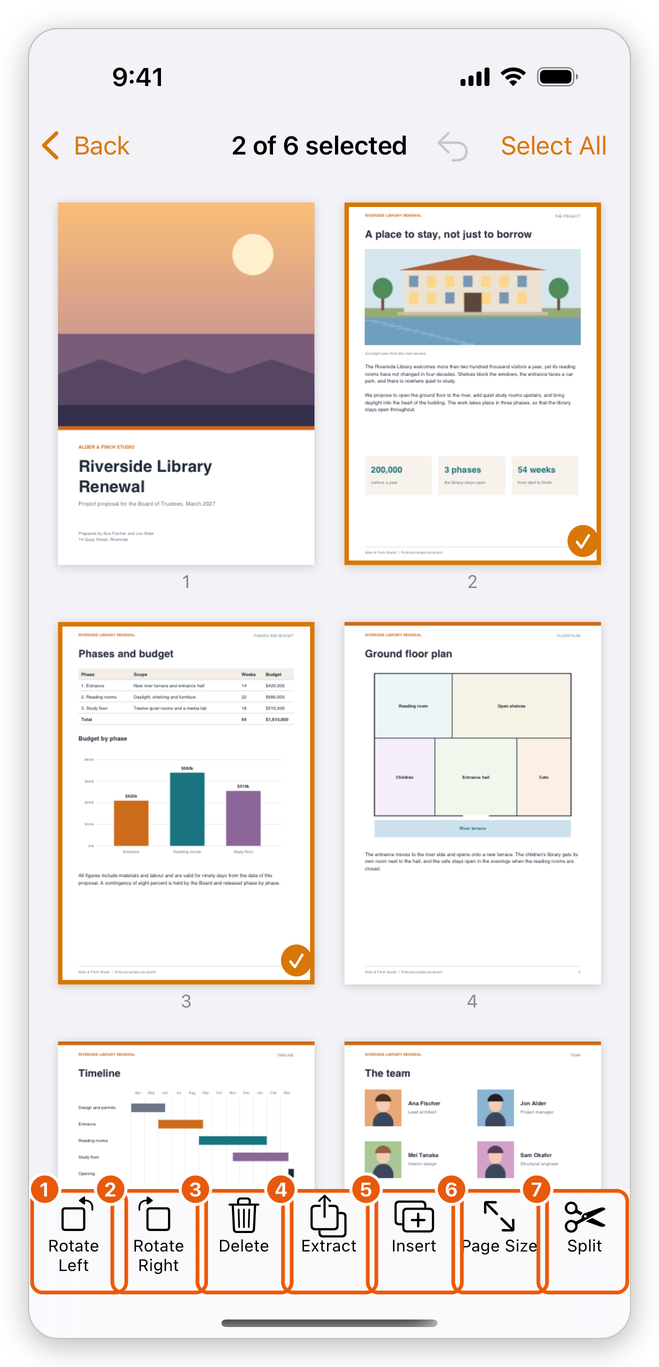
- Rotate Left
- Rotate Right
- Delete
- Extract: make a new document of the selected pages.
- Insert: add a blank page, a PDF, a photo or a scan.
- Page Size: give the selected pages another size.
- Split: make several smaller documents.
The title at the top says how many pages the document has, or how many of them are selected. To go back to the document, tap the back button at the top left: the document opens at the first page you selected.
Select pages
- Tap a page to select it. A tick and a blue border show it is selected. Tap other pages to add them to the selection, and tap a selected page again to take it out.
- Tap Select All at the top to select every page. Tap it again to clear the selection.
The tools work on the selected pages. Most of them are dimmed until a page is selected.
Rotate, delete and move pages
- Rotate: select the pages and tap Rotate Left or Rotate Right. Each tap turns them a quarter turn.
- Delete: select the pages and tap Delete. The app asks first; tap Delete again to confirm.
- Move: touch and hold a page until it lifts, then drag it to its new place and let go.
Undo, at the top of the screen, takes back the last change. The app saves the changes on its own, as it does for every edit (see Save a PDF).
Insert pages
The new pages go after the last selected page, or at the end of the document when no page is selected.
- Select the page the new pages go after.
- Tap Insert and choose what to insert:
- Blank Page: an empty page.
- PDF from Files: every page of a PDF you choose in Files.
- Photo: a photo from your library, as a page of its own size.
- Scan: pages you scan with the camera.
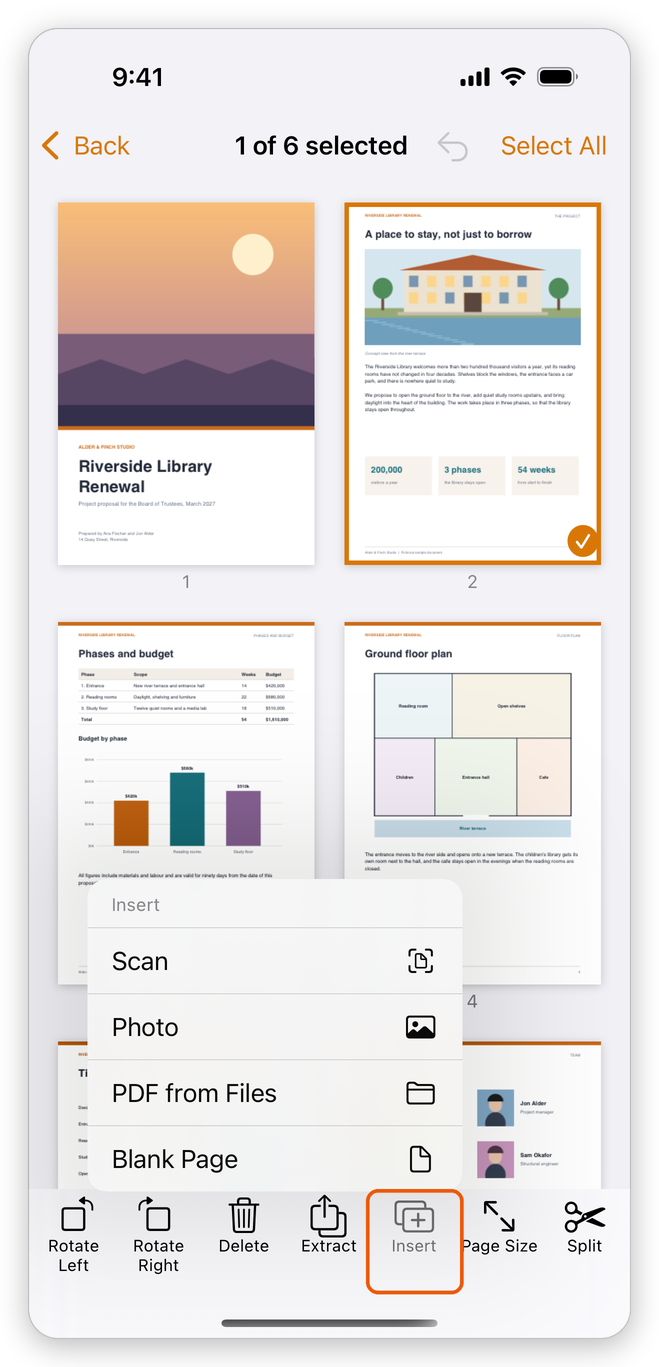
The page you inserted is selected, so you can see where it went.
Extract pages
Extracting makes a new document of some pages. The document itself does not change.
- Select the pages to extract.
- Tap Extract.
The new document is added to your documents, in the same folder, named after the document and the pages, such as Riverside Proposal (pages 2-3). A message at the bottom of the screen gives its name.
Split a document
Splitting makes several smaller documents from this one. The document itself does not change.
- Tap Split.
- Type how many pages each new document has, for example 2 to make a document of every two pages.
- Tap Split.
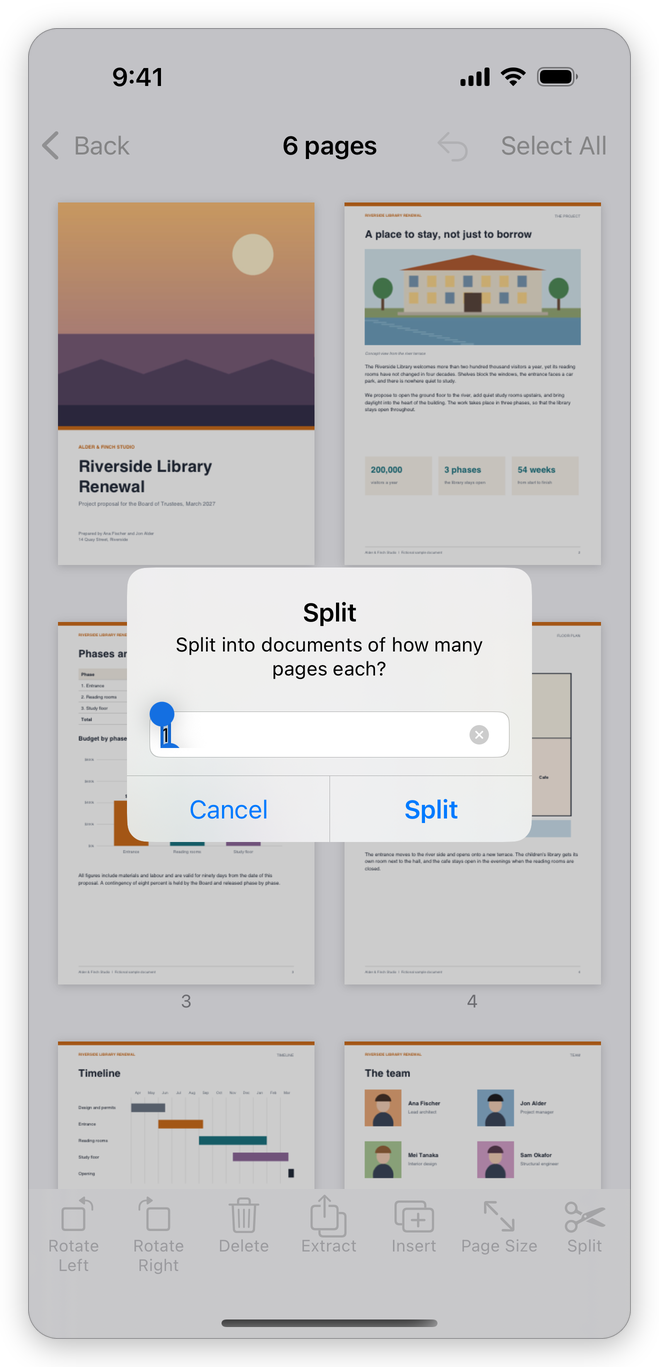
The new documents are added to your documents, in the same folder, each named after the document and its pages.
Change the page size
- Select the pages.
- Tap Page Size and choose Portrait or Landscape, then a paper size: Letter, Legal, Tabloid, Executive, A3, A4, A5, B4 or B5. Under each one is its size.
- To type a size of your own, choose Custom Size…, type the width and height, and tap OK. The size is in millimetres or inches, as your region measures.
Each page keeps its content as it is, centred on the new size.
Crop pages
Cropping keeps only part of a page, for example to cut off wide white margins.
- On the Tools tab, tap Crop Pages and choose the document. It opens with a frame over the page.
- Drag the corners of the frame to the part of the page to keep.
- Tap Apply. In a document of several pages, choose This Page or All Pages: every page is cropped by the same margins.
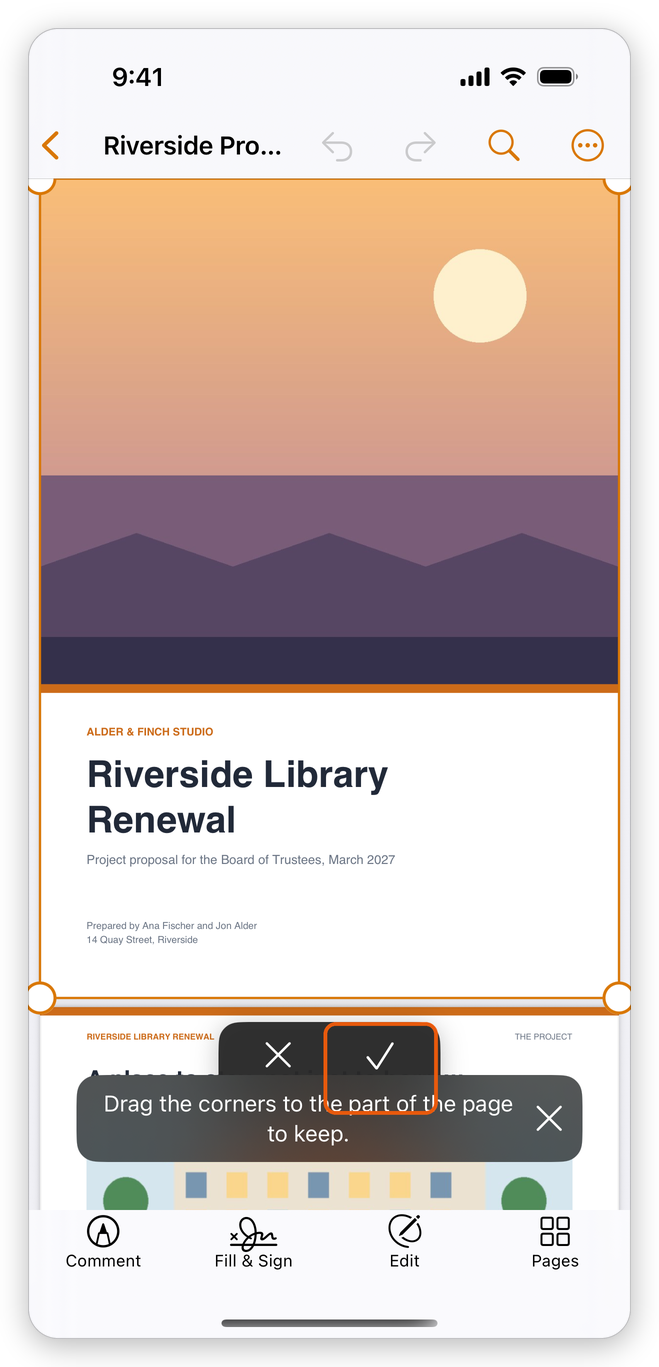
Tap Cancel to leave the page as it was.
Page tools on the Tools tab
The Tools tab also starts these page tools on a document of your library. Tap the tool, then tap the document in the list:
- Split PDF opens the document's Pages screen and asks how many pages each new document has.
- Extract Pages opens the Pages screen with no page selected: select the pages, then tap Extract.
- Crop Pages opens the document with the crop frame, as above.
To put several documents together, see Combine files.